Flex Pro Touchscreen: Blank, Frozen, Empty
← All Flex Pro troubleshooting
The touchscreen stays dark, does not respond to touch, shows an empty local library, or cannot save a hand-drawn file.
Disconnect power before disassembly or electrical testing. Turn off the engraving machine before removing the laser and disconnecting its cable, or removing and reinserting the TF card. Do not turn off the machine or remove the TF card during a firmware update.
¶ Touchscreen Won't Turn On
What you see: The Touchscreen Does Not Turn On
Please follow the steps below to troubleshoot the issue.
1) Confirm That the Mainboard Is Powered On Properly
- After powering on the machine, you should hear the normal startup beep.
- The machine can connect to the computer software successfully.
If the mainboard does not power on properly, refer to the “Unable to Power On Properly” section for troubleshooting instructions.
2) Check the Current Mainboard Firmware
Incorrect firmware may cause this issue. Send the firmware version to Customer Support for verification.
① Check on the Touchscreen
On the touchscreen, tap “Settings” → “System Update/Reset” to view the mainboard firmware version and touchscreen firmware version, as shown in Figure 58.
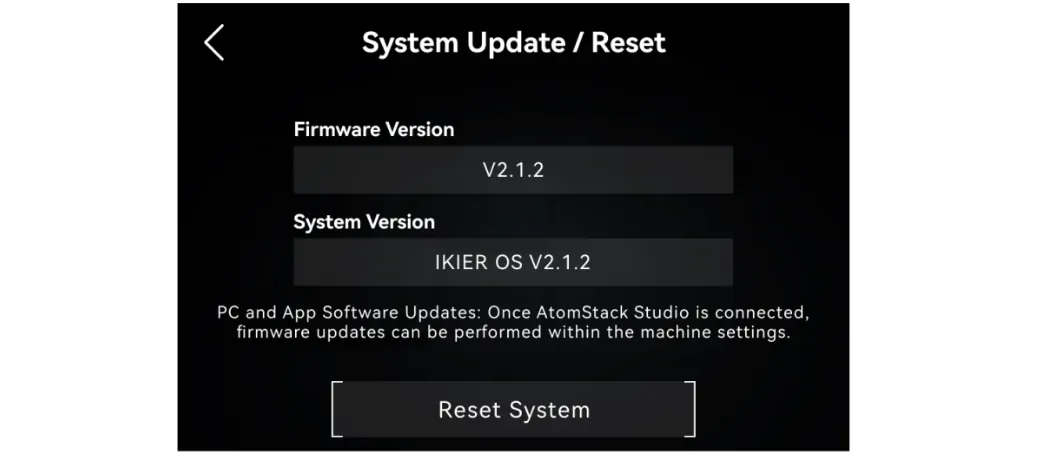
Figure 58
② Check in AtomStack Studio
Click the three-line menu icon in the top-right corner of the software interface to open the device information page. The current firmware version is displayed at the bottom of the page, as shown in Figure 59.
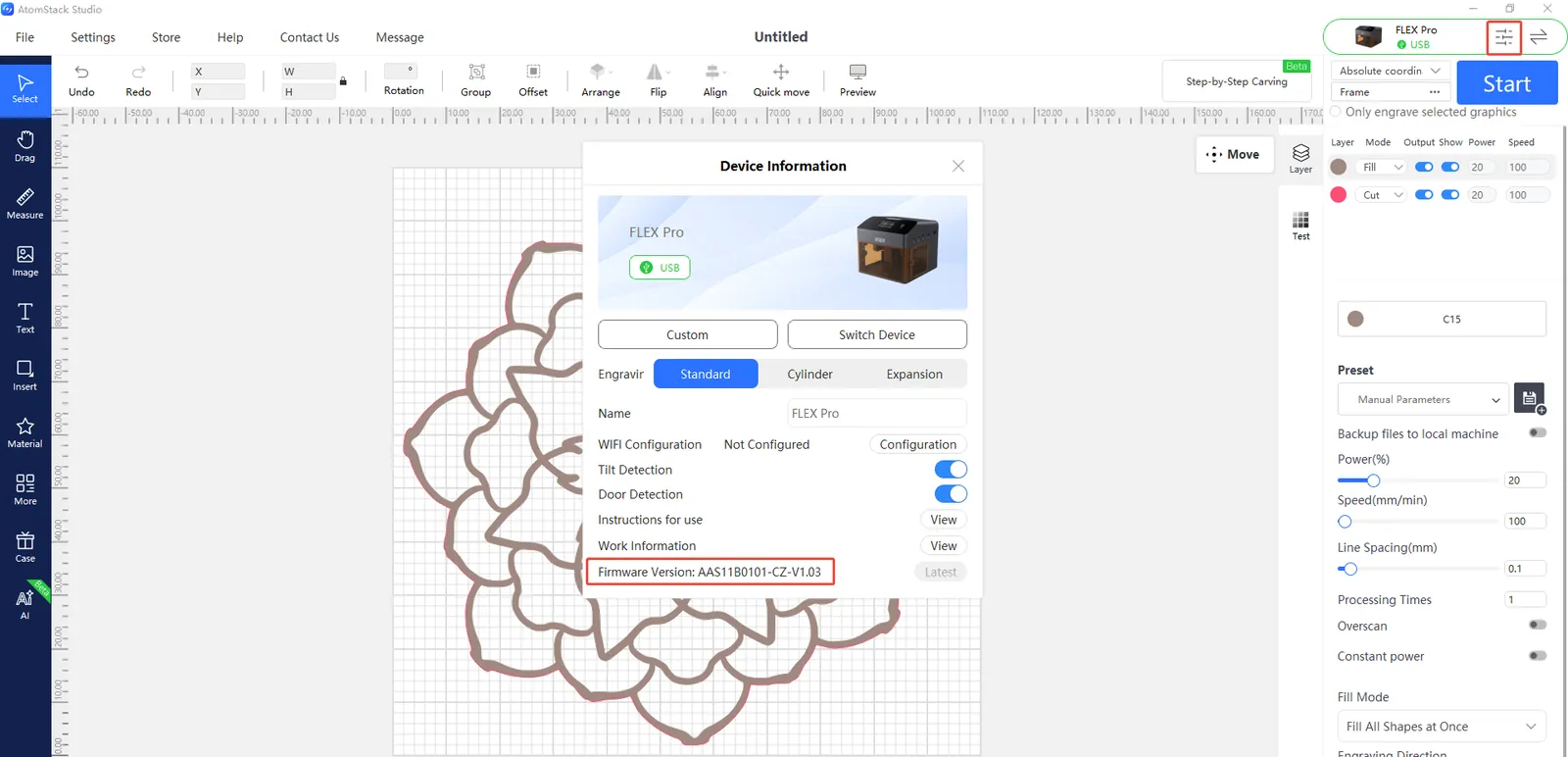
Figure 59
③ Check in the Mobile App
Tap “Settings” below the model name to open the device settings page. The current firmware version is displayed at the bottom of the page, as shown in Figure 60.
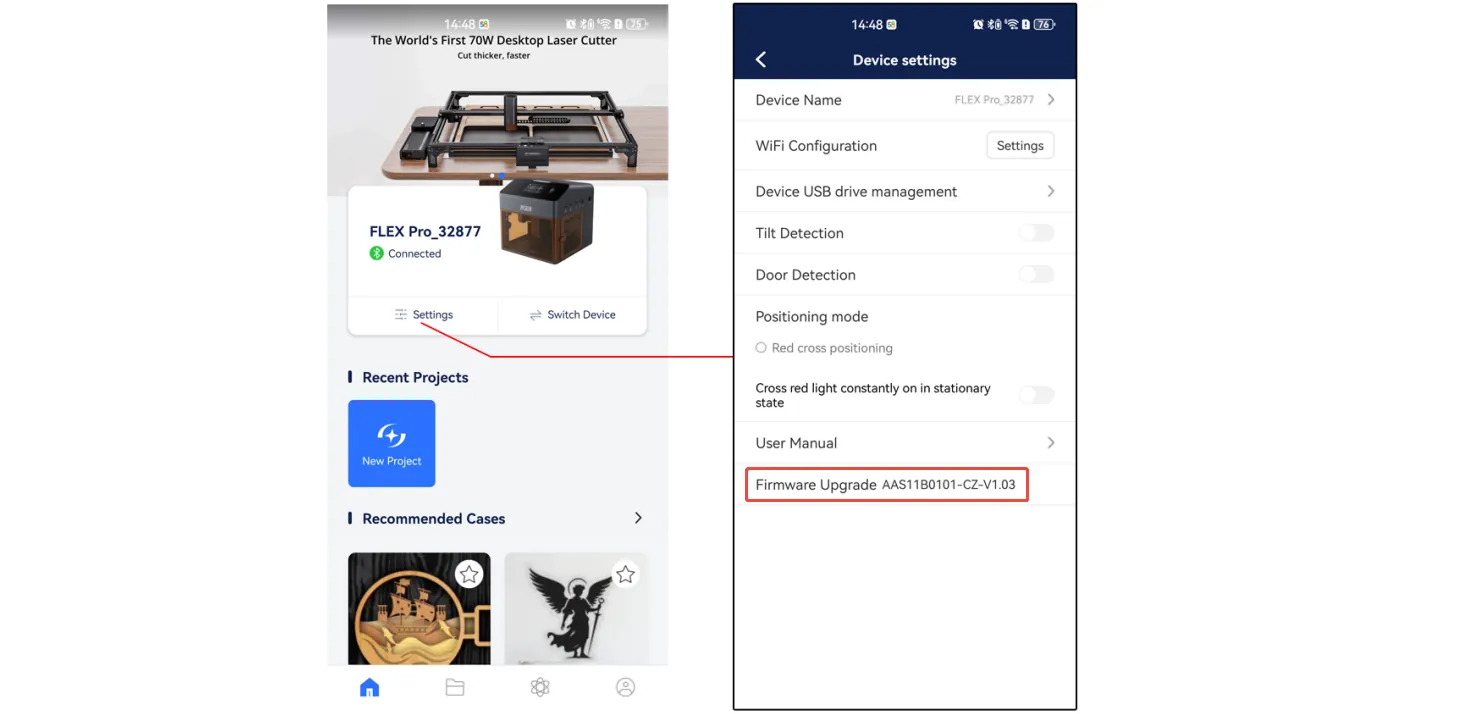
Figure 60
3) Update the Touchscreen Firmware
Obtain the touchscreen firmware compatible with the mainboard firmware from Customer Support. Use a card reader (not included) to copy the firmware file from your computer to the root directory of the TF card. Then insert the TF card into the engraver's “TF Card” slot and check whether the touchscreen displays the update progress.
4) Check the Touchscreen Cable Connection
Refer to the Flex Pro mainboard replacement video to open the top cover. Check whether the cable connecting the touchscreen to the mainboard is loose. Disconnect and reconnect the cable if necessary, then check whether the touchscreen works normally.
5) Check Whether the Touchscreen Responds with a Beep
Gently tap the left side of the touchscreen several times and check whether a beep is heard.
If a beep is heard but nothing is displayed, check the cable connection. If the touchscreen still does not display anything after reconnecting the cable, the touchscreen may be faulty.
6) Contact Customer Support
If the above steps do not resolve the issue, please contact Customer Support and provide the following information:
- A video showing the issue: Clearly demonstrate the touchscreen malfunction.
- A description of the troubleshooting steps performed.
- A photo of the device's Serial Number, as shown in Figure 61.
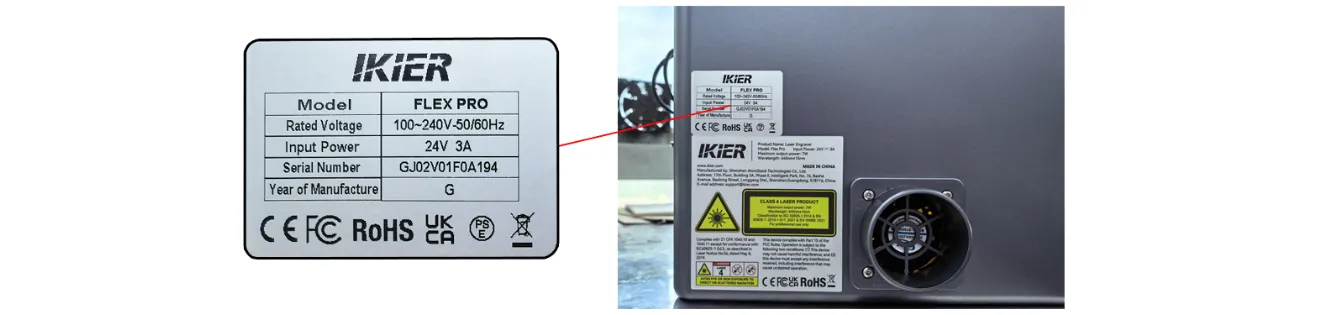
Figure 61
7) Component Replacement Reference
- If the touchscreen needs to be replaced, refer to the Flex Pro touchscreen replacement video.
- If the firmware needs to be flashed, refer to the Flex Pro firmware flashing video.
¶ Touchscreen Unresponsive
What you see: The Touchscreen Is Unresponsive, but the Display Works Normally
Please follow the steps below to troubleshoot the issue.
1) Check the Operating Method
The touchscreen requires a touch from a finger or another conductive object to register input. It will not respond to non-conductive objects such as pens or wood.
2) Check the Fixing Screws
Turn off the engraver. Refer to the Flex Pro touchscreen replacement video and loosen the screws securing the touchscreen. Then turn on the machine and check whether the touchscreen responds normally.
3) Check the Touchscreen Cable Connection
Open the top cover and check whether the cable connecting the mainboard to the touchscreen is loose. Disconnect and reconnect the cable, then test whether the touchscreen functions normally.
4) Update the Firmware
- Connect to AtomStack Studio or the mobile app and check whether the current firmware version is up to date, as shown in Figures 62 and 63.
Figures 62
Figures 63
- Obtain the touchscreen firmware compatible with the mainboard firmware from Customer Support. Use a card reader (not included) to copy the firmware file from your computer to the root directory of the TF card. Then insert the TF card into the engraver's “TF Card” slot. The touchscreen will display the update progress. Once the update is complete, test whether the touchscreen functions normally.
5) Contact Customer Support
If the above steps do not resolve the issue, please contact Customer Support and provide the following information:
- A video showing the issue: Clearly demonstrate the touchscreen malfunction.
- A description of the troubleshooting steps performed.
- A photo of the device's Serial Number, as shown in Figure 64.
Figure 64
6) Component Replacement Reference
- If the firmware needs to be flashed, refer to the Flex Pro firmware flashing video.
- If the touchscreen needs to be replaced, refer to the Flex Pro touchscreen replacement video.
¶ Local Examples Empty
What you see: The Local Examples on the Touchscreen Are Empty
Please follow the steps below to troubleshoot the issue.
1) Check Whether the Touchscreen TF Card Is Inserted
Refer to the Flex Pro touchscreen replacement video to open the top cover of the engraver, then remove the screws securing the touchscreen cover plate. Check whether a TF card is inserted into the touchscreen's TF card slot, as shown in Figure 65.
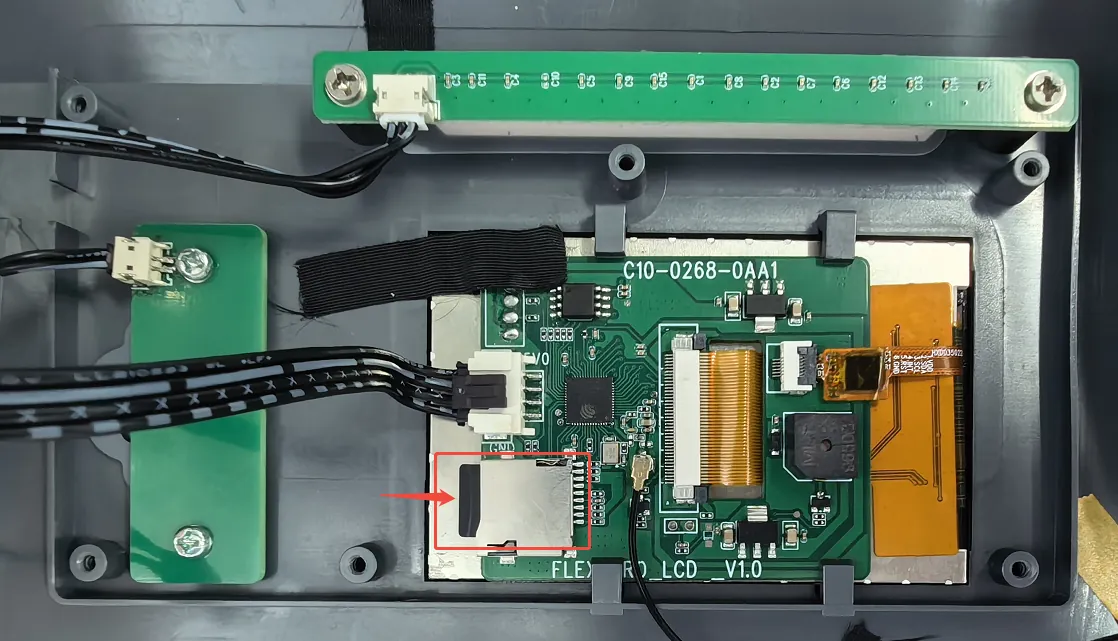
Figure 65
2) Check Whether the Touchscreen TF Card Can Be Read and Written Normally
Remove the TF card from the touchscreen and insert it into a USB port on your computer using a card reader (not included). Check whether the card can be read and written normally. Format the card to FAT32 and reinsert it into the touchscreen, then test again.
If you do not have a card reader, remove the TF card from the mainboard and insert it into the touchscreen. Use the “Freehand Drawing” function on the Creation screen to test whether it works normally.
If the Freehand Drawing function works normally and the machine can execute the engraving job, the touchscreen TF card is likely faulty. If the issue persists, the touchscreen itself is likely faulty.
3) Import Local Example Files
If the above steps confirm that the TF card is working normally, or if you have replaced it with a new TF card, contact Customer Support to obtain the touchscreen example file package and copy it to the TF card.
4) Contact Customer Support
If the above steps do not resolve the issue, or if you identify a problem that you cannot fix yourself, please contact Customer Support and provide the following information:
- A video showing the issue: Clearly demonstrate the problem.
- A description of the troubleshooting steps performed.
- A photo of the device's Serial Number, as shown in Figure 66.
Figure 66
¶ Can't Save Hand-Drawn
What you see: Unable to Save Hand-Drawn Designs on the Touchscreen
Please follow the steps below to troubleshoot the issue.
1) Check Whether the Touchscreen TF Card Is Inserted
Refer to the Flex Pro touchscreen replacement video to open the top cover of the engraver, then remove the screws securing the touchscreen cover plate. Check whether a TF card is inserted into the touchscreen's TF card slot, as shown in Figure 67.
Figure 67
2) Check Whether the Touchscreen TF Card Can Be Read and Written Normally
Check whether the TF card is damaged: Remove the TF card from the touchscreen and insert it into a USB port on your computer using a card reader (not included). Check whether the card can be read and written normally. Format the card to FAT32 and reinsert it into the touchscreen, then test again.
If you do not have a card reader, remove the TF card from the mainboard and insert it into the touchscreen. Use the “Freehand Drawing” function on the Creation screen to test whether it works normally.
If the Freehand Drawing function works normally and the machine can execute the engraving job, the touchscreen TF card is likely faulty. If the issue persists, the touchscreen itself is likely faulty.
3) Contact Customer Support
If the above steps do not resolve the issue, or if you identify a problem that you cannot fix yourself, please contact Customer Support and provide the following information:
- A video showing the issue: Clearly demonstrate the problem.
- A description of the troubleshooting steps performed.
- A photo of the device's Serial Number, as shown in Figure 68.
Figure 68