Flex Lines & Fumes: Open Lines, Poor Extraction
Lightweight material moves or has missing lines, lines or shapes do not close, fumes linger, or friction noise or brown debris appears.
Disconnect power before disassembly or electrical testing. Turn off the engraving machine before removing the laser and disconnecting its cable, or removing and reinserting the TF card. Do not turn off the machine or remove the TF card during a firmware update.
¶ Material Moves or Gaps
What you see: When processing thin and lightweight materials, the output pattern has "missing lines" or the material moves.
Check in this order:
Please follow the steps below to troubleshoot the issue:
- Secure the Four Corners of the Material
The engraving machine comes with 4 small magnets. Use the magnets to secure the four corners of the thin, lightweight material to the base plate to prevent the material from shifting due to airflow from the fan during processing.
- Make Sure the Material Is Lying Flat
Check whether the material is lying flat against the surface of the base plate. If it is warped or wrinkled, flatten it before processing.
- Test with a Different Material
Replace the material with a wooden board or another heavier material. Use the appropriate parameters for the material and perform an engraving test to check whether the output pattern still has "missing lines" or shifts during processing.
- Contact Customer Support
If the problem still cannot be resolved, please contact Customer Support and provide the following information:
-
Fault video: The video should clearly show the complete engraving process and the resulting engraving.
-
A description of the troubleshooting steps you have already performed.
-
A photo of the Serial Number label on the back of the machine (see Figure 79).
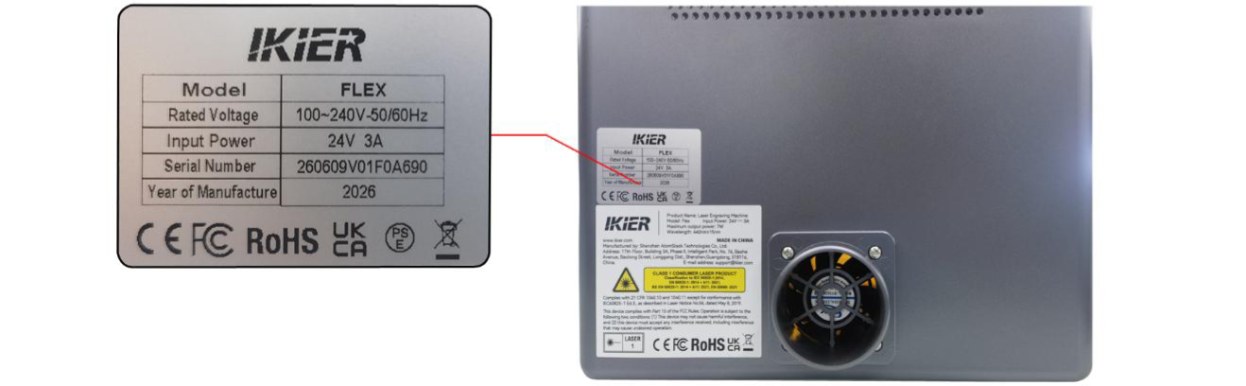
Figure 79
Still not fixed? Contact support with the details listed in What to send support.
Related problems: Distorted Patterns · Lines Do Not Close · Shapes Do Not Close
¶ Lines Do Not Close
What you see: When engraving lines, the output pattern is disconnected at corners or junctions.
Check in this order:
Follow the steps below to troubleshoot the issue:
- Check the Power Settings in the Software
Compare the current settings with the recommended parameter table and check whether they are correct. You can try increasing the power or reducing the speed appropriately and perform a test to see whether the line closure improves.
- Enable Constant Power Mode
Enable “Constant Power”mode in the software and test whether this resolves the issue.
- Adjust the Minimum Power Value
Unclosed lines are usually related to the laser's minimum power value ($31) being set too low. Adjust the value as follows:
- AtomStack Studio:
① Open the “Settings” menu, then left-click the software version number more than 7 times consecutively to activate “Developer Mode”.
② Click “Serial Port Log” in the menu bar to open the console.
③ Enter and send “$31=*” in the command input field (where * represents the specific value). Gradually increase the value until the lines are closed. For example, if the lines cannot be closed when “$31” is set to “0”, send “$31=10”. If the lines are still not closed, continue increasing the value and send “$31=20”, and so on until the lines are fully closed.
- LightBurn:
① Click “Edit”, select “Machine Settings”, and locate $31.
② Gradually increase the value, then click “Write”→“OK” to save the settings.
③ Repeat this process, continuously increasing the $31 value until the lines are fully closed.
- Restore Factory Settings
If the issue persists after completing the above steps, restore the machine to its factory settings and eliminate the possibility of incorrect parameters causing the issue.
- Contact Customer Support
If the problem still cannot be resolved, please contact Customer Support and provide the following information:
-
Fault video: Clearly show the software operation steps, engraving process, and engraving results.
-
A description of the troubleshooting steps you have already performed.
-
A photo of the device Serial Number label (see Figure 80).
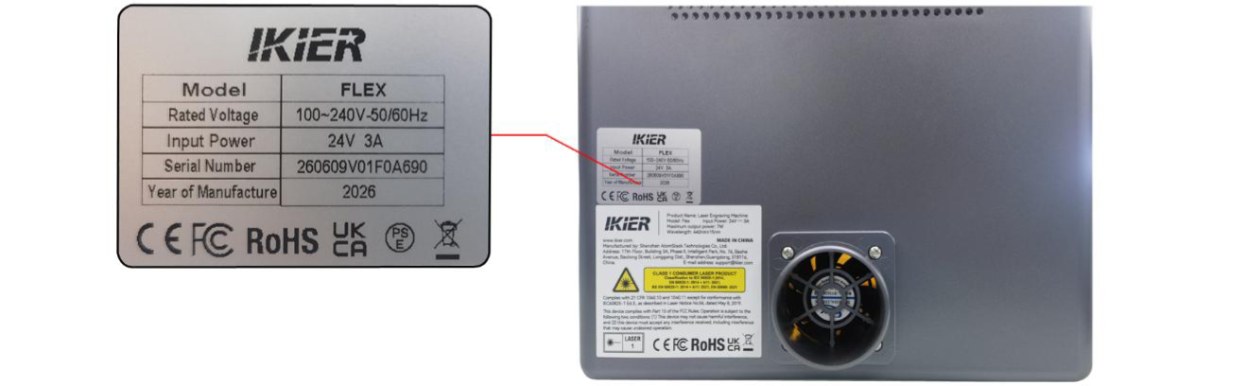
Figure 80
Confirm the fix: Engrave again and confirm that the lines are fully closed.
Still not fixed? Contact support with the details listed in What to send support.
Related problems: Shapes Do Not Close · Material Moves or Gaps · Poor Engraving Results
¶ Shapes Do Not Close
What you see: When engraving circles or squares, the lines at the corners or junctions of the output pattern are disconnected.
Check in this order:
Follow the steps below to troubleshoot the issue:
- Check the Power Settings in the Software
Compare the current settings with the recommended parameter table and check whether they are correct. You can try increasing the power or reducing the speed appropriately and perform a test to see whether the line closure improves.
- Enable Constant Power Mode
Enable “Constant Power”mode in the software and test whether this resolves the issue.
- Adjust the Minimum Power Value
Unclosed lines are usually related to the laser's minimum power value ($31) being set too low. Adjust the value as follows:
- AtomStack Studio:
① Open the “Settings” menu, then left-click the software version number more than 7 times consecutively to activate “Developer Mode”.
② Click “Serial Port Log” in the menu bar to open the console.
③ Enter and send “$31=*” in the command input field (where * represents the specific value). Gradually increase the value until the lines are closed. For example, if the lines cannot be closed when “$31” is set to “0”, send “$31=10”. If the lines are still not closed, continue increasing the value and send “$31=20”, and so on until the lines are fully closed.
- LightBurn:
① Click “Edit”, select “Machine Settings”, and locate $31.
② Gradually increase the value, then click “Write”→“OK” to save the settings.
③ Repeat this process, continuously increasing the $31 value until the lines are fully closed.
- Restore Factory Settings
If the issue persists after completing the above steps, restore the machine to its factory settings and eliminate the possibility of incorrect parameters causing the issue.
- Contact Customer Support
If the problem still cannot be resolved, please contact Customer Support and provide the following information:
-
Fault video: Clearly show the software operation steps, engraving process, and engraving results.
-
A description of the troubleshooting steps you have already performed.
-
A photo of the device Serial Number label (see Figure 81).
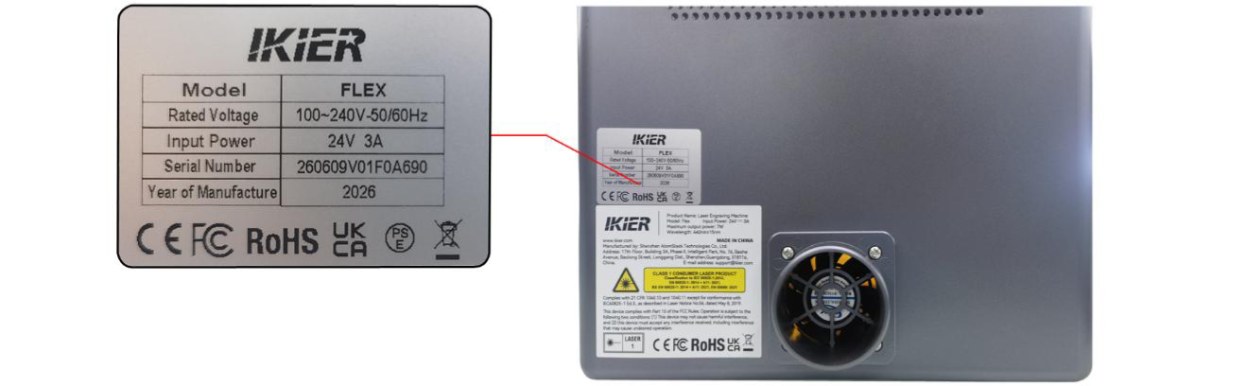
Figure 81
Confirm the fix: Engrave circles or squares again and confirm that the lines are fully closed.
Still not fixed? Contact support with the details listed in What to send support.
Related problems: Lines Do Not Close · Distorted Patterns · Material Moves or Gaps
¶ Fumes Not Exhausted
What you see: Smoke and fumes inside the enclosure cannot be exhausted in time.
Check in this order:
If smoke and fumes are not being properly exhausted, follow the steps below to troubleshoot the issue:
- Check the Enclosure Fan
- Check whether the fan is running
Observe whether the fan operates normally during engraving or cutting. If the fan is not running properly, check whether the fan cable is securely connected to the mainboard. Disconnect the cable and reconnect it to see if the issue is resolved. If the problem persists, use an adapter to supply power to the fan separately to test whether the fan can operate normally.
- Check whether the fan blades are intact
If the fan is running, carefully check whether the fan blades are cracked, broken, or damaged. Broken or damaged fan blades can significantly reduce exhaust performance and cause abnormal noise.
- Check whether the fan has accumulated dust
If the fan blades are intact, check whether there is dust buildup on their surface. If they are dirty, clean them.
- Check the Exhaust Hose
Make sure the exhaust hose is not bent or blocked, and ensure that the exhaust passage is unobstructed.
- Troubleshoot the Air Purifier
If an air purification device (air purifier) is connected, try disconnecting the exhaust hose from the air purifier and directing the exhaust directly outdoors. Check whether the exhaust performance improves:
-
Exhaust returns to normal: This indicates that the issue may be with the air purification device, such as a clogged filter or device malfunction.
-
Exhaust is still abnormal: Continue checking the enclosure fan or exhaust hose.
- Contact Customer Support
If the problem still cannot be resolved after completing the above steps, please contact Customer Support and provide the following information:
-
Fault video: Clearly show the fan status, exhaust hose condition, and exhaust performance.
-
A description of the troubleshooting steps you have already performed.
-
A photo of the device Serial Number label (see Figure 82).
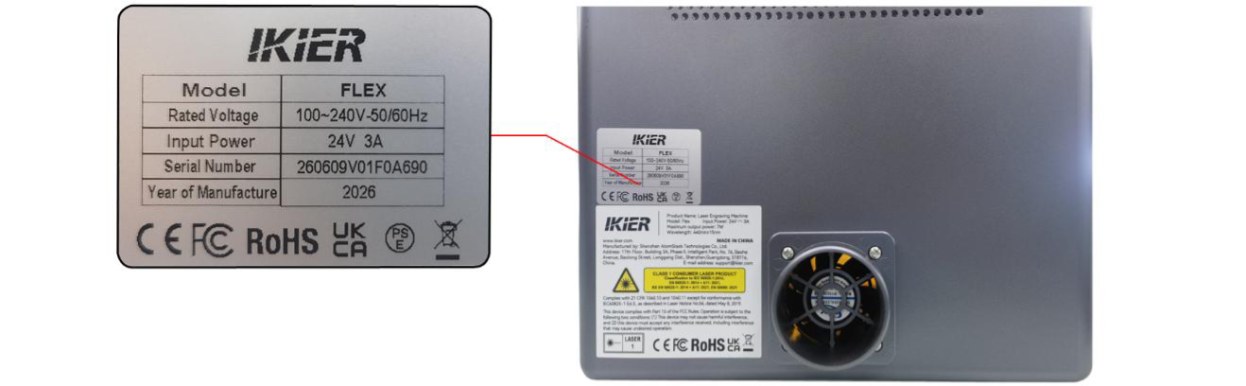
Figure 82
Still not fixed? Contact support with the details listed in What to send support.
Related problems: Friction or Brown Debris · Material Moves or Gaps
¶ Friction or Brown Debris
What you see: There is abnormal friction noise during engraving or brown debris inside the enclosure.
Check in this order:
Please follow the steps below to troubleshoot the issue:
- Check the Timing Belt Idler Pulleys
Turn off the engraving machine and open the enclosure door. Check each idler pulley that the timing belt passes through and make sure that the timing belt has not come off the pulley groove.
- Check the Motor Timing Pulley
Turn off the machine, open the enclosure door and the top cover, and check whether the motor timing pulley is properly aligned with the timing belt, with no pulling or angled tension, as shown in Figure 83. If any abnormality is found, loosen the screws on the timing pulley, adjust it to the proper position, and then tighten the screws.
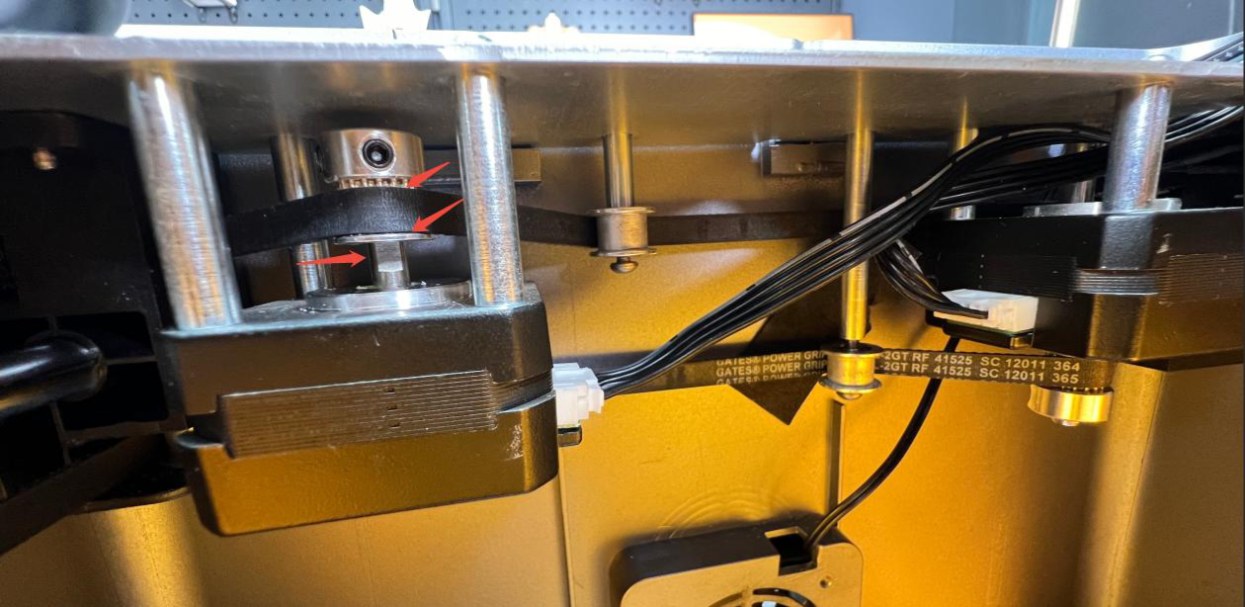
Figure 83
- Check the Surface of the Linear Shafts
Open the top cover and check the surfaces of the three linear shafts for signs of friction or wear. Also check whether the grease is dry or insufficient. If necessary, clean and lubricate them.
- Contact Customer Support
If the problem still cannot be resolved after completing the above steps, or if you have identified an issue that you cannot repair yourself, please contact Customer Support and provide the following information:
-
Fault video: Clearly show the issue and the abnormal condition.
-
A description of the troubleshooting steps you have already performed.
-
Clear photos of the faulty component.
-
A photo of the device Serial Number label (see Figure 84).
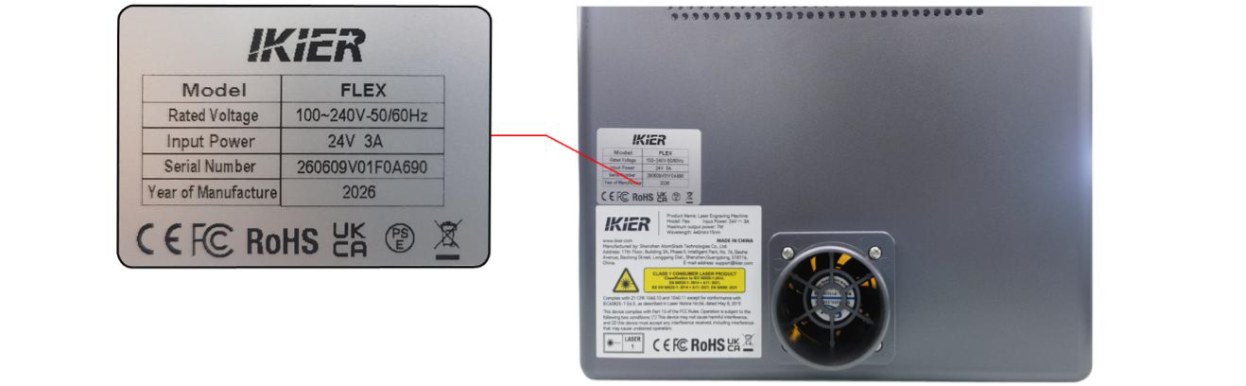
Figure 84
Still not fixed? Contact support with the details listed in What to send support.
Related problems: Distorted Patterns · Patterns Skewed at 45° · Fumes Not Exhausted