Flex Laser: No Laser Output, Weak Cutting
The protective glass is dirty or damaged, cutting weakens, the laser emits no light, or engraved patterns look poor, distorted, reversed, or skewed.
Disconnect power before disassembly or electrical testing. Turn off the engraving machine before removing the laser and disconnecting its cable, or removing and reinserting the TF card. Do not turn off the machine or remove the TF card during a firmware update.
¶ Window Dirty or Damaged
What you see: The laser protective window glass is dirty or damaged.
Check in this order:
- Dirty
When the laser protective window is dirty, it must be cleaned. Otherwise, it may significantly affect the laser power and may even cause the protective window to become damaged.
① Cleaning Tools
-
Lint-free cloth.
-
Absolute ethanol (purity of 99% or higher is recommended).
② Cleaning Procedure
- Remove the Laser
Turn off the engraving machine, remove the laser, and disconnect the laser cable.
- Clean the Glass
Apply a small amount of absolute ethanol to a lint-free cloth. Wipe the lens gently in a spiral motion from the center outward, moving in a single direction. Avoid wiping back and forth, as this may cause scratches.
- Damaged
The protective window of the 7W laser cannot be repaired. Once damaged, the entire laser must be replaced. The protective window of the 12W laser can be replaced separately. To prevent the protective window from being damaged due to abnormalities such as burned-on stains, refer to the "Laser Maintenance" section and clean the protective window regularly to keep its surface clean.
- Contact Customer Service
If you identify a problem during troubleshooting but cannot resolve it yourself, please provide the following information to Customer Service:
-
Clear Photos: Provide clear photos showing the dirt or damage.
-
Laser Engraved Serial Number: Provide the laser's engraved serial number, as shown in Figure 33.
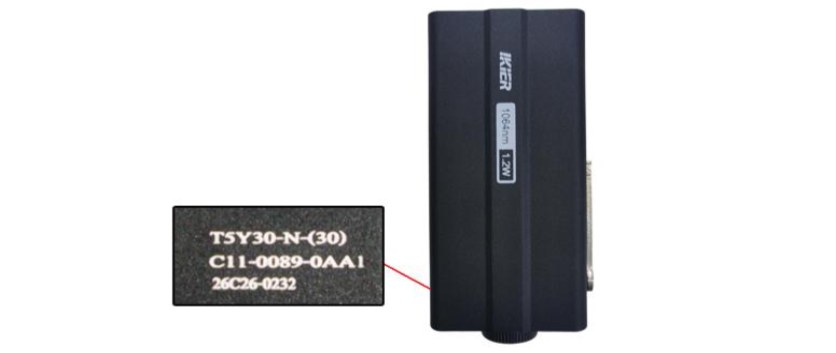
Figure 33
Still not fixed? Contact support with the details listed in What to send support.
Related problems: Weaker Cutting Power · Poor Engraving Results
¶ Weaker Cutting Power
What you see: The laser’s cutting performance has significantly decreased compared with before.
Check in this order:
Please follow the steps below to troubleshoot the issue:
- Check the Software Parameters
Different materials require different processing parameters. Refer to the parameter table to confirm whether the power, speed, and speed unit are set correctly.
- Check the Material Batch
Different batches of materials may produce different cutting results due to variations in the manufacturing process. It is recommended to:
-
Use materials from the same batch for comparison testing.
-
Alternatively, cut A4 printing paper to determine whether the laser power has significantly decreased.
The recommended parameters for cutting A4 paper are as follows: → Flex 12W: 60% power, 2000 mm/min speed. → Flex 7W: 100% power, 1300 mm/min speed.
- Check the Laser Protective Window
A dirty or damaged protective window can significantly affect the laser output power. Follow the instructions in the "The Laser Window Lens Is Dirty or Damaged" section to troubleshoot the issue.
- Check the Maximum S-Value (LightBurn)
The “S-Value Max”must remain set to“1000”(as shown in Figure 34). Do not change this value, as doing so may affect the laser power and service life.
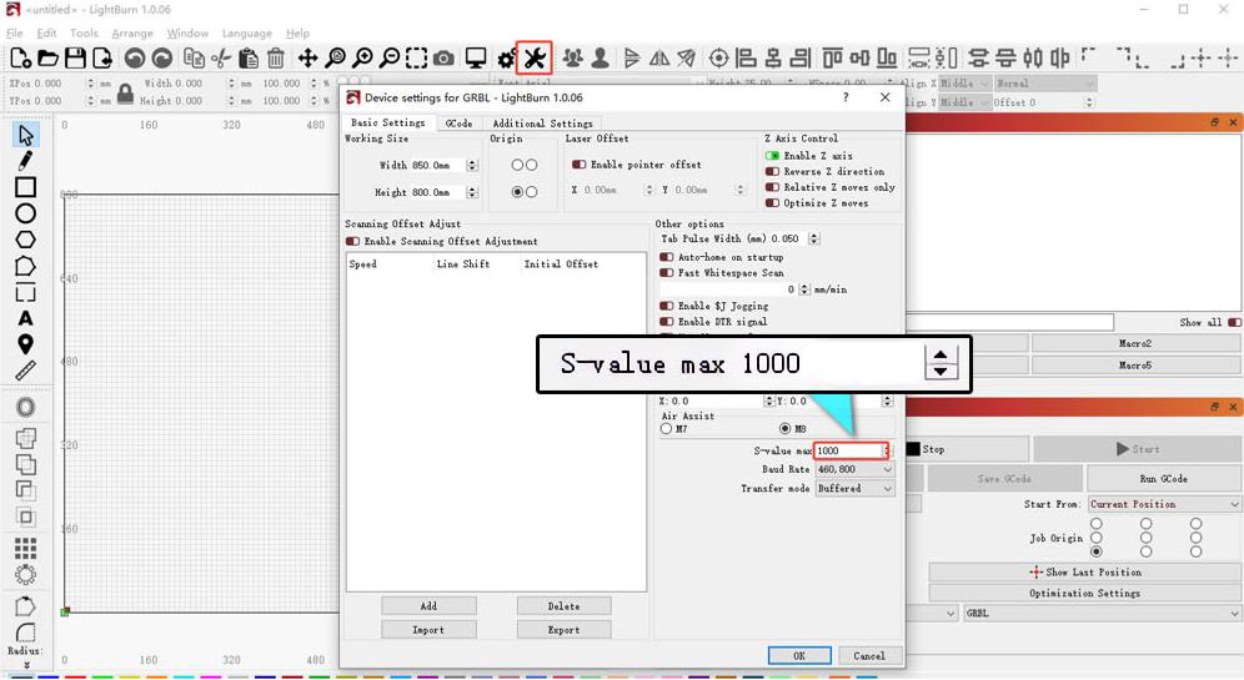
Figure 34
- Check the Power Supply Output
Insufficient voltage or current can directly affect the laser power.
-
Measure the Power Adapter: Set the multimeter to DC voltage mode and measure the output voltage of the power adapter. The output should be 24 V. If an ammeter is available, measure whether the maximum output current of the power adapter reaches 3 A.
-
Measure the Laser Cable: Disconnect the laser cable, run a cutting program at 100% power and a speed of 1 mm/min, and use a multimeter in DC voltage mode to measure whether the voltage between Pins 1 and 2 is 24 V and between Pins 2 and 3 is 5 V, as shown in Figure 35.
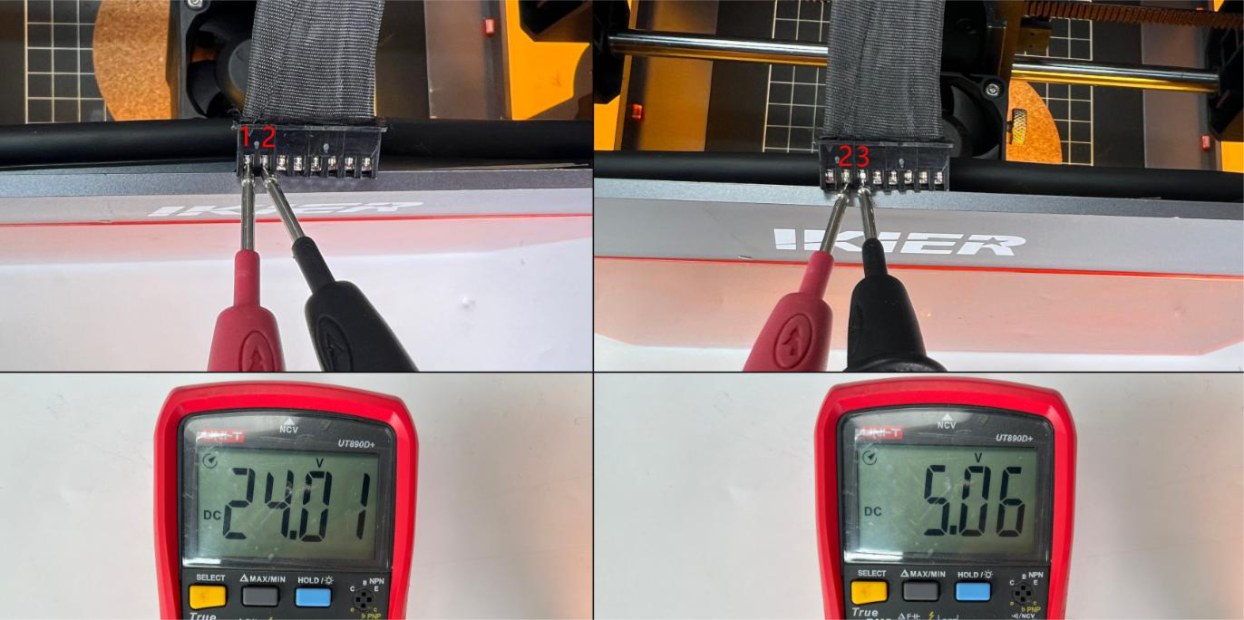
Figure 35
- Contact Customer Service
If you identify a problem during troubleshooting but cannot resolve it yourself, or if the cause of the fault cannot be determined, please provide the following information to Customer Service:
-
Cutting Video: The video must clearly show the set power, speed, material thickness, cutting process, and final result.
-
Troubleshooting Steps: Provide a description of the steps that have already been checked or performed. If voltage measurements were taken, provide the measurement results.
-
Laser Protective Window Photos: Provide clear photos of the protective window.
-
Laser Engraved Serial Number: Provide the laser's engraved serial number, as shown in Figure 36.
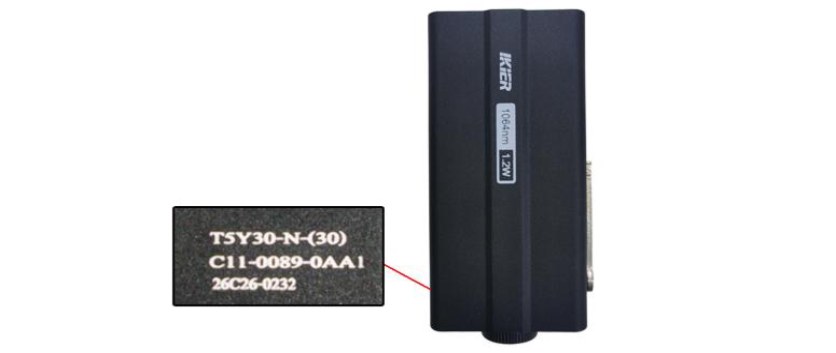
Figure 36
Still not fixed? Contact support with the details listed in What to send support.
Related problems: Window Dirty or Damaged · Laser Moves but No Light · Poor Engraving Results
¶ Laser Moves but No Light
What you see: The laser head moves during engraving but does not emit laser light.
Check in this order:
Please follow the steps below to troubleshoot the issue:
- Confirm That the Focus Is Set Correctly (Infrared Laser)
After placing the material, perform the focusing procedure. If necessary, refer to the "Laser Focusing Instructions" section and refocus the laser. The infrared laser is highly sensitive to the focusing distance, and infrared light is invisible. If the focusing distance is incorrect, you will not be able to see the engraving sparks.
- Check the Laser Cable
Check whether the laser cable is properly connected. Disconnect and reconnect the cable if necessary.
- Check the Mainboard Cable
Open the top cover of the enclosure and check whether the laser cable connected to the mainboard is loose. Disconnect and reconnect the cable if necessary.
- Measure the Voltage of the Laser Cable
- Disconnect the laser cable, run a cutting program at 100% power and a speed of 1 mm/min, and use a multimeter in DC voltage mode to measure whether the voltage between Pins 1 and 2 is 24 V and between Pins 2 and 3 is 5 V, as shown in Figure 37.
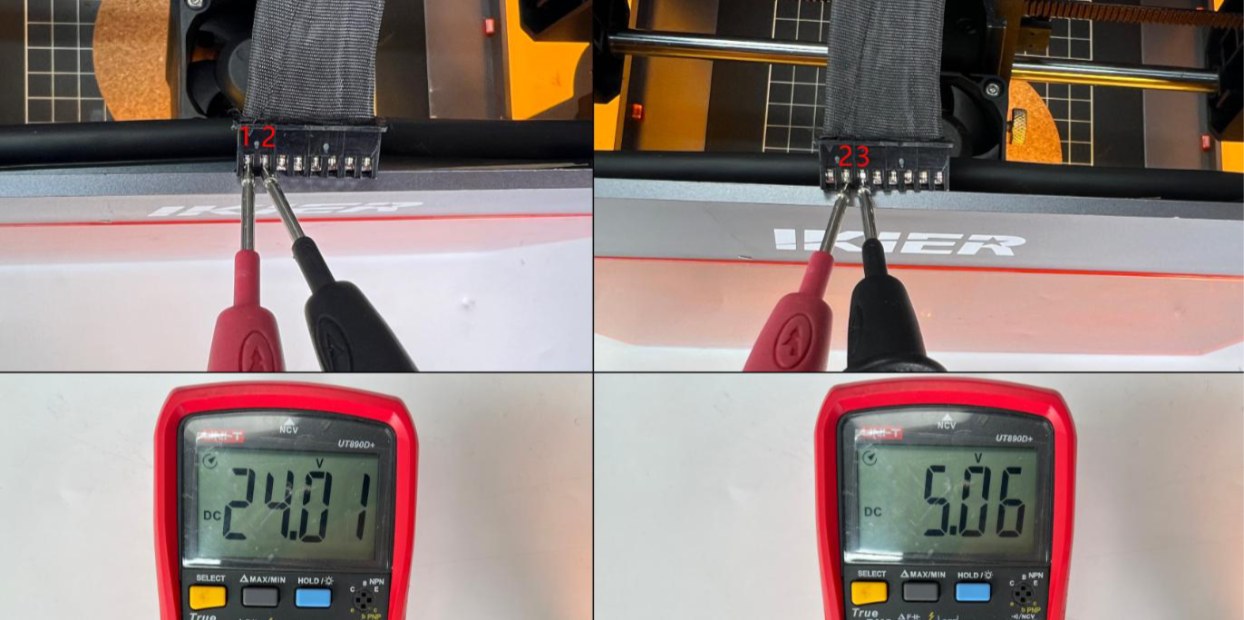
Figure 37
- Contact Customer Service
If you identify a problem during troubleshooting but cannot resolve it yourself, or if the cause of the fault cannot be determined, please provide the following information to Customer Service:
-
Troubleshooting Video.
-
Troubleshooting Steps: Provide a description of the steps that have already been checked or performed. If voltage measurements were taken, provide the measurement results.
-
Laser Engraved Serial Number: Provide the laser's engraved serial number, as shown in Figure 38.
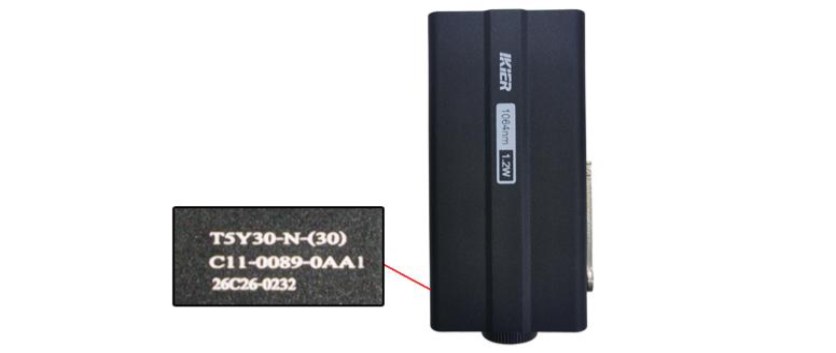
Figure 38
Still not fixed? Contact support with the details listed in What to send support.
Related problems: Weaker Cutting Power · Poor Engraving Results
¶ Poor Engraving Results
What you see: Engraving results are poor.
Check in this order:
Please follow the steps below to troubleshoot the issue:
- Confirm That the Focus Is Set Correctly
After placing the material, refocus the laser. Swing down the focusing rod until its end just touches the surface of the material, as shown in Figure 39.
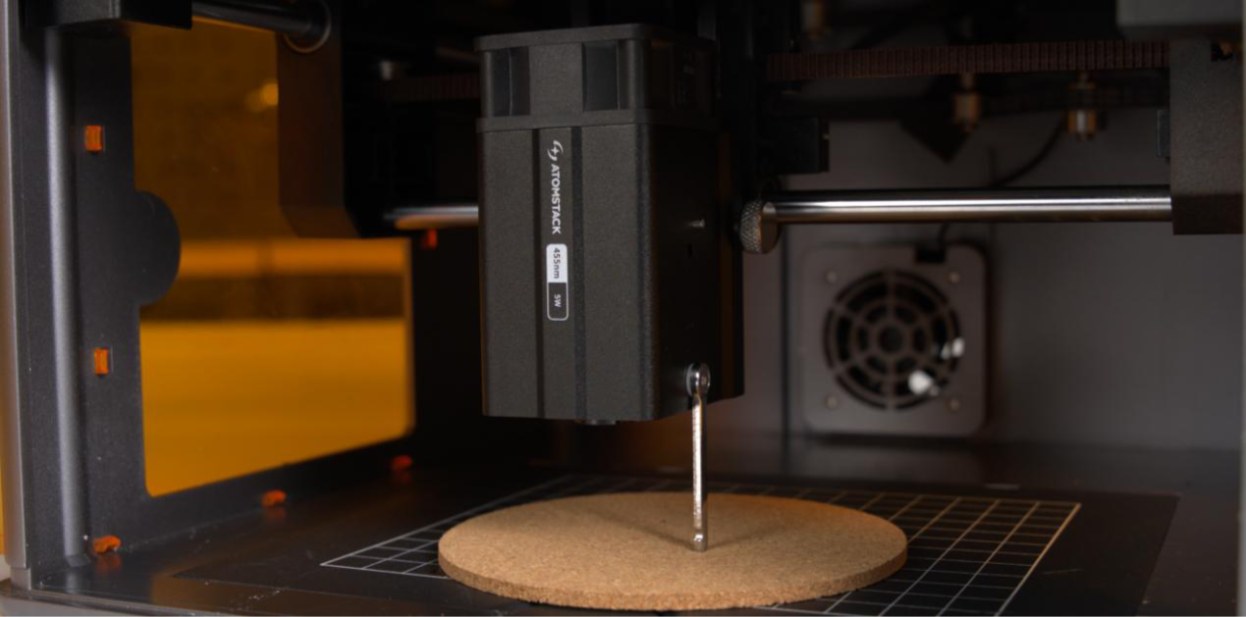
Figure 39
- Check the Software Parameters
Different materials require different processing parameters. Refer to the parameter table to confirm whether the power, speed, and speed unit are set correctly. The parameter table can be accessed by scanning the QR code on the back of the device, or you can contact Customer Service to request it.
- Confirm the S-Value Max (LightBurn)
The S-Value Max must remain set to 1000 (as shown in Figure 40). Do not change this value, as doing so may affect the laser power and service life.
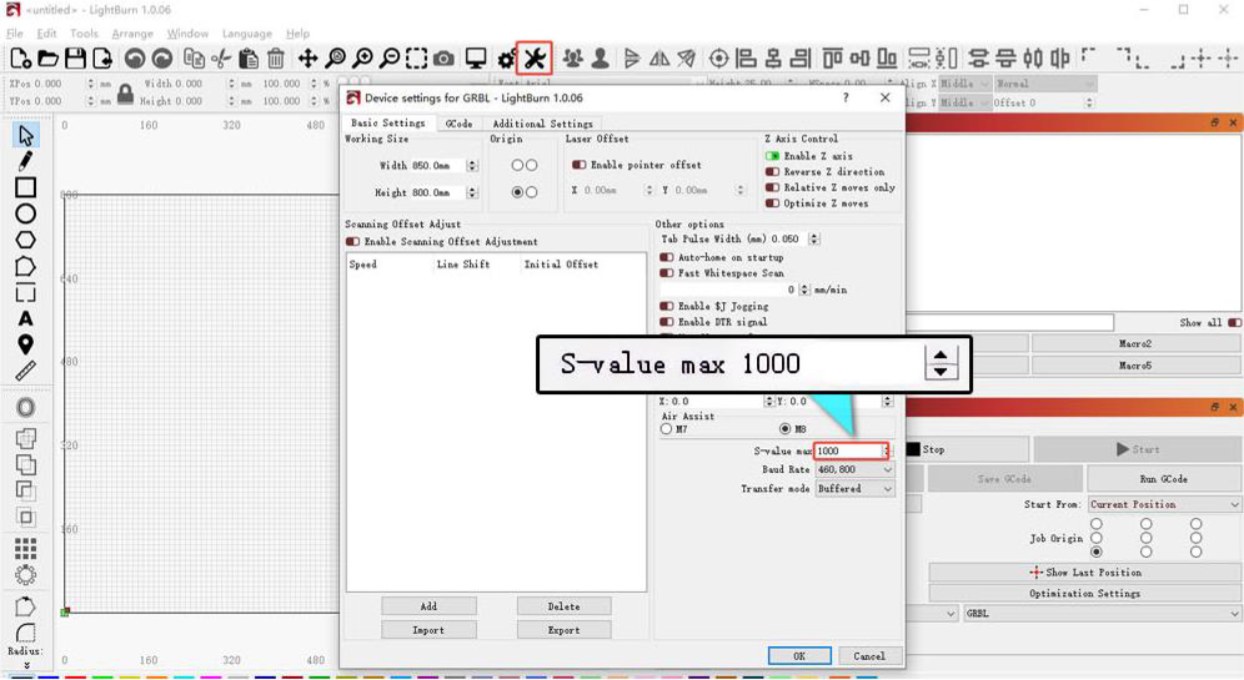
Figure 40
- Check the Protective Window Glass
A dirty or damaged protective window can significantly affect the laser output power. Follow the instructions in the "The Laser Window Glass Is Dirty or Damaged" section to troubleshoot the issue.
- Check the Power Supply Output
Insufficient voltage or current can directly affect the laser power.
-
Measure the Power Adapter: Set the multimeter to DC voltage mode and measure whether the output voltage of the power adapter is 24 V. If an ammeter is available, measure whether the maximum output current of the power adapter reaches 3 A.
-
Measure the Laser Cable: Disconnect the laser cable, run a cutting program at 100% power and a speed of 1 mm/min, and use a multimeter in DC voltage mode to measure whether the voltage between Pins 1 and 2 is 24 V and between Pins 2 and 3 is 5 V, as shown in Figure 41.
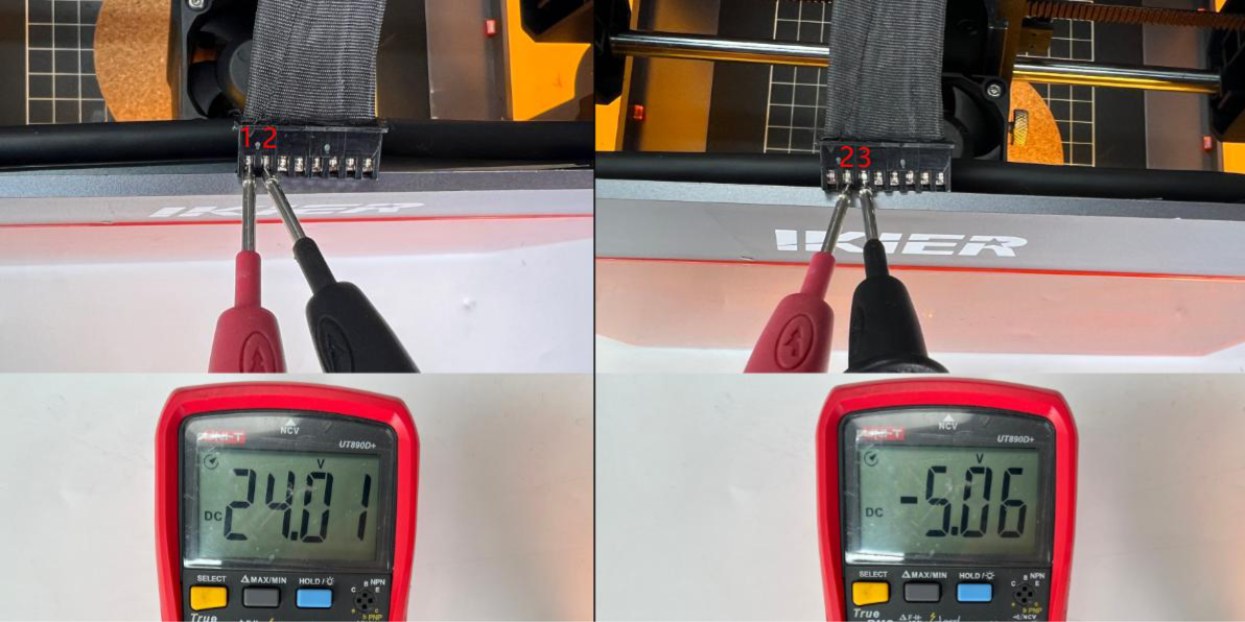
Figure 41
- Power Test
Secure a sheet of A4 paper and perform a cutting test using the recommended parameters below to determine whether the laser power is abnormal. The recommended parameters for cutting A4 paper are as follows: → Flex 12W: 60% power, 2000 mm/min speed. → Flex 7W: 100% power, 1300 mm/min speed.
- Contact Customer Service
If none of the above steps resolve the issue, please contact Customer Service and provide the following information:
-
Engraving Video: The video must clearly show the focusing process, set power, speed, engraving process, and final result.
-
Troubleshooting Steps: Provide a description of the steps that have already been checked or performed. If voltage measurements were taken, provide the measurement results.
-
Cutting Video: Provide a video of the A4 paper cutting test. The video must clearly show the focusing process, set power, speed, cutting process, and final result.
-
Laser Engraved Serial Number: Provide the laser's engraved serial number, as shown in Figure 42.
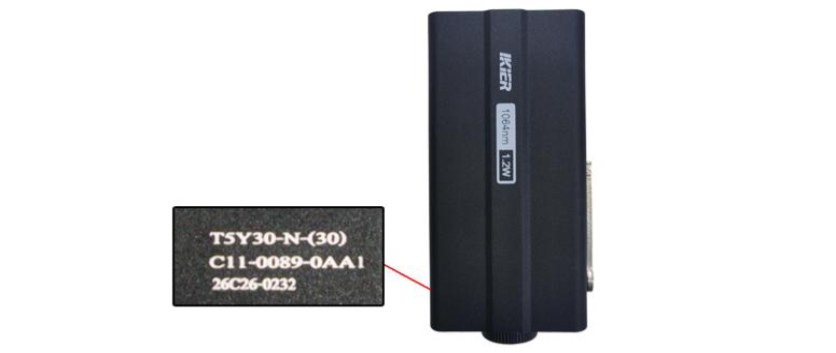
Figure 42
Still not fixed? Contact support with the details listed in What to send support.
Related problems: Window Dirty or Damaged · Weaker Cutting Power · Distorted Patterns
¶ Distorted Patterns
What you see: The engraved output pattern is distorted.
Check in this order:
Troubleshoot the issue according to the symptoms below. It is recommended to first engrave a circular or square pattern, and then troubleshoot the issue based on the actual movement trajectory as follows:
- Moving Diagonally at a 45° Angle
- Check the Motor Cable
Disconnect the motor cable and reconnect it. Check whether the issue is resolved.
- Check the Motor Cable on the Mainboard
Open the top cover of the enclosure and locate the motor cable on the side of the mainboard near the power switch (as shown in Figure 43). Make sure that the cable is fully inserted and securely connected. If it is loose, disconnect and reconnect it, ensuring that the connector is firmly seated in the socket.
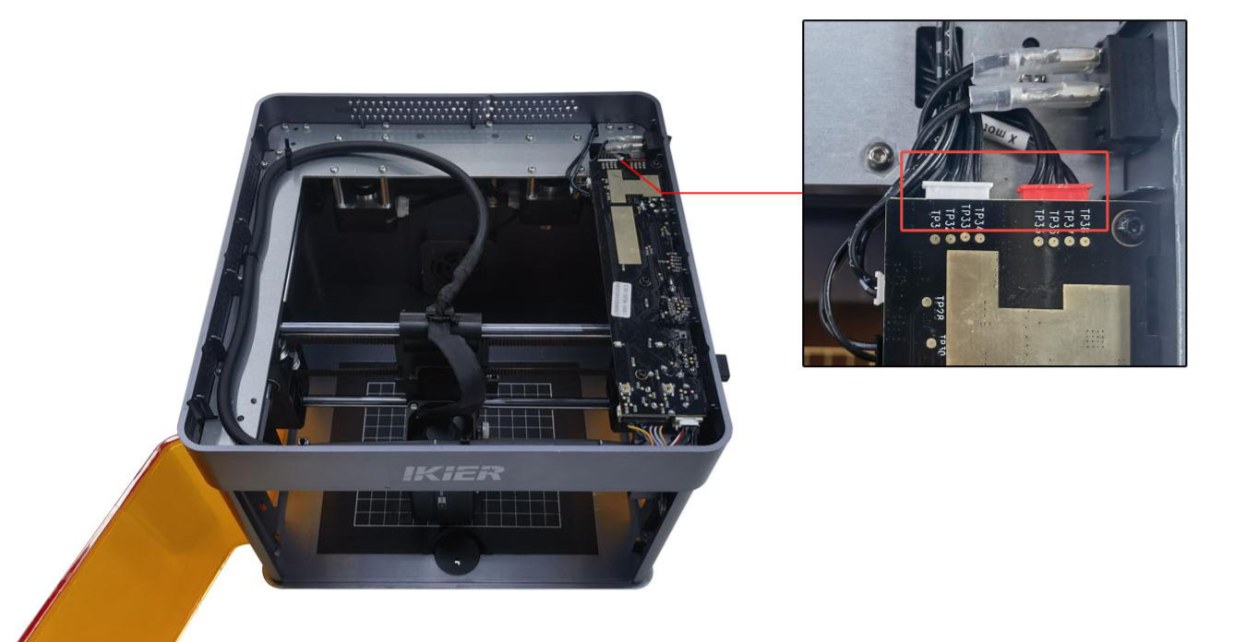
Figure 43
- Check the Timing Pulley and Timing Belt
Check whether the screws on the timing pulley (as shown in Figure 44) are loose and whether the timing belt is too loose.
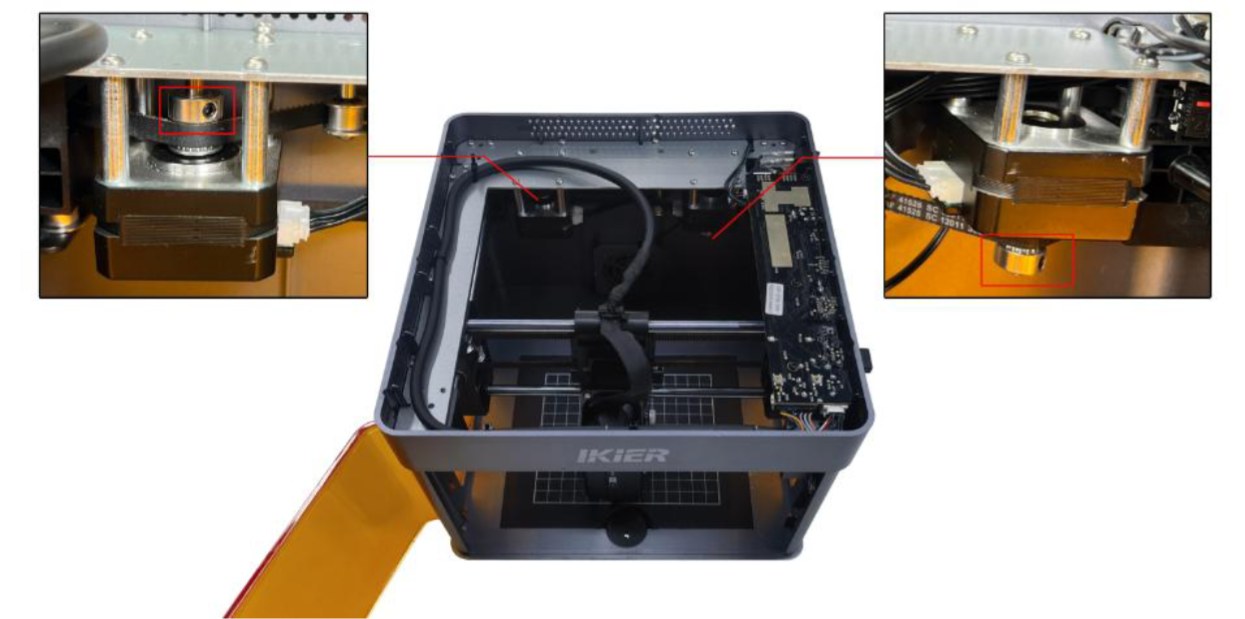
Figure 44
Note: If the issue persists after tightening the timing pulley screws and adjusting the timing belt, skip directly to Step 3) "Shaking and Moving Diagonally" for further troubleshooting.
- Moving in the Reverse Direction
-
Restore the machine to factory settings.
-
If only the Y-axis moves in the reverse direction, check the motor cable connections on the mainboard. The cable may be connected to the wrong port. The correct position is with the red connector closer to the power switch, as shown in Figure 45.
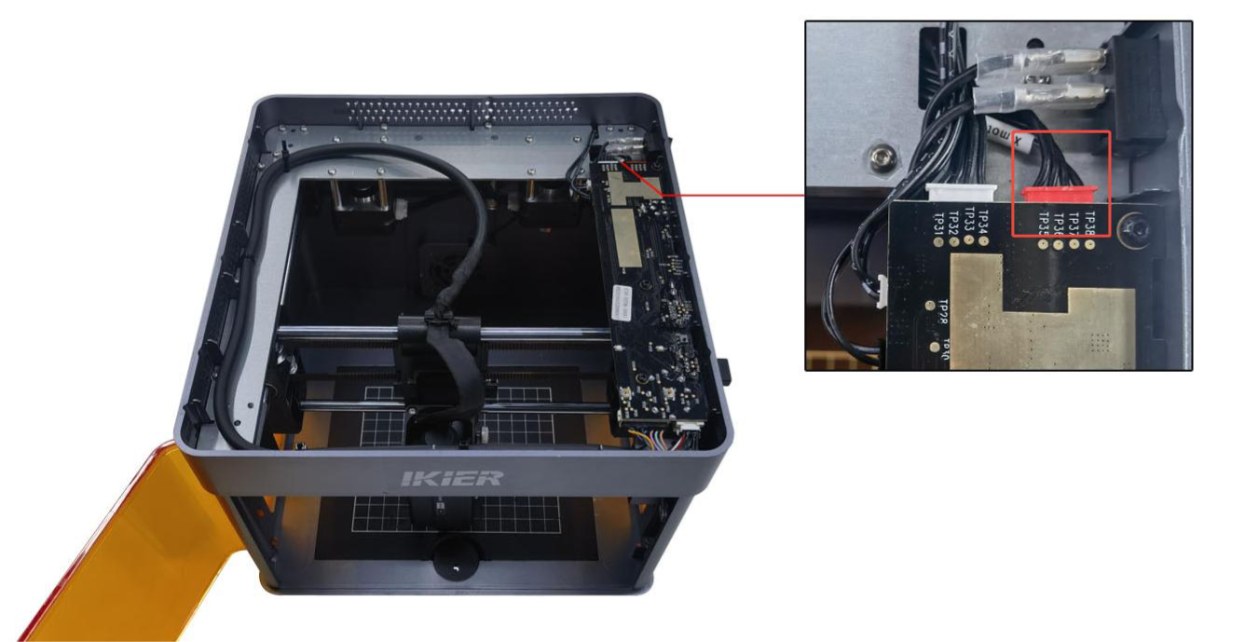
Figure 45
- Shaking and Moving Diagonally
-
The machine moves only toward the upper-left or lower-right corner: This indicates an abnormality with the left motor. Disconnect both motor cables and connect the left motor cable (the longer cable) to the right-side motor. Use the controls to move the laser head and check whether it can move normally toward the upper-left or lower-right corner without shaking. → If the movement is normal: The left motor is faulty. → If the movement is still abnormal: The motor cable or the mainboard motor driver may be faulty.
-
The machine moves only toward the upper-right or lower-left corner: This indicates an abnormality with the right motor. Disconnect both motor cables and connect the left motor cable (the longer cable) to the right-side motor. Use the controls to move the laser head and check whether it can move normally toward the upper-right or lower-left corner without shaking. → If the movement is normal: The motor cable or the mainboard motor driver may be faulty. → If the movement is still abnormal: The motor may be faulty.
- Check the Material
When processing lightweight materials (such as paper or thin wood boards), use magnets to secure all four corners. Otherwise, the material may be moved by the enclosure exhaust fan or laser fan, causing the output pattern to shift or become distorted.
- Confirm the Firmware Version
After connecting the machine, click "≡" in the upper-right corner to check the firmware version, as shown in Figure 46. Send a screenshot of the version number to Customer Service to confirm whether it is the latest version.
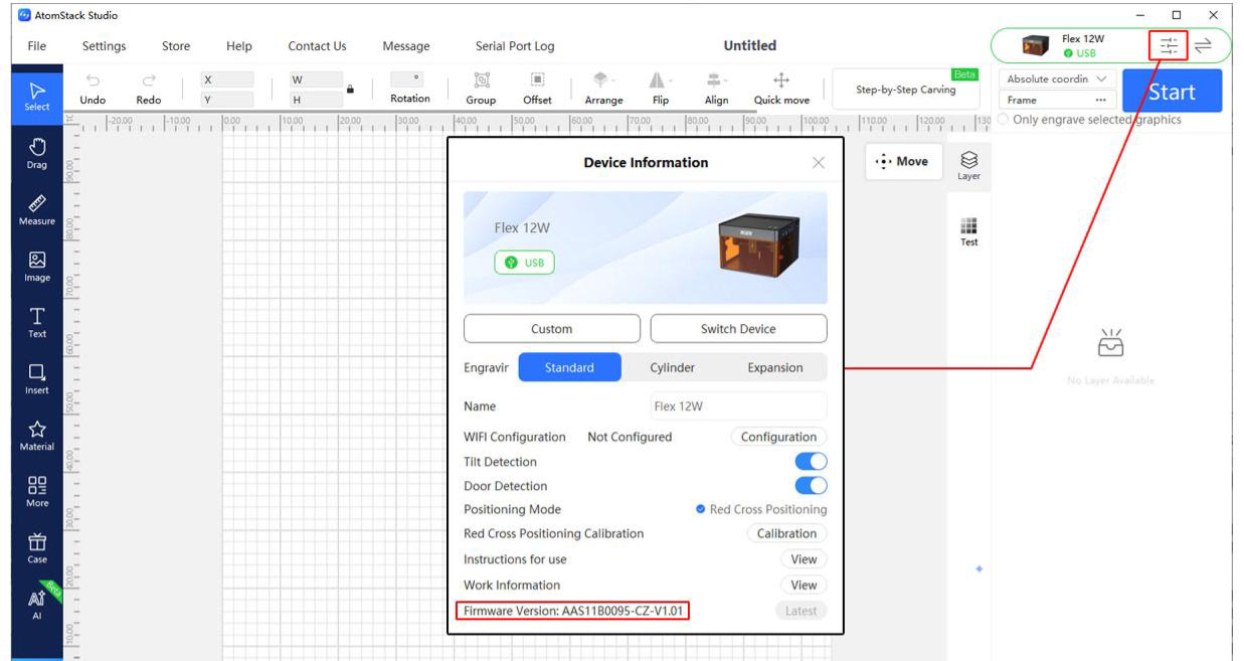
Figure 46
- Check the Mechanical Structure
If the engraved circle or square is irregular in shape, the issue may be related to the mechanical structure of the machine. Check the following components in sequence:
-
Check the Timing Pulleys: Check whether the timing pulley screws are loose and whether the timing pulley position is offset, as shown in Figure 47. Adjust if necessary.
-
Check the Timing Belt: Press the timing belt by hand to check whether it is too loose. If it is loose, adjust it.
-
Check the Guide Rollers: Check whether all guide rollers along the timing belt path are working properly.
Make sure there are no timing belt abrasion debris inside the enclosure.
- Check the Guide Rails: Check that the surfaces of all three guide rails are free of scratches and that they are adequately lubricated.
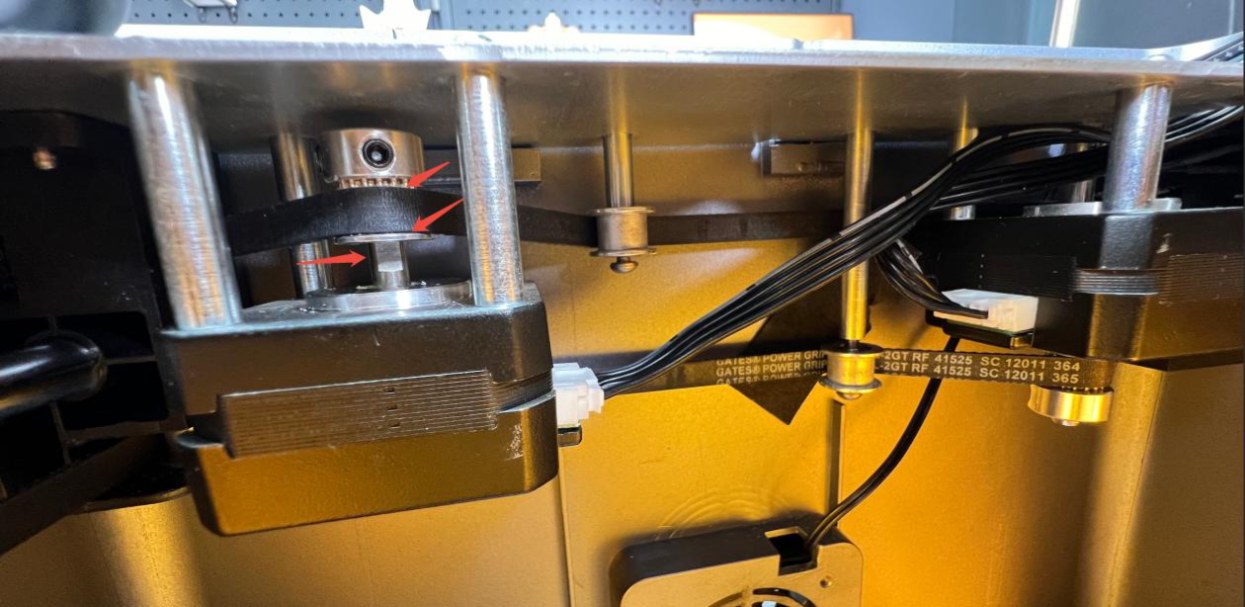
Figure 47
- Restore Factory Settings
If none of the above steps resolve the issue, restore the machine to factory settings and rule out abnormal parameter settings as a possible cause.
- Contact Customer Service
If none of the above steps resolve the issue, please contact Customer Service and provide the following information:
-
Engraving Video: The video must clearly show the focusing process, set power, speed, engraving process, and final result.
-
Troubleshooting Steps: Provide a description of the steps that have already been checked or performed.
-
Firmware Version: Provide a screenshot showing the firmware version.
-
Device Serial Number: Provide a photo of the device Serial Number, as shown in Figure 48.
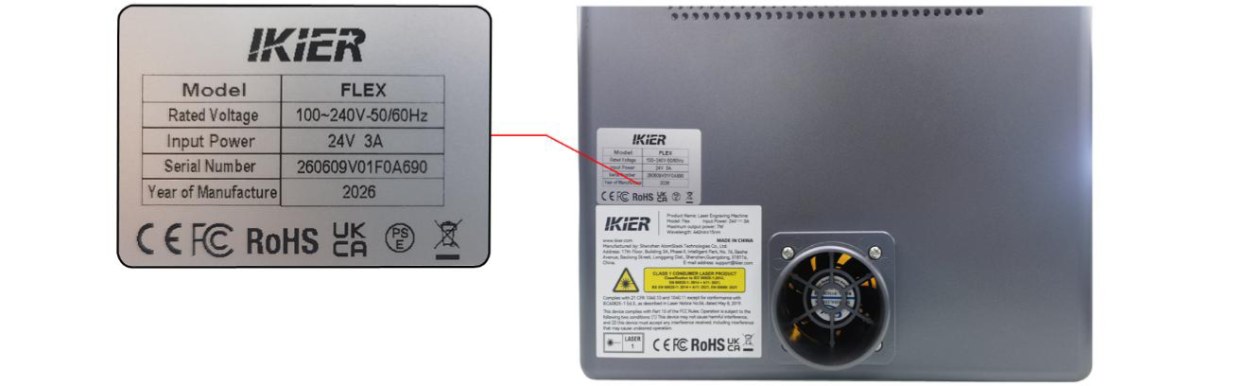
Figure 48
Still not fixed? Contact support with the details listed in What to send support.
Related problems: Patterns Skewed at 45° · Diagonal-Only Motion · Material Moves or Gaps
¶ Reversed Patterns
What you see: The engraved output pattern is reversed.
Check in this order:
Please follow the steps below to troubleshoot the issue:
- Check the Software and Firmware Versions
Confirm that both the software version and the engraving machine's firmware version are up to date. If an update is available, update the software and firmware before testing again.
- Check the Motor Cable Connection on the Mainboard
Open the top cover of the enclosure and check whether the motor cable is connected to the correct port on the mainboard. The red connector should be positioned closer to the power switch, as shown in Figure 49. If the cable is connected in the wrong orientation, disconnect and reconnect it in the correct orientation.
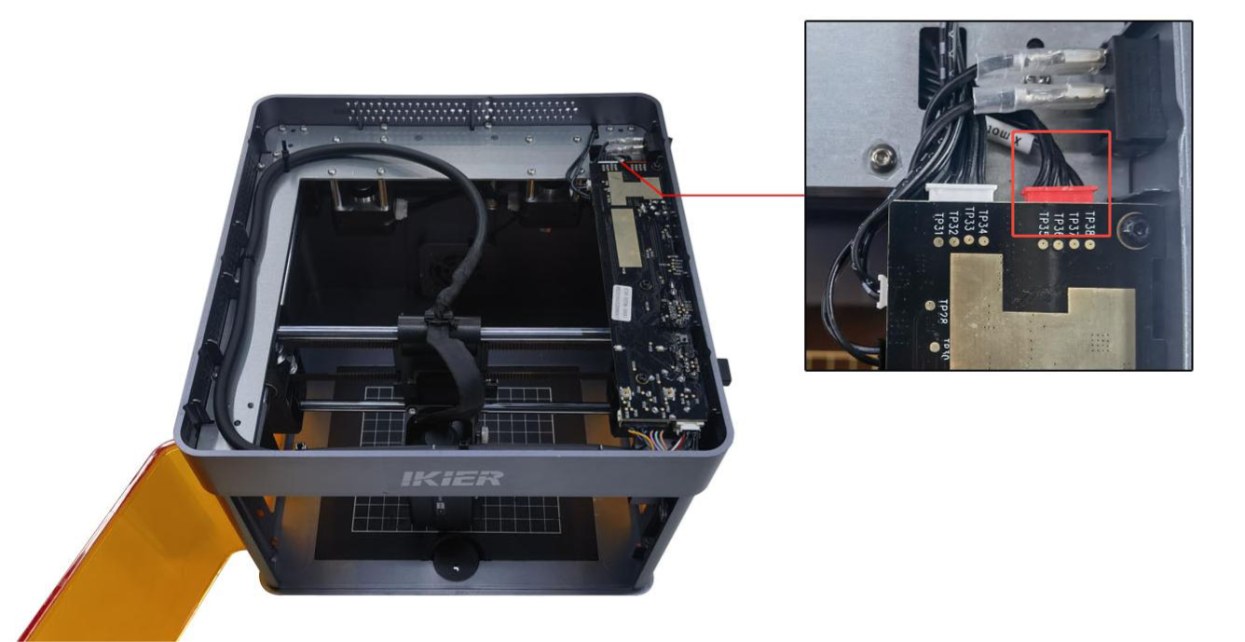
Figure 49
- Restore Factory Settings
If the above steps do not resolve the issue, restore the machine to factory settings and rule out abnormal parameter settings as a possible cause.
Still not fixed? Contact support with the details listed in What to send support.
Related problems: Distorted Patterns · Software & Firmware
¶ Patterns Skewed at 45°
What you see: The engraved output pattern is skewed at a 45° angle.
Check in this order:
Please follow the steps below to troubleshoot the issue:
- Check the Timing Pulley Screws and Timing Belt
Check whether the motor timing pulley screws (as shown in Figure 50) are loose and whether the timing belt is too loose. If so, tighten the screws or adjust the timing belt as needed.
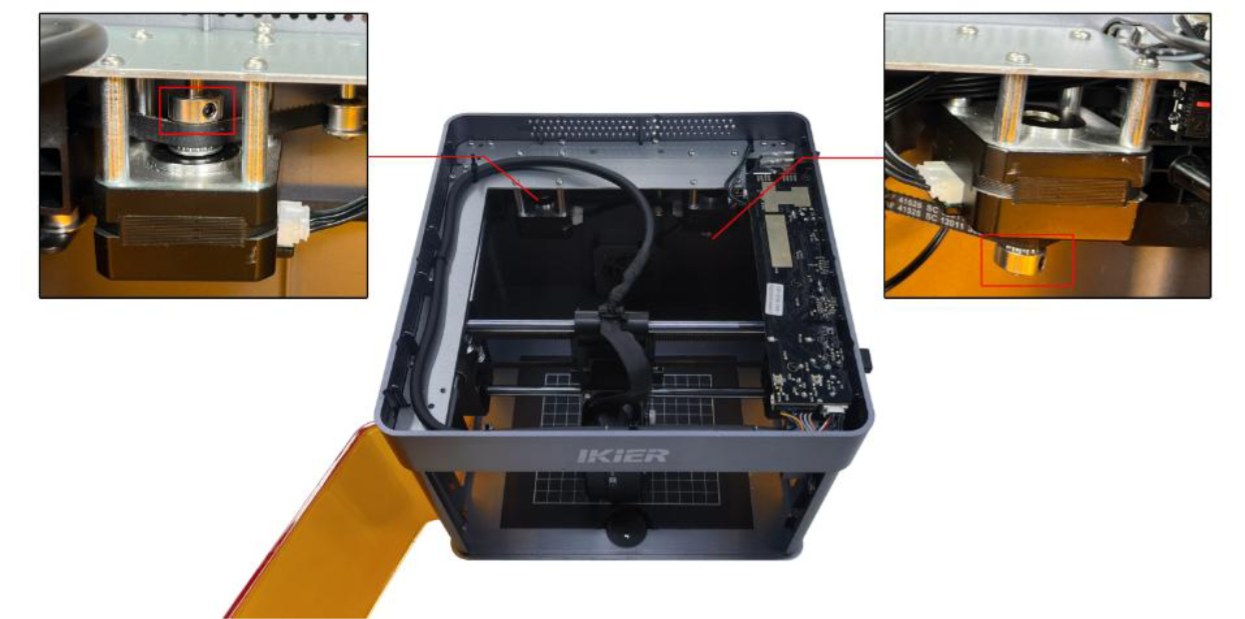
Figure 50
- Check the Motor Cable
Disconnect the motor cable and reconnect it. Check whether the issue is resolved.
- Check the Motor Cable Connection on the Mainboard
Open the top cover of the enclosure and locate the motor cable on the side of the mainboard near the power switch (as shown in Figure 51). Make sure that the cable is fully inserted and securely connected. If it is loose, disconnect and reconnect it, ensuring that the connector is firmly seated in the socket.
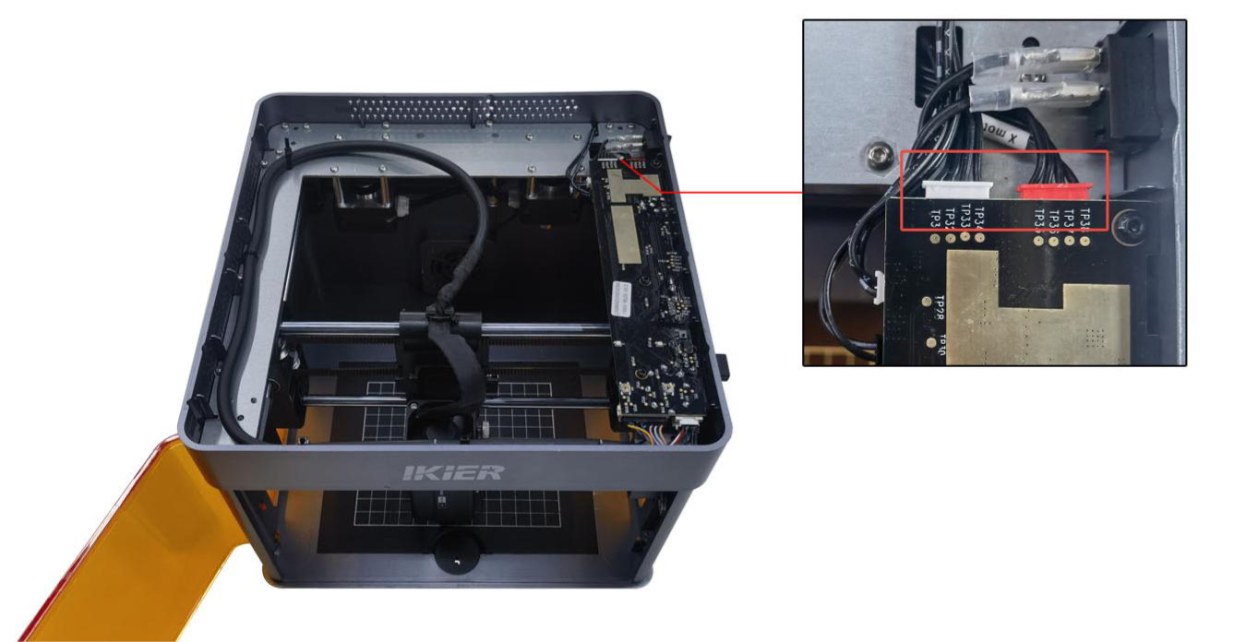
Figure 51
- Check the Motor
-
The machine moves only toward the upper-left or lower-right corner: This indicates an abnormality with the left motor. Disconnect both motor cables and connect the left motor cable (the longer cable) to the right-side motor. Use the controls to move the laser head and check whether it can move normally toward the upper-left or lower-right corner without shaking. → If the movement is normal: The left motor is faulty. → If the movement is still abnormal: The motor cable or the mainboard motor driver may be faulty.
-
The machine moves only toward the upper-right or lower-left corner: This indicates an abnormality with the right motor. Disconnect both motor cables and connect the left motor cable (the longer cable) to the right-side motor. Use the controls to move the laser head and check whether it can move normally toward the upper-right or lower-left corner without shaking. → If the movement is normal: The motor cable or the mainboard motor driver may be faulty. → If the movement is still abnormal: The motor may be faulty.
- Contact Customer Service
If none of the above steps resolve the issue, please contact Customer Service and provide the following information:
-
Troubleshooting Video: Clearly show the software operation steps and the direction in which the laser head moves.
-
Troubleshooting Steps: Provide a description of the steps that have already been checked or performed.
-
Device Serial Number: Provide a photo of the device Serial Number, as shown in Figure 52.
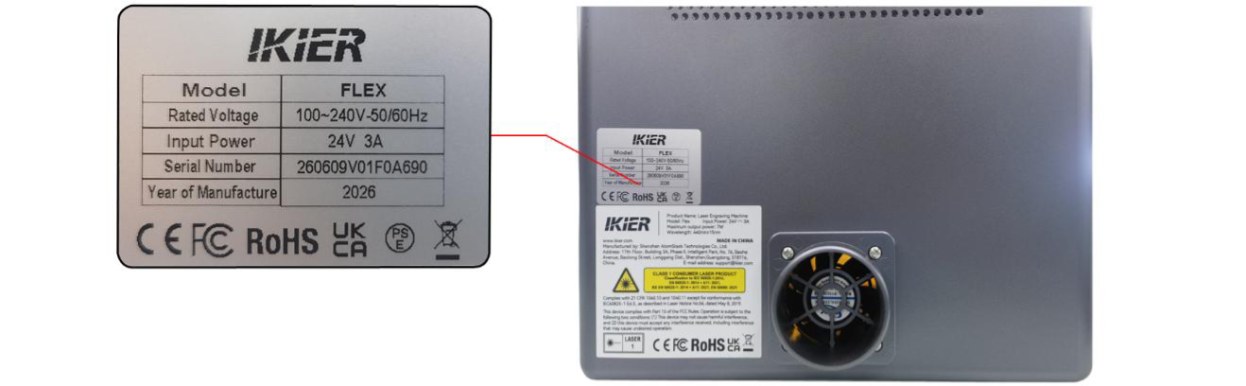
Figure 52
Still not fixed? Contact support with the details listed in What to send support.
Related problems: Distorted Patterns · Diagonal-Only Motion