Flex Sensors: Door Alarm, Crosshair Misaligned
The software reports an open door when it is closed, the crosshair is misaligned, or infrared framing does not match engraving.
Disconnect power before disassembly or electrical testing. Turn off the engraving machine before removing the laser and disconnecting its cable, or removing and reinserting the TF card. Do not turn off the machine or remove the TF card during a firmware update.
¶ Door Closed but Alarmed
What you see: The enclosure door is closed, but the software still indicates that the door is not closed.
Check in this order:
Follow the steps below to troubleshoot the issue:
- Close the Enclosure Door Again
Try closing the enclosure door again and check whether the alarm is cleared.
- Manually Trigger the Limit Switches
Press the two limit switch trigger points on the enclosure door with your fingers, as shown in Figure 70. Check whether the status indicator changes from red to green.
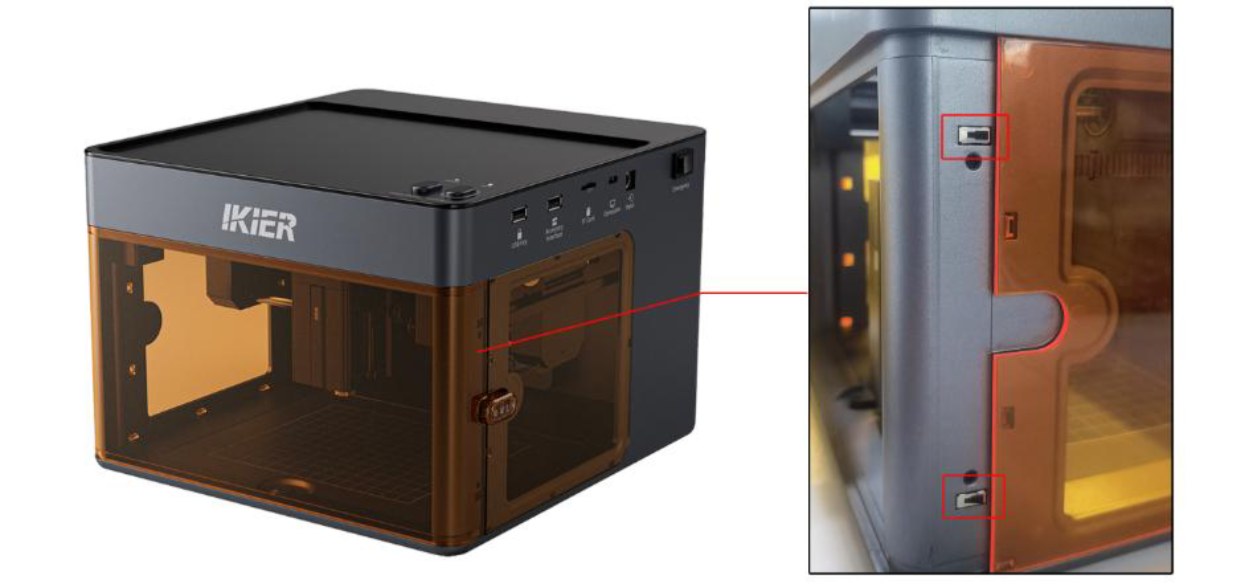
Figure 70
- Check the Cable Connections
- Check the cable connections: Check whether the cables connected to the limit switches and the mainboard are loose, as shown in Figure 71. You can disconnect the cables and then reconnect them to see if the issue is resolved.
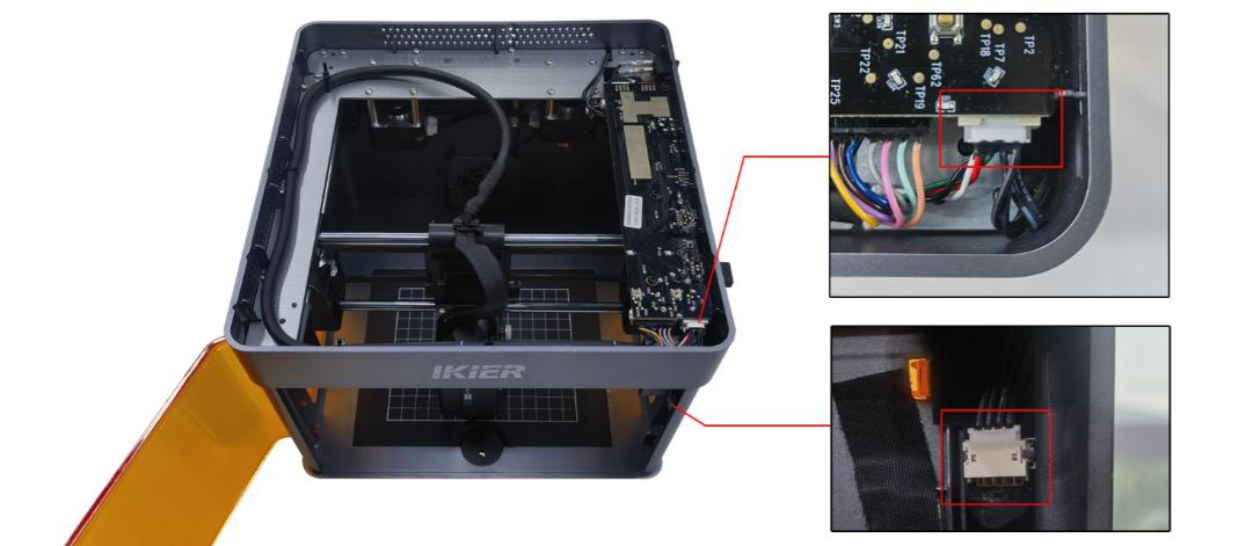
Figure 71
- Measure the cable voltage: Set the multimeter to the DC voltage mode and measure the voltage between pins 1 and 2 and between pins 2 and 3. Both measurements should be 3.3 V, as shown in Figure 72.
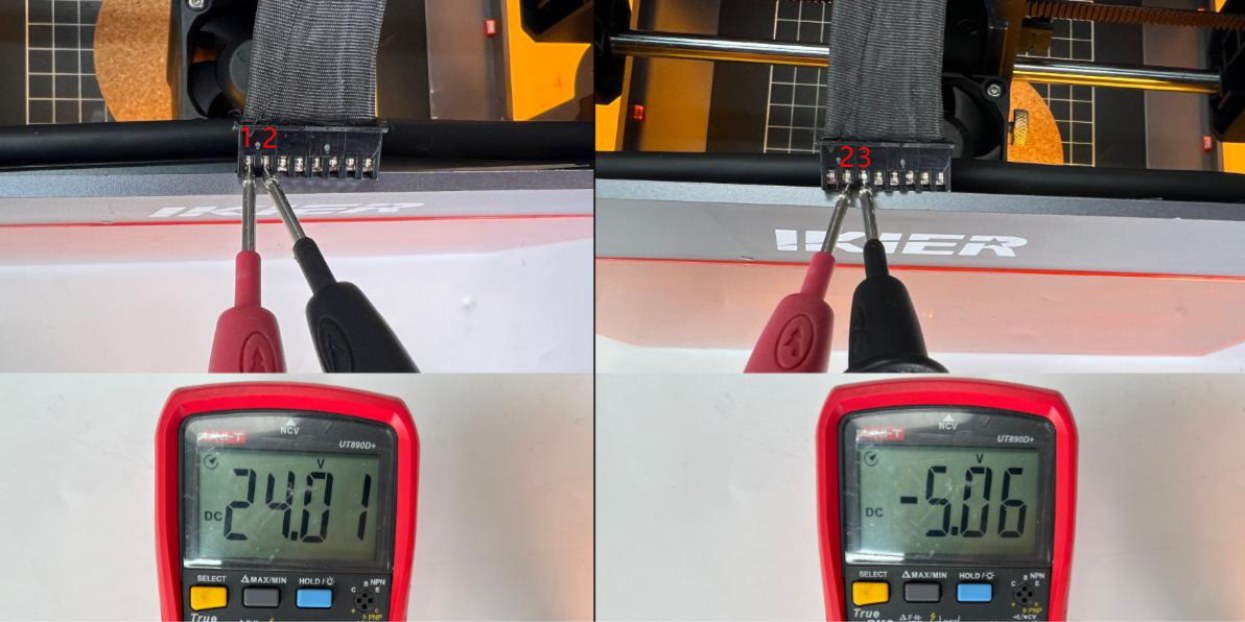
Figure 72
- Restore Factory Settings
If the issue persists after completing the above steps, restore the machine to its factory settings and eliminate the possibility of incorrect parameter settings.
- Contact Customer Support
If the problem still cannot be resolved, please contact Customer Support and provide the following information:
-
Fault video: Show the alarm status and the troubleshooting steps performed, including closing the enclosure door again and checking the cable connections.
-
If a fault is identified during troubleshooting, provide clear photos of the faulty part.
-
A photo of the Serial Number label on the back of the machine (see Figure 73).
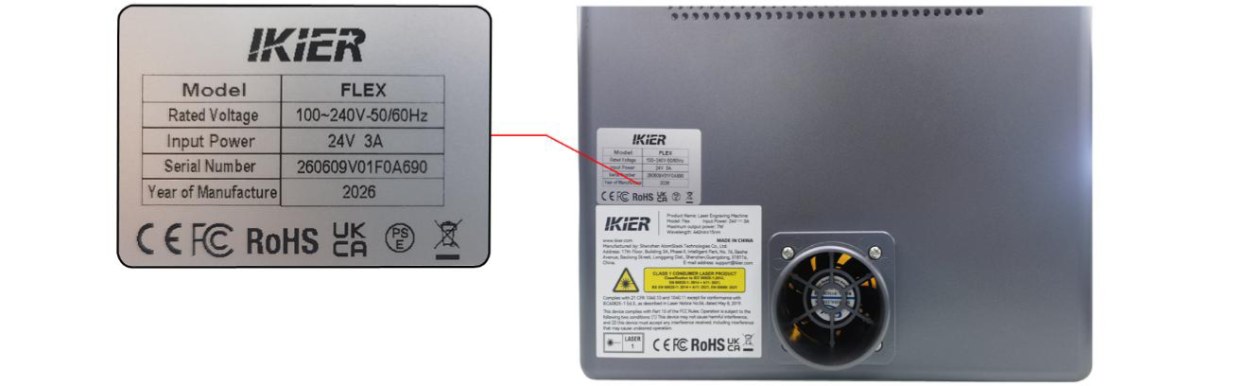
Figure 73
Confirm the fix: Close the enclosure door again and confirm that the alarm clears.
Still not fixed? Contact support with the details listed in What to send support.
Related problems: Red Light at Power-On · USB Key Not Detected · Engraving Stops Suddenly
¶ Crosshair Misaligned
What you see: The red crosshair is not aligned with the laser engraving position.
Check in this order:
Follow the steps below to resolve the issue:
- PC Software Operation
① Reset the Device After successfully connecting to the device, first home the machine to ensure that the coordinates are reset to zero.
② Enter the Calibration Interface
-
Open “Device Information” in the upper-right corner of the software and confirm that “Red Crosshair Positioning” is selected under “Positioning Mode”.
-
Click the “Calibrate”button to the right of“Red Crosshair Positioning”to enter the crosshair calibration interface.
③ Check the Working Area Click“Frame”to confirm that the calibration pattern is within the engraving area.
④ Engrave the Cross Pattern Click“Engrave”. The machine will engrave a cross pattern as a calibration reference.
⑤ Align the Crosshair with the Cross Pattern Follow the instructions in the pop-up window and use the directional movement buttons to adjust the laser head position until the red crosshair is perfectly aligned with the engraved cross pattern. Tip: If the movement distance is too large for a single adjustment, you can manually adjust the step size (i.e., the distance the laser head moves each time you click a directional button) for more precise control.
⑥ Complete the Calibration Click“Done”. The system will save the calibration results, and the calibration process is complete.
- Mobile App Operation
① Enter the Calibration Interface Open the app's home page, then tap“Settings”in the upper-right corner or in the bottom menu bar to enter the device settings interface.
② Engrave the Cross Pattern Tap“Red Crosshair Positioning”. In the“Mark Current Position”interface that appears, tap the center of the circle. The machine will engrave a cross pattern as a calibration reference.
③ Align the Crosshair with the Cross Pattern After engraving is complete, follow the instructions in the pop-up window and use the directional movement buttons to adjust the laser head position until the red crosshair is perfectly aligned with the engraved cross pattern. Tip: If the movement distance is too large for a single adjustment, you can manually adjust the step size (i.e., the distance the laser head moves each time you click a directional button) for more precise control.
④ Complete the Calibration After confirming that the crosshair is perfectly aligned with the engraved cross pattern, tap“Done”. The system will automatically save the calibration results, and the calibration process is complete.
Confirm the fix: Confirm that the red crosshair is perfectly aligned with the engraved cross pattern, then select Done to save the calibration.
Still not fixed? Contact support with the details listed in What to send support.
Related problems: Infrared Framing Offset · Frame Hit When Engraving
¶ Infrared Framing Offset
What you see: When using the infrared laser, the framing position does not match the engraving position.
Check in this order:
Please follow the steps below to troubleshoot the issue:
- Calibrate the Red Crosshair
Refer to the "The Red Crosshair Is Not Aligned with the Laser Engraving Position" section and calibrate the red crosshair accordingly.
- Test with Different Control Software
Make sure you are using the official AtomStack Studio software or a genuine licensed version of LightBurn. If you are currently using LightBurn, try using AtomStack Studio to perform an engraving test and check whether the issue still occurs, in order to rule out software version compatibility issues.
- Restore Factory Settings
If the issue persists after completing the above steps, restore the machine to its factory settings and eliminate the possibility of incorrect parameters causing the issue.
- Contact Customer Support
If the problem still cannot be resolved, please contact Customer Support and provide the following information:
-
Fault video: Show the software interface, file design, framing process, and the issue that occurs.
-
A description of the troubleshooting steps you have already performed.
-
A photo of the Serial Number label on the back of the machine (see Figure 75).
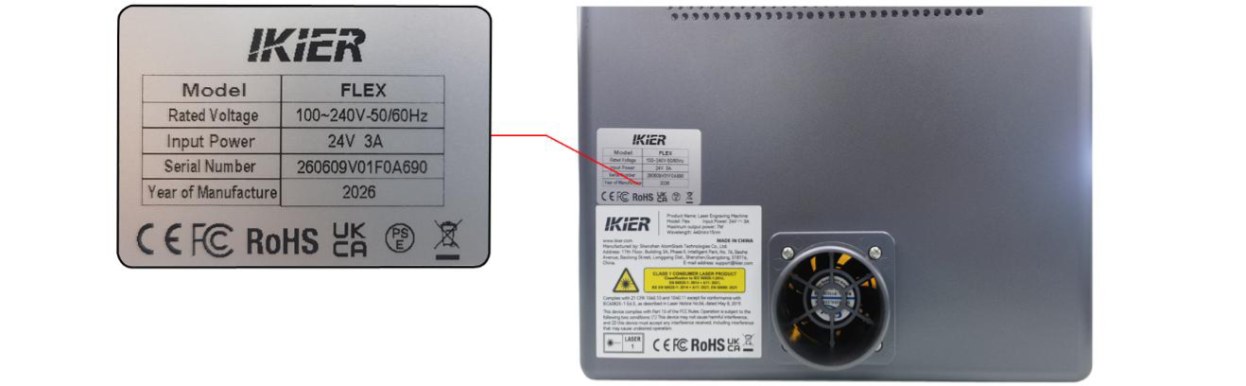
Figure 75
Still not fixed? Contact support with the details listed in What to send support.
Related problems: Crosshair Misaligned · Frame Hit When Engraving