Flex Motion: Homing Fails, Head Hits Frame
The head moves only diagonally, engraving stops, area or limit-switch alarms appear, or the machine hits the frame during engraving or homing.
Disconnect power before disassembly or electrical testing. Turn off the engraving machine before removing the laser and disconnecting its cable, or removing and reinserting the TF card. Do not turn off the machine or remove the TF card during a firmware update.
¶ Diagonal-Only Motion
What you see: The laser head only moves at a 45° angle and cannot move normally up, down, left, or right.
Check in this order:
Please follow the steps below to troubleshoot the issue:
- Check the Timing Pulley Screws and Timing Belt
Check whether the motor timing pulley screws (as shown in Figure 53) are loose and whether the timing belt is too loose. If so, tighten the screws or adjust the timing belt as needed.
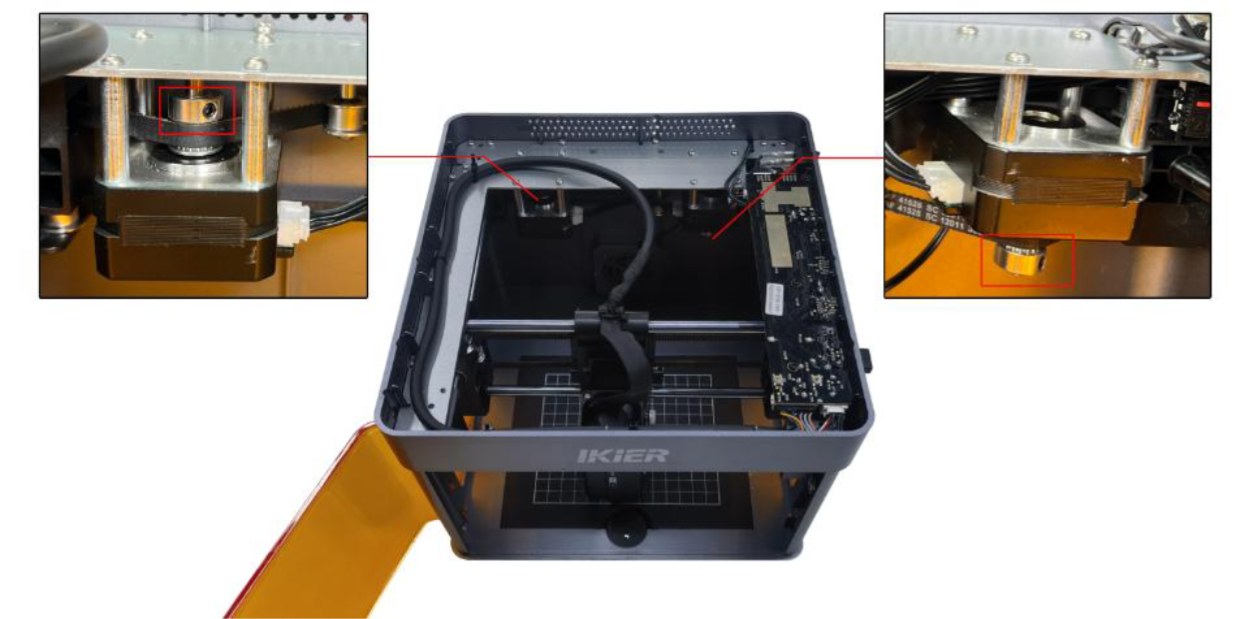
Figure 53
- Check the Motor Cable
Disconnect the motor cable and reconnect it. Check whether the issue is resolved.
- Check the Motor Cable Connection on the Mainboard
Open the top cover of the enclosure and locate the motor cable on the side of the mainboard near the power switch (as shown in Figure 54). Make sure that the cable is fully inserted and securely connected. If it is loose, disconnect and reconnect it, ensuring that the connector is firmly seated in the socket.
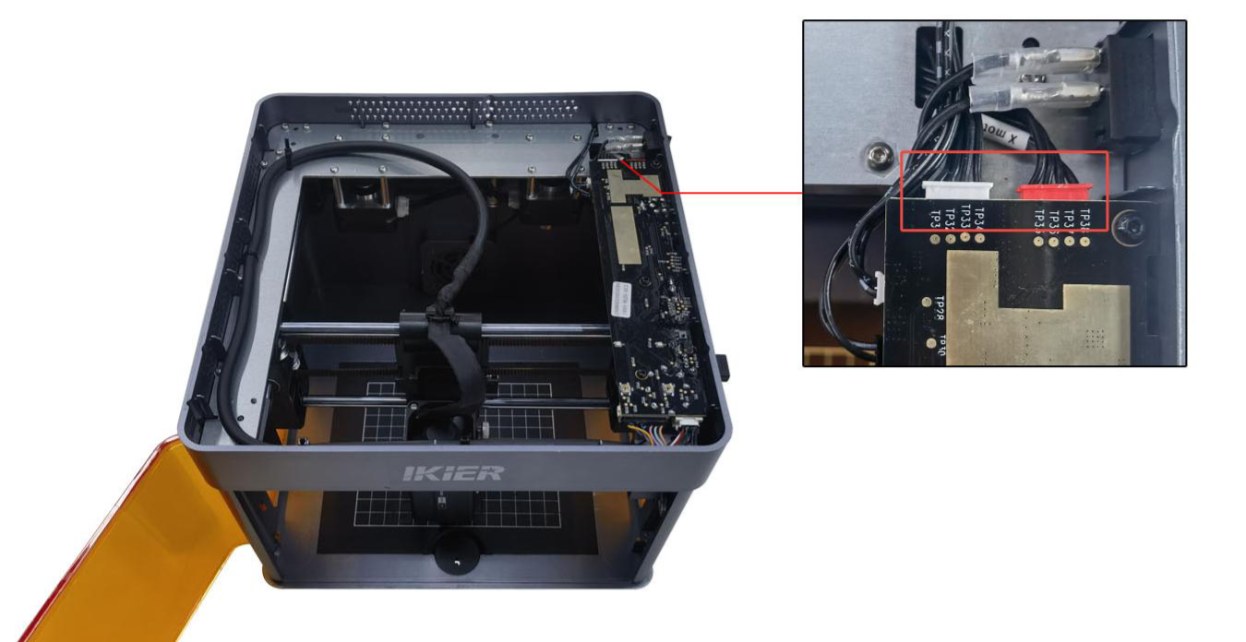
Figure 54
- Check the Motor
-
The machine moves only toward the upper-left or lower-right corner: This indicates an abnormality with the left motor. Disconnect both motor cables and connect the left motor cable (the longer cable) to the right-side motor. Use the controls to move the laser head and check whether it can move normally toward the upper-left or lower-right corner without shaking. → If the movement is normal: The left motor is faulty. → If the movement is still abnormal: The motor cable or the mainboard motor driver may be faulty.
-
The machine moves only toward the upper-right or lower-left corner: This indicates an abnormality with the right motor. Disconnect both motor cables and connect the left motor cable (the longer cable) to the right-side motor. Use the controls to move the laser head and check whether it can move normally toward the upper-right or lower-left corner without shaking. → If the movement is normal: The motor cable or the mainboard motor driver may be faulty. → If the movement is still abnormal: The motor may be faulty.
- Contact Customer Service
If none of the above steps resolve the issue, please contact Customer Service and provide the following information:
-
Troubleshooting Video: Clearly show the software operation steps and the direction in which the laser head moves.
-
Troubleshooting Steps: Provide a description of the steps that have already been checked or performed.
-
Device Serial Number: Provide a photo of the device Serial Number, as shown in Figure 55.
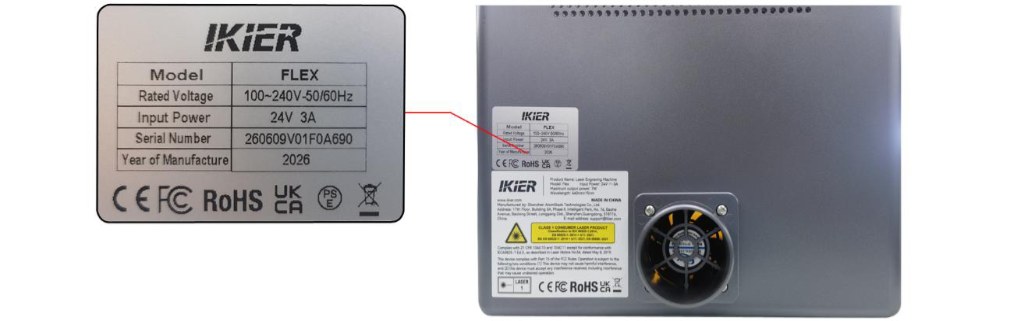
Figure 55
Still not fixed? Contact support with the details listed in What to send support.
Related problems: Patterns Skewed at 45° · Distorted Patterns
¶ Engraving Stops Suddenly
What you see: The machine suddenly stops during engraving.
Check in this order:
Please follow the steps below to troubleshoot the issue:
- Check for Software Alarm Messages
When this issue occurs, check whether the software displays any relevant alarm message, and troubleshoot the issue according to the alarm message:
① USB Key Not Connected
- Check whether the USB Key is inserted, as shown in Figure 56. Gently move the USB Key and check whether the indicator turns green.
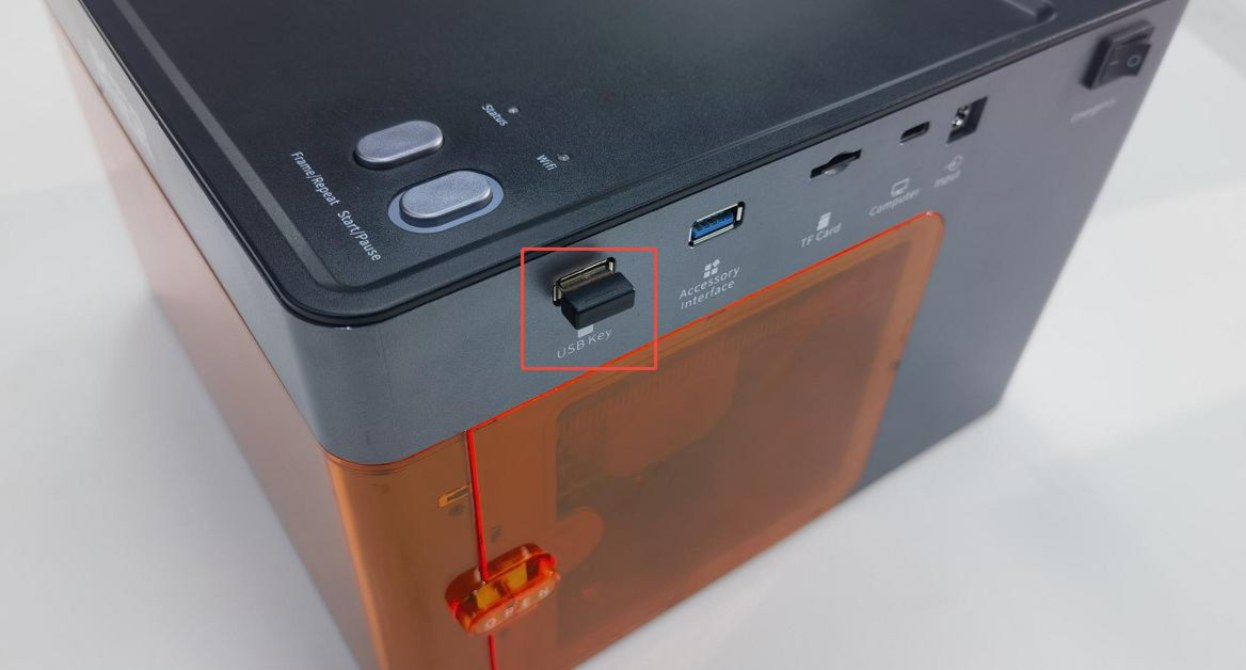
Figure 56
- Check whether the lid of the enclosure is properly closed (the lid is equipped with a lid-open detector).
Open and close the top cover again. Alternatively, press the detection switch by hand (as shown in Figure 57) and check whether the status indicator returns to normal green.
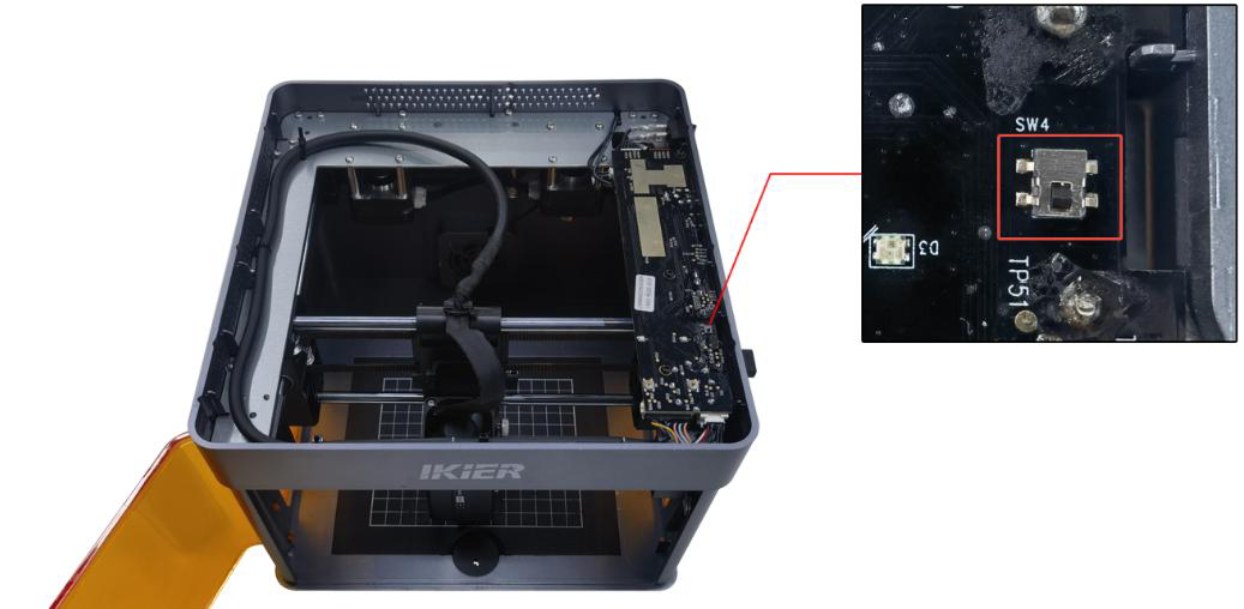
Figure 57
② Abnormal Enclosure Opening
-
Check whether the enclosure door is fully closed. Open and close the door again.
-
Press the two limit switch trigger points on the enclosure door by hand and check whether the status indicator returns to normal green. → Returns to normal green after pressing: The enclosure door was not fully closed. Check whether any foreign objects are obstructing the door. → Alarm persists after pressing: Check whether the enclosure door detection limit switch and the connector on the mainboard are loose. Disconnect and reconnect the connector.
③ Limit Switch Triggered by Collision Move the laser head to the center of the enclosure by hand and check whether the indicator turns green. If the machine still indicates that a limit switch has been triggered by a collision, press the X-axis limit switch and Y-axis limit switch by hand in sequence (as shown in Figure 58) and check whether an alarm sound (beeping) is triggered to determine whether the limit switch is damaged.
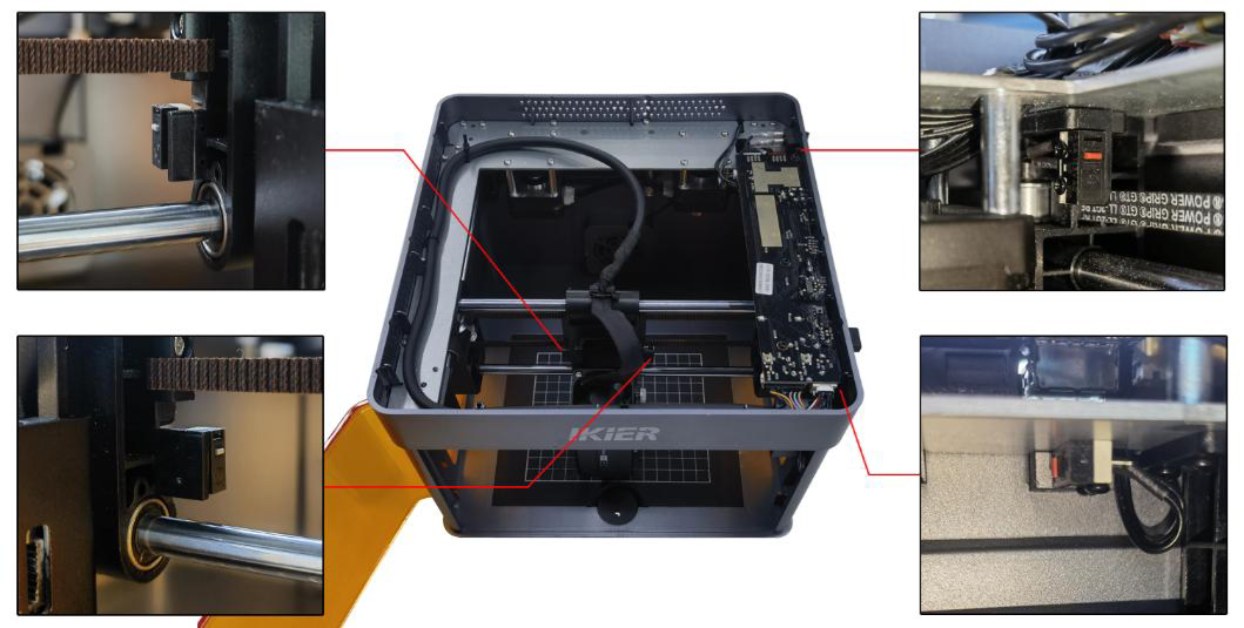
Figure 58
④ Tilt Alarm Make sure that the engraving machine is placed on a level surface. If the alarm persists, open the top cover of the enclosure and tighten the fixing screw next to the buzzer on the mainboard, as shown in Figure 59.
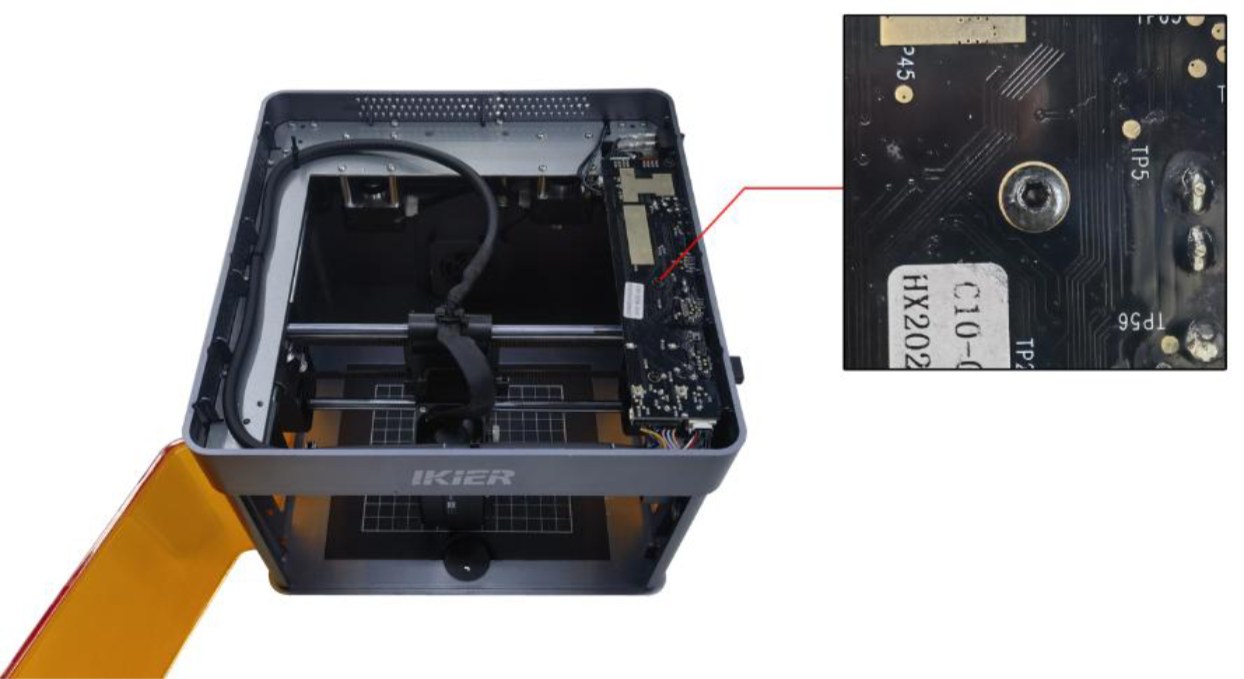
Figure 59
- Check the Type-C Data Cable Connection
-
Make sure that the Type-C data cable is securely connected. Disconnect and reconnect the cable, or try using a different USB port on the computer.
-
Make sure that the Type-C data cable is not touched or moved during engraving to prevent communication interruptions.
- Check the Computer Operating System
If you are using Windows 11, do not switch the software to run in the background during engraving, as the operating system may restrict background communication and cause the machine to stop.
- Try Different Control Software
AtomStack Studio or LightBurn is recommended. Try using a different software program and check whether the issue recurs to rule out software version issues.
- Try a Different Power Adapter
Try using another 24 V power adapter and check whether the issue recurs to rule out unstable power supply from the adapter.
- Contact Customer Service
If none of the above steps resolve the issue, please contact Customer Service and provide the following information:
-
Troubleshooting Video: If the issue can be easily reproduced, record a complete video of the operation. If the issue occurs only after a long period of operation, record the fault condition when the machine stops and the information displayed in the software console.
-
Troubleshooting Steps: Provide a description of the steps that have already been checked or performed.
-
Serial Number: Provide a photo of the Serial Number on the back of the enclosure, as shown in Figure 60.
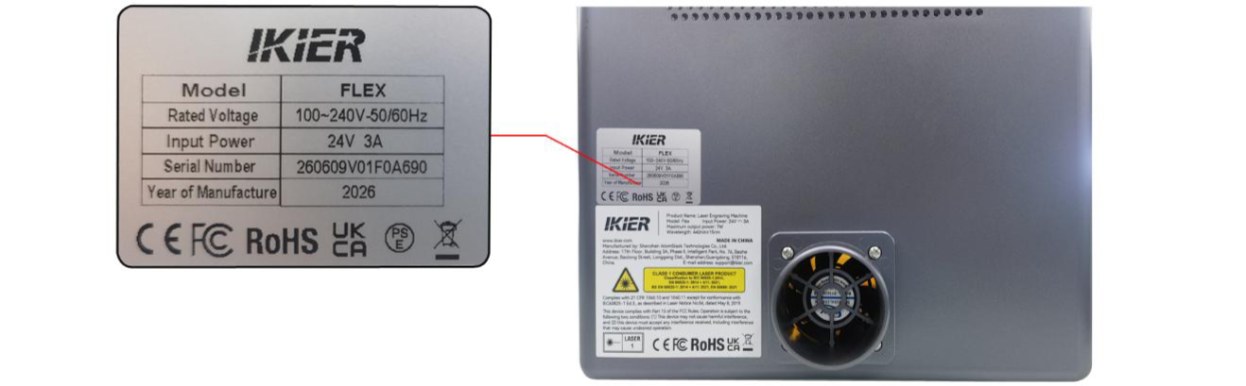
Figure 60
Still not fixed? Contact support with the details listed in What to send support.
Related problems: PC Won’t Connect · Red Light at Power-On · USB Key Not Detected
¶ Engraving Area Exceeded
What you see: The software prompts "Engraving Area Exceeded".
Check in this order:
Please follow the steps below to troubleshoot the issue:
- Check the Engraving File Size
Check whether the current engraving file is completely within the engraving area. Make sure there are no patterns outside the engraving area or accidentally selected elements that extend beyond the engraving area.
- Confirm the Selected Coordinate Mode
-
Absolute Coordinates: As long as the file is within the engraving area, this alarm is generally not triggered.
-
Current Position: The laser head must be manually moved or controlled by the software to a suitable position. Make sure sufficient space is reserved for the engraving path; otherwise, the alarm may be triggered. When using“Current Position”mode, it is recommended to use the Framing function before engraving to confirm that the file size is appropriate and the engraving path is within the available area.
- Check the Software Alarm Message
-
X-axis alarm: Check whether the laser head has triggered the left or right limit switch (reached the edge).
-
Y-axis alarm: Check whether the laser head has triggered the front or rear Y-axis limit switch on the right side (reached the edge).
- Manually Trigger the Limit Switches for Verification
Press the limit switches on the left and right sides of the laser head and the front/rear Y-axis limit switches on the right side by hand, as shown in Figure 61. Check whether the alarm sound (beeping) is triggered normally.
-
If a limit switch cannot be triggered, check whether its cable is loose.
-
If the cable is properly connected but the limit switch still cannot be triggered, the limit switch itself may be damaged.
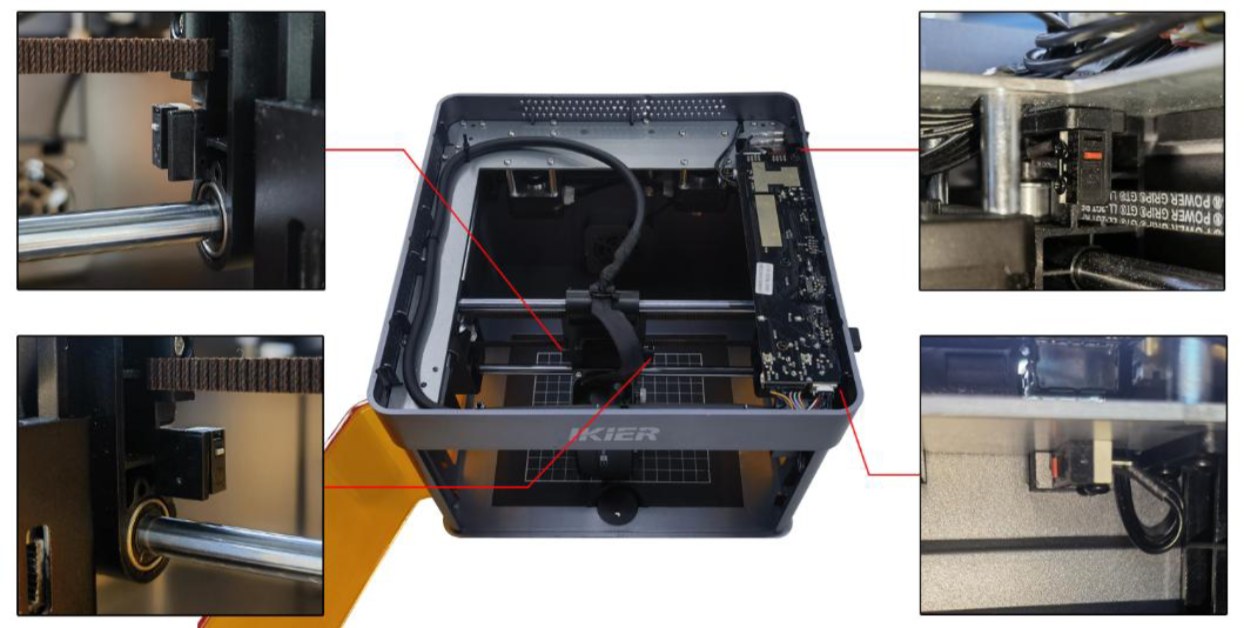
Figure 61
- Check the Mainboard Cables
Open the enclosure lid and check the limit switch cables on the mainboard for looseness, breaks, or poor contact, as shown in Figure 62.
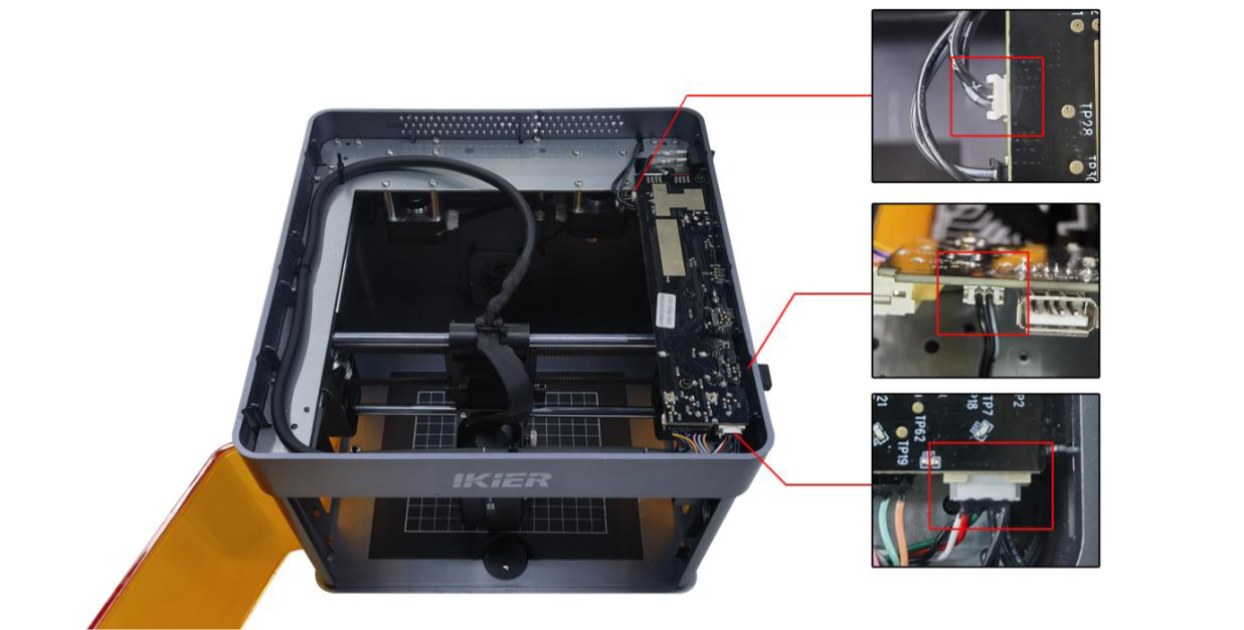
Figure 62
- Restore Factory Settings
If none of the above steps resolve the issue, restore the machine to factory settings and rule out abnormal parameter settings as a possible cause.
- Contact Customer Service
If none of the above steps resolve the issue, please contact Customer Service and provide the following information:
-
Troubleshooting Video: If the issue can be easily reproduced, record a complete video of the operation. If the issue occurs only after a long period of operation, record the fault condition when the alarm appears and the information displayed in the software console.
-
Troubleshooting Steps: Provide a description of the steps that have already been checked or performed.
-
Fault Photos: If a specific fault is identified during troubleshooting, provide clear photos showing the issue.
-
Serial Number: Provide a photo of the Serial Number on the back of the enclosure, as shown in Figure 63.
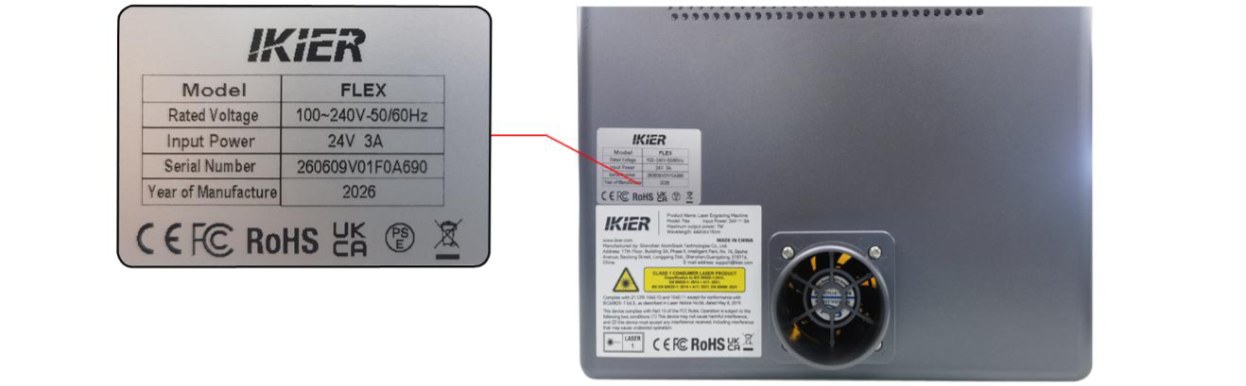
Figure 63
Still not fixed? Contact support with the details listed in What to send support.
Related problems: Area Alarm at Center · Frame Hit When Engraving · Limit Switch Not Found
¶ Area Alarm at Center
What you see: The laser head triggers an alarm and prompts "Engraving Area Exceeded" even when it is in the center of the working area.
Check in this order:
Please follow the steps below to troubleshoot the issue:
- Manually Trigger the Limit Switches for Verification
Press the limit switches on the left and right sides of the laser head and the front/rear Y-axis limit switches on the right side by hand, as shown in Figure 64. Check whether the alarm sound (beeping) is triggered normally.
-
If a limit switch cannot be triggered, check whether its cable is loose.
-
If the cable is properly connected but the limit switch still cannot be triggered, the limit switch itself may be damaged.
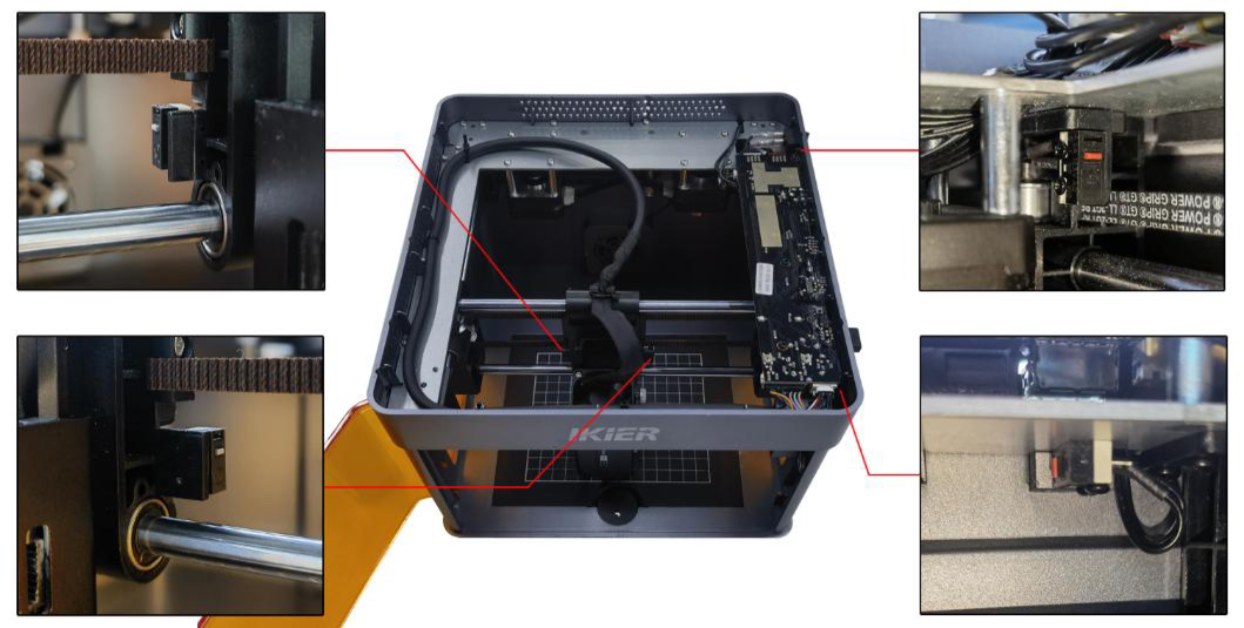
Figure 64
- Check the Mainboard Cables
Open the lid of the enclosure and check the limit switch cables on the mainboard for looseness, breaks, or poor contact, as shown in Figure 65.
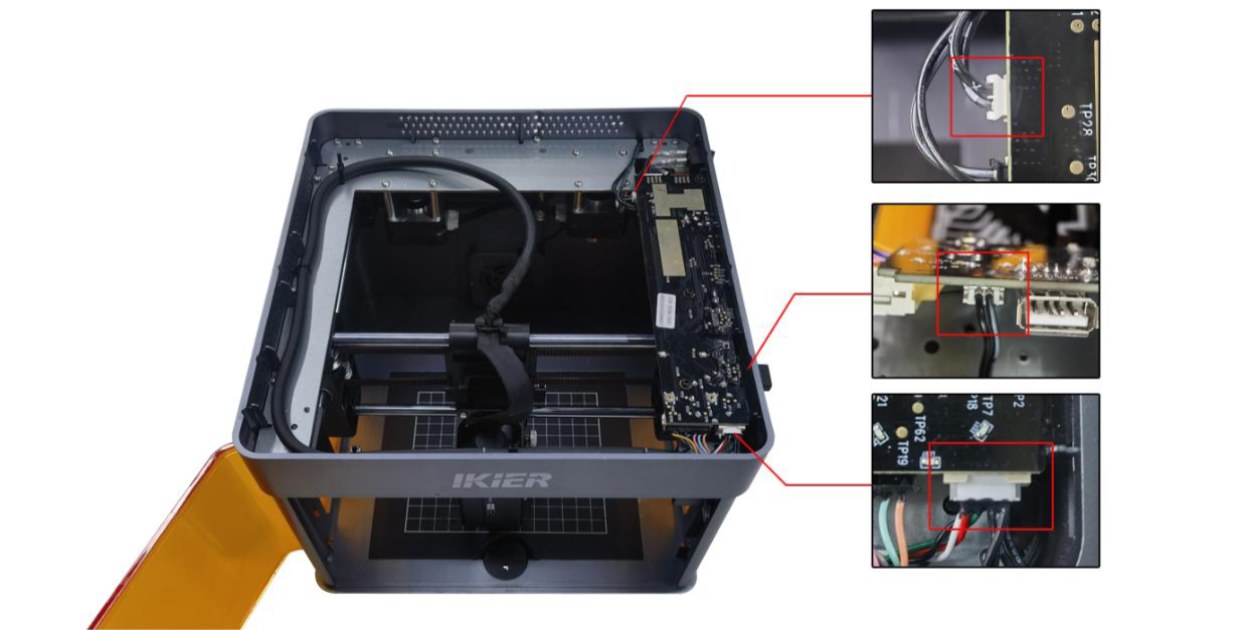
Figure 65
- Restore Factory Settings
If none of the above steps resolve the issue, restore the machine to factory settings and rule out abnormal parameter settings as a possible cause.
- Contact Customer Service
If none of the above steps resolve the issue, please contact Customer Service and provide the following information:
-
Troubleshooting Video: If the issue can be easily reproduced, record a complete video of the operation. If the issue occurs only after a long period of operation, record the fault condition when the alarm appears and the information displayed in the software console.
-
Troubleshooting Steps: Provide a description of the steps that have already been checked or performed.
-
Fault Photos: If a specific fault is identified during troubleshooting, provide clear photos showing the issue.
-
Serial Number: Provide a photo of the Serial Number on the back of the enclosure, as shown in Figure 66.
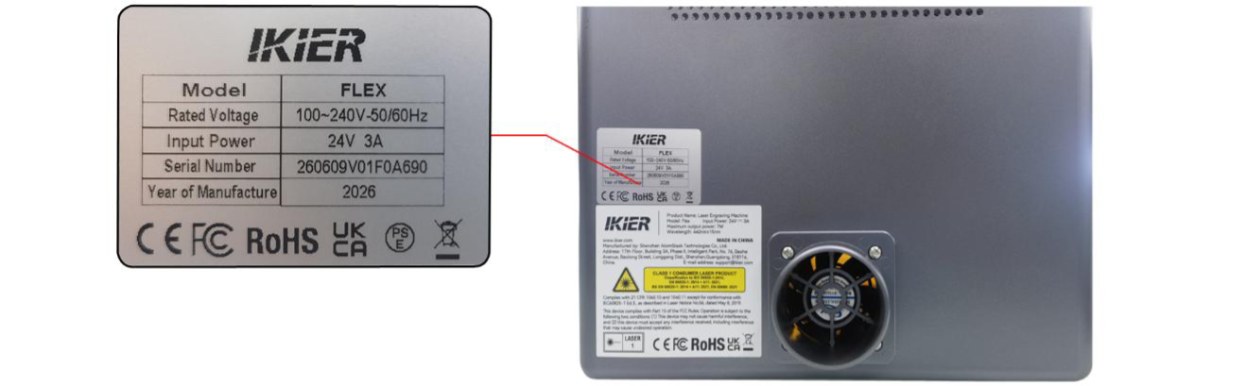
Figure 66
Still not fixed? Contact support with the details listed in What to send support.
Related problems: Engraving Area Exceeded · Limit Switch Not Found · Homing Hits the Frame
¶ Limit Switch Not Found
What you see: The software displays "Limit Switch Not Detected".
Check in this order:
Please follow the steps below to troubleshoot the issue:
- Manually Test the Limit Switches
Press the limit switches on both sides of the laser module, as well as the front and rear Y-axis limit switches on the right side (see Figure 67). Check whether the alarm sound (beep) is triggered correctly.
-
If a switch does not trigger the alarm, check whether its cable connection is loose.
-
If the cable is properly connected but the switch still does not respond, the limit switch may be damaged.
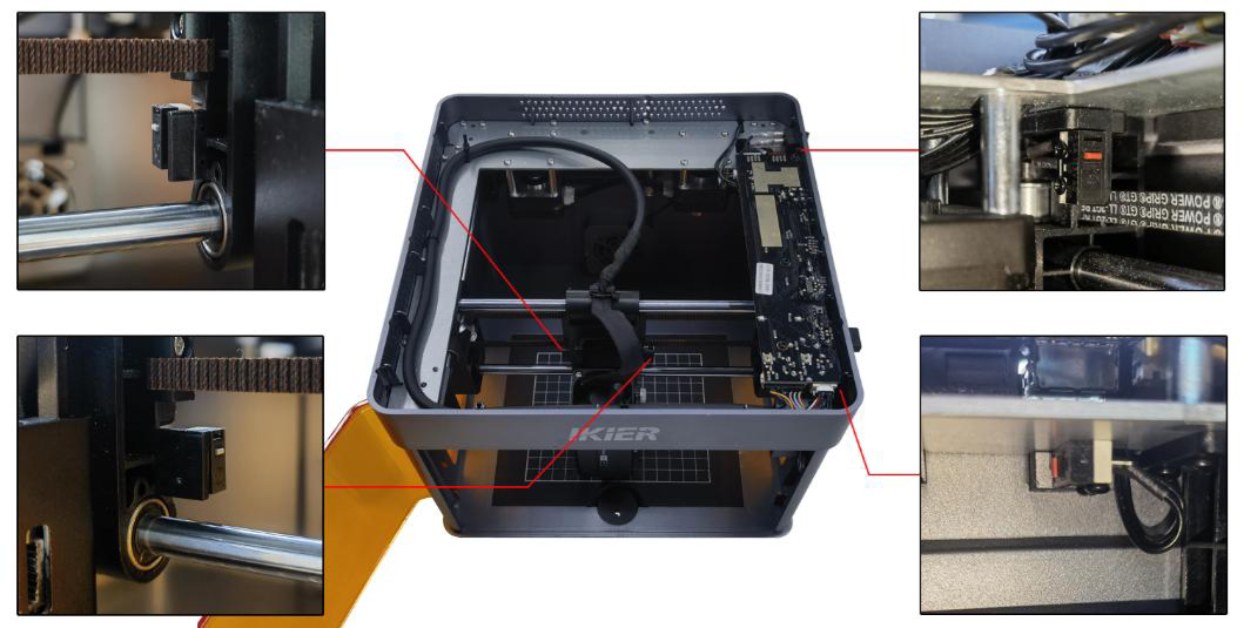
Figure 67
- Check the Mainboard Connections
Open the enclosure lid and inspect the limit switch cables connected to the mainboard. Check for loose connections, damaged wires, or poor contact (see Figure 68).
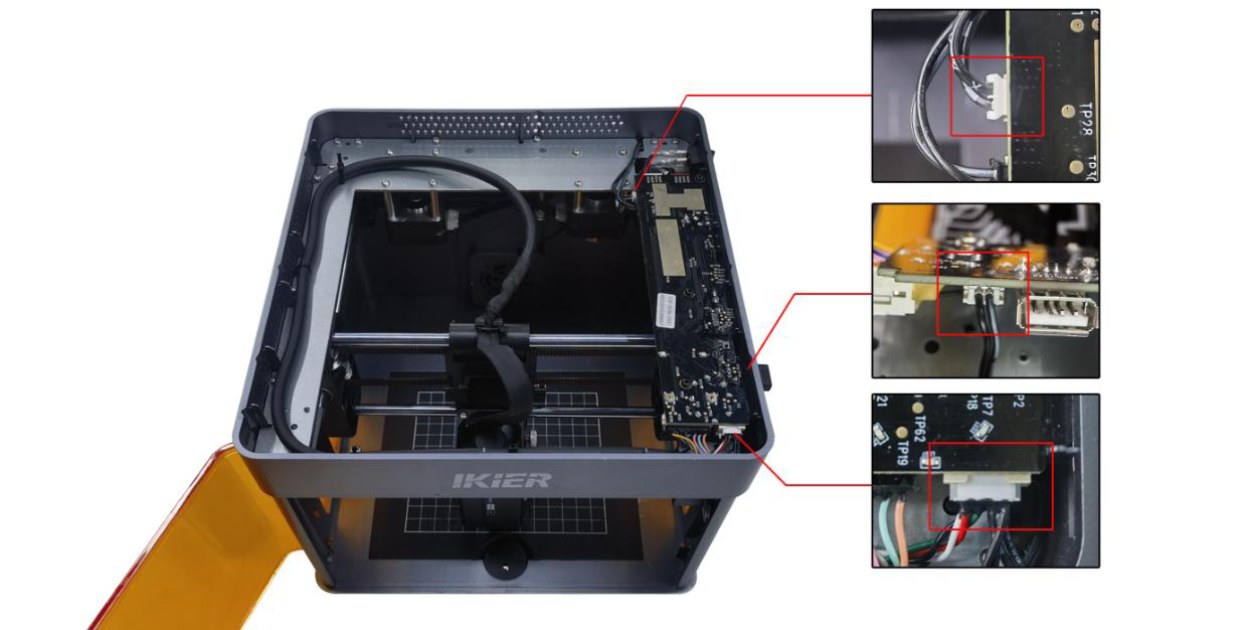
Figure 68
- Restore Factory Settings
If none of the above steps resolve the issue, restore the machine to factory settings and rule out abnormal parameter settings as a possible cause.
- Contact Customer Support
If the problem still cannot be resolved, please contact Customer Support and provide the following information:
- Fault video:
-
If the issue can be reproduced easily, record the complete troubleshooting process.
-
If the issue occurs only occasionally, record the alarm condition and the error code displayed in the software.
-
A description of the troubleshooting steps you have already performed.
-
If a fault is identified during troubleshooting, provide clear photos of the faulty part.
-
A photo of the Serial Number label on the back of the machine (see Figure 69).
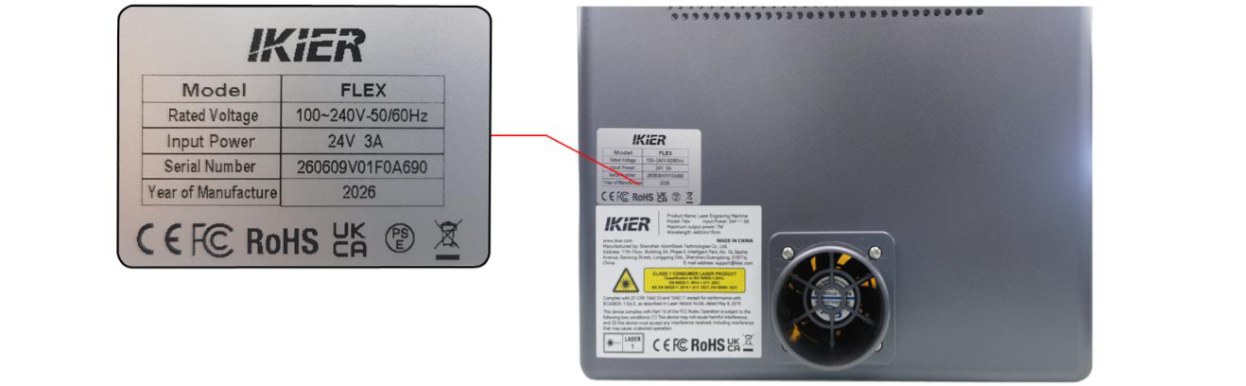
Figure 69
Still not fixed? Contact support with the details listed in What to send support.
Related problems: Area Alarm at Center · Homing Hits the Frame · Software Alarms
¶ Frame Hit When Engraving
What you see: The engraving machine does not hit the frame during framing, but hits the frame during engraving.
Check in this order:
Please follow the steps below to troubleshoot the issue:
- Confirm the Laser Type
-
Diode Laser: Proceed directly to Step (2).
-
Infrared Laser: Since there is a certain offset between the laser emission point and the center point of the crosshair, the laser module will move an additional distance during engraving compared with framing.
- Test with Different Control Software
We recommend using AtomStack Studio or LightBurn. Try using a different software program for engraving and check whether the issue still occurs, in order to rule out software version-related factors.
- Restore Factory Settings
If the issue persists after completing the above steps, restore the machine to its factory settings and eliminate the possibility of incorrect parameters causing the issue.
- Contact Customer Support
If the problem still cannot be resolved, please contact Customer Support and provide the following information:
-
Fault video: Show the software interface, file design, framing process, and the issue that occurs.
-
A description of the troubleshooting steps you have already performed.
-
A photo of the Serial Number label on the back of the machine (see Figure 74).
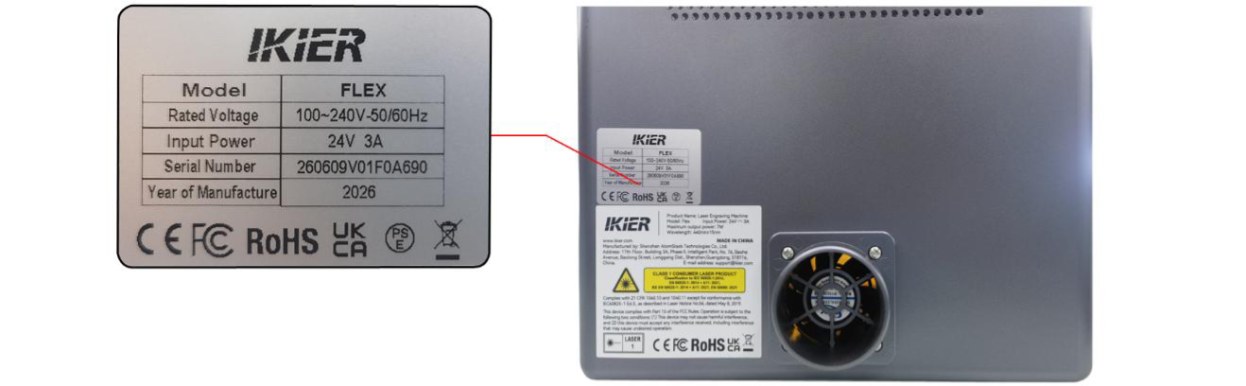
Figure 74
Still not fixed? Contact support with the details listed in What to send support.
Related problems: Engraving Area Exceeded · Infrared Framing Offset · Homing Hits the Frame
¶ Homing Hits the Frame
What you see: The machine hits the frame during homing and displays "Homing Failed".
Check in this order:
Please follow the steps below to troubleshoot the issue:
- Check for Foreign Objects Inside the Enclosure
Open the enclosure door and check whether any foreign objects are blocking the laser module's movement path. If any are found, remove them immediately.
- Manually Press the Limit Switches to Test Them
Press the limit switches on both sides of the laser module, as well as the front and rear Y-axis limit switches on the right side, as shown in Figure 76. Check whether the alarm sound (beep) is triggered correctly.
-
If the alarm is triggered correctly, the limit switches are functioning properly. Proceed directly to Step 4.
-
If any switch does not trigger the alarm, check whether its cable connection is loose. If the cable is properly connected but the switch still does not respond, the limit switch may be damaged.
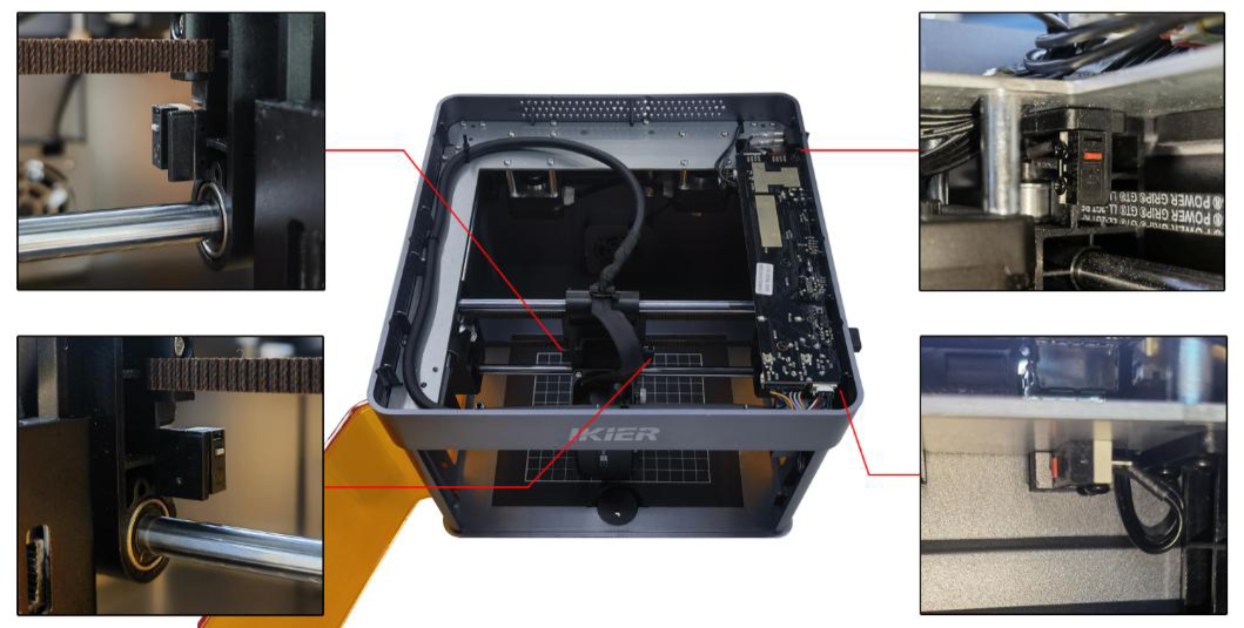
Figure 76
- Check the Limit Switch Cable Connections on the Mainboard
Open the top cover of the machine and check the limit switch cable connections on the mainboard (see Figure 77) for loose connections, broken wires, or poor contact. If any abnormality is found, reconnect or replace the cable as necessary.
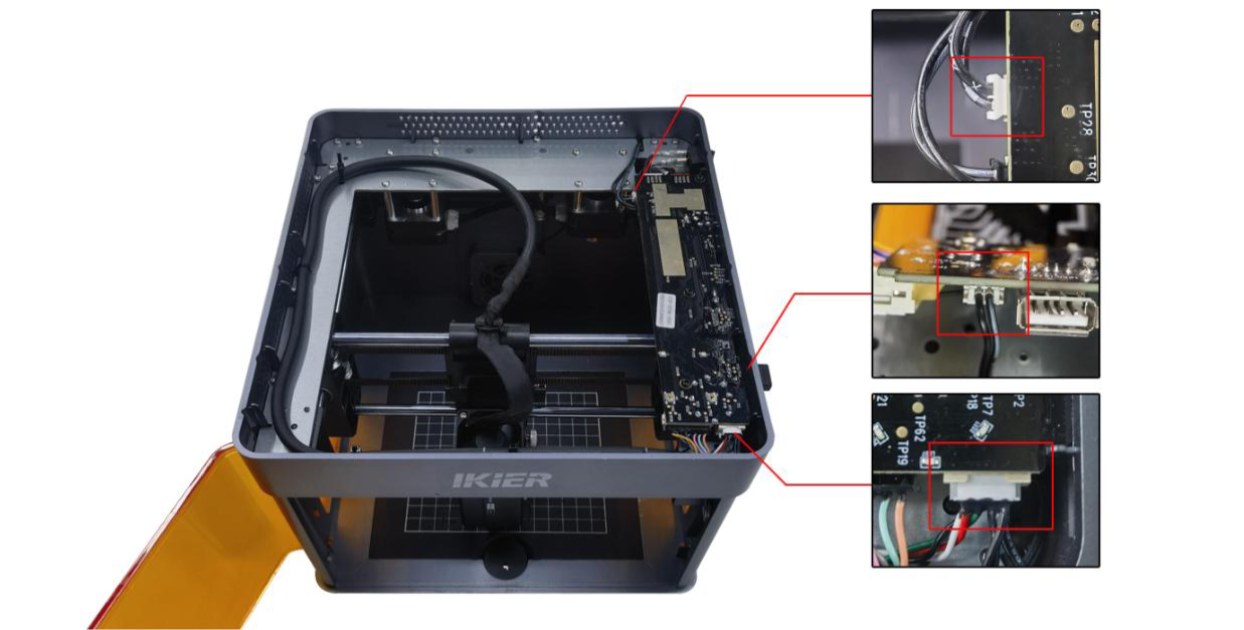
Figure 77
- Restore Factory Settings
If the issue persists after completing the above steps, restore the machine to its factory settings and eliminate the possibility of incorrect parameter settings.
- Contact Customer Support
If the problem still cannot be resolved, please contact Customer Support and provide the following information:
-
Fault video: The video should clearly show the complete homing process and the manual limit switch test.
-
A description of the troubleshooting steps you have already performed.
-
A photo of the Serial Number label on the back of the machine (see Figure 78).
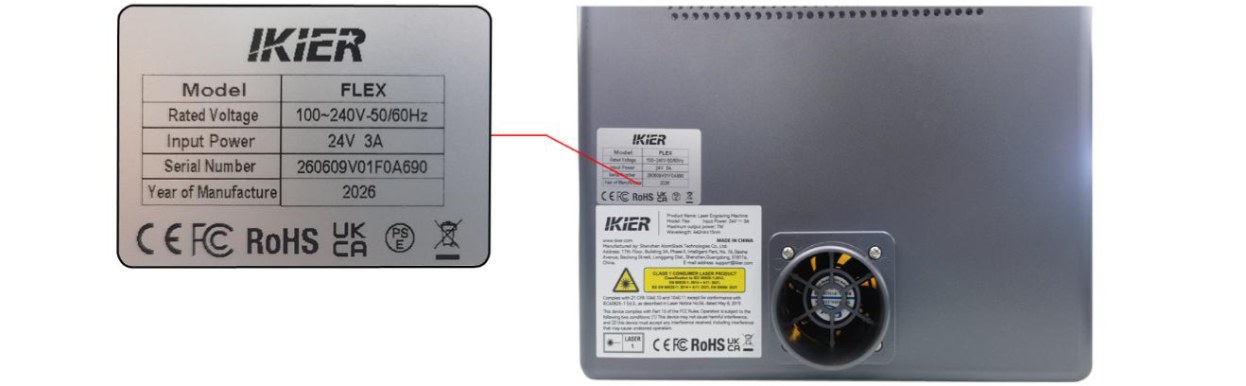
Figure 78
Still not fixed? Contact support with the details listed in What to send support.
Related problems: Limit Switch Not Found · Area Alarm at Center · Frame Hit When Engraving