Flex Power & Connection: No Power, PC Fails
The machine will not power on or connect, shows a red indicator or storage warning, cannot read a TF card, or reports a missing USB Key.
Disconnect power before disassembly or electrical testing. Turn off the engraving machine before removing the laser and disconnecting its cable, or removing and reinserting the TF card. Do not turn off the machine or remove the TF card during a firmware update.
¶ Machine Won’t Power On
What you see: The machine cannot power on normally.
Check in this order:
Follow the steps below in sequence:
- Check the Status Indicator on the Top
① The indicator is solid red (alarm status)
- Check the USB Key (software alarm: USB safety lock not detected)
Check whether the USB Key is properly inserted, as shown in Figure 10. Alternatively, gently wiggle the USB Key and check whether the indicator turns green.
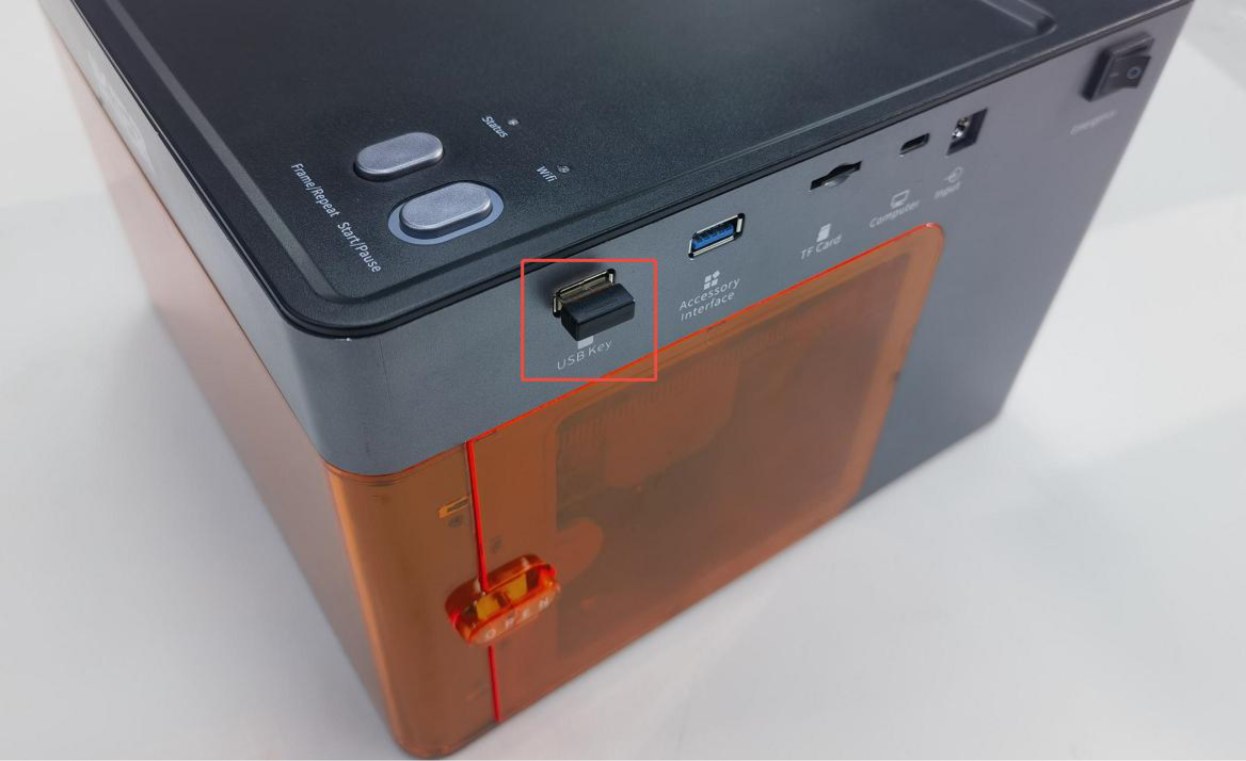
Figure 10
- Check the Enclosure Door (software alarm: enclosure is abnormally open)
Check whether the enclosure door is fully closed. You can open and close the door again. If the issue persists, press the two trigger points on the enclosure door by hand and check whether the status indicator returns to normal green. → If the indicator returns to normal green after pressing: The enclosure door was not fully closed. Check whether any foreign objects are obstructing the door. → If the alarm persists after pressing: Check whether the detection limit switch on the enclosure door and the cable connected to the mainboard are loose. Disconnect and reconnect the cable.
- Check the Laser Position
Manually move the laser to the center of the enclosure and check whether the indicator turns green. (Software alarm: the limit switch is triggered.)
- Try Restoring Factory Settings
Restore the factory settings through the "Serial Port Log" developer mode in AtomStack Studio, or enter “ $RST=* ”in the Console command input box in LightBurn to restore the factory settings, as shown in Figure 11.
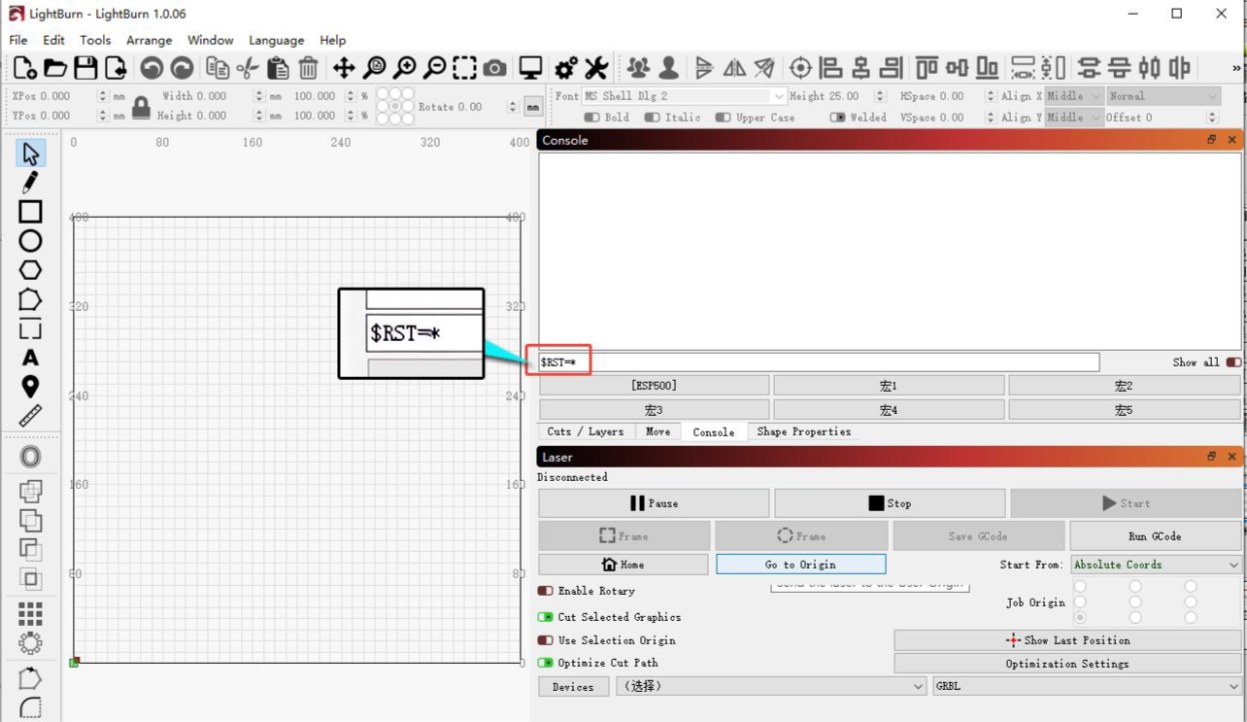
Figure 11
② The Indicator Is Off (Mainboard Not Powered On) Check the mainboard power indicator: Open the enclosure door and check whether the mainboard power indicator at the top right is illuminated green, as shown in Figure 12.
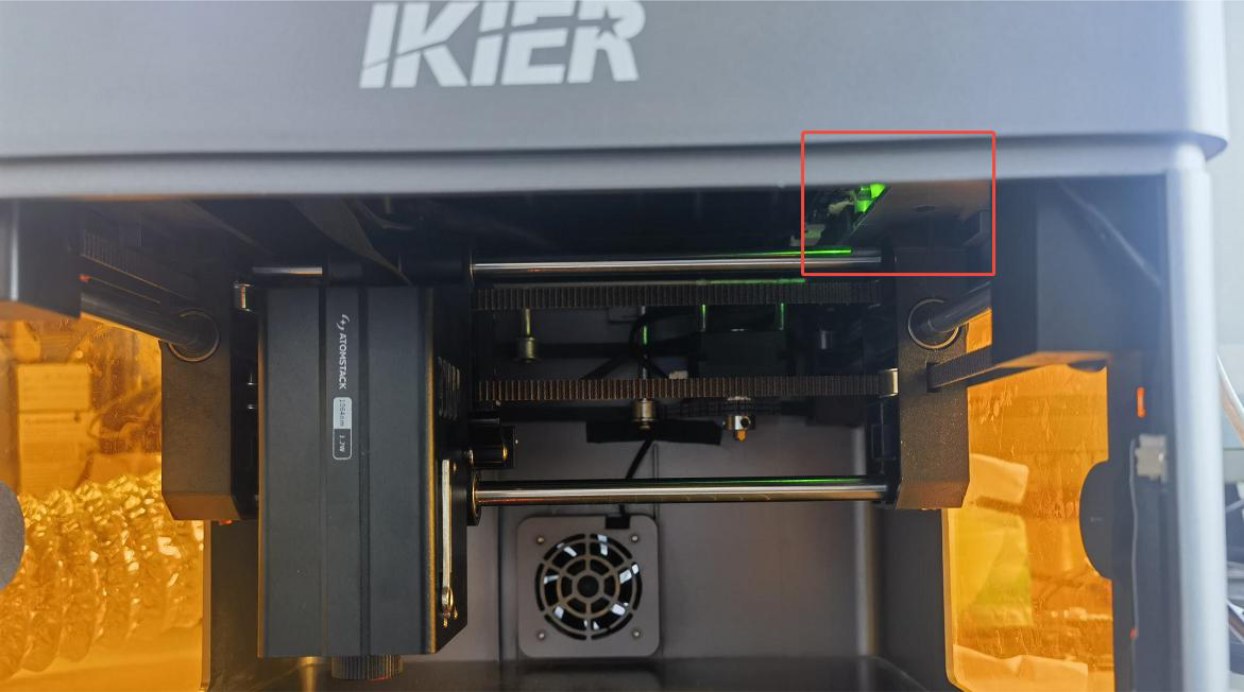
Figure 12
-
Green: The mainboard firmware may be missing. Contact Customer Service to request a firmware re-flash.
-
Off: The power adapter or power switch may be faulty.
→ Power Adapter Troubleshooting: Use a multimeter set to the DC voltage mode to measure the adapter output voltage and check whether it is 24 V. If you do not have a multimeter, you can determine whether the adapter is faulty by connecting the two power switch wires on the mainboard and checking for sparks. If the adapter is confirmed to be faulty, provide Customer Service with a photo of the Serial Number on the back of the enclosure so that a replacement part can be arranged. → Power Switch Troubleshooting: Open the enclosure door and push upward firmly from the inside to open the top cover of the enclosure. At the upper right, disconnect the two wires from the power switch, as shown in Figure 13. Slide the plastic protective sleeve downward, then connect the two metal terminals together, as shown in Figure 14. Connect the power supply and check whether the machine can power on normally. If the machine powers on normally after the terminals are shorted, contact Customer Service and provide the troubleshooting results and a photo of the Serial Number so that a replacement part can be arranged.
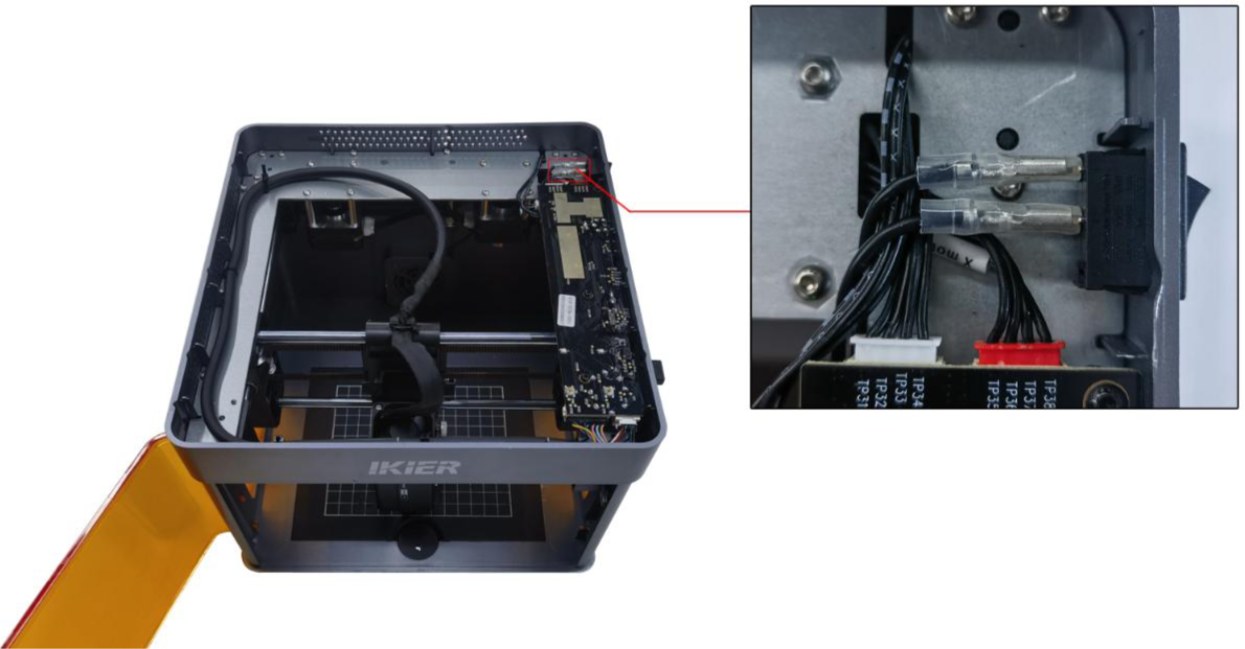
Figure 13
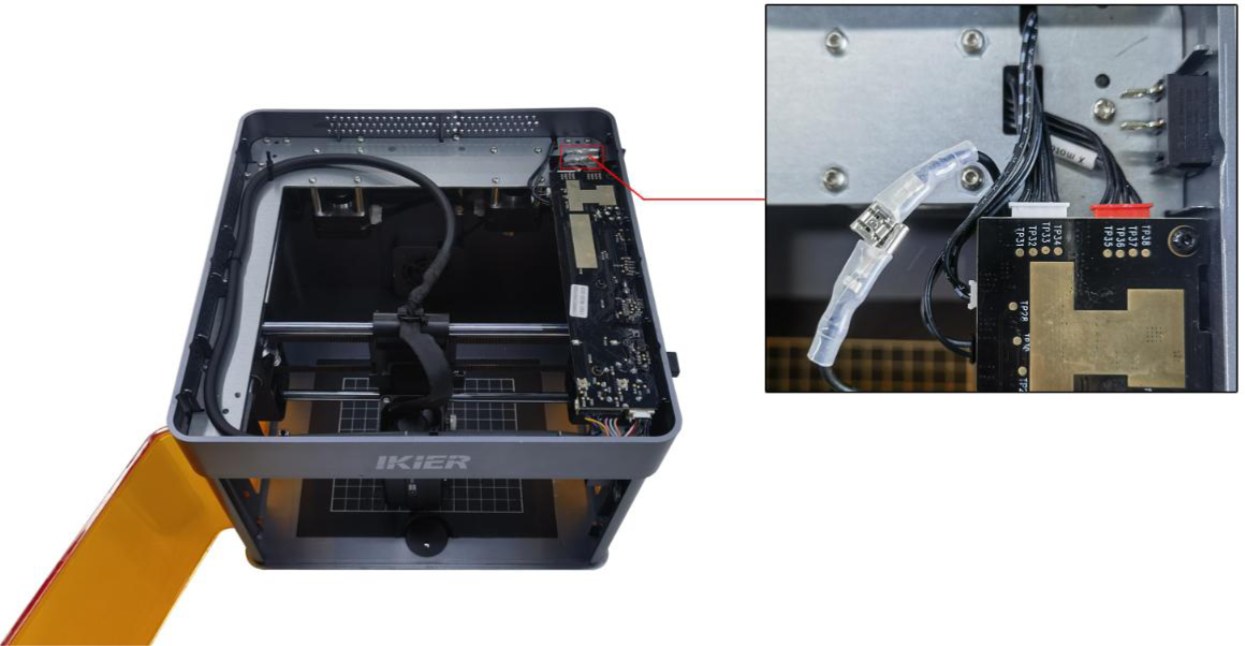
Figure 14
- Contact Customer Service
If none of the above steps resolve the issue, send the following information to Customer Service:
-
A video showing the problem.
-
A description of the troubleshooting steps already performed.
-
A photo of the machine's Serial Number (as shown in Figure 15).
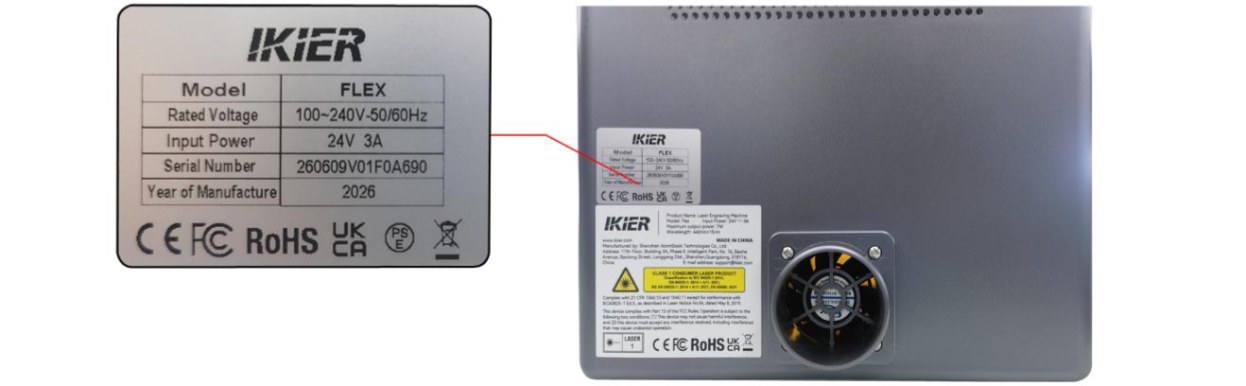
Figure 15
- Replacement Part References
Still not fixed? Contact support with the details listed in What to send support.
Related problems: Red Light at Power-On · PC Won’t Connect · USB Key Not Detected
¶ PC Won’t Connect
What you see: The computer connection fails.
Check in this order:
Follow the steps below to troubleshoot the issue one by one:
- Confirm That the Machine Is Powered On Properly
Check whether the status indicator on the top of the enclosure is illuminated solid green (normal standby status). If the indicator is off or red, first refer to the "Unable to Power On Normally" section for troubleshooting.
- Confirm That the Connection Is Correct
-
When using a Type-C data cable, the Type-C connector must be plugged into the “Computer” port on the laser engraver (see the "Unboxing and Installation" section for details).
-
For Windows, you can plug either the Type-C or Type-A connector of the Type-C data cable into a USB port on the computer. For desktop computers, it is recommended to connect the cable to a USB port on the back of the computer.
-
For macOS, the Type-C connector of the Type-C data cable cannot be connected directly to the computer.
You must use a “hub/docking station”(as shown in Figure 16) to connect the Type-A connector of the Type-C data cable to the computer.
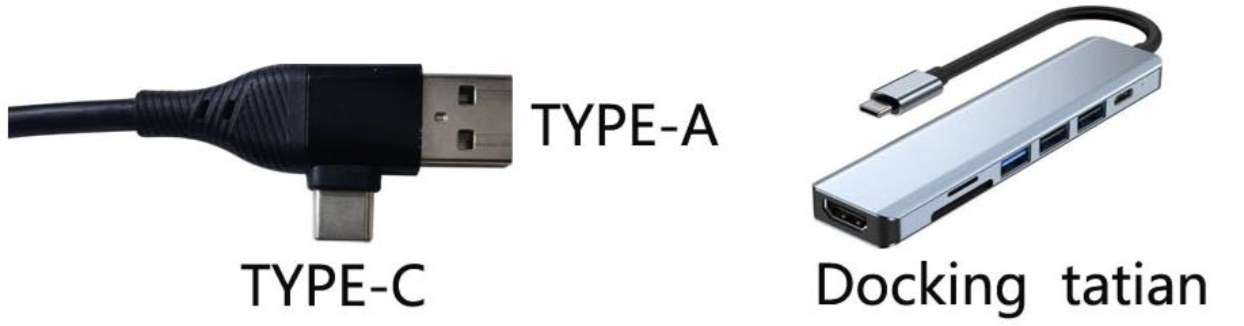
Figure 16
Note: Be sure to use a Type-C data cable that supports data transmission. Some cables support charging only and cannot establish communication between the computer and the laser engraver.
- Confirm That the Serial Port Driver Is Installed
The serial port driver must be installed before using the device for the first time. Download the driver from the links below:
-
Windows Driver Download: https://asa.atomstack.com/downloadWindowsDrivers.do3
-
macOS Driver Download: https://asa.atomstack.com/downloadMacDrivers.do3
Verify That the Serial Port Is Recognized: On your computer, open “Device Manager” → “Ports (COM & LPT)”and check whether a serial port with the name CH340 is detected, as shown in Figure 17.
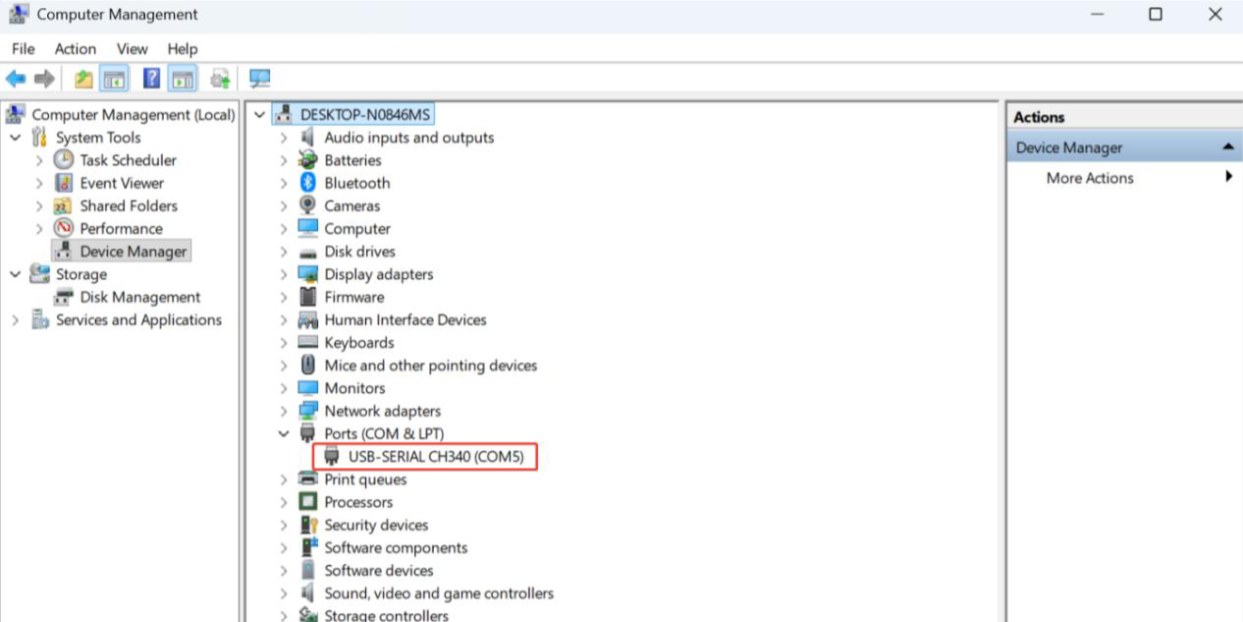
Figure 17
- Confirm That the Software Is Configured Correctly
① AtomStack Studio The software automatically detects the device model, so no additional configuration is required.
② LightBurn Import the Flex configuration file or manually modify the parameters. The parameters that need to be manually configured are as follows:
-
Manually add a GRBL controller.
-
Change the Baud Rate to 460800, as shown in Figure 18.
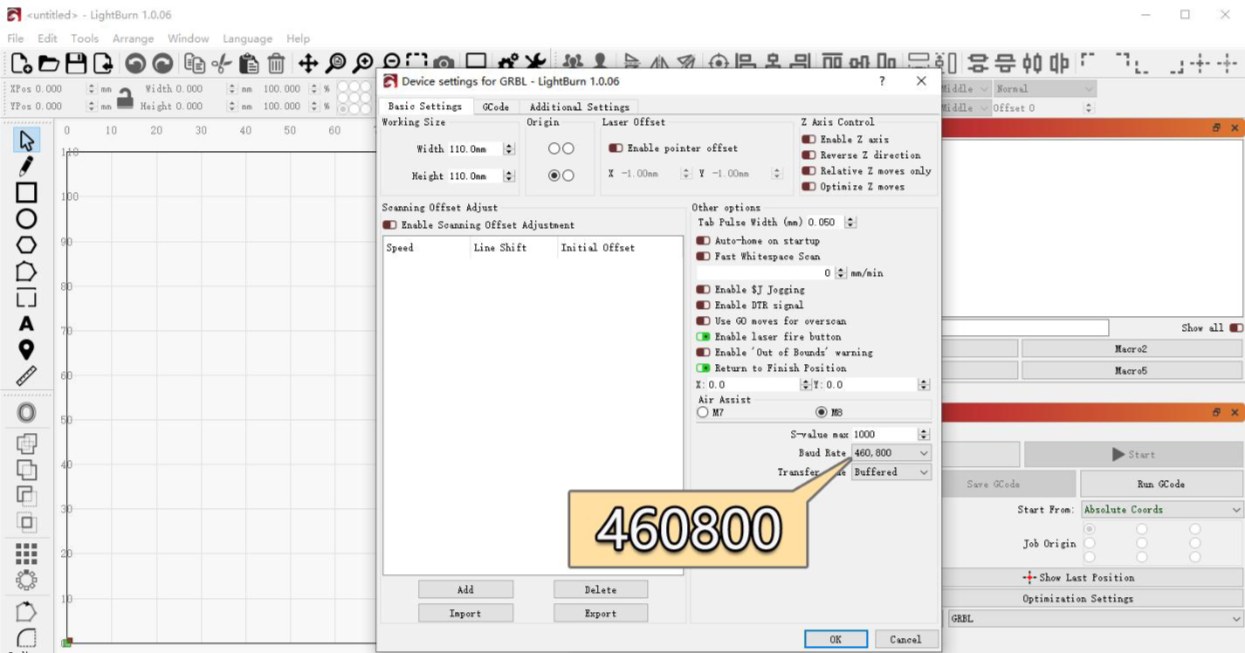
Figure 18
- Set the engraving area as follows:
→Blue Diode Laser: 110 mm × 110 mm →Infrared Laser: 105 mm × 100 mm
- Confirm That the Correct COM Port Is Selected (LightBurn Only)
If multiple COM ports are available on the computer, manually select the COM port corresponding to the engraving machine in LightBurn.
- Try a Different Computer and Type-C Data Cable
-
Try connecting the USB cable to a different USB port on the computer. For desktop computers, it is recommended to use a USB port on the back of the computer case.
-
Replace the Type-C data cable with another cable that supports data transfer. Do not use a cable intended for charging only.
-
If possible, try connecting the machine to another computer to rule out compatibility issues with the USB port or operating system of the current computer.
- Contact Customer Service
If none of the above steps resolve the issue, please provide the following information to Customer Service:
-
Troubleshooting Video: Clearly show how the Type-C data cable is connected (to both the computer and the machine), the connection process, and the serial port (CH340) recognition status in Device Manager.
-
Troubleshooting Steps: Provide a description of the steps that have already been checked or performed.
-
Machine Serial Number: Provide a photo of the machine's Serial Number, as shown in Figure 19.
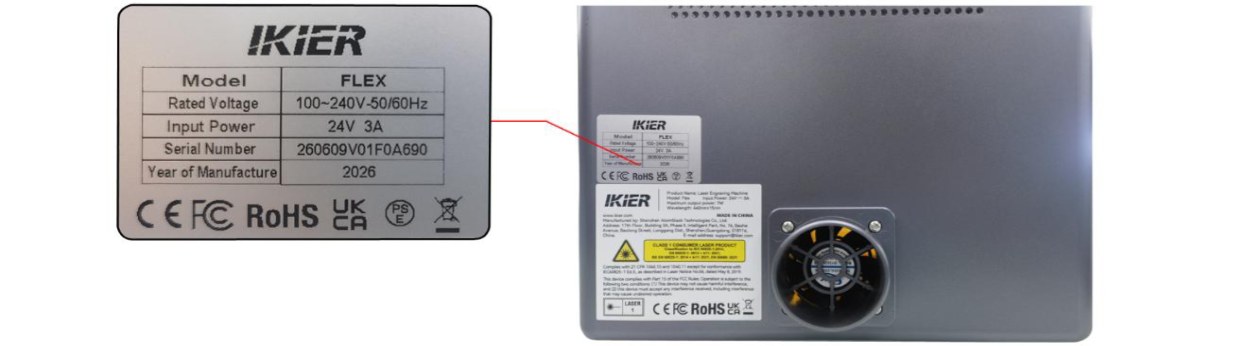
Figure 19
Still not fixed? Contact support with the details listed in What to send support.
Related problems: Machine Won’t Power On · App Won’t Connect · Engraving Stops Suddenly
¶ App Won’t Connect
What you see: The mobile app connection fails.
Check in this order:
Please follow the steps below to troubleshoot the issue one by one:
- Bluetooth Mode (Recommended)
① Confirm That the App Is Updated to the Latest Version Open the app, tap the icon in the bottom-right corner, and go to "Profile" → "Settings" → "About ATOMSTACK" to check the app version, as shown in Figure 20. If an update is available, complete the update before proceeding.
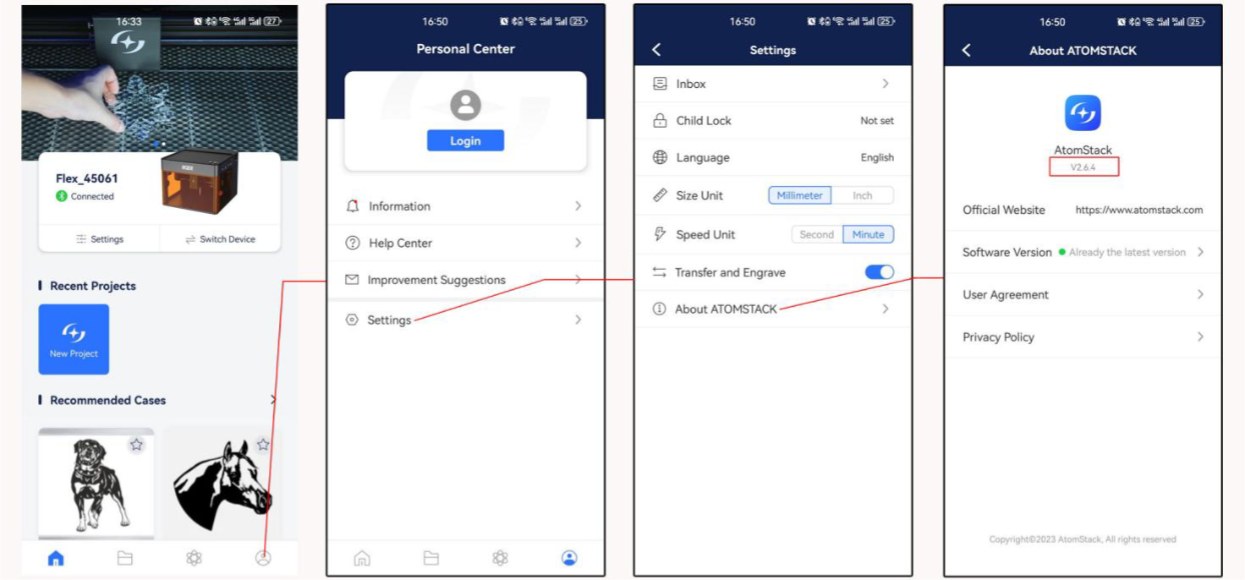
Figure 20
② Confirm That Bluetooth Is Enabled on Your Phone Open your phone's system settings and check whether Bluetooth is enabled.
③ Confirm That the Correct Device Model Is Selected The Flex series includes“Flex”and“Flex Pro”. Check that the correct device model is selected in the app.
④ Restart the Device and App Turn off the engraving machine and completely exit the app. Then restart the machine and the app and try connecting again.
⑤ Try a Different Phone If possible, try connecting the machine using another phone to rule out compatibility issues with the current phone.
- Wi-Fi Mode
① Confirm That Wi-Fi Connection Mode Has Been Enabled Press and hold the“Start/Pause”button and check whether the Wi-Fi indicator is flashing white.
② Confirm That the Wi-Fi Connection Is Not Occupied Make sure that the engraving machine's Wi-Fi connection is not being used by another phone or software.
③ Restart the Device and App Turn off the engraving machine and completely exit the app. Then restart the machine and the app and try connecting again.
④ Try a Different Phone If possible, try connecting the machine using another phone to rule out compatibility issues with the current phone.
- Contact Customer Service
If the connection issue persists after completing all the troubleshooting steps above, please provide the following information to Customer Service:
-
Operation Video: Record a complete video of the connection process, including the operations performed on the phone screen and the status of the device.
-
App Version: In the app, go to "Profile" → "Settings" → "About ATOMSTACK" to check the app version.
-
Engraving Machine Firmware Version: After successfully connecting the machine using the computer software, go to the Device Information page to check the firmware version, as shown in Figure 21.
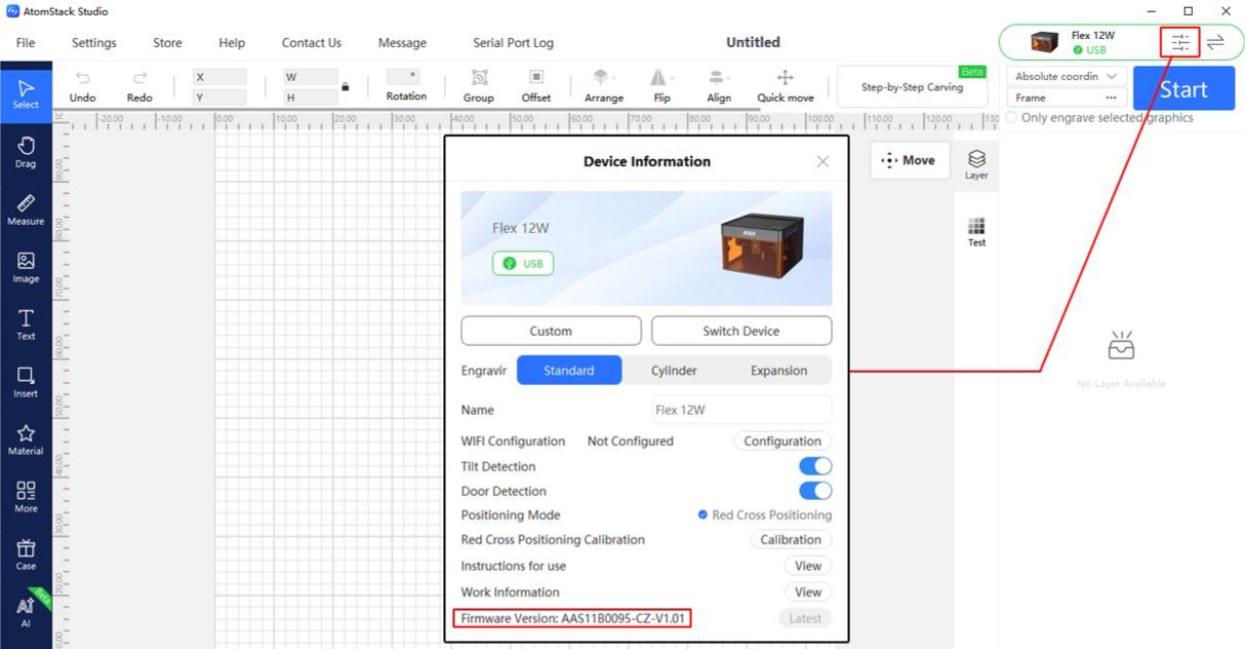
Figure 21
Still not fixed? Contact support with the details listed in What to send support.
Related problems: PC Won’t Connect · Wi-Fi Storage Warning · Software & Firmware
¶ Wi-Fi Storage Warning
What you see: A "USB Flash Drive Not Inserted" message appears when engraving via Wi-Fi.
Check in this order:
Please follow the steps below to troubleshoot the issue one by one:
- Troubleshooting Steps
① Confirm That the TF Card Is Inserted Check whether a TF card is inserted into the TF card slot of the machine, and make sure that the original TF card provided with the machine is being used.
② Confirm That the TF Card Can Be Read and Written Normally Insert the TF card into a card reader and connect it to a computer. Check whether the computer can read from and write to the TF card normally.
-
The TF card can be read and written normally and is the original card provided with the machine → The mainboard may be faulty. Continue with the next troubleshooting step.
-
The TF card cannot be read or written → Format the TF card to FAT32 and then reinsert it into the machine to try again. ③ Try Replacing the TF Card Replace the TF card with another card with a capacity of 16 GB or less for testing. Cards with a capacity of more than 16 GB may not be recognized by the machine. ④ Confirm That the Firmware Has Not Been Upgraded Without Authorization The firmware of some models does not support TF card reading. If you have upgraded the firmware without authorization, please inform Customer Service of this situation.
- Contact Customer Service
If the connection issue persists after completing all the troubleshooting steps above, please contact Customer Service and provide the following information:
-
Troubleshooting Video: Include the issue and the read/write test performed on the computer.
-
Device Firmware Version: As shown in Figure 22.
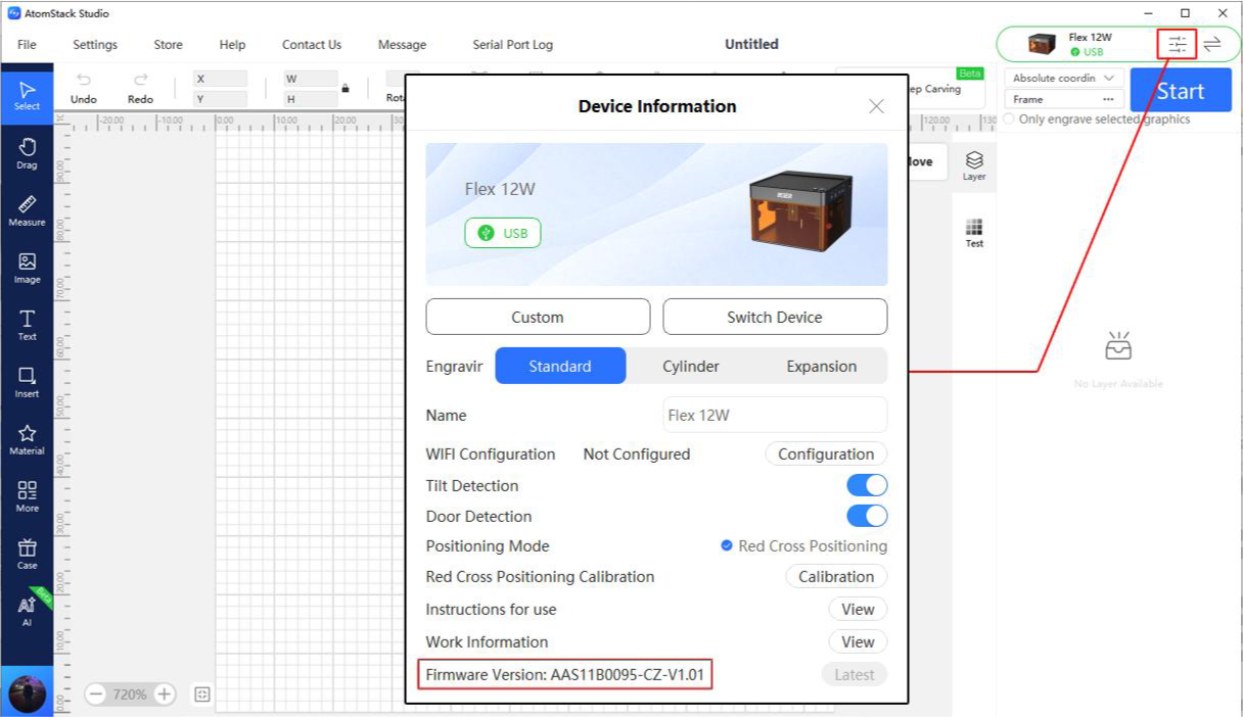
Figure 22
- Serial Number: Provide a photo of the Serial Number, as shown in Figure 23.
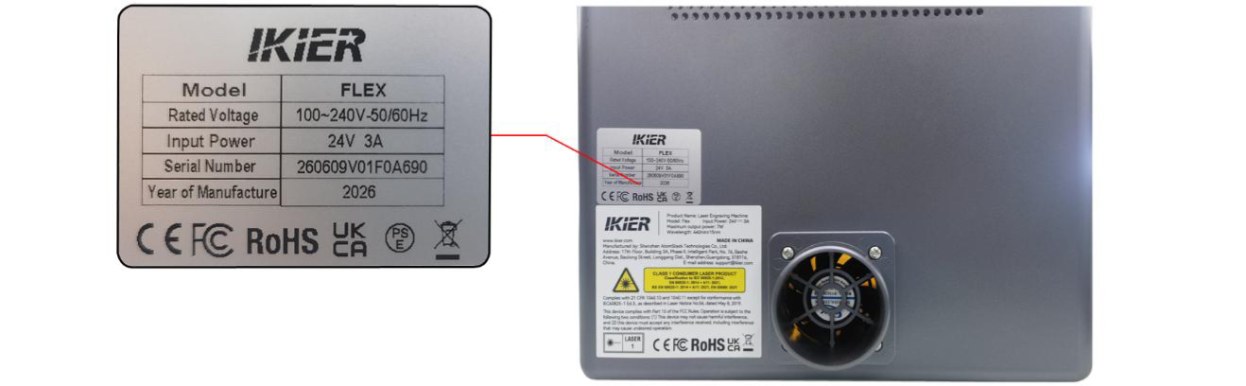
Figure 23
- Troubleshooting Steps: Provide a description of the steps that have already been checked or performed.
Still not fixed? Contact support with the details listed in What to send support.
Related problems: TF Card Not Recognized · App Won’t Connect
¶ Red Light at Power-On
What you see: The status indicator remains red after powering on.
Check in this order:
Follow the steps below to troubleshoot the issue.
Note: A red indicator indicates an alarm status.
- Check the Alarm Information
Connect the device using AtomStack Studio. If the device is in an alarm state, the software will display the corresponding alarm message. Troubleshoot the issue according to the alarm message:
① USB Key Not Connected
- Check whether the USB Key is inserted, as shown in Figure 24. Alternatively, gently move the USB Key and check whether the indicator turns green.
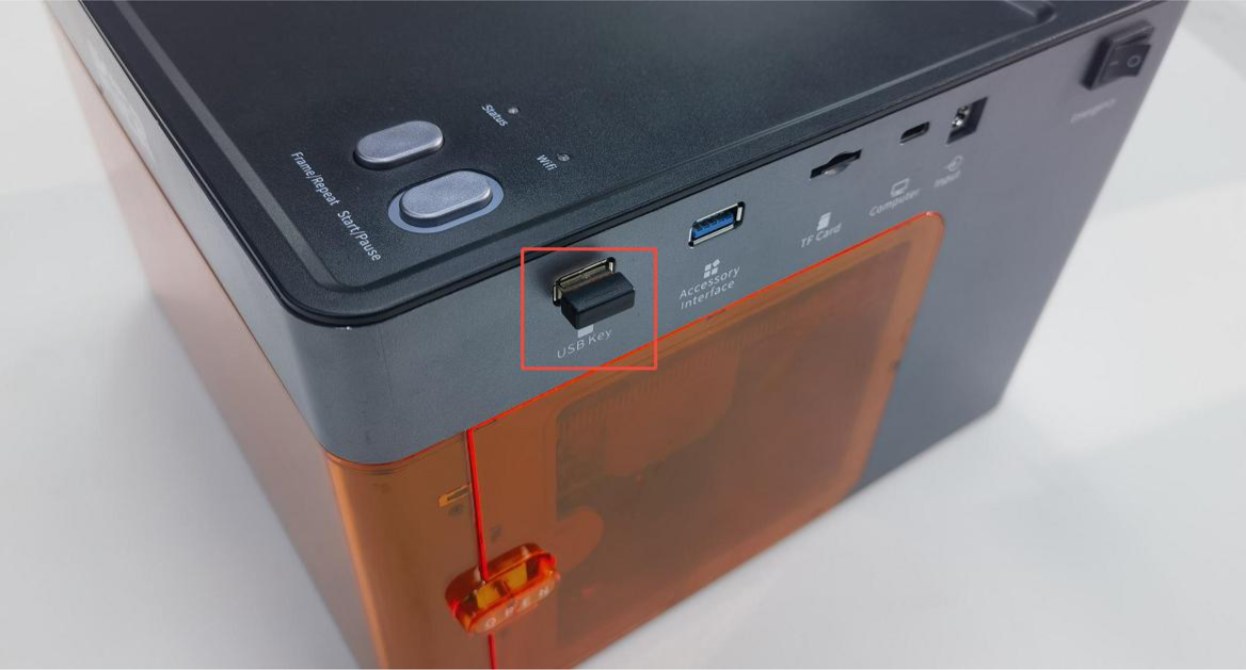
Figure 24
- Check whether the top cover of the enclosure is properly closed (the top cover is equipped with a lid-open detection function). Open and close the top cover again, or press the detection switch by hand (as shown in Figure 25) to check whether the status indicator returns to normal green.
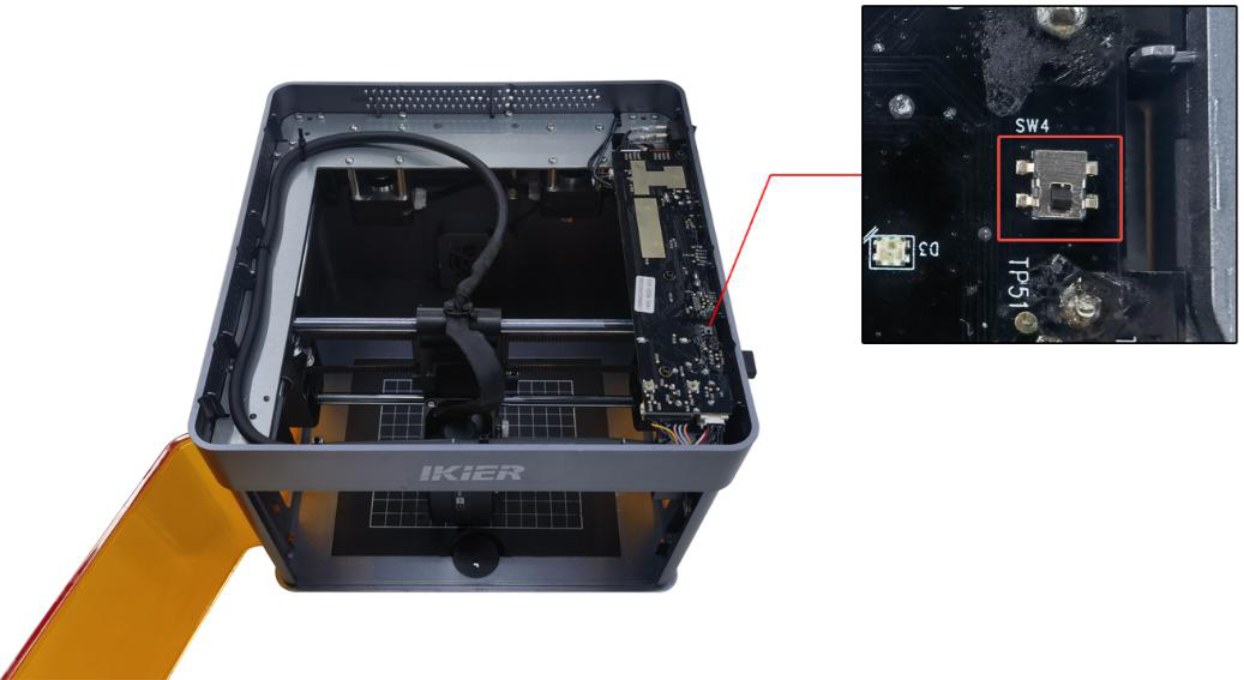
Figure 25
② Abnormal Enclosure Opening
-
Check whether the enclosure door is fully closed. Open and close the door again.
-
Press the two switch trigger points on the enclosure door by hand to check whether the machine returns to normal operation. → Normal after pressing: The enclosure door was not fully closed. Check whether any foreign objects are obstructing the door. → Alarm persists after pressing: Check whether the enclosure door detection limit switch and the connector on the mainboard are loose. Disconnect and reconnect the connector.
③ Limit Switch Triggered by Collision Move the laser head to the center of the enclosure by hand and check whether the indicator turns green. If the machine still indicates that a limit switch has been triggered by a collision, press the X-axis limit switch and Y-axis limit switch by hand in sequence (as shown in Figure 26). Check whether pressing each limit switch triggers the alarm (beeping sound) to determine whether the limit switch is damaged.
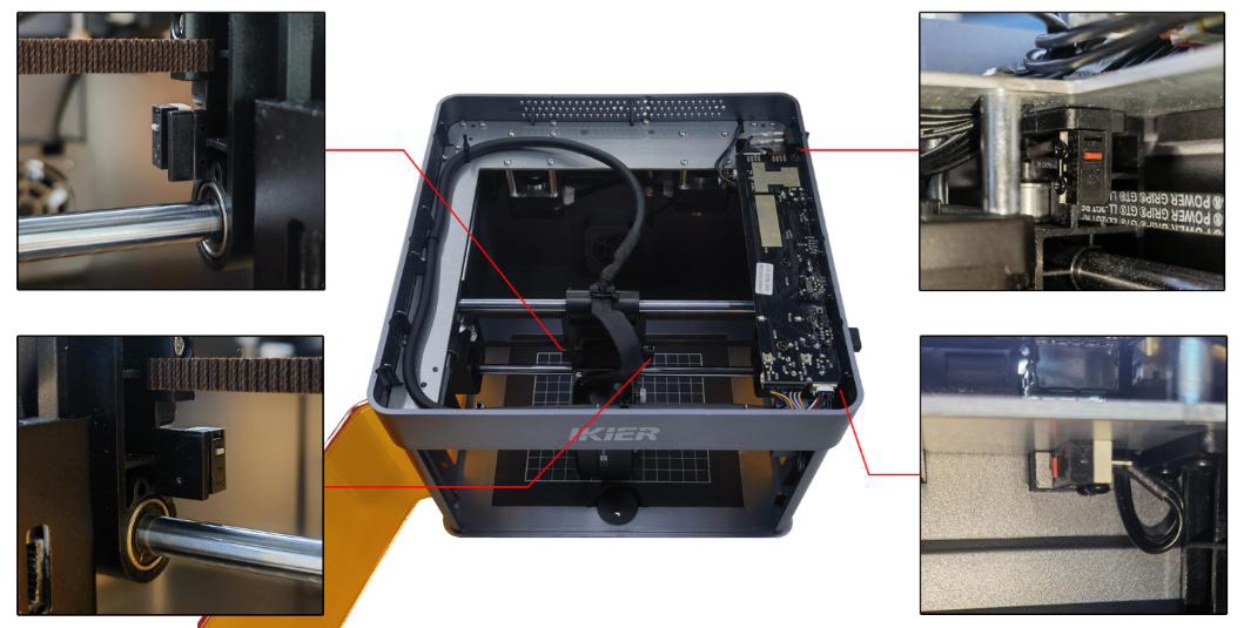
Figure 26
④ Tilt Alarm Make sure that the engraving machine is placed on a level surface. If the alarm persists, open the top cover of the enclosure and tighten the fixing screw next to the buzzer on the mainboard, as shown in Figure 27.
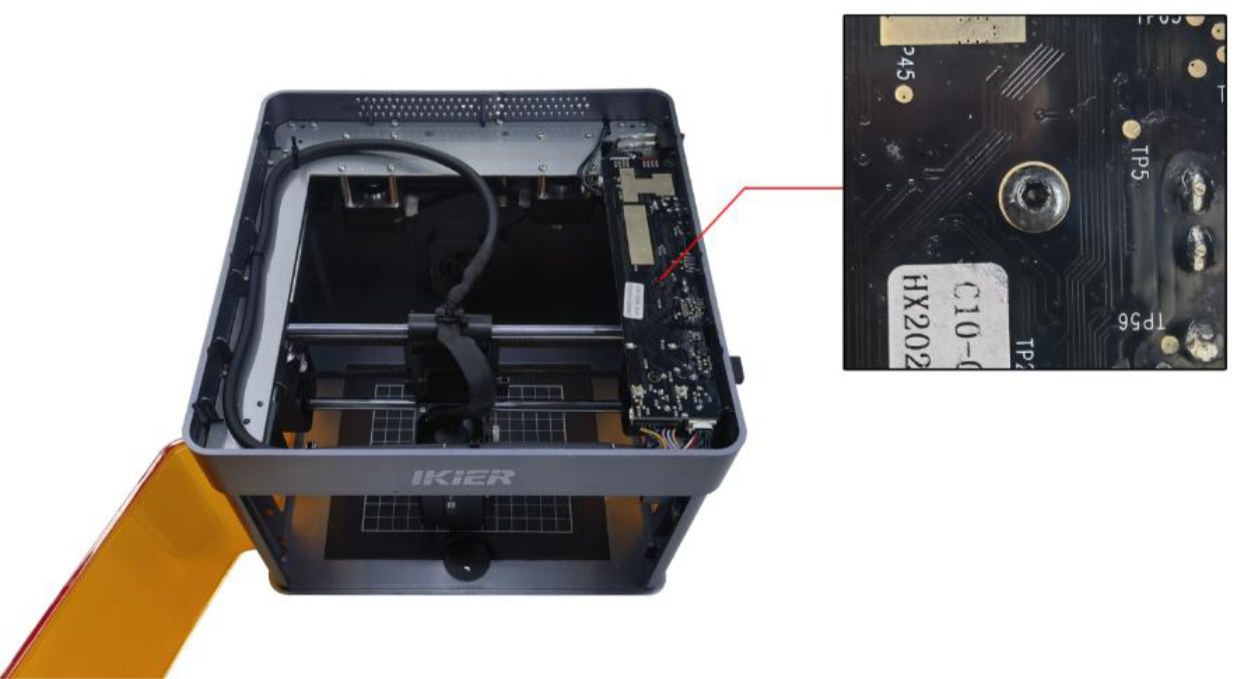
Figure 27
- Restore Factory Settings
If none of the above steps resolve the issue, restore the machine to factory settings, or upgrade the firmware using a TF card to rule out abnormal parameter settings as the cause.
- Contact Customer Service
If you identify a problem during troubleshooting but cannot resolve it yourself, or if the cause of the fault cannot be determined, please provide the following information to Customer Service:
-
Troubleshooting Video: The video must clearly show the issue.
-
Troubleshooting Steps: Provide a description of the steps that have already been checked or performed.
-
Device Serial Number: Provide a photo of the device Serial Number, as shown in Figure 28.
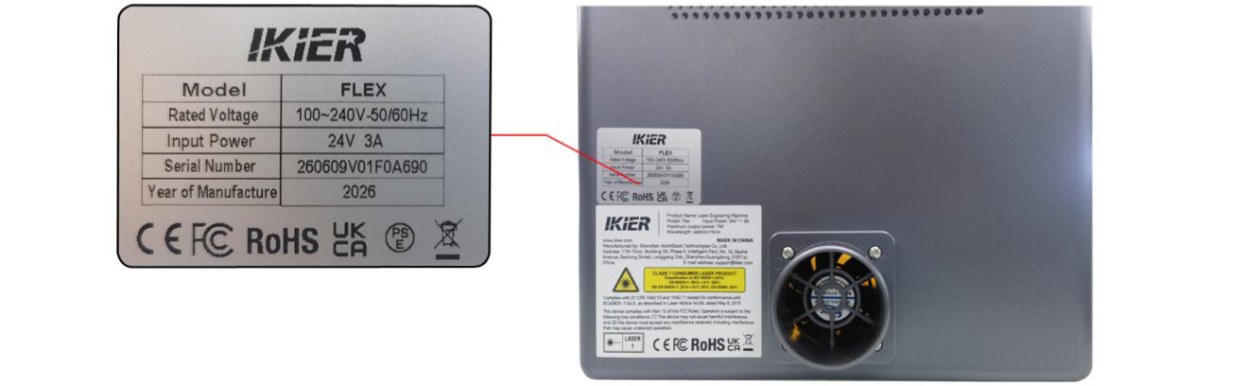
Figure 28
Still not fixed? Contact support with the details listed in What to send support.
Related problems: Machine Won’t Power On · USB Key Not Detected · Door Closed but Alarmed
¶ TF Card Not Recognized
What you see: The engraving machine cannot recognize the TF card.
Check in this order:
Please follow the steps below to troubleshoot the issue:
- Reinsert the TF Card
Turn off the engraving machine, remove the TF card, and then reinsert it. Power on the machine and check whether the TF card can be recognized normally.
- Check the Storage Capacity
A TF card with a capacity of 16 GB or less is recommended. A card with a larger capacity may not be recognized by the engraving machine.
- Check the TF Card Read/Write Function
Turn off the engraving machine and remove the TF card. Insert it into a card reader (not included) and connect the card reader to a computer. Check whether the TF card can be recognized normally.
-
The computer recognizes the TF card and can read and write data normally, but the engraving machine still cannot recognize it: Format the TF card to FAT32 and try again.
-
The computer cannot recognize the TF card normally: Try formatting the TF card to FAT32. If the card is still not recognized, the TF card is considered faulty.
- Replace the TF Card
Replace the TF card with another card with a capacity of 16 GB or less and formatted in FAT32, and insert it into the engraving machine to check whether it can be recognized normally. If the machine still cannot recognize the card, the mainboard is considered faulty.
- Contact Customer Service
If none of the above steps resolve the issue, or if you have identified a problem that cannot be repaired by yourself, please contact Customer Service and provide the following information:
-
Troubleshooting Video: The video must clearly show the issue and the troubleshooting process.
-
Troubleshooting Steps: Provide a description of the steps that have already been checked or performed.
-
Device Serial Number: Provide a photo of the device Serial Number, as shown in Figure 29.
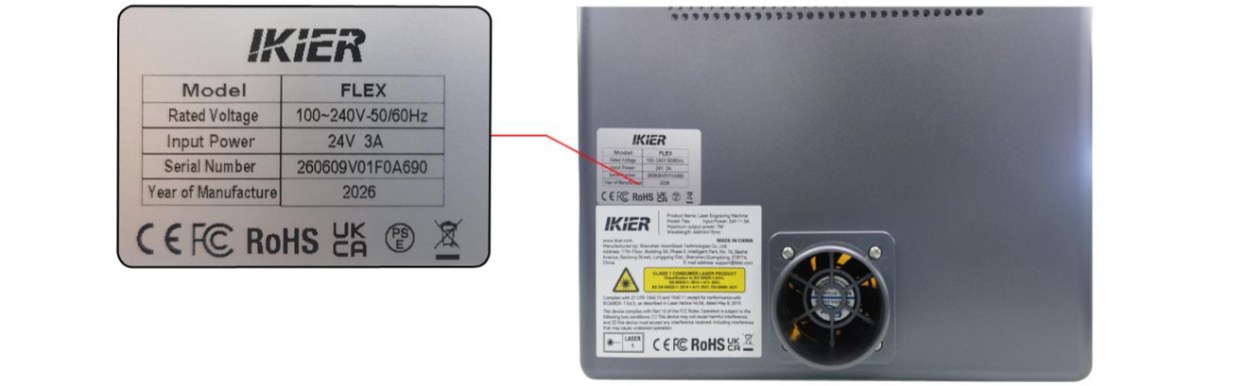
Figure 29
Confirm the fix: Power on the machine and check whether the TF card is recognized normally.
Still not fixed? Contact support with the details listed in What to send support.
Related problems: Wi-Fi Storage Warning · Software & Firmware
¶ USB Key Not Detected
What you see: The software continually prompts "USB Key Not Inserted".
Check in this order:
Please follow the steps below to troubleshoot the issue:
- Troubleshooting Steps
- Check whether the USB Key is inserted, as shown in Figure 30. Gently move the USB Key and check whether the indicator turns green.
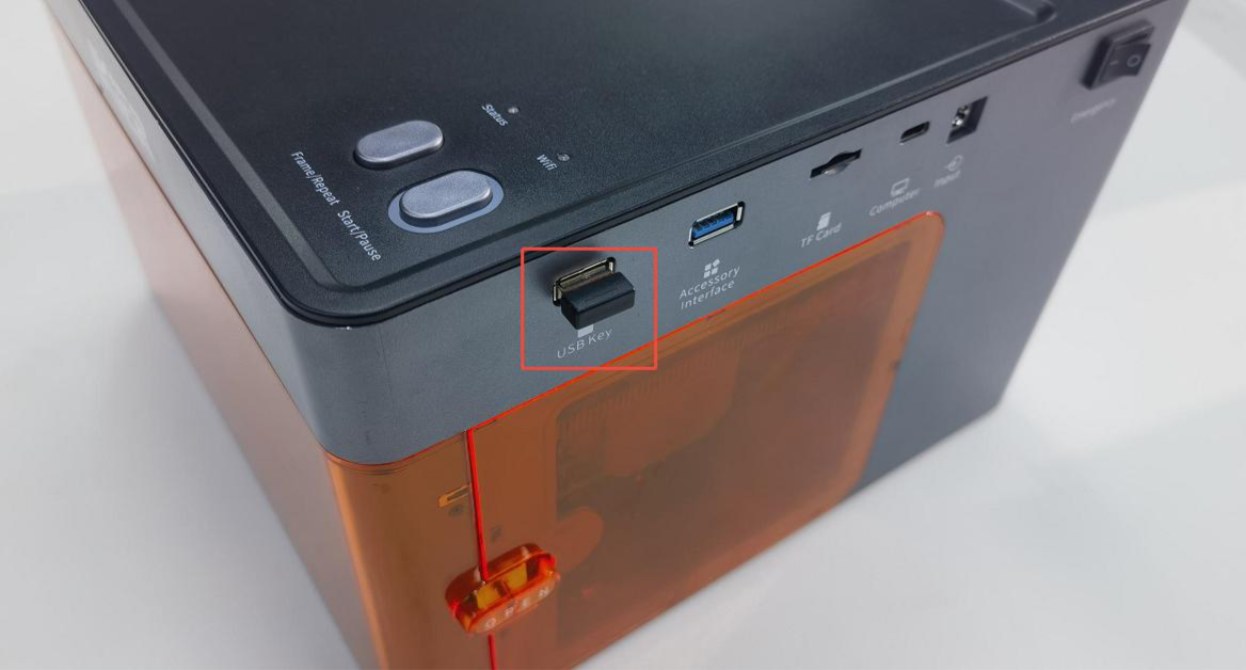
Figure 30
- Check whether the top cover of the enclosure is properly closed (the top cover is equipped with a lid-open detection function). Open and close the top cover again, or press the detection switch by hand (as shown in Figure 31) to check whether the status indicator returns to normal green.
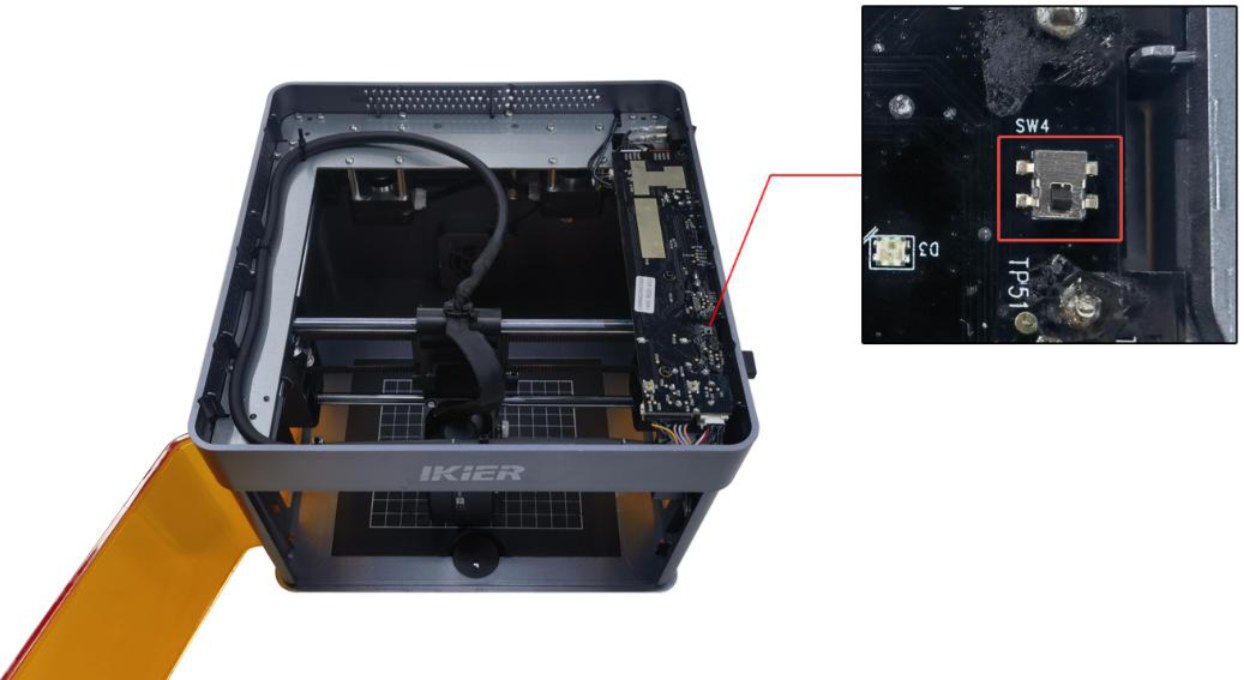
Figure 31
- Contact Customer Service
If you identify a problem during troubleshooting but cannot resolve it yourself, or if the cause of the fault cannot be determined, please provide the following information to Customer Service:
-
Troubleshooting Video: Provide a video showing the operation and the issue.
-
Troubleshooting Steps: Provide a description of the steps that have already been checked or performed.
-
Device Serial Number: Provide a photo of the device Serial Number, as shown in Figure 32.
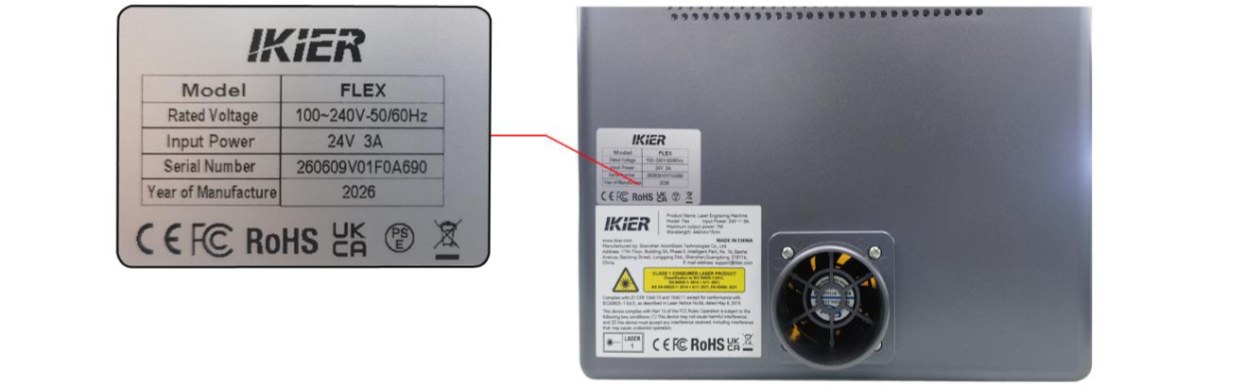
Figure 32
Still not fixed? Contact support with the details listed in What to send support.
Related problems: Red Light at Power-On · Machine Won’t Power On · Engraving Stops Suddenly