K2 Pro Laser & Cooling: No Output, Weak Cutting
The optics are contaminated, laser output is weak or absent, the housing becomes hot as power drops, or the laser fan stops.
Turn off the engraver before removing the laser or disconnecting its cable, and unplug the adapter before power-switch work. Stop using the machine immediately if the protective window is damaged and replace it before use. Monitor the machine throughout processing after disabling flame detection or adjusting its sensitivity. Do not power off the machine or remove the USB flash drive during a firmware update.
¶ Optics Contaminated
What you see: The laser protective window or focusing lens is contaminated.
Check in this order:
Refer to the K2 Pro Laser Cleaning Video and follow the steps below.
1. Cleaning Tools
- Lint-free cloth.
- Anhydrous ethanol (purity of 99% or higher is recommended).
- L2.0 hex key.
2. Cleaning Steps
① Remove the Laser
- Turn off the power: Before removing the laser, turn off the laser engraver to ensure safe operation.
- Disconnect the connections: Gently pull out the side cable and bottom air-assist hose along the direction of the connectors. Do not pull forcefully to prevent loose cable connectors, hose damage, or internal wire breakage.
- Remove the retaining screw: Unscrew the knurled screw on the top of the laser. Keep the laser steady during removal to avoid damaging the threads.
- Remove the laser: Support the laser body with both hands and carefully remove it. Place it on a clean, dedicated, static-safe work surface to prevent impact or damage.
② Clean the Laser Housing
Use a lint-free cloth moistened with anhydrous ethanol to wipe away stains and dust from the surface of the laser.
③ Remove the Air Hood
Use an L2.0 hex key to loosen the set screw on the side of the air duct cover, then gently remove the air hood.
④ Clean the Protective Window
- Remove: Turn the protective window counterclockwise until it can be removed.
- Clean: Apply a small amount of anhydrous ethanol to a lint-free cloth. Wipe the window in a spiral motion from the center outward, gently wiping in one direction. Avoid rubbing back and forth, as this may cause scratches.
⑤ Clean the Air Hood
Use a lint-free cloth moistened with anhydrous ethanol to clean oil and dust from the tip, interior, and air vents of the air hood. Make sure the laser path is not obstructed and the airflow is not blocked.
3. Contact Customer Service
If the protective window or focusing lens has stains that cannot be removed or is damaged, send the following information to customer service:
- Clear photos showing the stains that cannot be removed or the damage.
- A photo of the laser's laser-engraved code, as shown in Figure 18.
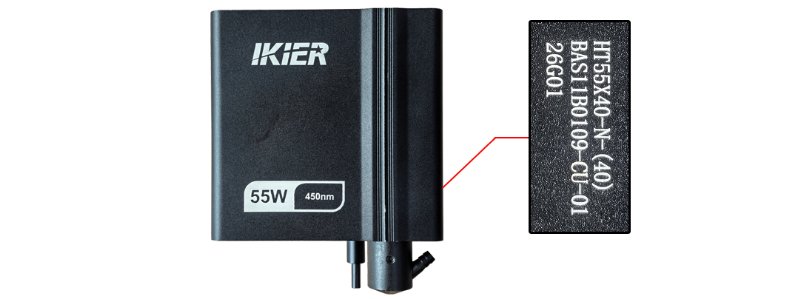
Figure 18
4. Precautions
- Cleaning is required after every 4 hours of cumulative operation to prevent the protective window from being damaged by contaminants burning onto the surface.
- If the protective window is found to be damaged, stop using the machine immediately. Replace the protective window before continuing to use the machine.
Note: Damage to the focusing lens or other optical components caused by contamination, burning, or cracking due to failure to clean the protective window at the specified frequency is not covered by the warranty.
- Two protective window glass pieces are included as spare parts with the machine when shipped from the factory. If you have used both, replacement glass can be purchased from the official website.
Still not fixed? Contact support with the details listed in What to send support.
Related problems: Cutting Power Is Low · Engraved Lines Too Thick · Laser Hot, Power Drops
¶ Cutting Power Is Low
What you see: Laser cutting power is insufficient.
Check in this order:
Follow the steps below to troubleshoot the issue one by one:
1. Check the Focus Distance
After placing a new material, perform autofocus first. You can also manually adjust the distance. The optimal focus distance is 40 mm.
2. Check the Software Parameters
Different materials require corresponding processing parameters. Refer to the parameter table to confirm that the set power, speed, and speed unit are correct.
How to View the Parameter Table:
- Scan the QR code on the machine.
- Check the included USB flash drive.
- Contact customer service.
3. Check the Material Batch
Different batches of materials may produce different cutting results due to variations in the manufacturing process. It is recommended to:
- Use materials from the same batch for comparison testing.
- Alternatively, cut A4 paper to determine whether the laser power has noticeably decreased.
Recommended Parameters for Cutting A4 Paper: 40% power, 5000 mm/min speed.
4. Check Whether the Air Hood Is Obstructed
Remove the laser and check whether the air vents of the air hood are blocked or obstructed by dirt. If cleaning is required, refer to the K2 Pro Laser Cleaning Video.
5. Check the Laser Protective Window
A dirty or damaged protective window can significantly affect the laser output power. Refer to the K2 Pro Laser Cleaning Video to check the condition of the protective window. If it is dirty or damaged, clean or replace it promptly.
6. Check the S-Value Max (LightBurn)
The S-Value Max must remain at 1000 (as shown in Figure 19) and must not be changed. Otherwise, it may affect the laser power and service life.
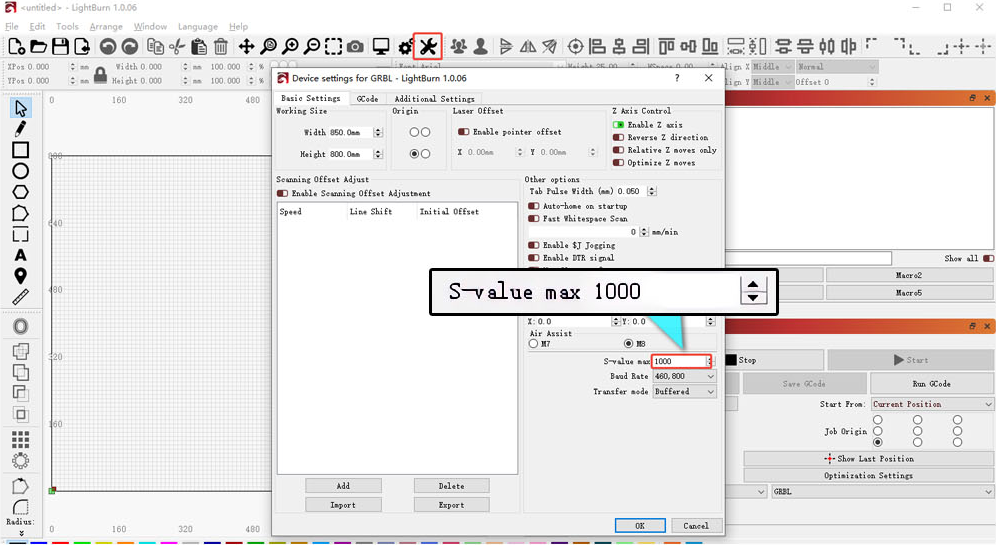
Figure 19
7. Measure the Power Supply Voltage
Voltage or current that is too low can directly affect the laser output power.
- Measure the adapter: Set the multimeter to the DC voltage range and measure whether the adapter output is 24 V.
- Measure the laser cable: Disconnect the laser cable, run a cutting program at 100% power and 1 mm/min, and use a multimeter set to the DC voltage range to measure whether the voltage between pins 2–3 is 24 V and between pins 4–5 is 5 V, as shown in Figure 20. For details, refer to the K2 Pro Laser Cable Voltage Measurement Video.
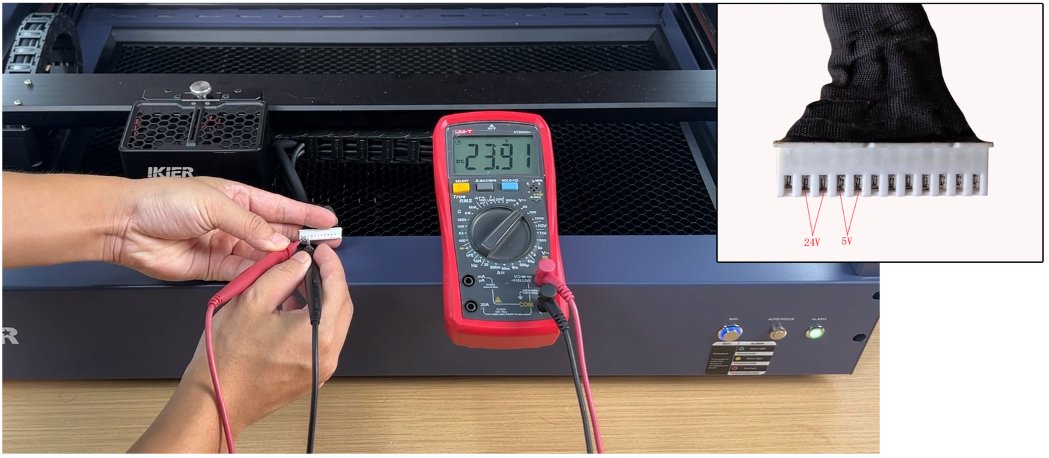
Figure 20
8. Contact Customer Service
If you identify a problem during troubleshooting but cannot resolve it yourself, or if you are still unable to determine the cause of the fault, provide the following information to customer service:
- A4 paper cutting video: Clearly show the focusing process, power/speed settings, cutting process, and final result.
- Description of the troubleshooting steps and results: If you measured the voltage, provide the measurement results.
- Clear photo of the protective window.
- Photo of the laser's laser-engraved code, as shown in Figure 21.
Figure 21
9. Accessory Replacement Reference
- If the protective window needs to be replaced, refer to the K2 Pro Laser Protective Window Replacement Video.
Still not fixed? Contact support with the details listed in What to send support.
Related problems: Optics Contaminated · Cuts Burn or Stay Uncut · Laser Hot, Power Drops
¶ Laser Has No Output
What you see: The laser produces no output.
Check in this order:
Follow the steps below to troubleshoot the issue one by one:
1. Check the Software Settings
① Check the Processing Parameters
Different materials require corresponding processing parameters. Refer to the parameter table to confirm that the set power, speed, and speed unit are correct.
How to View the Parameter Table:
- Scan the QR code on the machine.
- Check the included USB flash drive.
- Contact customer service.
② Confirm That Laser Output Is Enabled
The Laser Output option in the software must be enabled, as shown in Figure 22.
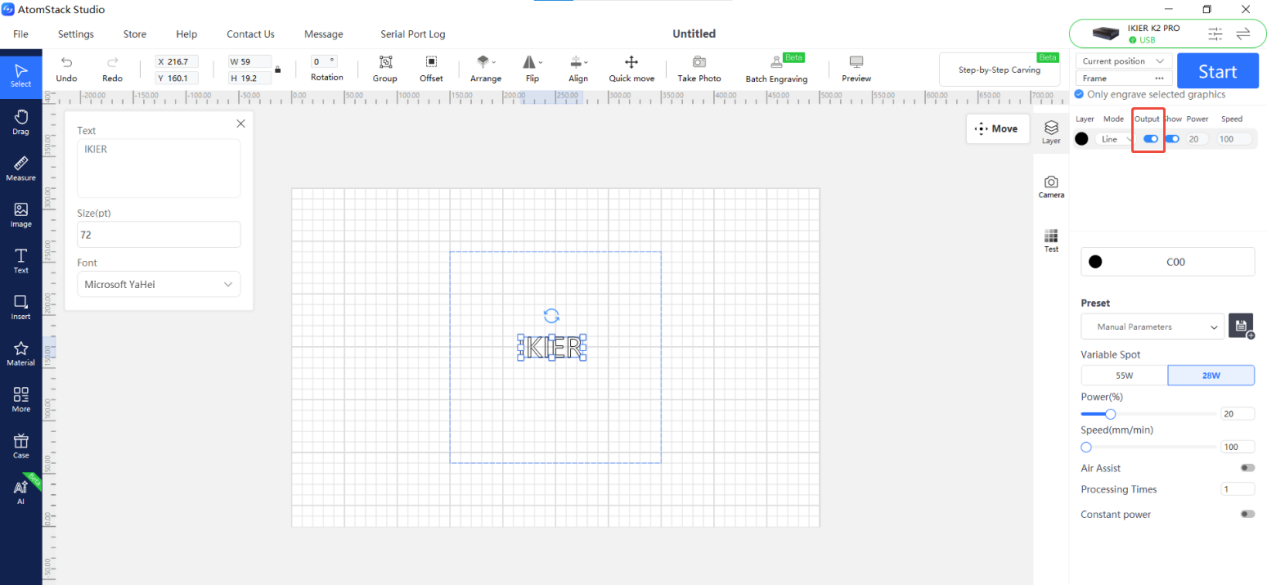
Figure 22
③ Confirm That the S-Value Max Has Not Been Changed (LightBurn Only)
The S-Value Max must remain at 1000 (as shown in Figure 23) and must not be changed. Otherwise, it may affect laser output and service life.
Figure 23
2. Check the Laser Cable
Turn off the power, disconnect the laser cable, and carefully check the cable connector for damage or other abnormalities. If no abnormalities are found, reconnect the cable and power on the machine to test again.
3. Check the Laser Cable Voltage
Insufficient voltage can directly affect the laser power.
- Measure the adapter: Set the multimeter to the DC voltage range and measure whether the adapter output is 24 V.
- Measure the laser cable: Disconnect the laser cable, run a cutting program at 100% power and 1 mm/min, and use a multimeter set to the DC voltage range to measure whether the voltage between pins 2–3 is 24 V and between pins 4–5 is 5 V, as shown in Figure 24. If the measured values are abnormal, continue troubleshooting according to the following steps. For details, refer to the K2 Pro Laser Cable Voltage Measurement Video.
Figure 24
4. Check the Status of the Indicator Lights on Top of the Laser
There are two indicator lights on the top of the laser, near the retaining screw. The status of these indicator lights can be used to determine the cause of the issue.
① Both the Red and Green Lights Are On
This indicates that the laser is receiving power properly and that the driver board output is normal. The laser should be emitting light at this time.
If the laser is not emitting light, open the driver board and check whether the laser diode cable (as shown in Figure 25) is loose or disconnected. Disconnect it and reconnect it securely, then test again. If the laser still does not emit light, the laser diode is considered faulty. For removal instructions, refer to the K2 Pro Laser Driver Board Replacement Video.
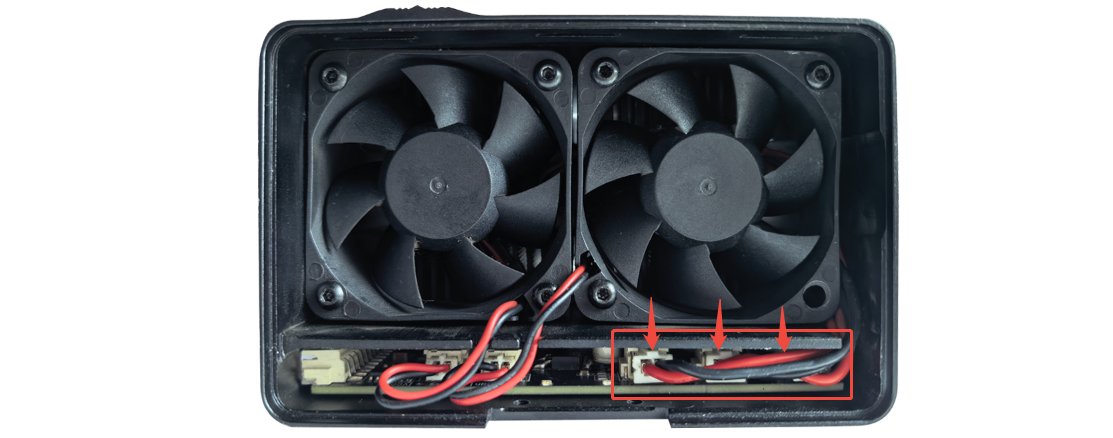
Figure 25
② Only the Red Light Is On
This indicates that the driver board is receiving power normally, but its output is abnormal. Follow Step (3), “Check the Laser Cable Voltage,” to measure the voltage between pins 4–5:
- If the voltage is approximately 5 V, the mainboard and connection cable are functioning normally. Disconnect the laser diode cable from the driver board, then start the engraving operation again and determine the cause based on the resulting behavior.
| Green Indicator Status | Faults |
|---|---|
| On | Laser Diode Failure |
| Off | Driver Board Failure |
- If the voltage is approximately 0 V, check whether the cable on the mainboard is loose or disconnected. If no abnormality is found, the mainboard or connection cable is considered faulty.
③ Neither Light Is On
This indicates abnormal power supply through the connection cable. Follow Step (3), “Check the Laser Cable Voltage,” to measure the voltage between pins 2–3 and pins 4–5:
- If the voltage between pins 2–3 is approximately 24 V and the voltage between pins 4–5 is approximately 5 V, the mainboard and connection cable are functioning normally, and the driver board is considered faulty.
- If either voltage is approximately 0 V, check whether the cable on the mainboard is loose. If no abnormality is found, the mainboard or connection cable is considered faulty.
5. Contact Customer Service
If you identify a problem during troubleshooting but cannot resolve it yourself, or if you are still unable to determine the cause of the fault, provide the following information to customer service:
- Troubleshooting video: Clearly show the power/speed settings, the engraving or cutting process after starting the operation, and the status of the indicator lights on top of the laser.
- Description of the troubleshooting steps and results: If you measured the voltage, provide the measurement results.
- Photo of the machine Serial Number, as shown in Figure 26.
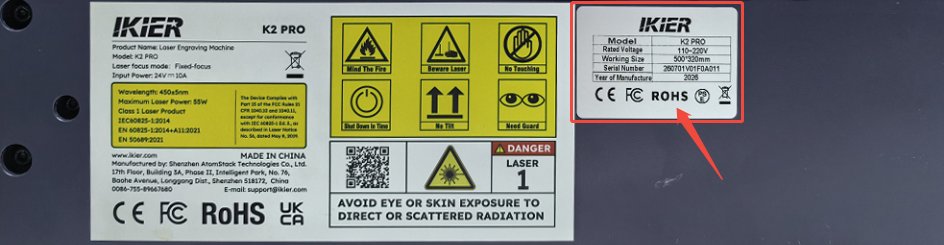
Figure 26
- Photo of the laser's laser-engraved code, as shown in Figure 27.
Figure 27
6. Accessory Replacement References
- If the mainboard needs to be replaced, refer to the K2 Pro Mainboard Replacement Video.
- If the connection cable needs to be replaced, refer to the K2 Pro Connection Cable Replacement Video.
- If the driver board needs to be replaced, refer to the K2 Pro Laser Driver Board Replacement Video.
Still not fixed? Contact support with the details listed in What to send support.
Related problems: Cutting Power Is Low · Power-On Fails · Laser Hot, Power Drops
¶ Laser Hot, Power Drops
What you see: Laser power decreases and the laser housing becomes very hot after a period of engraving.
Check in this order:
Please follow the steps below to troubleshoot the issue one by one:
1. Check the Operating Environment Temperature
If the operating environment temperature is high, lower the temperature in time. The recommended ambient temperature range is −10°C to +35°C.
2. Check the Laser Fan
Start an engraving or cutting program and check whether the laser fan rotates normally. If the fan does not rotate, troubleshoot as follows:
① Check the Fan Cable
Refer to the K2 Pro Laser Fan Replacement Video to check whether the cable on the driver board end is properly connected.
② Test the Fan Status
- Prepare two short wires that conduct electricity properly.
- Insert the wires into the fan cable terminals respectively, ensuring that the wires make full contact with the copper wires of the terminals, as shown in Figure 91.
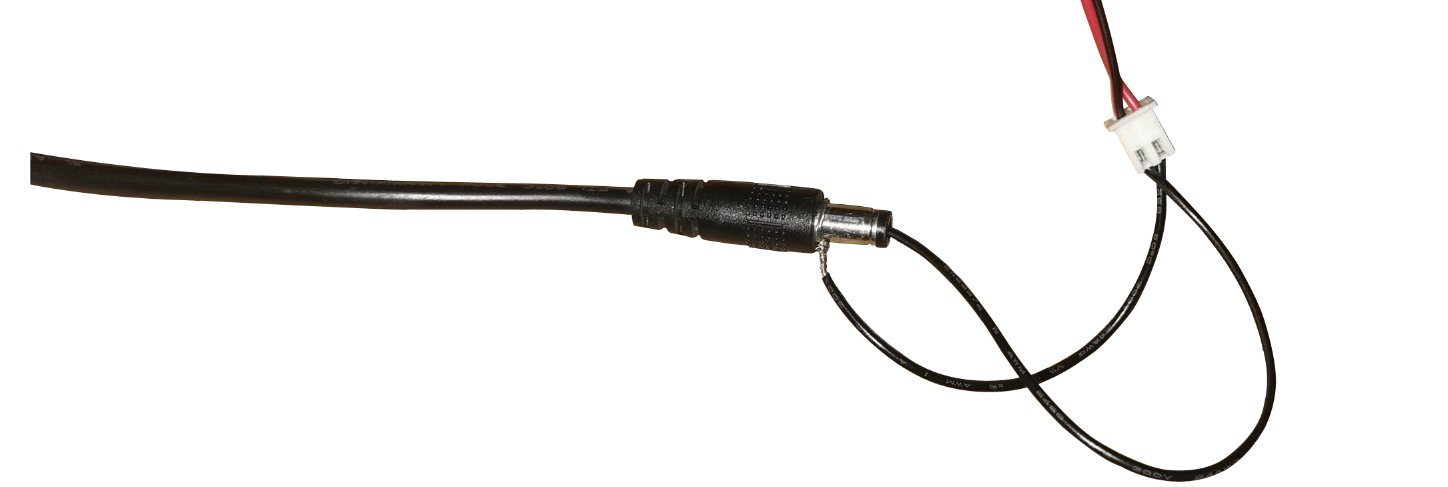
Figure 91
- Connect the two wires to the output of the adapter respectively, so that the adapter supplies power directly to the fan, and check whether the fan rotates normally.
- If the fan rotates normally, the driver board is faulty. If the fan still does not rotate, the fan is faulty.
3. Check the Laser Protective Window and Focusing Lens
Refer to the K2 Pro Laser Cleaning Video to check whether the protective window and focusing lens of the laser module are damaged or dirty.
- If they are dirty: Clean them according to the Laser Protective Window or Focusing Lens Contamination section.
- If they are damaged: Provide clear photos and contact Customer Support.
4. Check the Laser Air Guide
Remove and inspect the air guide according to the Laser Protective Window or Focusing Lens Contamination section, and confirm that the air guide is free of dirt and is not misaligned or obstructing the laser beam.
5. Confirm the Service Life
If the engraver has been used for many years, the thermal grease between the laser tube core and the heat sink may have dried out and failed. It is recommended to replace the thermal grease.
Note: The thermal grease used for computer CPUs can be used (it does not need to be conductive and must not corrode metal).
6. Contact Customer Support
If none of the above steps resolves the issue, provide the following information when contacting Customer Support:
- Troubleshooting video: Show the process of the laser power dropping sharply from normal power, as well as the condition of the protective window and focusing lens.
- Completed troubleshooting steps and results.
- Photo of the laser engraving code on the laser module, as shown in Figure 92.
Figure 92
7. Accessory Replacement References
- If the laser fan needs to be replaced, refer to the K2 Pro Laser Fan Replacement Video.
- If the laser driver board needs to be replaced, refer to the K2 Pro Laser Driver Board Replacement Video.
Still not fixed? Contact support with the details listed in What to send support.
Related problems: Laser Fan Not Spinning · Cutting Power Is Low · Optics Contaminated
¶ Laser Fan Not Spinning
What you see: The laser fan does not rotate.
Check in this order:
Please follow the steps below to troubleshoot the issue one by one:
1. Check the Fan Cable
Refer to the K2 Pro Laser Fan Replacement Video to check whether the cable on the driver board end is properly connected.
2. Separate Power Supply Test
- Prepare two short wires that conduct electricity properly.
- Insert the wires into the fan cable terminals respectively, ensuring that the wires make full contact with the copper wires of the terminals, as shown in Figure 93.
- Connect the two wires to the output of the adapter respectively, so that the adapter supplies power directly to the fan, and check whether the fan rotates normally.
- If the fan rotates normally, the driver board is faulty. If the fan still does not rotate, the fan is faulty.
Figure 93
3. Contact Customer Support
If none of the above steps resolves the issue, provide the following information when contacting Customer Support:
- Troubleshooting video: Show that the laser fan does not rotate.
- Completed troubleshooting steps and results.
- Photo of the laser engraving code on the laser module, as shown in Figure 94.
Figure 94
4. Accessory Replacement References
- If the laser fan needs to be replaced, refer to the K2 Pro Laser Fan Replacement Video.
- If the laser driver board needs to be replaced, refer to the K2 Pro Laser Driver Board Replacement Video.
Still not fixed? Contact support with the details listed in What to send support.
Related problems: Laser Hot, Power Drops · Cutting Power Is Low · Laser Has No Output