K2 Pro Power & Connection: No Power, PC Fails
The machine will not power on or connect, a USB drive message appears over Wi-Fi, or you need to update the software or firmware.
Turn off the engraver before removing the laser or disconnecting its cable, and unplug the adapter before power-switch work. Stop using the machine immediately if the protective window is damaged and replace it before use. Monitor the machine throughout processing after disabling flame detection or adjusting its sensitivity. Do not power off the machine or remove the USB flash drive during a firmware update.
¶ Power-On Fails
What you see: The machine does not power on normally.
Check in this order:
After turning on the power switch, troubleshoot the issue step by step according to the indicator light status.
After turning on the power switch, none of the indicator lights come on.
① Check the Power Supply
- Check the cables:
Check whether the connection between the adapter and power cord is loose, and whether the power outlet is supplying power properly. You can use another electrical appliance to test the power outlet.
- Check the adapter indicator light:
- Solid green: Indicates that the output is normal.
- Off or flashing alternately: Disconnect the adapter from the laser engraver and check whether the adapter indicator light turns solid green. If the green light turns on normally after disconnection, the adapter is functioning properly, and the laser engraver may have a short circuit. If the indicator light remains abnormal, the adapter may be faulty.
- Measure the output voltage:
If you have a multimeter, set it to the DC voltage range and measure whether the adapter output is 24 V, as shown in Figure 14.
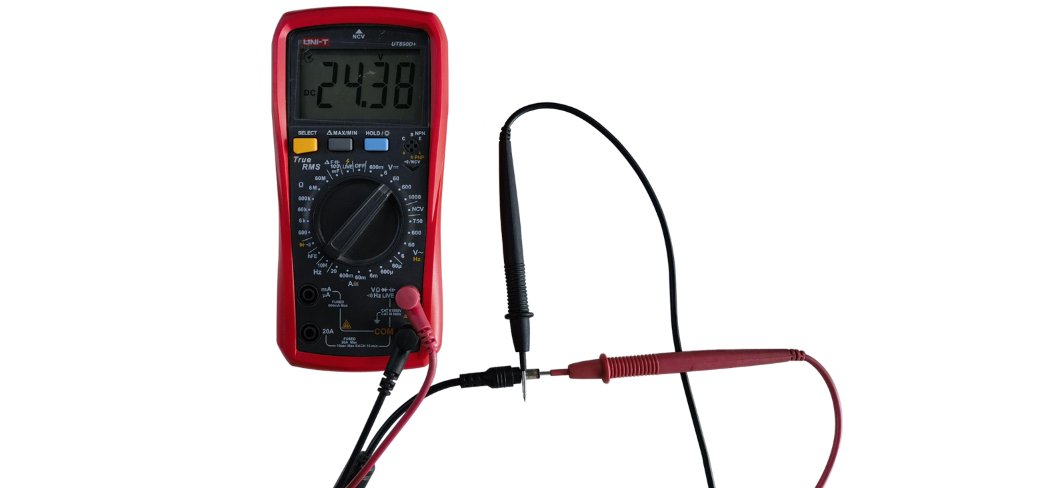
Figure 14
Short-Circuit Troubleshooting Tip: If you suspect a short circuit, disconnect all cables from the mainboard and then power on the machine for testing.
- If the issue persists after disconnecting all cables, the mainboard may be faulty.
- If the machine powers on normally after disconnecting all cables, reconnect the cables for each accessory one by one to identify the accessory causing the short circuit.
② Check the Power Switch
Refer to the K2 Pro Power Switch Troubleshooting and Replacement Video and follow the steps below:
- Disconnect the adapter: Unplug the adapter cable to ensure that all operations are performed safely.
- Remove the cover plate: From the inside front of the machine enclosure, remove the 4 screws securing the cover plate, then remove the cover plate.
- Loosen the cable tie: Use a tool to loosen the cable tie securing the wires so that the switch cable returns to its original length.
- Remove the switch: Use a screwdriver to press the clips on both sides of the switch from the inside, then push the switch outward.
- Bypass the switch: Disconnect the 3 wires from the switch using a screwdriver. Short-circuit the two thickest wires to establish a connection, as shown in Figure 15.
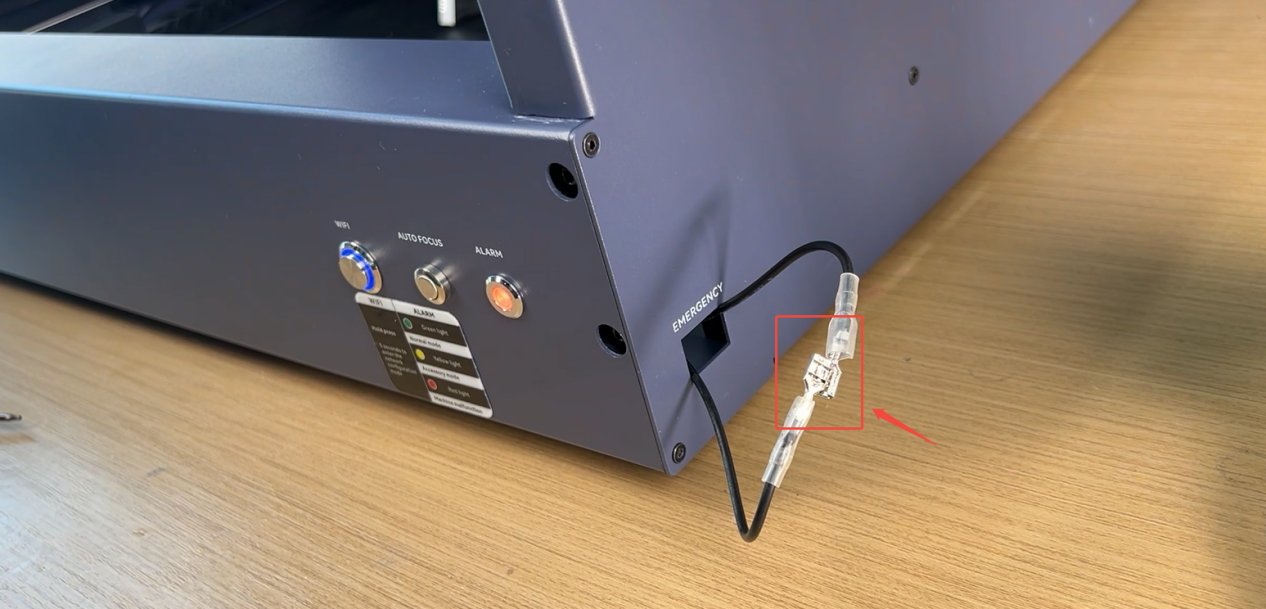
Figure 15
- Power-on test: Connect the adapter output to the “POWER” port of the laser engraver and check whether the machine starts normally. If the machine powers on normally after bypassing the switch, the power switch is faulty.
The Indicator Lights Turn On After Powering On, but the Machine Cannot Be Used
Confirm whether you hear a “beep” sound when the machine starts:
① A “beep” sound is heard:
Check the color of the laser engraver's “ALARM (Status Indicator)”.
If it is red, the machine is in an alarm state. Connect the machine to the software to view the alarm information, then troubleshoot according to the displayed message.
② No “beep” sound is heard:
This indicates that the mainboard has not started normally. Follow the steps below to troubleshoot:
- Connect the machine: Use a Type-C cable to connect the laser engraver to a computer.
- Enable Developer Mode: Open the AtomStack software, click “Settings” in the navigation bar, and click the number displayed under “Version” more than 7 times consecutively. “Serial Port Log” will then appear in the navigation bar as a developer mode option.
- Check the code: Click “Serial Port Log” and check whether the code window continuously outputs garbled characters, as shown in Figure 16.
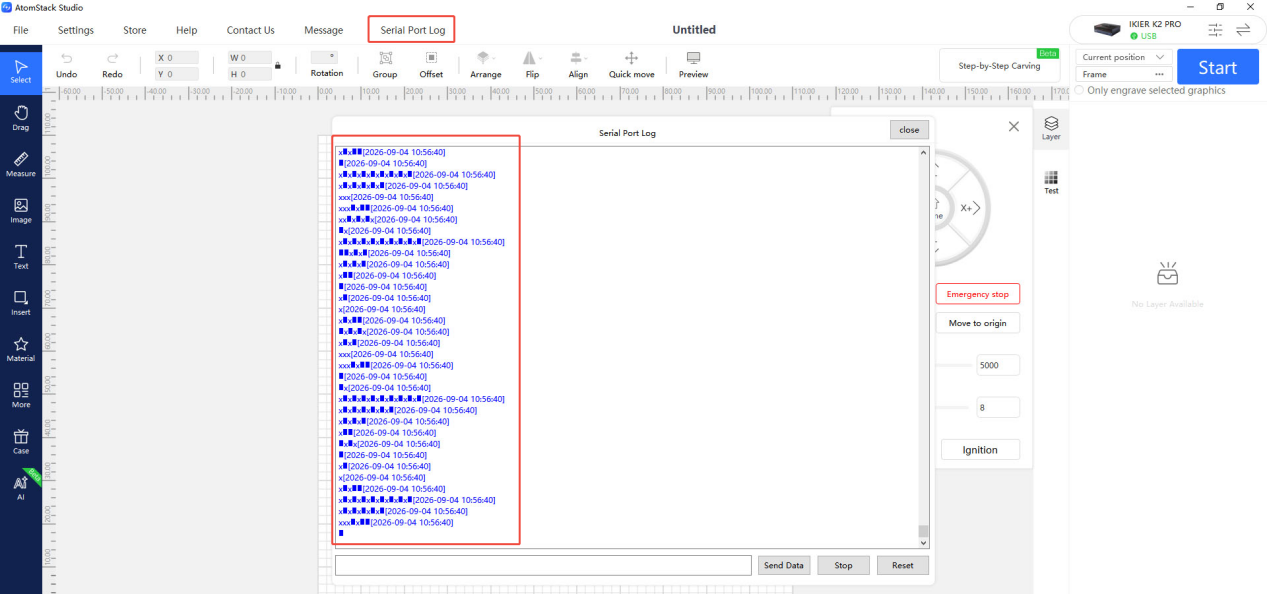
Figure 16
- Analyze the result: If garbled characters are continuously output, the mainboard firmware may be abnormal. If no garbled characters are output, the mainboard may be faulty.
3. Contact Customer Service
If none of the above steps resolves the issue, send the following information to customer service:
- A video showing the problem.
- A description of the troubleshooting steps already performed. If garbled characters appear, provide a screenshot of the garbled characters.
- A photo of the Serial Number on the back of the machine, as shown in Figure 17.
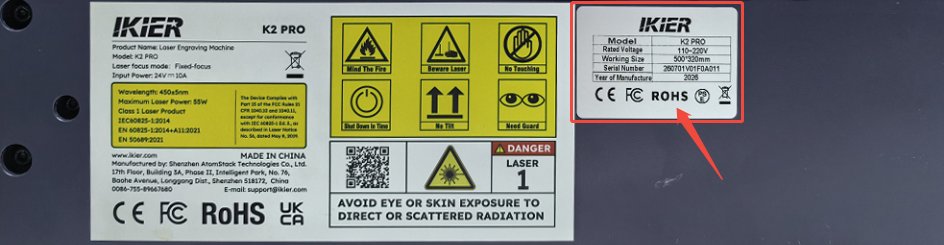
Figure 17
4. Accessory Replacement References
- If the mainboard needs to be replaced, refer to the K2 Pro Mainboard Replacement Video.
- If the power switch needs to be replaced, refer to the K2 Pro Power Switch Troubleshooting and Replacement Video.
Still not fixed? Contact support with the details listed in What to send support.
Related problems: PC Cannot Connect · LED Strip Malfunctions · Engraving Stops
¶ PC Cannot Connect
What you see: The computer cannot connect to the machine.
Check in this order:
Please follow the steps below one by one to troubleshoot the issue:
1. Confirm that the machine has powered on properly
① After powering on, check whether you hear the “beep” sound indicating that the mainboard has started up normally.
② Check whether the panel indicator lights and LED light strip are lit normally.
2. Confirm that the Type-C cable is connected correctly
① When using a Type-C cable, the C connector must be plugged into the “COMPUTER” port on the laser engraver (see the Unboxing and Installation section for details).
② Pay attention to the operating system:
- Windows: Either the C or A connector of the Type-C cable can be connected to the computer's USB port. For desktop computers, connecting to a USB port on the back of the computer case is recommended.
- macOS: A hub/docking station (as shown in Figure 35) is required to connect the A connector of the Type-C cable to the computer.
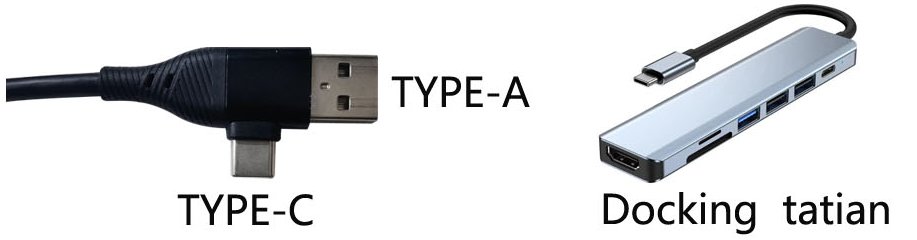
Figure 35
3. Check whether the “COMPUTER” port is damaged
Carefully check the “COMPUTER” port on the laser engraver for any damage or foreign objects blocking the port.
4. Confirm that the serial port driver is installed
The serial port driver must be installed when using the machine for the first time. Download the driver from the links below:
- Windows driver: Download Windows Driver
- macOS driver: Download macOS Driver
Verification: In Device Manager → Ports (COM & LPT) on the computer, check whether a serial port such as CH340 is displayed, as shown in Figure 36.
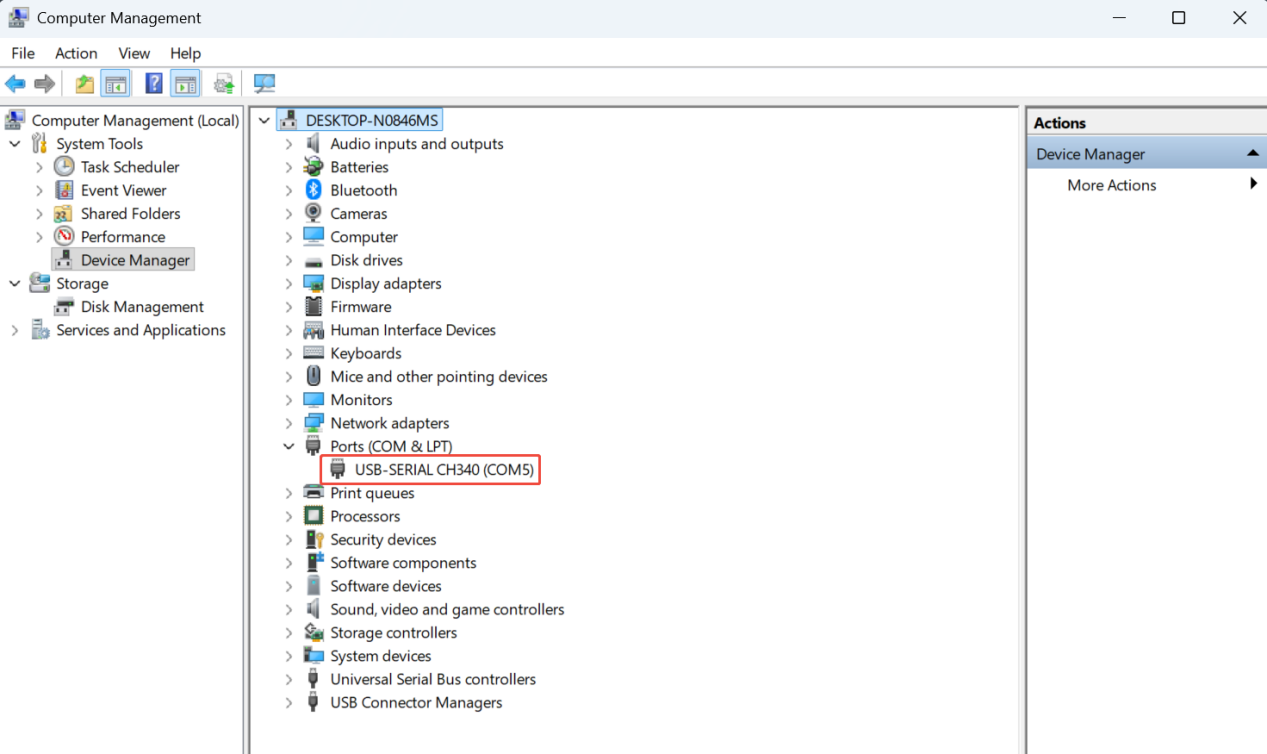
Figure 36
5. Check the software version
- AtomStack Studio: Update to the latest version.
- LightBurn: Version 1.7.08 is recommended for optimal stability.
6. Confirm that the software is configured correctly
① AtomStack Studio
The software automatically identifies the machine model, so no additional configuration is required.
② LightBurn
Modify the following settings:
- Manually add a “GRBL” controller or import the K2 Pro configuration file.
- Select the correct COM port and set the baud rate to 460800, as shown in Figure 37.
- Set the engraving area to 500 mm × 320 mm.
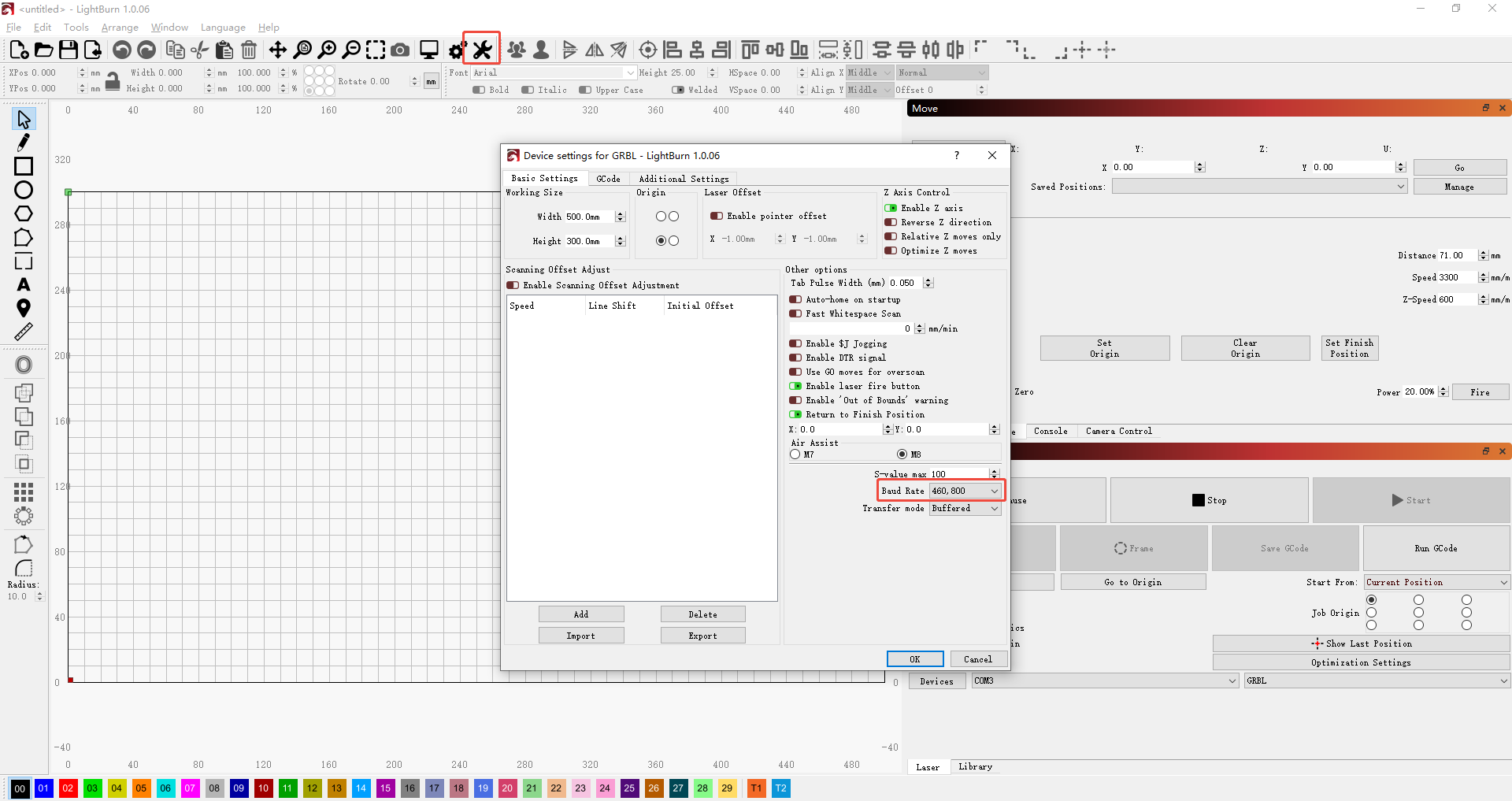
Figure 37
For instructions on importing the configuration file, refer to the K2 Pro Computer Connection Video.
7. Try a different computer and Type-C cable
- Try a different USB port on the computer. For desktop computers, connecting to a USB port on the back of the computer case is recommended.
- Replace the Type-C cable with one that supports data transfer. Do not use a cable that supports charging only.
- If possible, try another computer to rule out compatibility issues with the USB port or operating system of the current computer.
8. Contact Customer Service
If a problem is identified during troubleshooting but cannot be resolved independently, or if the cause of the fault cannot be determined, please provide the following information when contacting customer service:
- Fault video: Clearly show the complete connection process, including how the Type-C cable is connected, how the serial port is checked, how the driver is installed, etc.
- Troubleshooting steps completed and the corresponding results.
- Photo of the machine Serial Number, as shown in Figure 38.
Figure 38
9. Replacement Reference for Components
- To replace the mainboard, refer to the K2 Pro Mainboard Replacement Video.
Still not fixed? Contact support with the details listed in What to send support.
Related problems: Power-On Fails · App Cannot Connect · Engraving Stops
¶ App Cannot Connect
What you see: The mobile app cannot connect to the machine.
Check in this order:
Please follow the steps below one by one to troubleshoot the issue:
1. Confirm that Wi-Fi mode is enabled
Press and hold the “Wi-Fi” button for more than 5 seconds to enter Wi-Fi configuration mode.
2. Confirm the router frequency band
The router must support the 2.4 GHz frequency band. When connecting, select a 2.4 GHz Wi-Fi network. Do not select a 5 GHz network.
3. Confirm that the app connection procedure is correct
Open the app, tap “Add Device” on the home page, and follow the on-screen instructions to complete the device connection.
For connection instructions, refer to the K2 Pro Mobile App Connection Video.
4. Confirm that the Wi-Fi connection is not being used by another device
Make sure the laser engraver's Wi-Fi connection is not being used by another phone or software.
5. Restart the app and laser engraver
Turn off the laser engraver and exit the app, then turn the laser engraver back on and reopen the app to try connecting again.
6. Confirm that the app is up to date
Open the app, tap the “Profile” icon in the lower-right corner, then go to “Profile” → “Settings” → “About ATOMSTACK” to view the version information, as shown in Figure 39. If an update is available, complete the update first.
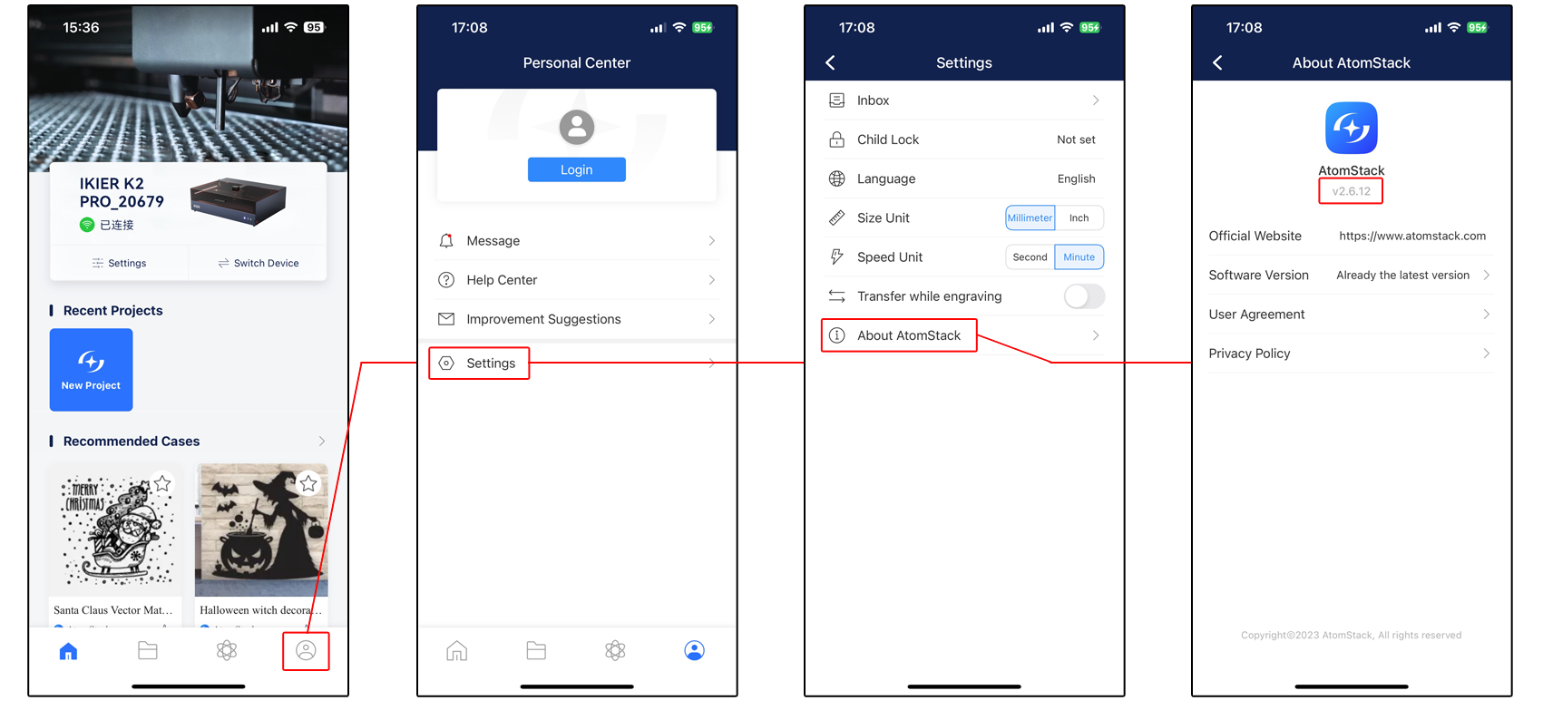
Figure 39
7. Try connecting with another phone
If possible, use another phone to try connecting to rule out compatibility issues with the current phone.
8. Contact Customer Service
If the connection still fails after completing all the troubleshooting steps above, please provide the following information to customer service:
- Operation video: Record the complete connection process, including the operations performed on the phone screen and the status of the machine.
- App version.
- Laser engraver firmware version: Connect the machine to a computer using the computer client, then view the firmware version on the Device Information page, as shown in Figure 40.
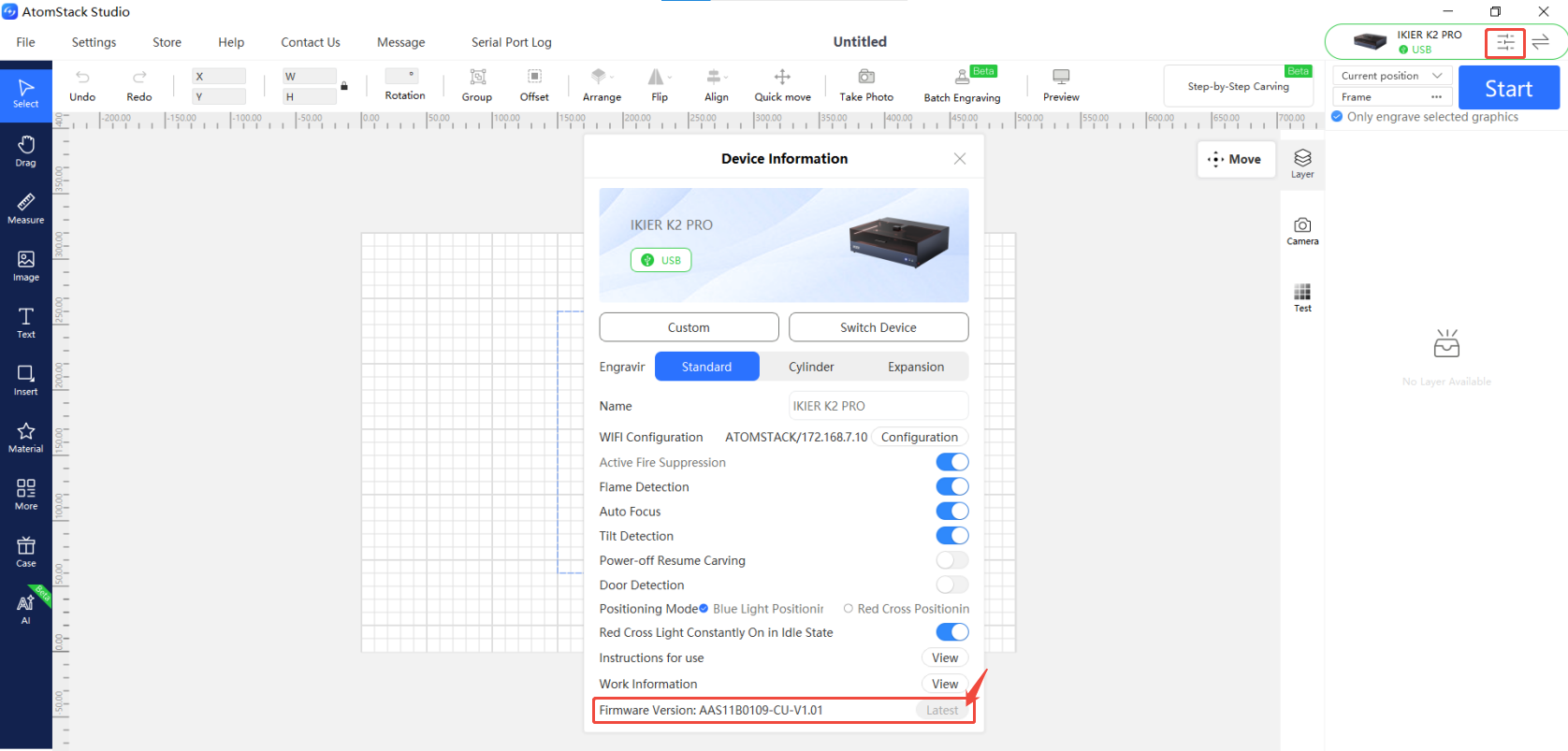
Figure 40
- Photo of the machine Serial Number, as shown in Figure 41.
Figure 41
9. Replacement Reference for Components
- To replace the mainboard, refer to the K2 Pro Mainboard Replacement Video.
Still not fixed? Contact support with the details listed in What to send support.
Related problems: PC Cannot Connect · USB Drive Not Detected · Studio & App Updates
¶ USB Drive Not Detected
What you see: A “USB Drive Not Inserted” message appears when engraving via Wi-Fi.
Check in this order:
Please troubleshoot the issue step by step as follows:
1. Confirm that the USB drive is inserted
Check whether a USB drive is inserted into the “USB DRIVE” port on the engraver. If it is already inserted, turn off the engraver, remove the USB drive, then reinsert it and turn the machine back on for testing.
2. Confirm the USB drive capacity
A USB drive with a capacity of 4 GB or 8 GB is recommended. It is recommended not to use one larger than 16 GB. An oversized USB drive may not be recognized by the engraver.
3. Confirm that the USB drive can be read and written normally
After turning off the engraver, remove the USB drive and insert it into a USB port on the computer to check whether the computer can recognize it properly.
- If the computer can recognize the USB drive and read/write to it normally, but the engraver still cannot recognize it, format the USB drive as FAT32 and test again.
- If the computer cannot recognize the USB drive properly, try formatting it as FAT32. If it is still not recognized, the USB drive is considered faulty.
4. Test with another USB drive
Replace the USB drive with another one with a capacity of 16 GB or less and formatted as FAT32, then insert it into the engraver to check whether it can be recognized normally. If it is still not recognized, the mainboard is considered faulty.
5. Confirm that the app has been updated to the latest version
Open the app, tap the icon in the lower-right corner, then go to “Personal Center” → “Settings” → “About ATOMSTACK” to check the version information, as shown in Figure 53. If an update is available, complete the update before testing again.
Figure 53
6. Confirm that the firmware has not been written or modified without authorization
Confirm that no other software has been used to write or modify the firmware. Incorrect firmware writing may cause program errors and prevent the device from operating properly.
Note: If the firmware has ever been modified or written, inform Customer Support proactively.
7. Contact Customer Support
If the issue cannot be resolved after completing all the above steps, please provide the following information when contacting Customer Support:
- Video of the issue: Clearly show the issue, including the software message and the USB drive read/write test on the computer.
- Completed troubleshooting steps and results.
- Screenshot of the firmware version.
- Photo of the machine Serial Number, as shown in Figure 54.
Figure 54
8. Reference for accessory replacement
- If the mainboard needs to be replaced, refer to the K2 Pro Mainboard Replacement Video.
Confirm the fix: Check whether the engraver recognizes the USB drive normally.
Still not fixed? Contact support with the details listed in What to send support.
Related problems: App Cannot Connect · Engraving Stops · Firmware Update
¶ Studio & App Updates
What you see: AtomStack Studio software and mobile app updates are covered here.
Check in this order:
1. AtomStack Studio Software Update
Open the software and click “Settings” in the upper-left corner to open the settings interface. At the bottom of the interface, you can view the current version number and the “Check for Updates” button, as shown in Figure 102.
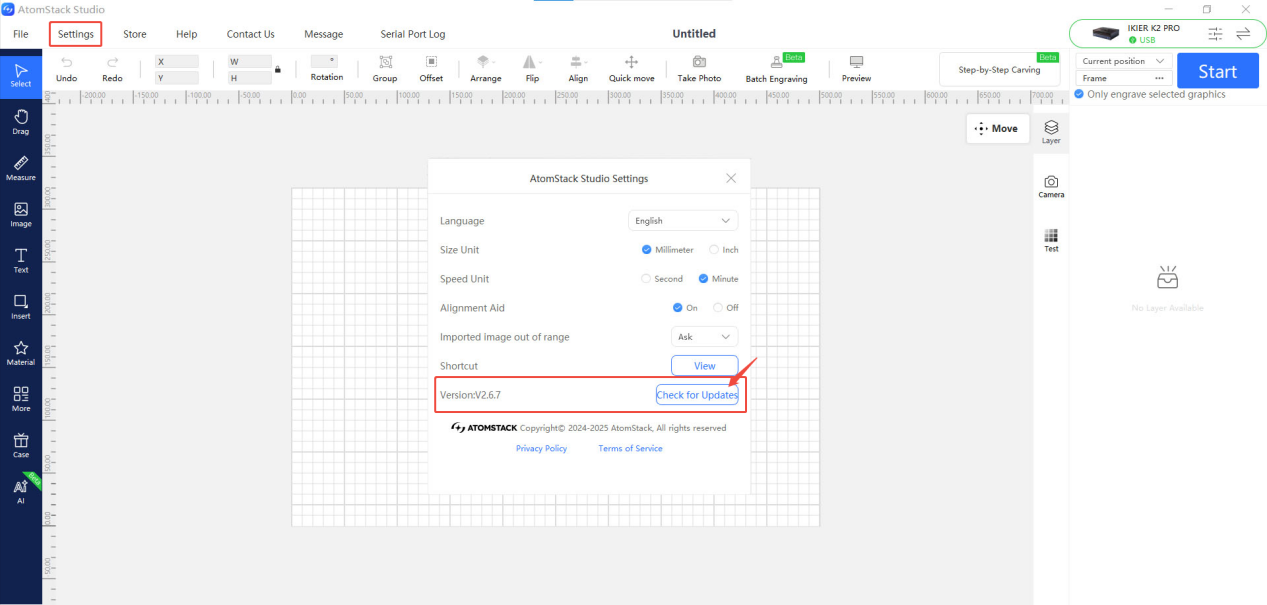
Figure 102
2. AtomStack App Update
Open the mobile app and tap “Profile” in the lower-right corner of the home page, then go to “Settings” → “About ATOMSTACK” to view the current app version. If a new version is available, an update option will be displayed; if not, “Already the latest version” will be displayed, as shown in Figure 103.
Figure 103
Still not fixed? Contact support with the details listed in What to send support.
Related problems: App Cannot Connect · PC Cannot Connect · Firmware Update
¶ Firmware Update
What you see: Engraver firmware updates are covered here.
Check in this order:
All firmware update methods require a USB flash drive as the storage medium. Do not power off the machine or remove the USB flash drive during the update process.
1. Update the Firmware via AtomStack Studio
Open the software and connect the laser engraver. Click the “☰” icon in the upper-right corner of the software interface to open the device information interface. At the bottom of the interface, you can view the current firmware version. If an update prompt appears next to the version, click it to update, as shown in Figure 104.
Figure 104
2. Update the Firmware via the AtomStack App
Open the app and connect the engraver, then tap “Settings” below the model name to open the device settings interface. At the bottom of the interface, you can view the current firmware version and the option to update to the new firmware, as shown in Figure 105.
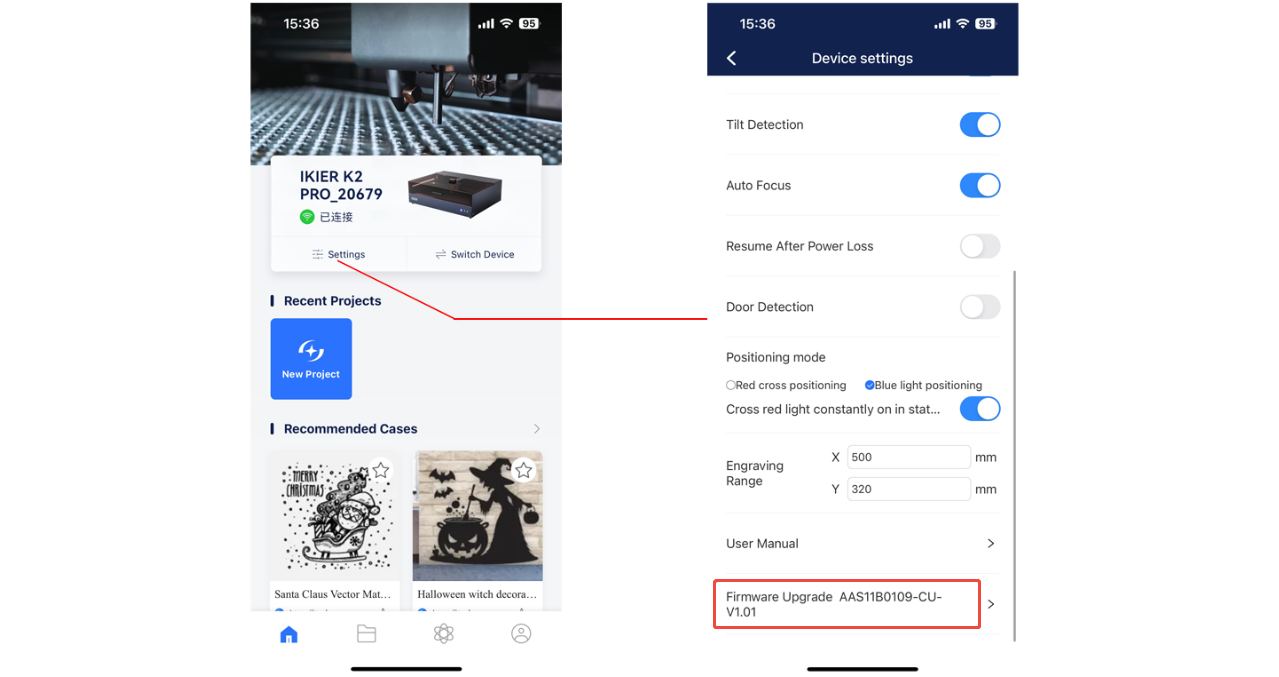
Figure 105
3. Update the Firmware via a USB Flash Drive
If neither of the above methods works, send a screenshot of the current firmware version and a photo of the engraver Serial Number (as shown in Figure 106) to Customer Support to obtain the new firmware. Then follow the steps below to update:
① Remove the USB flash drive and connect it to a computer using a card reader.
② Copy the new firmware file (with the .bin extension) to the root directory of the USB flash drive (do not place it in a folder).
③ Insert the USB flash drive back into the engraver and power it on. The machine will update automatically and emit a “beep-beep” sound.
④ After the beeping stops, restart the engraver.
Figure 106
Still not fixed? Contact support with the details listed in What to send support.
Related problems: Homing Fails · Autofocus Fails · USB Drive Not Detected