K2 Pro Results: Distorted Output, Lines Not Closed
Engraving is distorted or mirrored, lines are too thick or do not close, or cuts turn yellow or black without cutting through.
Turn off the engraver before removing the laser or disconnecting its cable, and unplug the adapter before power-switch work. Stop using the machine immediately if the protective window is damaged and replace it before use. Monitor the machine throughout processing after disabling flame detection or adjusting its sensitivity. Do not power off the machine or remove the USB flash drive during a firmware update.
¶ Engraving Is Distorted
What you see: The engraved output is distorted.
Check in this order:
It is recommended to engrave a circle first, then troubleshoot the issue according to the actual result as follows:
1. The Circle Does Not Close
① Confirm That the Material Is Securely Fixed
For lightweight materials (such as paper), use clips, magnets, or double-sided tape to secure the four corners of the material and prevent it from shifting due to airflow from the fan during processing.
② Mechanical Structure Issues
The following mechanical structure issues may cause the engraved circle to remain open. Refer to the K2 Pro Mechanical Structure Adjustment Video and check and adjust each item as follows:
- Check whether the X-axis is parallel to the upper and lower frames: Use a ruler to measure the distances from both ends of the X-axis to the upper or lower frame of the enclosure and confirm that the distances are equal.
- Check X-axis stability: Hold both ends of the X-axis and gently shake it to check for any noticeable looseness.
- Check Z-axis stability: Hold the laser and gently move it from side to side to check whether it is stable and whether there is any abnormal movement.
- Check the timing belt tension: Press the timing belt with your hand and check whether it is excessively loose or damaged.
- Check the timing pulley and coupling screws: Use a hex key to check whether the screws securing the timing pulley and coupling are loose. Note that the X-axis timing pulley requires removal of the X-axis motor before inspection. Refer to the K2 Pro X/Y/Z-Axis Motor Replacement Video for removal instructions.
2. The Lines Close but the Circle Is Elliptical
This is usually caused by the X-axis or Y-axis steps-per-mm value being modified. It can be resolved using the following methods:
① Restore the Factory Settings
Follow Step (3) to restore the factory settings.
② Check the Steps-per-mm Value in LightBurn
- After connecting the machine, click Edit in the menu bar and select Machine Settings from the drop-down menu to open the Machine Settings window.
- Double-click Outputs setup to display the hidden parameters.
- Locate the X-axis and Y-axis steps-per-mm parameter (
$100) and check whether the value is 100. If the value is incorrect, change it to 100, click Write to write the value, and click OK to save the settings.
As shown in Figure 61.
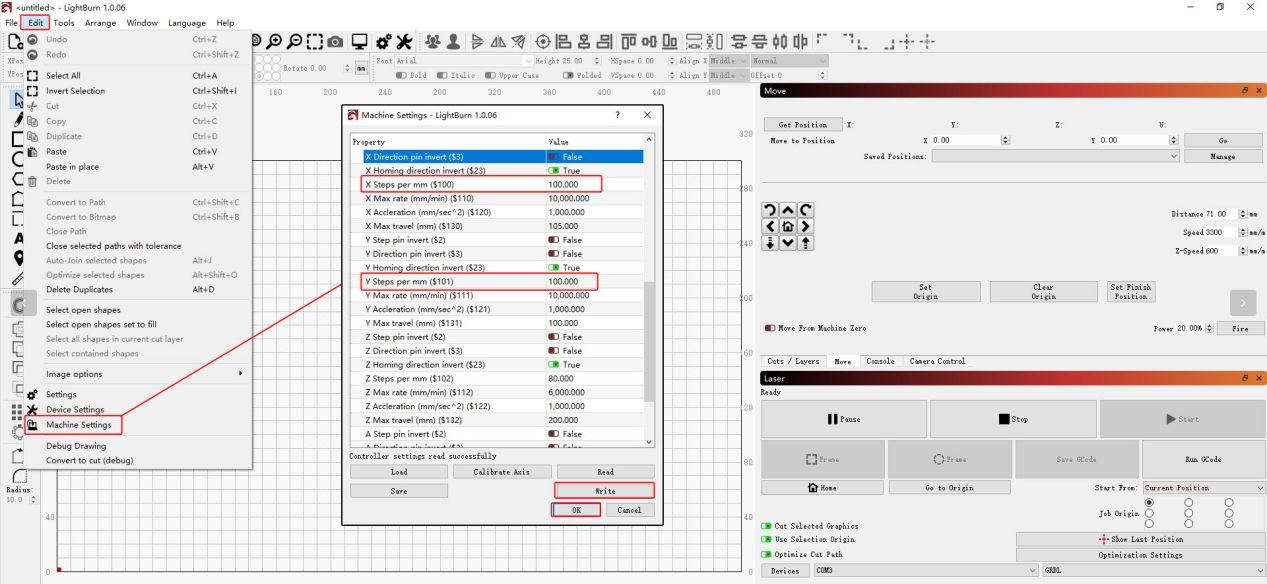
Figure 61
3. Restore the Factory Settings
If the above steps do not resolve the issue, refer to the K2 Pro Factory Reset Video and follow the steps below:
① AtomStack Studio
- Click Settings in the navigation bar and locate Version: V*.*.* in the Settings window.
- Click the number after the version number more than 7 times consecutively. The Serial Port Log developer mode option will appear in the menu bar.
- Click Serial Port Log to open the interface. A series of execution codes will be displayed in the code window.
- Click Reset in the lower-right corner of the interface. If the console indicates that the reset is complete and displays “OK” at the end, the reset is complete.
- Click Close in the upper-right corner to exit the interface.
② LightBurn
Select Console, enter $RST=* in the code field, and click Send, as shown in Figure 62.
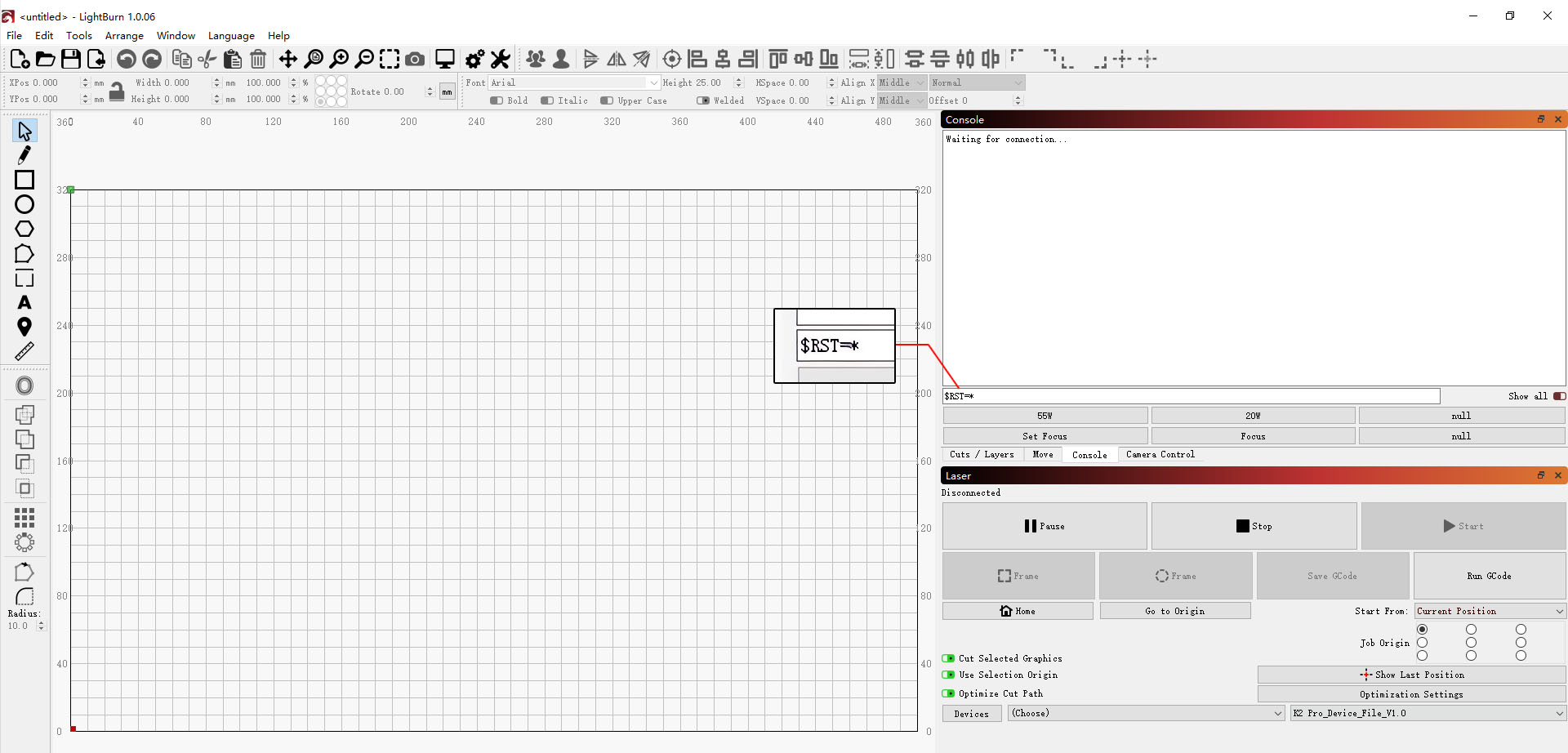
Figure 62
If none of the above steps resolves the issue, provide the following information to customer service:
- Troubleshooting video: Include the circle engraving process, the condition of each axis, and inspection of the timing pulleys and timing belts.
- Description of the troubleshooting steps performed and the results.
- Screenshot of the firmware version.
- Photo of the machine Serial Number, as shown in Figure 63.
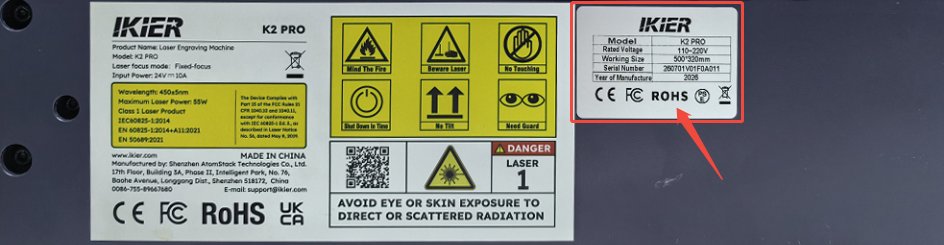
Figure 63
Still not fixed? Contact support with the details listed in What to send support.
Related problems: Lines Do Not Close · Axis Movement Abnormal · Timing Belt Damaged
¶ Engraving Is Mirrored
What you see: The engraved output is reversed or mirrored.
Check in this order:
Follow the steps below to troubleshoot the issue one by one:
1. Confirm That the Movement Direction Is Correct
Click the direction control buttons in the software and check whether the movement direction of each axis is correct. If the movement direction is reversed, skip to Step (3) to restore the factory settings, or modify the corresponding axis's $3 value in Machine Settings in LightBurn, as shown in Figure 64.
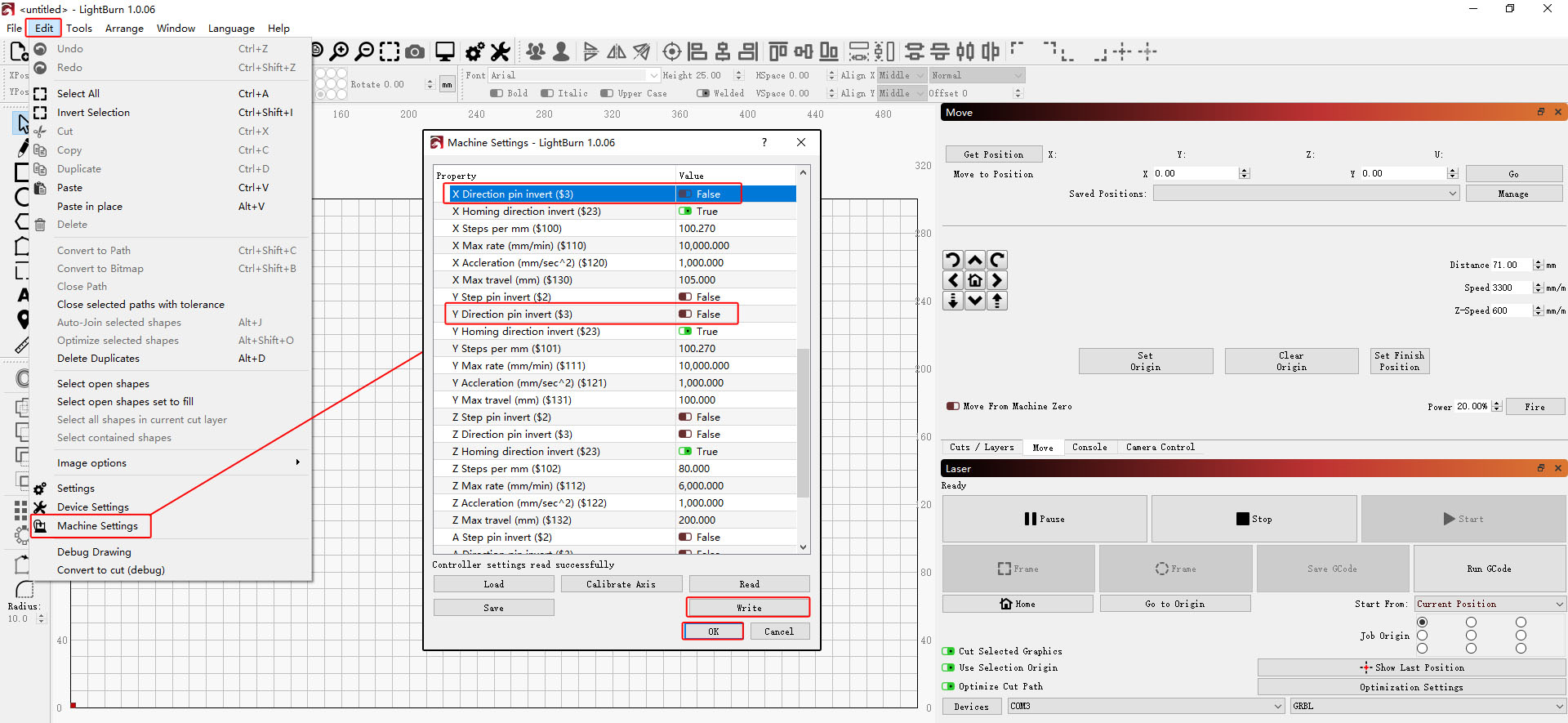
Figure 64
2. Confirm That No Conveyor or Rotary Device Is Being Used
If a conveyor or rotary device is being used, check the following:
① Check whether the device is positioned correctly.
- Note that the connector for the conveyor is located at the front of the laser engraver.
- The motor of the rotary device should be on the right side.
② Check whether the mirroring function is enabled in the software.
- If it is enabled, disable it.
- If it is disabled, enable it.
AtomStack Studio: The mirror settings are shown in Figure 65.
LightBurn: The mirror settings are shown in Figure 66.
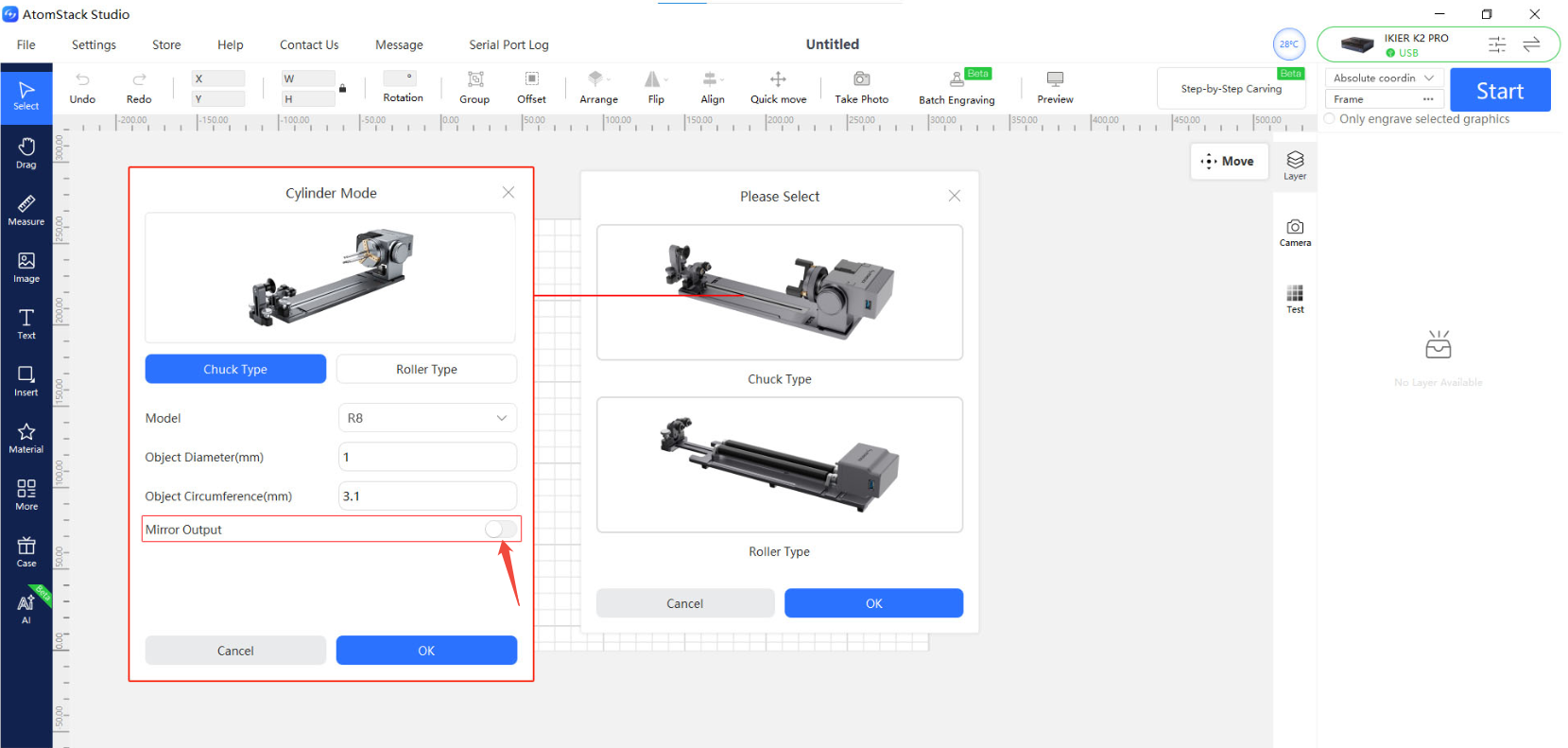
Figure 65
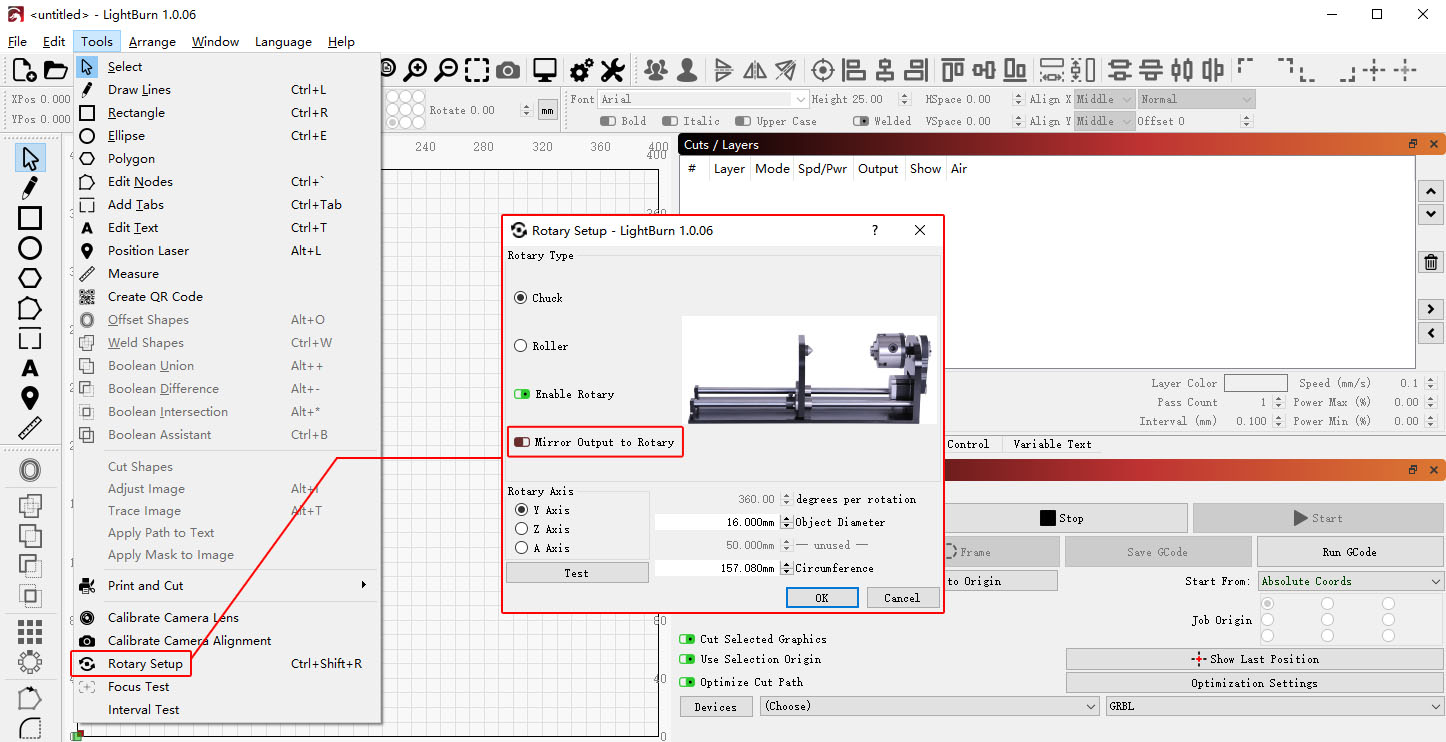
Figure 66
3. Restore the Factory Settings
If the above steps do not resolve the issue, refer to the K2 Pro Factory Reset Video and follow the steps below:
① AtomStack Studio
- Click Settings in the navigation bar and locate Version: V*.*.* in the Settings window.
- Click the number after the version number more than 7 times consecutively. The Serial Port Log developer mode option will appear in the menu bar.
- Click Serial Port Log to open the interface. A series of execution codes will be displayed in the code window.
- Click Reset in the lower-right corner of the interface. If the console indicates that the reset is complete and displays “OK” at the end, the reset is complete.
- Click Close in the upper-right corner to exit the interface.
② LightBurn
Select Console, enter $RST=* in the code field, and click Send, as shown in Figure 67.
Figure 67
4. Contact Customer Service
If none of the above steps resolves the issue, provide the following information to customer service:
- Troubleshooting video: Include the circle engraving process and the movement direction test.
- Description of the troubleshooting steps performed and the results.
- Screenshot of the firmware version.
- Photo of the machine Serial Number, as shown in Figure 68.
Figure 68
Still not fixed? Contact support with the details listed in What to send support.
Related problems: Rotary Output Mirrored · Engraving Is Distorted · Axis Movement Abnormal
¶ Engraved Lines Too Thick
What you see: Engraved lines are too thick.
Check in this order:
Please follow the steps below to troubleshoot the issue one by one:
1. Confirm the focal distance
After placing a new material, perform autofocus first. You can also manually adjust the focal distance. The optimal fixed focal distance is 40 mm.
2. Confirm the material
Check whether the material being engraved is thermoplastic (melts when exposed to high temperatures). If the material is thermoplastic, molten material may adhere to the cut surface during laser processing, resulting in rough edges and slag buildup. In some cases, molten material may also splatter and contaminate the lens.
3. Check the protective window and focusing lens
Refer to the K2 Pro Laser Cleaning Video to check whether the protective window and focusing lens are damaged or dirty.
- If they are dirty: Clean them according to the Laser Protective Window or Focusing Lens Contamination section.
- If they are damaged: Provide clear photos and contact Customer Support.
4. Confirm that air assist is enabled
Air assist can effectively improve engraving and cutting results. Confirm that air assist is enabled.
5. Check the laser spot
Raise the Z-axis to its highest position and use the laser firing function to check whether the laser spot is abnormal. You can take a clear photo and provide it to Customer Support for evaluation.
6. Contact Customer Support
If you identify an issue during troubleshooting but cannot resolve it yourself, or if you are unable to determine the cause of the fault, provide the following information when contacting Customer Support:
- Troubleshooting video: Show the engraving lines during processing and the final result, as well as the protective window and focusing lens.
- Completed troubleshooting steps and results.
- Photo of the machine Serial Number, as shown in Figure 76.
Figure 76
7. Accessory replacement reference
- If the protective window needs to be replaced, refer to the K2 Pro Laser Cleaning Video.
Still not fixed? Contact support with the details listed in What to send support.
Related problems: Autofocus Fails · Optics Contaminated · Cuts Burn or Stay Uncut
¶ Cuts Burn or Stay Uncut
What you see: Cut lines turn yellow or black and the material cannot be cut through.
Check in this order:
Please follow the steps below to troubleshoot the issue one by one:
1. Confirm the material batch
Materials from different batches may produce different cutting results due to variations in the manufacturing process. It is recommended to:
- Use materials from the same batch for comparison testing.
- Cut A4 paper to determine whether the laser power has significantly decreased.
The recommended parameters for cutting A4 paper are as follows:
Use 40% power and a speed of 5000 mm/min.
2. Confirm the focal distance
After placing a new material, perform autofocus first. You can also manually adjust the focal distance. The optimal focal distance is 40 mm.
3. Check the parameter settings in the software
Different materials require different processing parameters. Refer to the parameter table to confirm that the power, speed, and speed unit are set correctly.
How to view the parameter table:
- Scan the QR code on the machine to view it.
- Check the included USB flash drive.
- Contact Customer Support.
4. Confirm that air assist is enabled
Air assist can effectively improve engraving and cutting results. Confirm that air assist is enabled.
5. Check that the air guide is not obstructed
Refer to the Laser Protective Window or Focusing Lens Contamination section to remove and inspect the air guide. Confirm that it is free of dirt and is not misaligned or obstructing the laser beam.
6. Check the protective window and focusing lens
Refer to the K2 Pro Laser Cleaning Video to check whether the protective window and focusing lens are damaged or dirty.
- If they are dirty: Clean them according to the Laser Protective Window or Focusing Lens Contamination section.
- If they are damaged: Provide clear photos and contact Customer Support.
7. Check the S-Value Max setting (LightBurn)
The S-Value Max must remain at 1000 (as shown in Figure 77). Do not change this value, as doing so may affect laser power and service life.
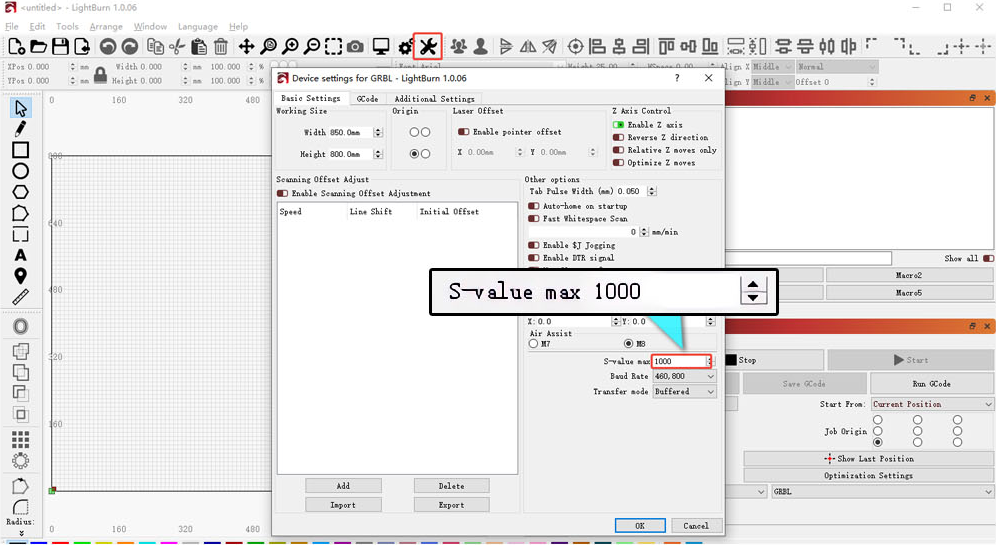
Figure 77
8. Confirm the power supply voltage
Insufficient voltage or current will directly affect laser power.
- Measure the adapter: Set the multimeter to DC voltage mode and measure the adapter output. It should be 24 V.
- Measure the laser cable: Disconnect the laser cable, run a cutting program at 100% power and a speed of 1 mm/min, and use a multimeter in DC voltage mode to measure whether the voltage between pins 2 and 3 is 24 V and the voltage between pins 4 and 5 is 5 V, as shown in Figure 78. Refer to the K2 Pro Laser Cable Voltage Measurement Video for the measurement procedure.
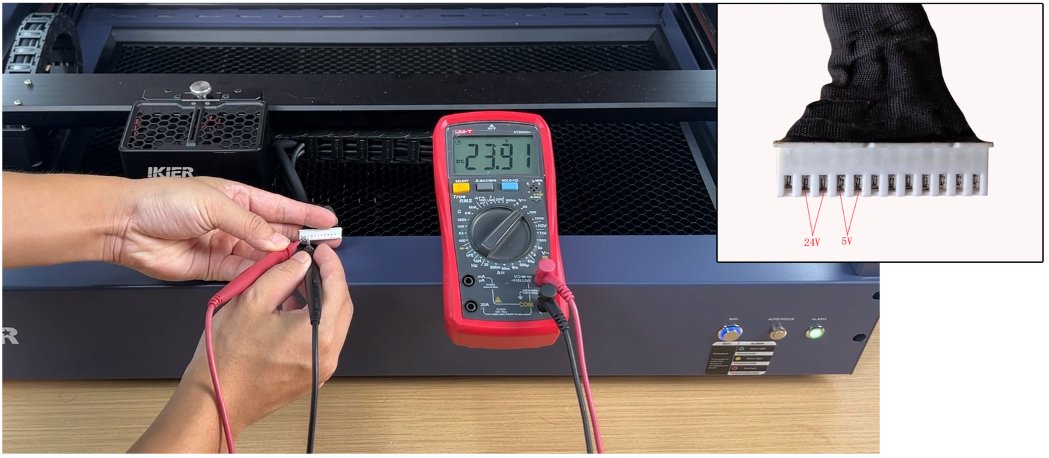
Figure 78
9. Check the laser spot
Raise the Z-axis to its highest position and use the laser firing function to check whether the laser spot is abnormal. You can take a clear photo and provide it to Customer Support for evaluation.
10. Contact Customer Support
If you identify an issue during troubleshooting but cannot resolve it yourself, or if you are unable to determine the cause of the fault, provide the following information when contacting Customer Support:
- Troubleshooting video: Show the engraving lines during processing and the final result, as well as the condition of the protective window and focusing lens.
- Completed troubleshooting steps and results.
- Photo of the machine Serial Number, as shown in Figure 79.
Figure 79
11. Accessory replacement reference
- If the protective window needs to be replaced, refer to the K2 Pro Laser Cleaning Video.
Still not fixed? Contact support with the details listed in What to send support.
Related problems: Cutting Power Is Low · Air Assist Not Working · Optics Contaminated
¶ Lines Do Not Close
What you see: Engraved lines are discontinuous at corners or start/end points and do not close.
Check in this order:
Please follow the steps below to troubleshoot the issue one by one:
1. Check the software parameters
Refer to the recommended parameter table and check whether the current settings are appropriate. You can try increasing the power or reducing the speed slightly, then test whether the line closure improves.
2. Enable Constant Power
Enable “Constant Power” mode in the software and test whether this resolves the issue.
3. Adjust the minimum power value
Refer to the K2 Pro Minimum Power Adjustment Video and follow the steps below:
Discontinuous or unclosed lines are usually related to the laser's minimum power value ($31) being set too low. Adjust it as follows:
① AtomStack Studio:
- Open the Settings menu and left-click the software version number more than 7 consecutive times to activate Developer Mode.
- Click “Serial Port Log” in the menu bar to open the console.
- Enter
$31=*in the code box and send the command. The * represents the value to be tested. Gradually increase the value until the line is closed. For example, if the line cannot be closed when$31is set to 0, send$31=10. If the line is still not closed, increase the value and send$31=20. Continue increasing the value until the line is closed.
② LightBurn:
- Click “Edit” and select “Machine Settings”, then locate
$31. - Gradually increase its value, then click “Write” → “OK” to save the setting.
- Repeat the process, continuously increasing the
$31value until the line is closed.
4. Restore the factory settings
If the above steps do not resolve the issue, refer to the K2 Pro Factory Reset Video and follow the steps below:
① AtomStack Studio
- Click the “Settings” menu in the navigation bar and locate “Version: V*.*.*” in the Settings window.
- Click the number after the version number 7 or more times consecutively. The “Serial Port Log” developer mode option will appear in the menu bar.
- Click “Serial Port Log” to enter the interface. A series of execution codes will be displayed in the code box.
- Click “Reset” in the lower-right corner of the interface. If the console indicates that the reset is complete and “OK” is displayed at the end, the reset has been completed.
- Click “close” in the upper-right corner of the interface to exit.
② LightBurn
Select the “Console” and enter $RST=* in the code box, then click Send, as shown in Figure 80.
Figure 80
5. Contact Customer Support
If you identify an issue during troubleshooting but cannot resolve it yourself, or if you are unable to determine the cause of the fault, provide the following information when contacting Customer Support:
- Troubleshooting video: Show the cutting lines during processing and the final result, as well as the condition of the protective window and focusing lens.
- Completed troubleshooting steps and results.
- Photo of the machine Serial Number, as shown in Figure 81.
Figure 81
Confirm the fix: Test the engraving again and confirm that the line is closed.
Still not fixed? Contact support with the details listed in What to send support.
Related problems: Engraving Is Distorted · Cutting Power Is Low · Engraved Lines Too Thick
¶ Rotary Output Mirrored
What you see: The image is reversed or mirrored when using the rotary attachment.
Check in this order:
Please follow the steps below to troubleshoot the issue one by one:
1. Confirm the Placement Orientation
- For the conveyor feeder, note that the cable is at the front of the engraver.
- For the rotary attachment, the motor is on the right side.
2. Check the Mirror Settings
Check whether the mirror output option is selected in the rotary settings of AtomStack Studio or LightBurn, as shown in Figure 97 and Figure 98.
Figure 97
Figure 98
3. Check the Y-Axis Reverse Setting (LightBurn)
In LightBurn or LaserGRBL, select “Machine Settings” under “Edit” in the menu bar, locate “Y Direction pin invert ($3)”. If it is set to true, change it to false; if it is set to false, change it to true. Then click “Write” and click “OK”.
4. Restore the Factory Settings
If none of the above steps resolves the issue, refer to the K2 Pro Factory Reset Video and follow the steps below:
① AtomStack Studio
- Click “Settings” in the navigation bar and locate “Version: V*.*.*” in the Settings window.
- Click the number after the version number more than 7 times consecutively. The “Serial Port Log” developer mode option will appear in the menu bar.
- Click “Serial Port Log” to open the interface. A series of execution codes will be displayed in the code window.
- Click “Reset” in the lower-right corner of the interface. If several lines of reset feedback appear in the code window and “OK” is displayed at the end, the reset is complete.
- Click “Close” in the upper-right corner to exit the interface.
② LightBurn
Select “Console”, enter $RST=* in the code field, and click “Send”, as shown in Figure 99.
Figure 99
5. Contact Customer Support
If none of the above steps resolves the issue, provide the following information when contacting Customer Support:
- Troubleshooting video: Show the engraving status and results.
- Completed troubleshooting steps and results.
- Photo of the machine Serial Number, as shown in Figure 100.
Figure 100
Still not fixed? Contact support with the details listed in What to send support.
Related problems: Engraving Is Mirrored · Engraving Is Distorted · Axis Movement Abnormal