Flex Updates & Alarms: Limit Errors, Tilt Alarm
You are checking software, firmware or app updates, or looking up a software alarm code.
Disconnect power before disassembly or electrical testing. Turn off the engraving machine before removing the laser and disconnecting its cable, or removing and reinserting the TF card. Do not turn off the machine or remove the TF card during a firmware update.
¶ Software & Firmware
- Updating AtomStack Studio
Open the software and click "Settings" in the upper-left corner to enter the Settings interface. At the bottom of the interface, you can view the current version number and the "Check for Updates" button, as shown in Figure 85.
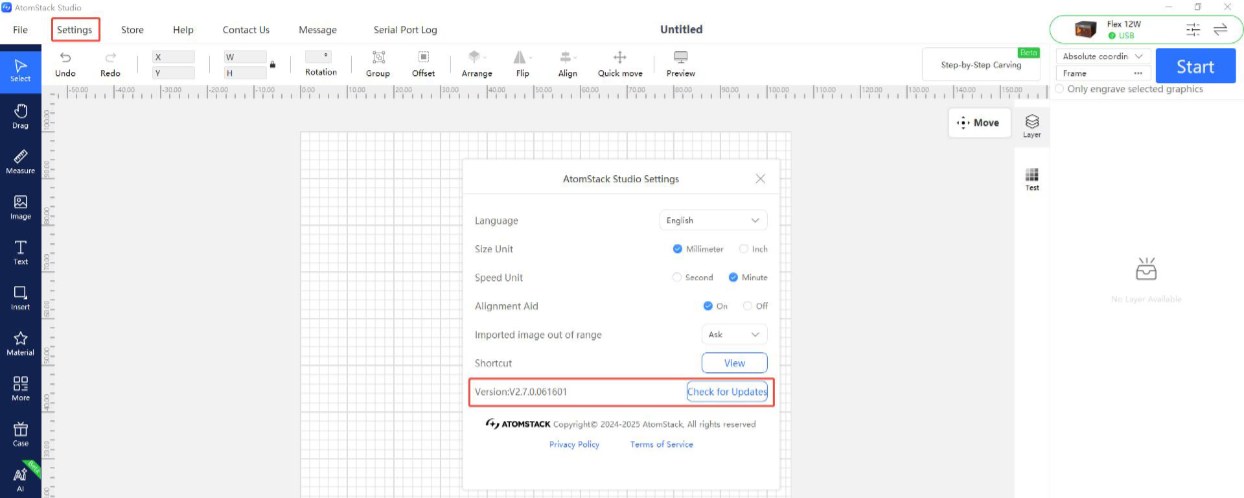
Figure 85
- Updating the Engraving Machine Firmware
-
All firmware update methods require a TF card as the storage medium. Do not turn off the machine or remove the TF card during the update process.
-
Updating the Firmware via AtomStack Studio
Open the software and connect the engraving machine. Click the "☰" icon in the upper-right corner of the software interface to enter the Device Information interface. The current firmware version is displayed at the bottom of the interface. If an update notification appears to the right of the version number, click it to start the update, as shown in Figure 86.
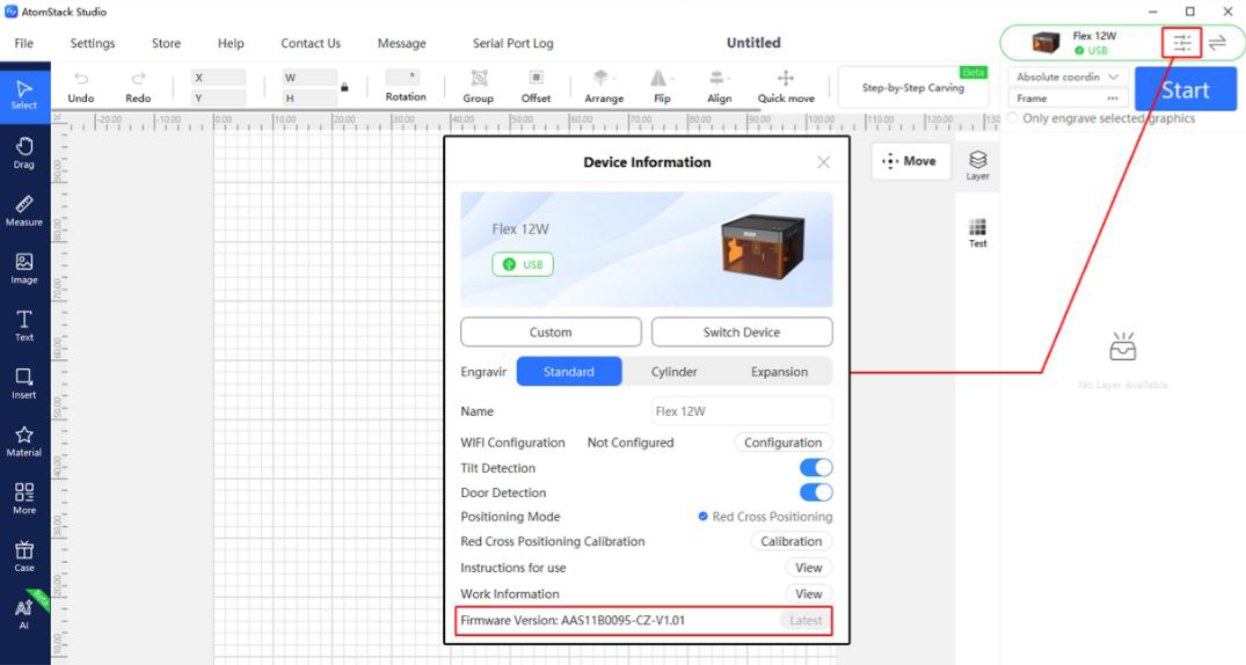
Figure 86
- Updating the Firmware via the AtomStack App
Open the app and connect the engraving machine. Tap "Settings" below the model name to enter the Device Settings interface. At the bottom of the interface, you can view the current firmware version and the option to update to the latest firmware, as shown in Figure 87.
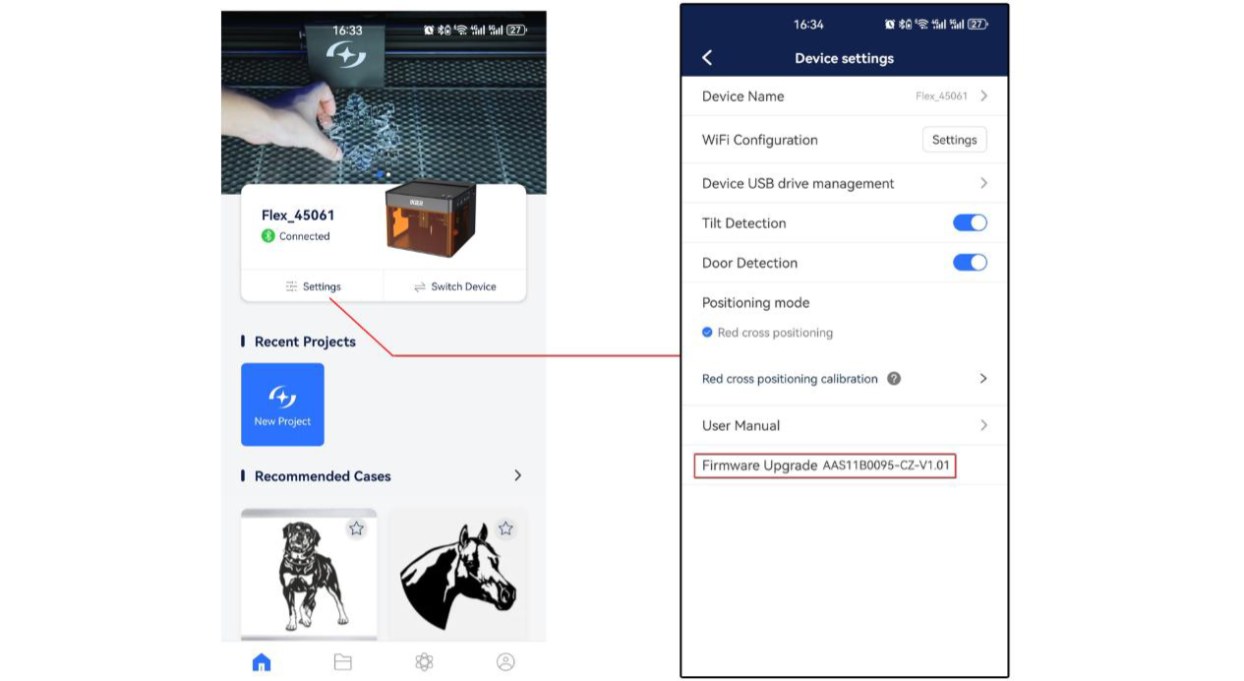
Figure 87
- Updating the Firmware via a TF Card
If the firmware cannot be updated using either of the above methods, provide Customer Support with a screenshot showing the current firmware version of the engraving machine and a photo of the machine's Serial Number label (see Figure 88) to obtain the latest firmware. Then follow the steps below to update the firmware:
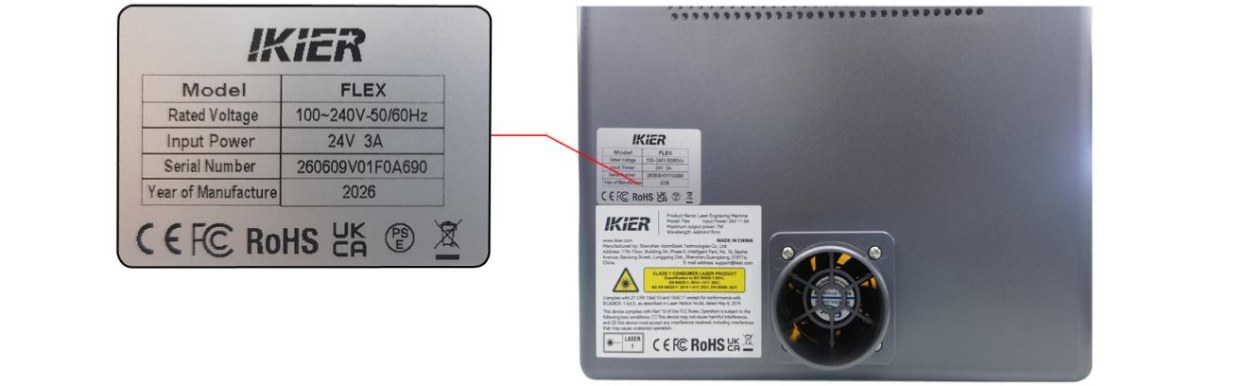
Figure 88
① Remove the TF card, insert it into a card reader, and connect the card reader to a computer.
② Copy the new firmware file (.bin file) to the root directory of the TF card. Do not place the file inside a folder.
③Insert the TF card back into the engraving machine and turn on the machine. The device will automatically start the update and emit a series of beeping sounds.
④ Wait until the beeping stops, then restart the engraving machine.
- Updating the Mobile App
Open the mobile app and tap "Profile" → "Settings" → "About ATOMSTACK" in the lower-right corner of the home page to enter the corresponding interface. You can view the current app version there. If a new version is available, an update option will be displayed. If no update is available, "You're up to date" will be displayed, as shown in Figure 89.
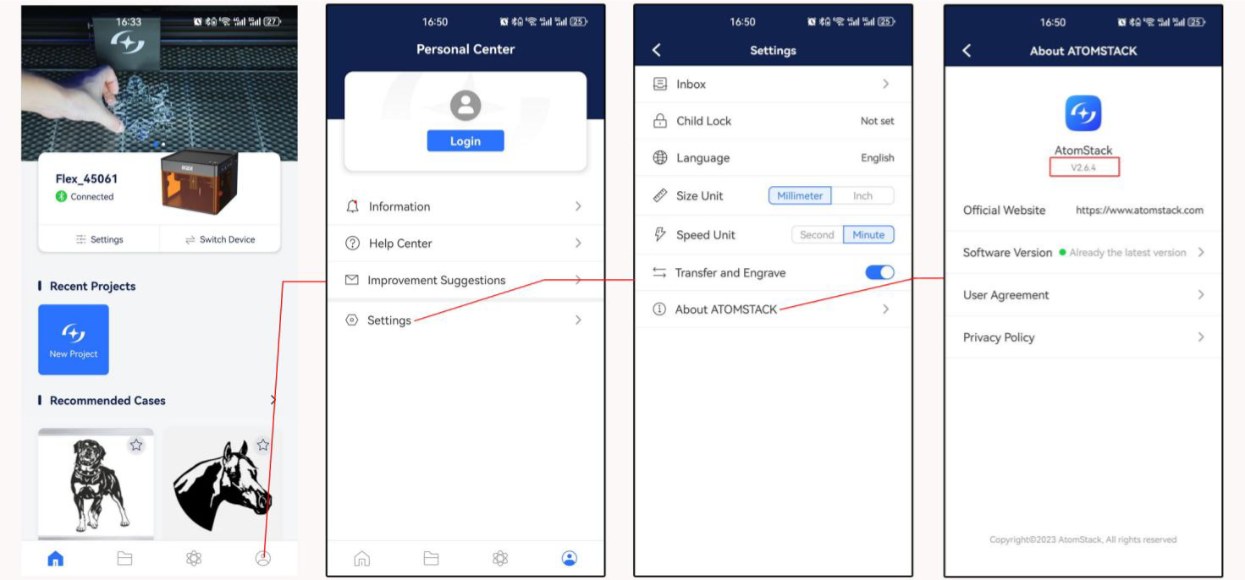
Figure 89
Related problems: App Won’t Connect · TF Card Not Recognized · Reversed Patterns
¶ Software Alarms
| Alarm Code | Description | Troubleshooting |
|---|---|---|
| Alarm 1 | Limit switch triggered | If an alarm occurs during normal operation without hitting the limit switch, manually press each limit switch to check whether it can be triggered normally and whether an alarm sound (beep) is produced. Alternatively, unplug the cables of the limit switches one by one and check whether the issue can be reproduced, to identify the faulty component. |
| Alarm 2 | Software limit triggered | Check whether the software limit function is enabled. The software limit setting is located in the $20 parameter in the machine settings. If enabled, it needs to be disabled. In the software, go to Edit → Machine Settings to configure the setting. |
| Alarm 3 | Engraving stopped | Refer to the prompts displayed by the software and follow the instructions to troubleshoot the issue. |
| Alarm 8 | Limit switch continuously triggered | The limit switch may be damaged. You can unplug the limit switch cables one by one to identify the faulty component. |
| Alarm 11 | Tilt alarm | Make sure the engraving machine is placed on a level surface. If the alarm persists, open the machine lid and tighten the fixing screws on the sides of the mainboard. |
Related problems: Red Light at Power-On · Engraving Stops Suddenly · Limit Switch Not Found