K2 Pro Enclosure & Air: Smoke Leaks, No Spray
The enclosure LEDs malfunction, flame alarms are false or spray no water, air assist fails, water drips, or smoke escapes the door gap.
Turn off the engraver before removing the laser or disconnecting its cable, and unplug the adapter before power-switch work. Stop using the machine immediately if the protective window is damaged and replace it before use. Monitor the machine throughout processing after disabling flame detection or adjusting its sensitivity. Do not power off the machine or remove the USB flash drive during a firmware update.
¶ LED Strip Malfunctions
What you see: The enclosure LED light strip malfunctions.
Check in this order:
Please follow the steps below to troubleshoot the issue one by one:
1. Confirm that the LED light strip cable is properly connected
Open the enclosure door and check whether the LED light strip cable inside the enclosure is properly connected, as shown in Figure 82. Disconnect and reconnect the cable, then test again.
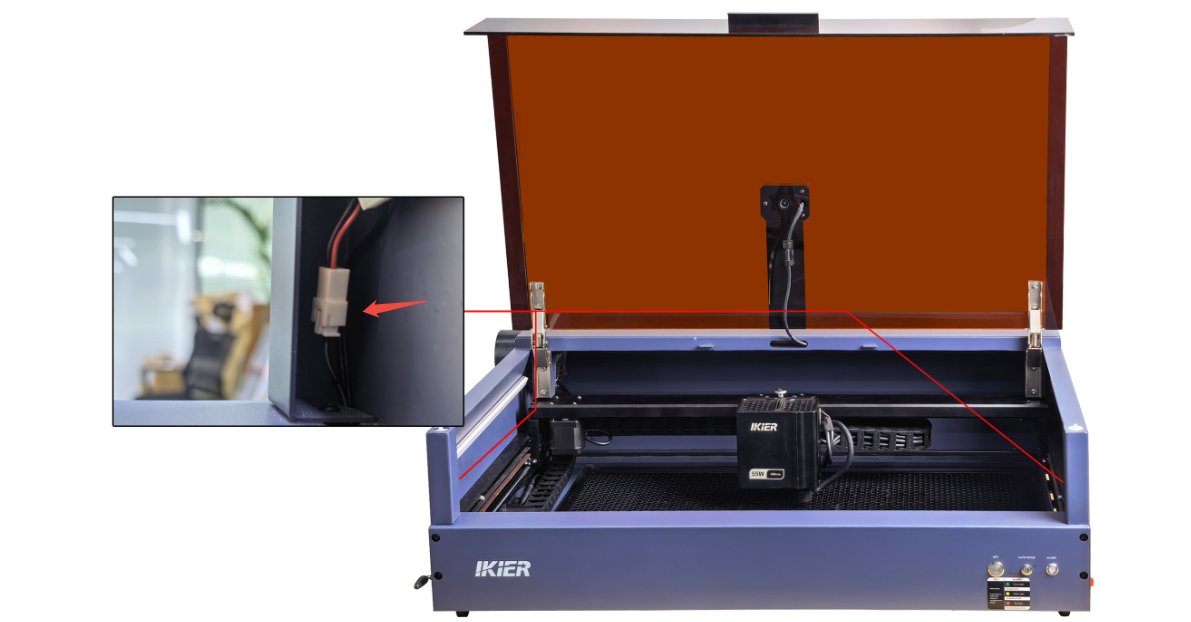
Figure 82
2. Measure the voltage of the LED light strip cable
Disconnect the LED light strip cable and use a multimeter in DC voltage mode to measure whether the cable voltage is approximately 24 V, as shown in Figure 83.
- If the voltage is approximately 24 V, the LED light strip is faulty.
- If the voltage is approximately 0 V, the LED light strip cable is faulty.
- If a multimeter is not available, you can directly power the LED light strip with the adapter for testing. This requires two additional short cables to connect the adapter output to the LED light strip.
Make sure to distinguish between the positive and negative terminals.
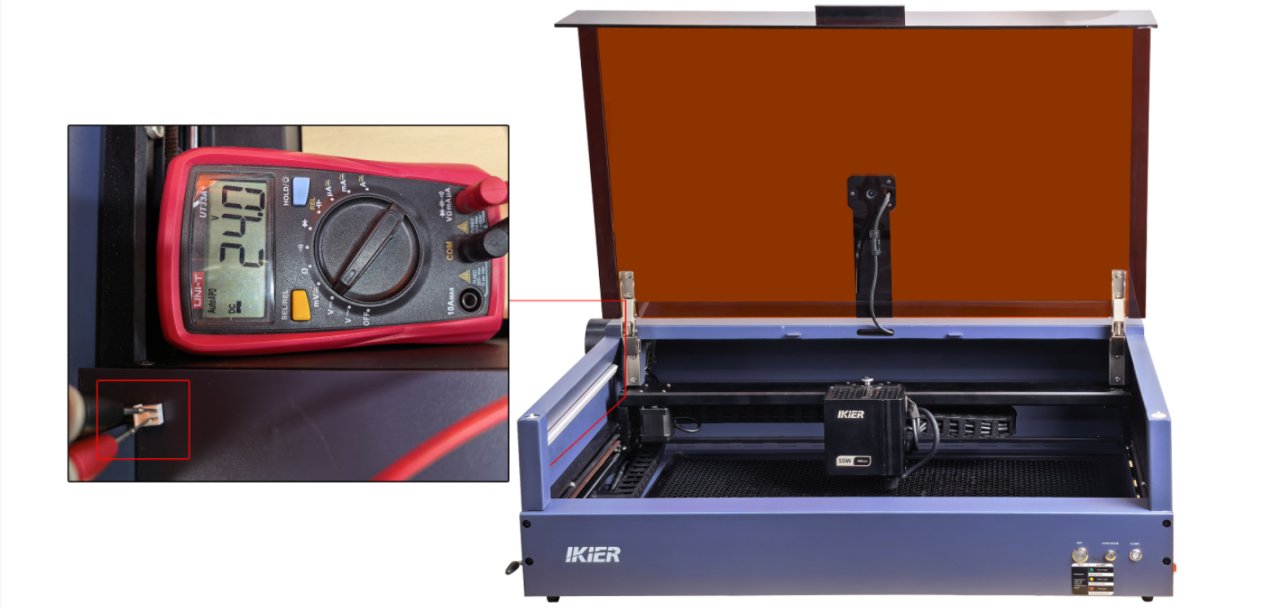
Figure 83
3. Contact Customer Support
If you identify an issue during troubleshooting but cannot resolve it yourself, or if you are unable to determine the cause of the fault, provide the following information when contacting Customer Support:
- Troubleshooting video: Show the LED light strip malfunction and the process of measuring the cable voltage.
- Photo of the machine Serial Number, as shown in Figure 84.
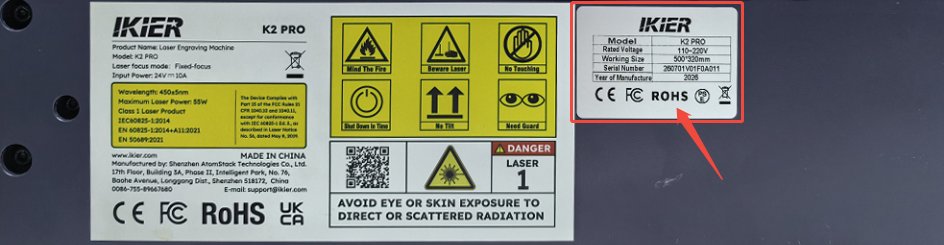
Figure 84
4. Accessory replacement reference
- If the LED light strip needs to be replaced, refer to the K2 Pro LED Light Strip Replacement Video.
Still not fixed? Contact support with the details listed in What to send support.
Related problems: Power-On Fails · Camera Position Errors · Camera Not Working
¶ False Flame Alarms
What you see: False “ALARM: 12” flame alarms trigger frequently.
Check in this order:
Please follow the steps below to troubleshoot the issue one by one:
1. Check the operating environment
If the engraving machine is exposed to direct sunlight, the flame alarm may be triggered falsely. Move the machine to another location or block direct sunlight.
2. Confirm the engraving material
If the engraving or cutting material is highly flammable, such as MDF, basswood, cork, or paper, it may easily trigger the flame alarm. You can disable the flame detection function before continuing the process.
Note: After disabling flame detection, the machine must be monitored by a person throughout the entire process to prevent accidents.
3. Check the line density of the engraving file
If the lines in the engraving or cutting file are too dense, the flame alarm may also be triggered falsely. You can increase the speed and increase the number of passes to avoid this issue.
4. Test with another material
Replace the current material with another material, such as plywood, and test whether the flame alarm is triggered again to determine whether the issue is related to the material.
5. Adjust the sensitivity
If the flame alarm is easily triggered when engraving or cutting a particular material, but there is no actual fire, you can appropriately adjust the flame detection sensitivity.
Note that after adjusting the sensitivity, restore the original value before processing other materials.
Note: After adjusting the sensitivity, the machine must be monitored by a person throughout the entire process to prevent accidents.
Follow the steps below to adjust the sensitivity:
① Open the software code console:
- For AtomStack Studio, refer to the K2 Pro Factory Reset Video to enter Developer Mode, then enter the command in the input box at the bottom.
- For LightBurn, directly enter the command in the input box in the “Console”.
② Enter $fire_alarm/threshold_value=* in the input box and send the command. The * represents the value to be tested. The higher the value, the less likely the alarm is to be triggered.
6. Contact Customer Support
If the above steps do not resolve the issue, provide the following information when contacting Customer Support:
- Troubleshooting video: Show the false alarm trigger.
- Completed troubleshooting steps and results.
- Photo of the machine Serial Number, as shown in Figure 85.
Figure 85
7. Accessory replacement reference
- If the flame detection board needs to be replaced, refer to: K2 Pro Laser Flame Alarm Board Replacement Video.
8. Notes
If water is sprayed to extinguish a fire after a flame alarm is triggered, perform the following steps after the fire has been extinguished:
① Dry any residual water:
Start a low-power engraving or cutting program and run it for 5 minutes to use the airflow to dry any water remaining inside the hose.
② Clean the protective window and air guide:
Refer to the K2 Pro Laser Cleaning Video and wipe off any water from the surface of the protective window, the focusing lens (do not remove it), and the inside and outside of the air guide.
After each flame alarm trigger, immediately perform the above drying procedure to prevent water from accumulating and affecting the engraving and cutting performance of the machine.
Still not fixed? Contact support with the details listed in What to send support.
Related problems: Flame Alarm, No Spray · Water Drips at Power-On · Engraving Stops
¶ Flame Alarm, No Spray
What you see: The “ALARM: 12” flame alarm is triggered but no water is sprayed.
Check in this order:
Please follow the steps below to troubleshoot the issue one by one:
1. Confirm That the Water Tank Is Filled
Fill the water tank of the fire-extinguishing air pump with purified water or distilled water.
Note: Do not use tap water for extended periods. Tap water easily produces limescale, which may block the water path.
2. Confirm That the Cables Are Properly Connected
Refer to the Air Assist Usage Guide (with Fire-Extinguishing Function) section to check whether the cable connections are correct. If a multimeter is available, after the flame alarm is triggered (measurement is only valid after the flame alarm has been triggered), use the DC voltage range to measure the voltage of the water pump cable:
- If voltage output is present, the mainboard and the water pump power cable are normal.
- If no voltage output is present, the mainboard or the water pump power cable may be faulty.
3. Check the Water Pump Status
If the water pump cable has voltage input but the water pump still does not work, the water pump may be faulty.
4. Confirm That the Hose Is Properly Connected
Check that the hose is properly connected to the “AIR TUBE” port on the engraver, and confirm that the hose is not bent or blocked.
5. Contact Customer Support
If you identify an issue during troubleshooting but cannot resolve it yourself, or if you are unable to determine the cause of the fault, provide the following information when contacting Customer Support:
- Troubleshooting video: Show that no water is sprayed after the flame alarm is triggered, the water level in the water tank, and the correct connections.
- Completed troubleshooting steps and results.
- Photo of the machine Serial Number, as shown in Figure 86.
Figure 86
6. Accessory Replacement References
- If the water pump needs to be replaced, refer to the K2 Pro Air Pump and Water Pump Replacement Video.
- If the mainboard needs to be replaced, refer to the K2 Pro Mainboard Replacement Video.
Still not fixed? Contact support with the details listed in What to send support.
Related problems: False Flame Alarms · Air Assist Not Working · Water Drips at Power-On
¶ Air Assist Not Working
What you see: Air assist does not work.
Check in this order:
Please follow the steps below to troubleshoot the issue one by one:
1. Confirm That All Connections Are Correct
Refer to the Air Assist Usage Guide (with Fire-Extinguishing Function) section to check whether all cable connections are correct.
2. Confirm That Engraving or Cutting Has Started
The air assist system is controlled by the mainboard and only starts normally after an engraving or cutting program has been started.
3. Confirm That the Air Pump Output Is Enabled in the Software
When setting the engraving parameters, the air assist function must be enabled:
- In AtomStack Studio, enable the “air assist” function below the speed setting on the right, as shown in Figure 87.
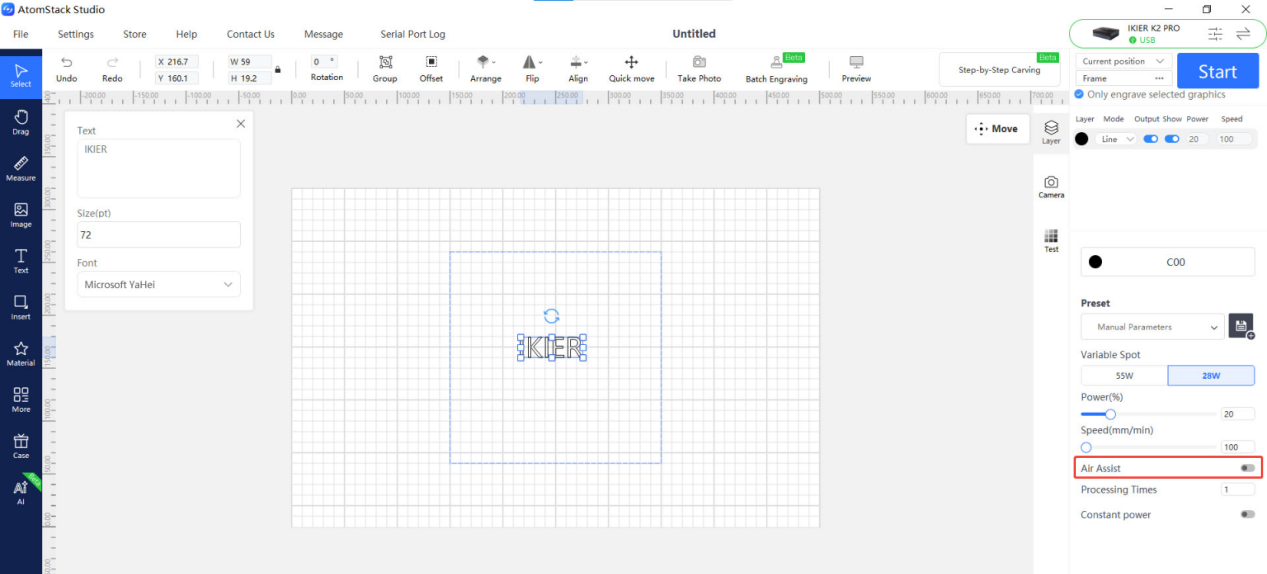
Figure 87
- In LightBurn, go to the parameter settings interface and enable the “air assist” function, as shown in Figure 88.
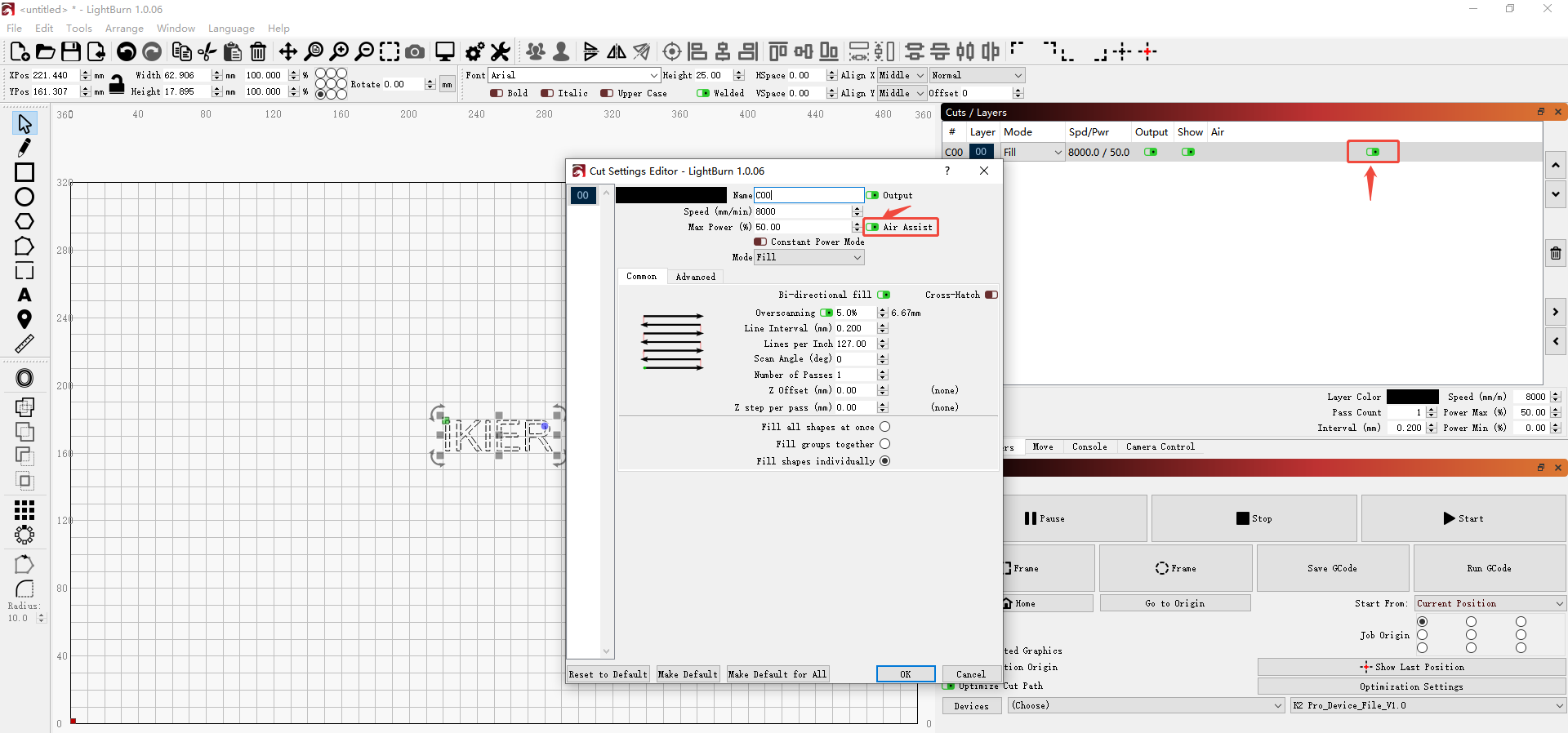
Figure 88
4. Confirm That the Switch Speed Controller Is Turned On
The switch speed controller on the top of the fire-extinguishing air pump is turned on by rotating it clockwise. The airflow can be adjusted according to actual needs.
5. Measure the Voltage of the Air Pump Cable
If a multimeter is available, start an engraving or cutting program first (voltage output is only present at this time), then disconnect the air pump cable from the air pump end and use the DC voltage range to measure the voltage of the air pump cable (as shown in Figure 89):
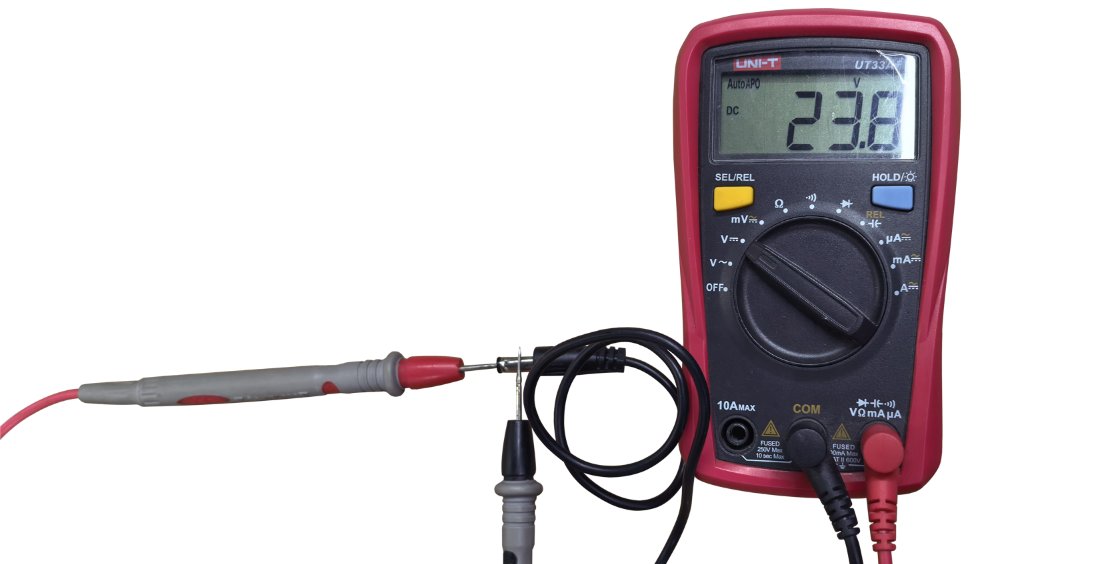
Figure 89
- Voltage output present → The mainboard and the air pump power cable are normal.
- No voltage output → The mainboard or the air pump power cable may be faulty.
6. Check the Air Assist Status
After starting engraving, if there is no airflow or the airflow is very weak, and the air assist hose is not bent and the power supply voltage is normal, touch the surface of the fire-extinguishing air pump by hand:
- Obvious vibration and abnormal noise → The air pump is faulty.
- No vibration, no noise, and no airflow → The switch speed controller is faulty.
7. Contact Customer Support
If you identify an issue during troubleshooting but cannot resolve it yourself, or if you are unable to determine the cause of the fault, provide the following information when contacting Customer Support:
- Troubleshooting video: Show the operating status of the fire-extinguishing air pump (indicating whether there is vibration) and the process of measuring the air pump cable voltage.
- Completed troubleshooting steps and results.
- Photo of the machine Serial Number, as shown in Figure 90.
Figure 90
8. Accessory Replacement References
- If the switch speed controller needs to be replaced, refer to the K2 Pro Switch Speed Controller Replacement Video.
- If the air pump needs to be replaced, refer to the K2 Pro Air Pump and Water Pump Replacement Video.
Still not fixed? Contact support with the details listed in What to send support.
Related problems: Cuts Burn or Stay Uncut · Flame Alarm, No Spray · Water Drips at Power-On
¶ Water Drips at Power-On
What you see: Water drips from the laser air guide after power-on.
Check in this order:
This phenomenon is usually caused by residual water remaining in the hose after a previous flame alarm triggered water spraying, when the hose was not fully drained. Even if no alarm has been triggered, testing the flame alarm function may also cause water to accumulate inside the hose, resulting in dripping when the machine is powered on and used again.
If dripping occurs, proceed as follows:
① Dry the residual water: Start a low-power engraving or cutting program and run it for 5 minutes to dry the water inside the hose with the airflow.
② Clean the lens and air guide: Refer to the K2 Pro Laser Cleaning Video and wipe dry the surface of the protective window, the focusing lens (do not remove it), and the inside and outside of the air guide.
After each flame alarm is triggered, perform the drying procedure described above immediately to prevent water accumulation from affecting the engraving and cutting performance of the machine.
Still not fixed? Contact support with the details listed in What to send support.
Related problems: Flame Alarm, No Spray · False Flame Alarms · Optics Contaminated
¶ Smoke Escapes Door Gap
What you see: Smoke inside the enclosure cannot be exhausted in time and escapes through the door gap.
Check in this order:
Please follow the steps below to troubleshoot the issue one by one:
1. Check the Fan Status
① Confirm Whether the Fan Rotates
After starting an engraving or cutting program, check whether the enclosure fan rotates normally. If it does not rotate, troubleshoot as follows.
- Check the cable: Refer to the K2 Pro Enclosure Fan Replacement Video to confirm whether the connection cable is properly connected.
- Adapter power supply test: Disconnect the enclosure fan cable and connect the adapter directly to the fan cable (as shown in Figure 95) to test whether the fan rotates. If it rotates normally, the mainboard or the fan power cable is faulty. If it still does not rotate, the fan is faulty.
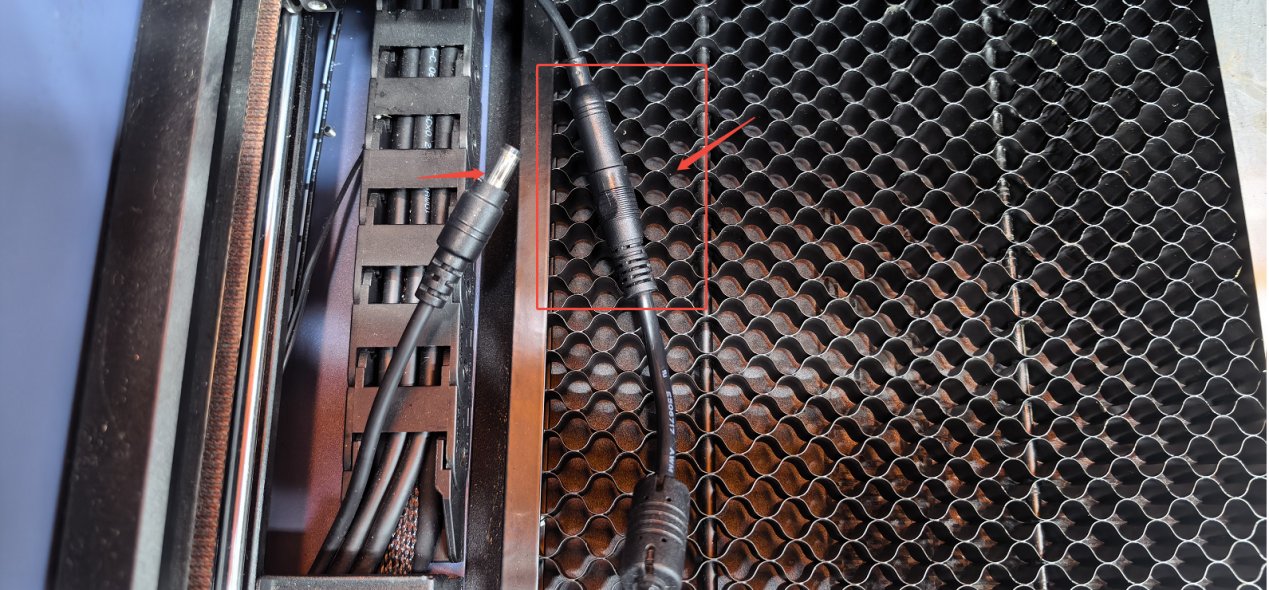
Figure 95
② Check Whether the Fan Blades Are Intact
If the fan rotates, carefully check whether the fan blades are broken or damaged.
Note: Broken or damaged fan blades will seriously affect smoke extraction and cause abnormal noise.
③ Check Whether the Fan Is Dusty
If the fan blades are intact, check whether dust has accumulated on the surface of the blades. If there is dirt, refer to the K2 Pro Enclosure Interior Cleaning Video for cleaning.
2. Check the Exhaust Hose
Check that the exhaust hose is not bent or blocked, and ensure that the exhaust path is clear.
3. Check the Purifier
If a purification device (purifier) is connected, try disconnecting the exhaust hose from the purifier and exhausting directly outdoors, then observe whether the exhaust effect improves:
- If exhaust returns to normal, the problem lies with the purification device (such as a clogged filter or device failure).
- If exhaust is still abnormal, continue checking the enclosure fan or the hose.
4. Contact Customer Support
If none of the above steps resolves the issue, provide the following information when contacting Customer Support:
- Troubleshooting video: Show the smoke exhaust status and the fan status.
- Completed troubleshooting steps and results.
- Photo of the machine Serial Number, as shown in Figure 96.
Figure 96
5. Accessory Replacement References
- If the enclosure fan needs to be replaced, refer to the K2 Pro Enclosure Fan Replacement Video.
- If the mainboard needs to be replaced, refer to the K2 Pro Mainboard Replacement Video.
- If the fan connection cable needs to be replaced, refer to the K2 Pro Connection Cable Replacement Video.
Still not fixed? Contact support with the details listed in What to send support.
Related problems: Air Assist Not Working · LED Strip Malfunctions · False Flame Alarms