K2 Pro Focus & Camera: Focus Fails, Camera Errors
Autofocus fails, the laser will not rise after contact, crosshair positioning is misaligned, or the camera fails or positions inaccurately.
Turn off the engraver before removing the laser or disconnecting its cable, and unplug the adapter before power-switch work. Stop using the machine immediately if the protective window is damaged and replace it before use. Monitor the machine throughout processing after disabling flame detection or adjusting its sensitivity. Do not power off the machine or remove the USB flash drive during a firmware update.
¶ Autofocus Fails
What you see: Autofocus fails.
Check in this order:
Carefully observe the status of the Z-axis and follow the steps below one by one to troubleshoot the issue:
You can refer to the K2 Pro XYZ Limit Switch Verification and Troubleshooting Video for the relevant procedures.
1. The Z-axis does not stop when it reaches the highest position
Manually turn the knob to move the Z-axis to its highest position and check whether the upper limit switch can be triggered normally. A “beep-beep” sound will be emitted when the switch is triggered.
① If the upper limit switch cannot be triggered normally
Refer to the K2 Pro XYZ Limit Switch Replacement Video and perform the following checks:
- Check whether the upper limit switch cable is loose.
- Check whether the upper limit switch is damaged.
- Check whether any wires are exposed from the X-axis cable chain.
- Measure the voltage of the upper limit switch cable. It should be approximately 3.3 V, as shown in Figure 42. If the measured voltage is approximately 0 V, the mainboard or connection cable is faulty.
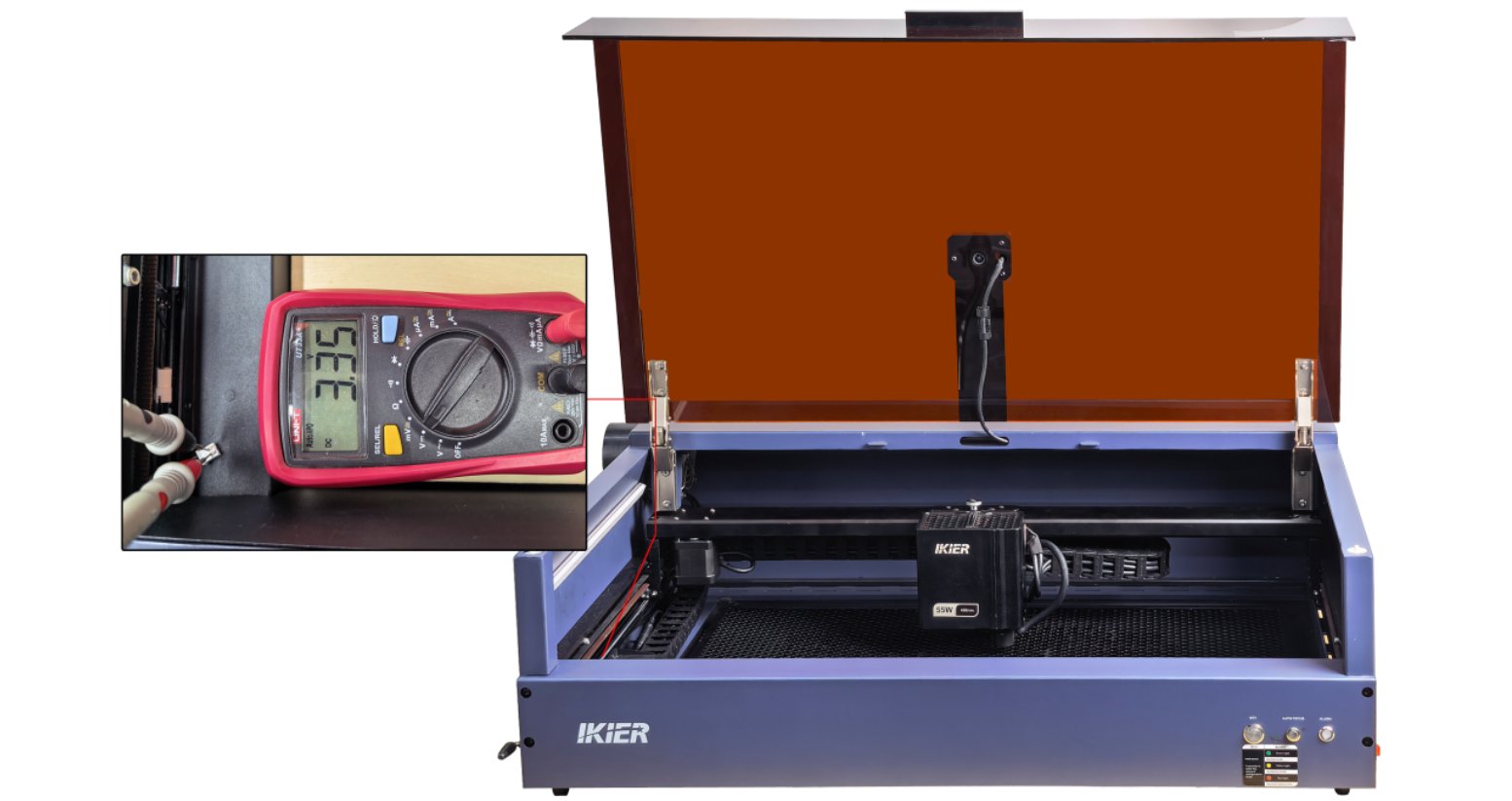
Figure 42
② If the upper limit switch can be triggered normally but the auto focus problem persists
Skip directly to Steps (4) and (5) and try restoring the factory settings and updating the firmware.
2. The laser does not stop after the trigger rod contacts the material surface
① The trigger rod does not contact the material
Check whether the trigger rod at the bottom of the laser can contact the material surface, as shown in Figure 43. If it does not, move the laser so that the trigger rod can make proper contact with the material surface.
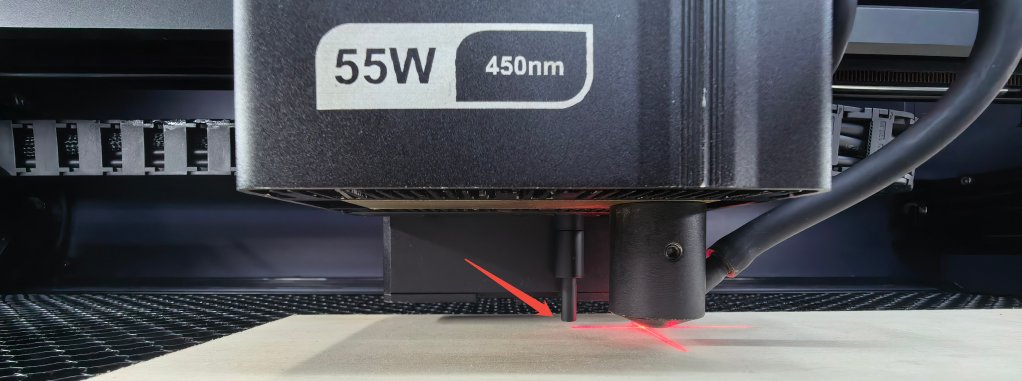
Figure 43
② The material is too soft
Check whether the material is too soft. Soft materials may prevent the trigger rod from effectively triggering the lower limit switch, resulting in auto focus failure or an inaccurate focus distance.
③ Check the lower limit switch
Press the trigger rod by hand and determine the result as follows:
- Cannot be triggered (no “beep-beep” sound): The lower limit switch is faulty and the driver board needs to be replaced.
- Trigger rod cannot be pressed: The trigger rod may be stuck. Open the bottom plate of the laser and reinstall the trigger rod.
3. The Z-axis stops after moving a very short distance and makes an abnormal noise
① Check the Z-axis motor cable
Refer to the K2 Pro X/Y/Z-Axis Motor Replacement Video and check whether the Z-axis motor cable is loose or damaged. Disconnect the cable and reconnect it, then test again.
② Adjust the Z-axis lead screw
Remove the entire Z-axis module and check whether the lead screw is bent or deformed. You can also loosen the screws securing the lead screw at the bottom and adjust its position.
If the surface of the lead screw is relatively dry, apply a uniform layer of lubricating grease. For the recommended grease, refer to the Enclosure Interior Maintenance section.
③ Check the Z-axis motor
Refer to the K2 Pro Motor Cable Swapping Video and connect the Y-axis motor cable to the Z-axis motor to check whether the Z-axis motor can operate normally:
- If the fault persists: The Z-axis motor is faulty.
- If the Z-axis operates normally: The mainboard or connection cable is faulty.
4. Restore Factory Settings
If none of the above steps resolves the issue, refer to the K2 Pro Factory Reset Video and follow the steps below:
① AtomStack Studio
- Click the “Settings” menu in the navigation bar and find “Version: V*.*.*” in the Settings window.
- Click the number after the version number more than 7 times consecutively. The “Serial Port Log” developer mode option will appear in the menu bar.
- Click “Serial Port Log” to enter the interface. A series of execution codes will be displayed in the code box.
- Click “Reset” in the lower-right corner of the interface. If the console displays several reset completion messages and ends with “OK”, the reset is complete.
- Click “Close” in the upper-right corner to exit the interface.
② LightBurn
Select “Console”, enter $RST=* in the code box, and click Send, as shown in Figure 44.
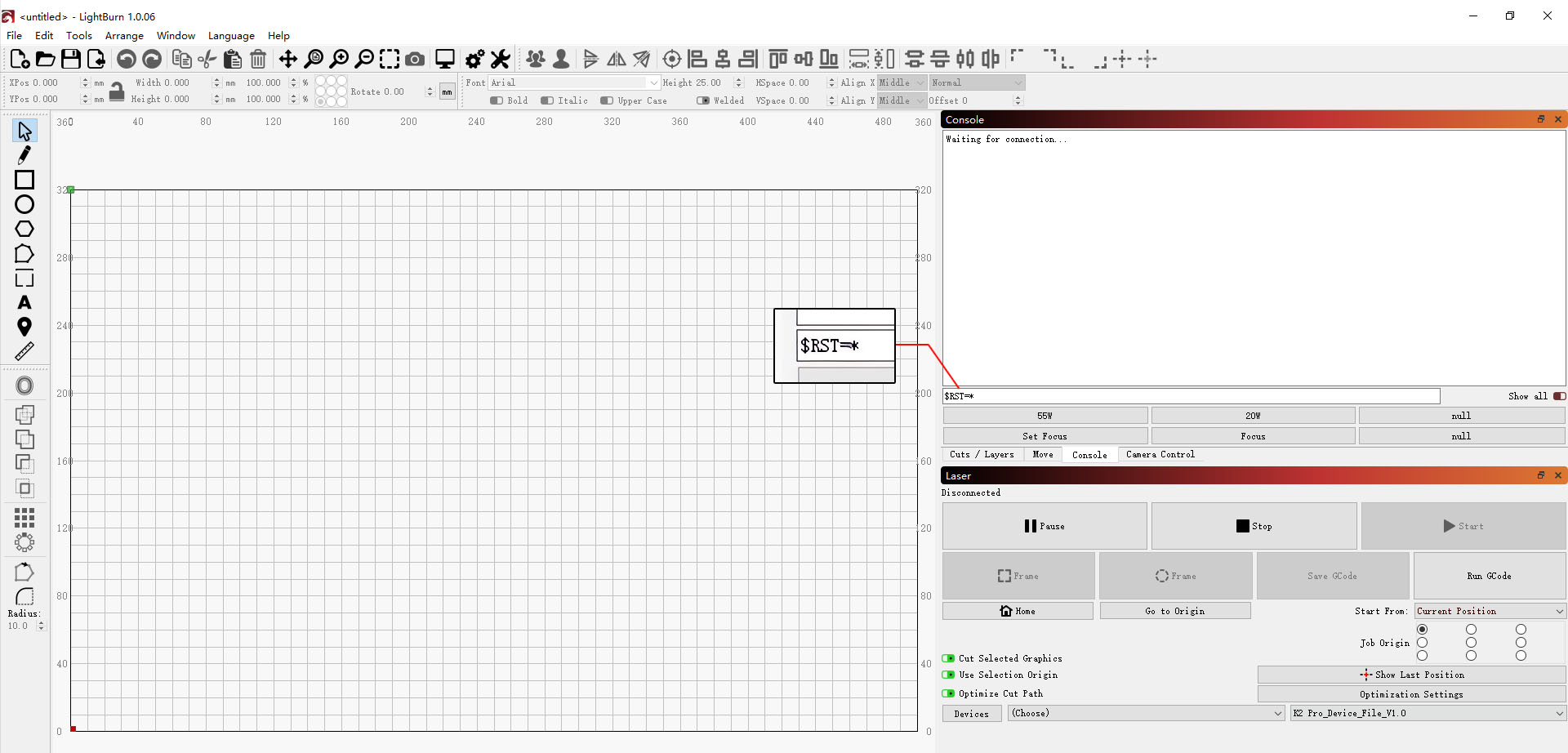
Figure 44
5. Firmware Update
All firmware update methods require a USB flash drive to be inserted as the storage medium. Do not power off the machine or remove the USB flash drive during the update process.
① Update Firmware in AtomStack Studio
Open the software and connect the laser engraver. Click the “☰” icon in the upper-right corner of the software interface to enter the Device Information page. The current firmware version can be viewed at the bottom of the page. If an update prompt appears to the right of the version, click it to update the firmware, as shown in Figure 45.
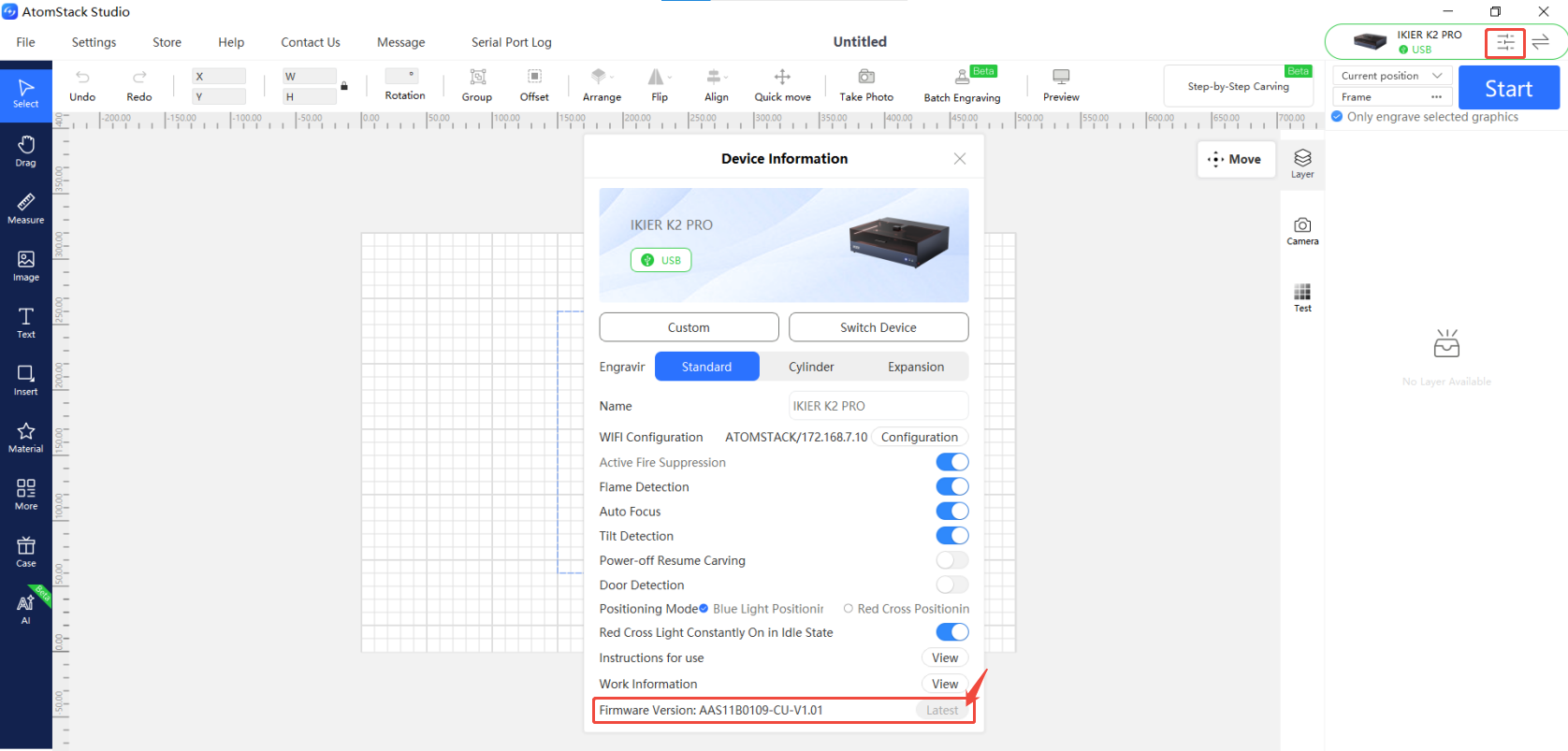
Figure 45
② Update Firmware in the AtomStack App
Open the app and connect the laser engraver. Tap “Settings” below the model name to enter the Device Settings page. The current firmware version and the option to update the firmware can be viewed at the bottom of the page, as shown in Figure 46.
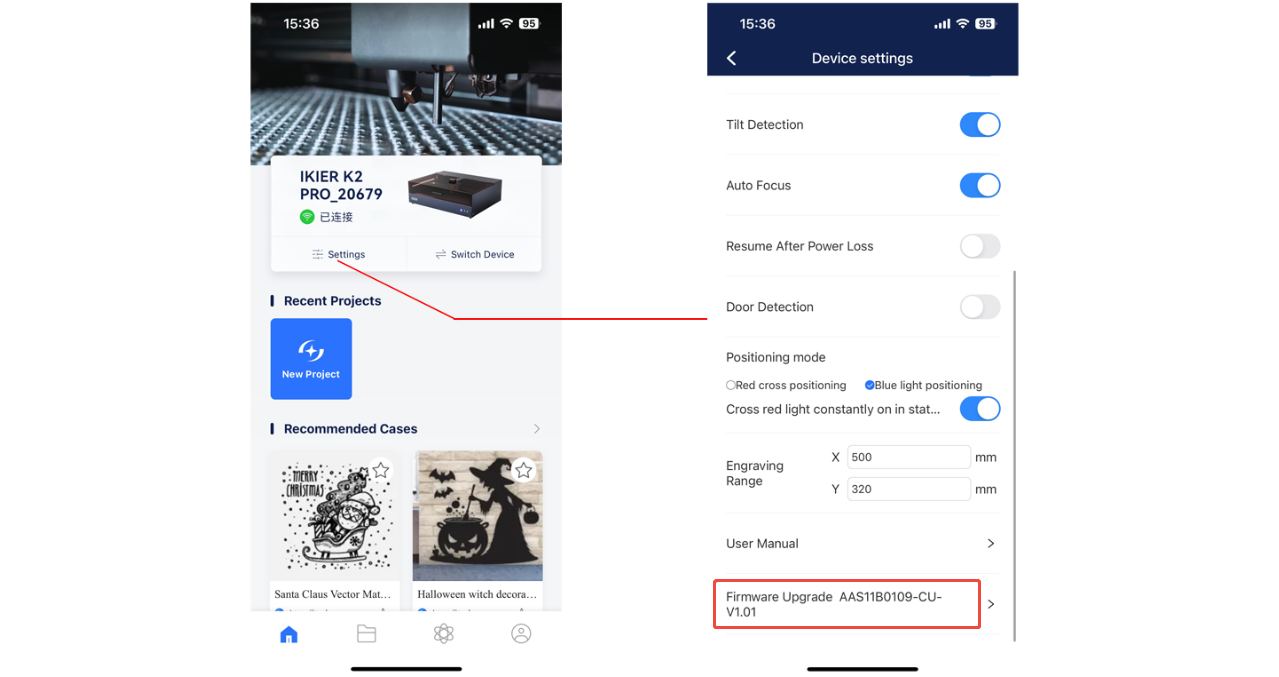
Figure 46
③ Update Firmware Using a USB Flash Drive
If the firmware cannot be updated using either of the above methods, please provide customer service with a screenshot of the laser engraver's current firmware version and a photo of the laser engraver's Serial Number to obtain the latest firmware. Follow the steps below to update the firmware:
- Remove the USB flash drive and connect it to a computer using a card reader.
- Copy the new firmware file (.bin file) to the root directory of the USB flash drive. Do not place it in a folder.
- Insert the USB flash drive into the laser engraver and power it on. The device will update automatically and emit a “beep-beep” sound.
- Wait until the beeping stops, then restart the laser engraver.
6. Contact Customer Service
If a problem is identified during troubleshooting but cannot be resolved independently, or if the cause of the fault cannot be determined, please provide the following information when contacting customer service:
- Fault video: Clearly show the complete process.
- Troubleshooting steps completed and the corresponding results.
- Screenshot of the firmware version.
- Photo of the machine Serial Number, as shown in Figure 47.
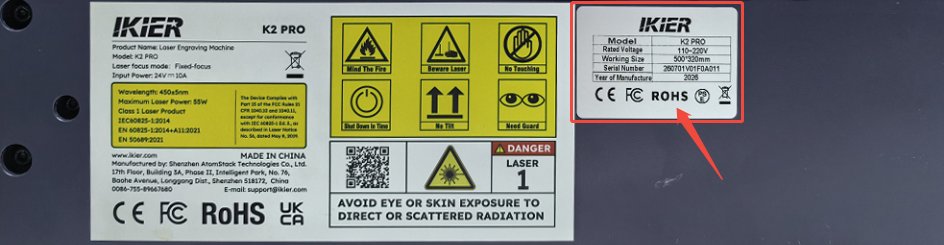
Figure 47
7. Replacement Reference for Components
- To replace the mainboard, refer to the K2 Pro Mainboard Replacement Video.
- To replace a limit switch, refer to the K2 Pro XYZ Limit Switch Replacement Video.
- To replace a connection cable, refer to the K2 Pro Connection Cable Replacement Video.
- To replace the lower limit switch, refer to the K2 Pro Laser Driver Board Replacement Video.
Still not fixed? Contact support with the details listed in What to send support.
Related problems: Laser Will Not Rise · Homing Fails · Engraved Lines Too Thick
¶ Laser Will Not Rise
What you see: During autofocus, the laser does not rise after contacting the material surface.
Check in this order:
Please follow the steps below one by one to troubleshoot the issue:
1. Confirm that the trigger rod can contact the material surface
Check whether the trigger rod at the bottom of the laser can contact the material surface, as shown in Figure 48. If it is not in contact with the material, move the laser above the material so that the trigger rod can make proper contact with the material surface.
Figure 48
2. Manually press the trigger rod to test
Press the trigger rod at the bottom of the laser by hand and check whether it triggers the normal prompt (a “beep-beep” sound). Determine the result as follows:
- Cannot be triggered (no “beep-beep” sound): The lower limit switch is faulty and the driver board needs to be replaced.
- Triggers normally (a “beep-beep” sound is heard): First check whether the trigger rod can make proper contact with the material. If there is no abnormality, proceed directly to Step (4).
- Trigger rod cannot be pressed: The trigger rod may be stuck. Open the bottom plate of the laser and reinstall the trigger rod.
3. Move the Z-axis up and down using the software
Use the Z-axis movement buttons in the software to move the Z-axis up and down and check whether it operates normally.
- Operates normally: The Z-axis motor and mechanical structure are functioning normally. The issue may be caused by abnormal firmware. Proceed to Step (5) to restore the factory settings.
- Cannot move upward: The connection cable or mainboard may be faulty.
4. Check the Z-axis Motor
Refer to the K2 Pro Motor Cable Swapping Video and connect the Y-axis motor cable to the Z-axis motor to check whether the Z-axis motor is faulty.
5. Restore Factory Settings
If none of the above steps resolves the issue, refer to the K2 Pro Factory Reset Video and follow the steps below:
① AtomStack Studio
- Click the “Settings” menu in the navigation bar and find “Version: V*.*.*” in the Settings window.
- Click the number after the version number more than 7 times consecutively. The “Serial Port Log” developer mode option will appear in the menu bar.
- Click “Serial Port Log” to enter the interface. A series of execution codes will be displayed in the code box.
- Click “Reset” in the lower-right corner of the interface. If the console displays a reset completion message and ends with “OK”, the reset is complete.
- Click “Close” in the upper-right corner to exit the interface.
② LightBurn
Select “Console”, enter $RST=* in the code box, and click Send, as shown in Figure 49.
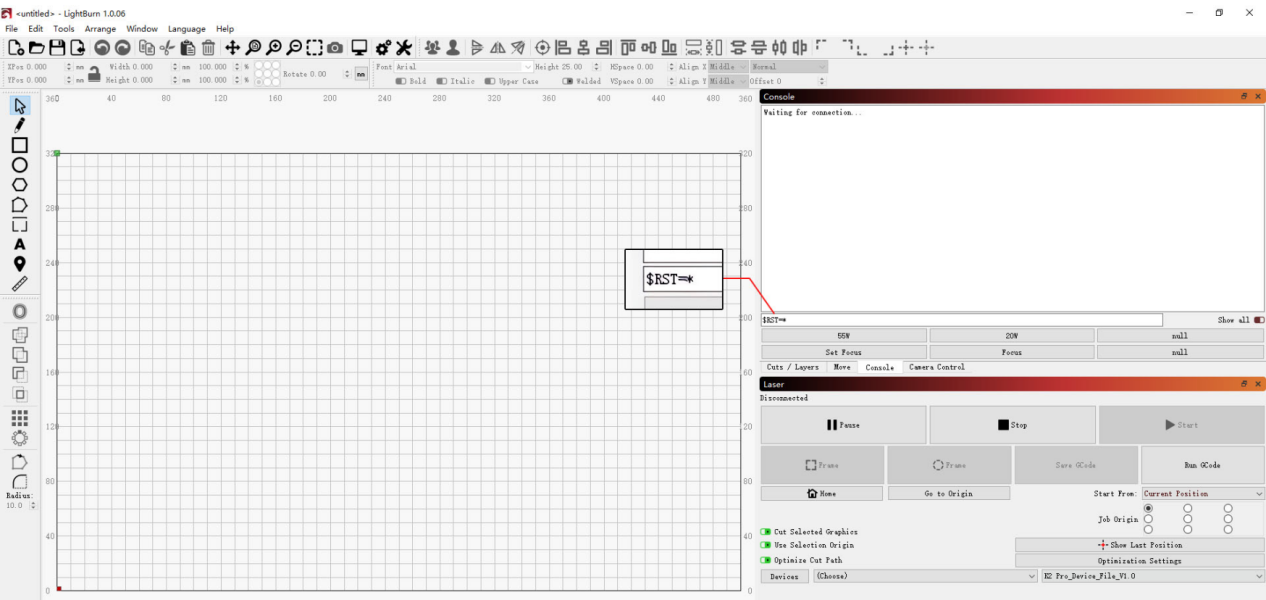
Figure 49
6. Contact Customer Service
If a problem is identified during troubleshooting but cannot be resolved independently, or if the cause of the fault cannot be determined, please provide the following information when contacting customer service:
- Fault video: Clearly show the complete process.
- Troubleshooting steps completed and the corresponding results.
- Screenshot of the firmware version.
- Photo of the machine Serial Number, as shown in Figure 50.
Figure 50
7. Replacement Reference for Components
- To replace the mainboard, refer to the K2 Pro Mainboard Replacement Video.
- To replace a limit switch, refer to the K2 Pro XYZ Limit Switch Replacement Video.
- To replace a connection cable, refer to the K2 Pro Connection Cable Replacement Video.
- To replace the lower limit switch, refer to the K2 Pro Laser Driver Board Replacement Video.
Still not fixed? Contact support with the details listed in What to send support.
Related problems: Autofocus Fails · Axis Movement Abnormal · Homing Fails
¶ Crosshair Misaligned
What you see: The red crosshair position does not coincide with the laser engraving position.
Check in this order:
Refer to the K2 Pro Laser Crosshair Calibration Video and follow the steps below to troubleshoot the issue:
1. Operation Steps in the Computer Software
① Home the Machine
After connecting the machine successfully, home the machine first to ensure that the coordinates are reset to zero.
② Enter the Calibration Interface
- Open Device Information in the upper-right corner of the software and confirm that Red Crosshair Positioning is displayed under Positioning Mode.
- Click the Calibrate button next to Red Crosshair Positioning Calibration to enter the crosshair calibration interface.
③ Frame to Confirm the Area
Click Frame to confirm that the calibration pattern is within the engraving area.
④ Start Engraving
Click Start. The machine will engrave a cross-shaped pattern as a calibration reference.
⑤ Align the Crosshairs
According to the prompt, use the direction control buttons to adjust the position of the laser head until the red crosshair is completely aligned with the engraved cross-shaped pattern.
If the movement distance for a single adjustment is too large, manually adjust the step value (the distance moved each time) for more precise control.
⑥ Complete Calibration
Click Complete. The system will save the calibration result automatically, completing the calibration.
2. Operation Steps in the Mobile App
① Enter the Calibration Interface
Open the app home page and tap Settings below the machine model name to enter the device settings interface.
② Mark the Cross
Tap Red Crosshair Positioning Calibration. In the Mark Current Position pop-up window, tap the center of the circle. The machine will automatically engrave a cross-shaped pattern as a calibration reference.
③ Align the Red Crosshair
After engraving is complete, follow the prompt and use the direction control buttons to move the laser head until the red crosshair is completely aligned with the engraved cross-shaped pattern.
If the movement distance for a single adjustment is too large, manually adjust the step value (the distance moved each time) for more precise control.
④ Complete Calibration
After confirming that the crosshair is completely aligned with the engraved cross-shaped pattern, click Complete. The system will automatically save the calibration result, completing the calibration.
3. If an Abnormality Occurs During Calibration or the Calibration Is Still Inaccurate After Completion
Refer to the K2 Pro Factory Reset Video and follow the steps below:
① AtomStack Studio
- Click Settings in the navigation bar and locate Version: V*.*.* in the Settings window.
- Click the number after the version number more than 7 times consecutively. The Serial Port Log developer mode option will appear in the menu bar.
- Click Serial Port Log to open the interface. A series of execution codes will be displayed in the code window.
- Click Reset in the lower-right corner of the interface. If the console indicates that the reset is complete and displays “OK” at the end, the reset is complete.
- Click Close in the upper-right corner to exit the interface.
② LightBurn
Select Console, enter $RST=* in the code field, and click Send, as shown in Figure 69.
Figure 69
Confirm the fix: Confirm that the red crosshair is completely aligned with the engraved cross-shaped pattern, then click Complete.
Still not fixed? Contact support with the details listed in What to send support.
Related problems: Camera Position Errors · Autofocus Fails · Camera Not Working
¶ Camera Not Working
What you see: The camera does not work properly.
Check in this order:
Follow the steps below to troubleshoot the issue one by one:
1. Confirm the Connection Method
A Type-C cable must be used to connect the machine for the camera function to work properly. If the machine is connected via Wi-Fi, the camera may fail to capture images or the captured images may be abnormal.
2. Confirm That the Required Permissions Are Enabled
First, use the camera app built into the computer to test whether the camera can capture images properly:
- If the camera can capture images normally, skip directly to Step (6).
- If the camera cannot capture images, open Device Manager and check whether the camera is restricted or disabled. If so, remove the restriction and enable the required permissions, as shown in Figure 70.
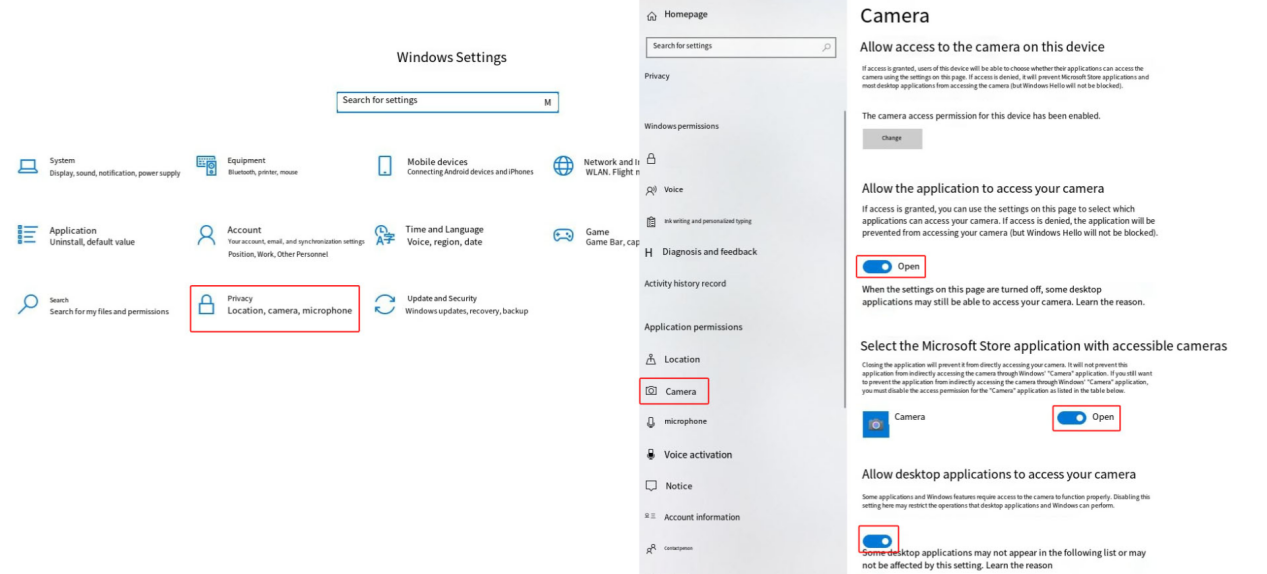
Figure 70
3. Confirm the Coordinate Mode
When using the camera function, Absolute Coordinates mode must be selected.
4. Confirm That the Connection Cable Is Properly Connected
Refer to the K2 Pro Camera Connection Cable Replacement Video and check the following:
- Check whether the camera cable is loose.
- Check whether the cable connection on the mainboard is loose.
- Check whether the connection cable is damaged.
You can disconnect the cable and reconnect it, then test again.
5. Change the Computer's USB Port
Try connecting the cable to a different USB port on the computer. If you are using a desktop computer, it is recommended to use a USB port on the back of the computer case.
6. Clear the AtomStack Studio Cache
If the computer's built-in camera application can capture images normally, but AtomStack Studio cannot capture images or the captured images are very blurry, perform the following steps according to the operating system:
- Windows: Locate the “atomstack” folder under
C:\Users\Administrator\Documents\, delete it, then download and install the latest version of the client again. - macOS: Delete the folder at
/Users/"User Machine Name"/Library/Containers/com.atomstack/Data, then download and install the latest version of the client again.
Some users may use a different username. If the folder cannot be found at the above path, search for the “atomstack” folder.
7. Contact Customer Service
If you identify a problem during troubleshooting but cannot resolve it yourself, or if you are still unable to determine the cause of the fault, provide the following information to customer service:
- Troubleshooting video: Include the camera alignment process and the computer's built-in camera app test.
- Description of the troubleshooting steps performed and the results.
- Photo of the machine Serial Number, as shown in Figure 71.
Figure 71
8. Accessory Replacement References
- If the camera connection cable needs to be replaced, refer to the K2 Pro Camera Connection Cable Replacement Video.
- If the camera needs to be replaced, refer to the K2 Pro Camera Replacement Video.
Still not fixed? Contact support with the details listed in What to send support.
Related problems: Camera Position Errors · PC Cannot Connect · LED Strip Malfunctions
¶ Camera Position Errors
What you see: Large errors occur when using the camera.
Check in this order:
Please follow the steps below to troubleshoot the issue one by one:
1. Confirm that the coordinate mode is set to “Absolute Coordinates”
When using the camera function, the coordinate mode must be set to “Absolute Coordinates”.
2. Check the operating environment
The camera should be used in a well-lit environment, and the enclosure door must be closed.
Check whether the LED light strips inside the enclosure are lit properly.
3. Confirm that the camera has been calibrated
- If you are using AtomStack Studio, you only need to perform camera alignment.
- If you are using LightBurn, perform camera calibration and alignment according to the Camera Usage Guide section.
During calibration or alignment, a capture value will be displayed. The lower the capture value, the higher the accuracy.
4. Confirm the material height
The material height used during camera alignment or calibration serves as the accuracy reference. If the current engraving material differs significantly in height from the material used during calibration, camera accuracy will be significantly reduced. It is recommended to perform alignment or calibration again at the height of the current material before use.
5. Confirm that the material is not placed at the edge of the camera's field of view
The center of the camera's capture range provides the highest accuracy, while accuracy is relatively lower at the edges. It is recommended to place the material in the central area of the camera's field of view and avoid placing it near the edges.
6. Confirm that the camera lens is clean
If the camera image appears blurry, check whether the lens is dirty. If there is any dirt or debris, use anhydrous ethanol and a lint-free cloth to gently wipe the surface of the camera lens.
7. Contact Customer Support
If the issue cannot be resolved after completing the above steps, provide the following information when contacting Customer Support:
- Troubleshooting video: Include the calibration or alignment procedure, the actual operating environment, and a comparison of the current material thickness with the material height used during calibration or alignment.
- Completed troubleshooting steps and results.
- Photo of the machine Serial Number, as shown in Figure 72.
Figure 72
8. Accessory replacement reference
- If the camera needs to be replaced, refer to the K2 Pro Camera Replacement Video.
Still not fixed? Contact support with the details listed in What to send support.
Related problems: Camera Not Working · Crosshair Misaligned · LED Strip Malfunctions