K2 Pro Motion: Homing Fails, Limit Alarms
Homing fails, engraving stops, limit or area messages appear, axes move abnormally, or a timing belt is damaged.
Turn off the engraver before removing the laser or disconnecting its cable, and unplug the adapter before power-switch work. Stop using the machine immediately if the protective window is damaged and replace it before use. Monitor the machine throughout processing after disabling flame detection or adjusting its sensitivity. Do not power off the machine or remove the USB flash drive during a firmware update.
¶ Homing Fails
What you see: The machine fails to home.
Check in this order:
Follow the steps below to troubleshoot the issue one by one:
1. Confirm That the Securing Modules Have Been Removed
The X-axis is locked during shipment. After receiving the machine, remove the two securing modules used to secure both ends of the X-axis according to the instructions in the user manual. Make sure that the X-axis can slide freely.
2. Confirm That the Laser Is Not Hitting the Frame
During the reset process, check whether the laser is making contact with the frame. If it is, reinstall the laser according to the Laser Module Replacement Guide section.
If the laser is hitting the frame, the Y-axis limit switch cannot be triggered, resulting in reset failure.
3. Confirm That the X-Axis Is Parallel to the Frame
Use a ruler to measure the distances from both ends of the X-axis to the upper and lower frames and check whether they are equal. If the distances are not equal, refer to the K2 Pro X-Axis Leveling Adjustment Video for adjustment instructions.
4. Check the Movement of Each Axis
Observe the movement of each axis during the homing. If any abnormality is found, troubleshoot according to the following conditions:
① Homing in the Wrong Direction
- Movement direction is reversed: Click the direction control buttons in the software and check whether the movement direction is abnormal. If the movement direction is reversed, restore the factory settings or modify the corresponding axis's
$3value in Machine Settings in LightBurn, as shown in Figure 28.
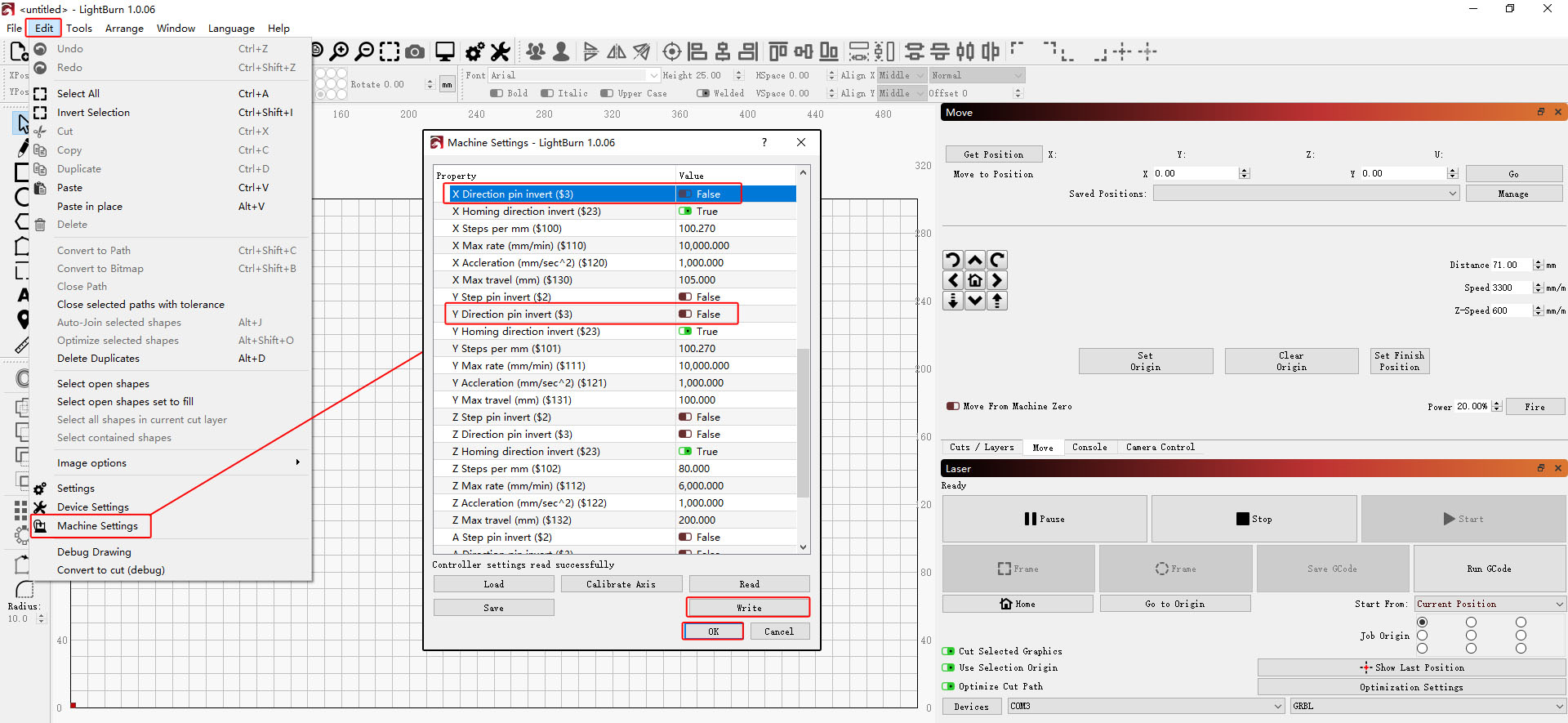
Figure 28
- Movement direction is normal, but the reset direction is reversed: Restore the factory settings or modify the corresponding axis's
$23value in Machine Settings in LightBurn, as shown in Figure 29.
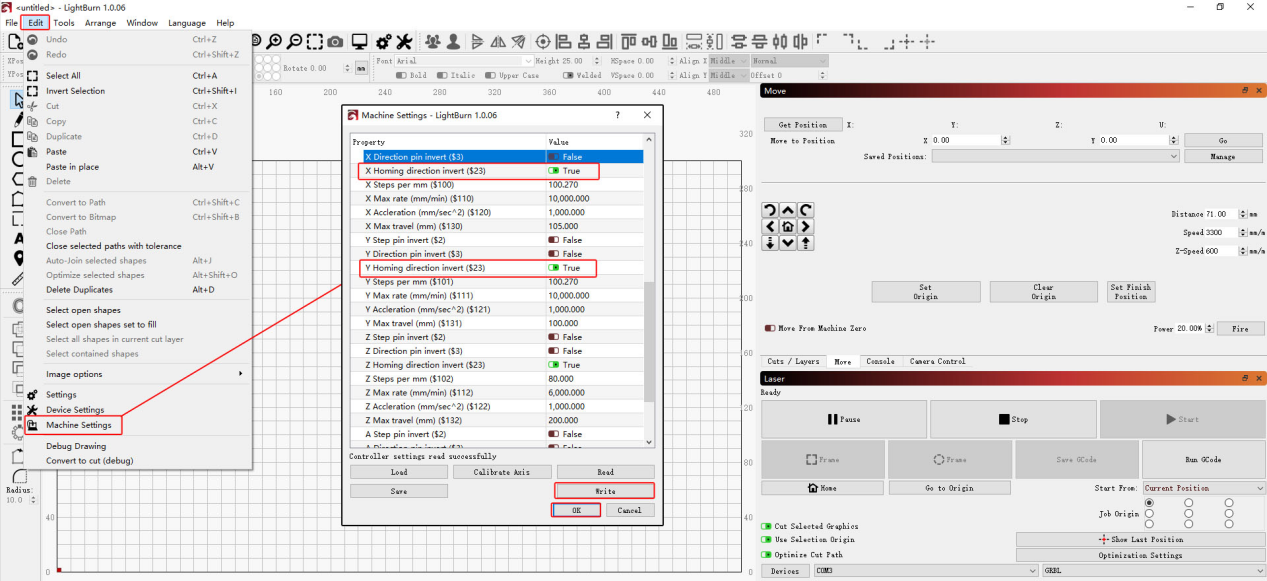
Figure 29
② Abnormal X-Axis or Y-Axis Movement
- Check the motor cable: Carefully check the motor cable for damage. Disconnect it and reconnect it securely, then test again.
- Swap the motor cables: Follow the K2 Pro Motor Cable Swapping Video to connect the Y-axis motor cable to the X-axis motor, then determine the cause of the fault based on the resulting behavior.
| Fault Symptoms | After Swapping | Diagnosis |
|---|---|---|
| X-axis normal, Y-axis abnormal | X-axis abnormal | Mainboard or Y-axis motor cable fault |
| X-axis normal, Y-axis abnormal | X-axis normal | Y-axis motor fault |
| X-axis abnormal, Y-axis normal | X-axis normal | Mainboard or X-axis motor cable fault |
| X-axis abnormal, Y-axis normal | X-axis abnormal | X-axis motor fault |
5. Confirm That All Limit Switches Are Functioning Properly
Refer to the K2 Pro XYZ Limit Switch Verification and Troubleshooting Video. Manually press the two front and rear limit switches on the Y-axis (left axis) and the two limit switches at both ends of the X-axis.
Check whether each switch triggers the corresponding prompt and produces a “beep-beep” sound. If a limit switch cannot be triggered, check the following:
- Check the appearance of the limit switch: Carefully inspect the limit switch for any damage, such as a broken spring plate or detached terminal.
- Check the cable connections: Check whether the cables at the limit switch and mainboard are loose or disconnected.
- Measure the cable voltage: Disconnect the cables at the limit switches one by one and use a multimeter set to the DC voltage range to measure the cable voltage, as shown in Figure 30.
| Voltage Reading | Diagnosis Result |
|---|---|
| Roughly 0 V | Limit Switch Cable Fault |
| Roughly 3.3 V | Limit Switch Fault |
If none of the limit switches can be triggered, the mainboard firmware may be abnormal. Contact customer service for assistance according to Step (8).
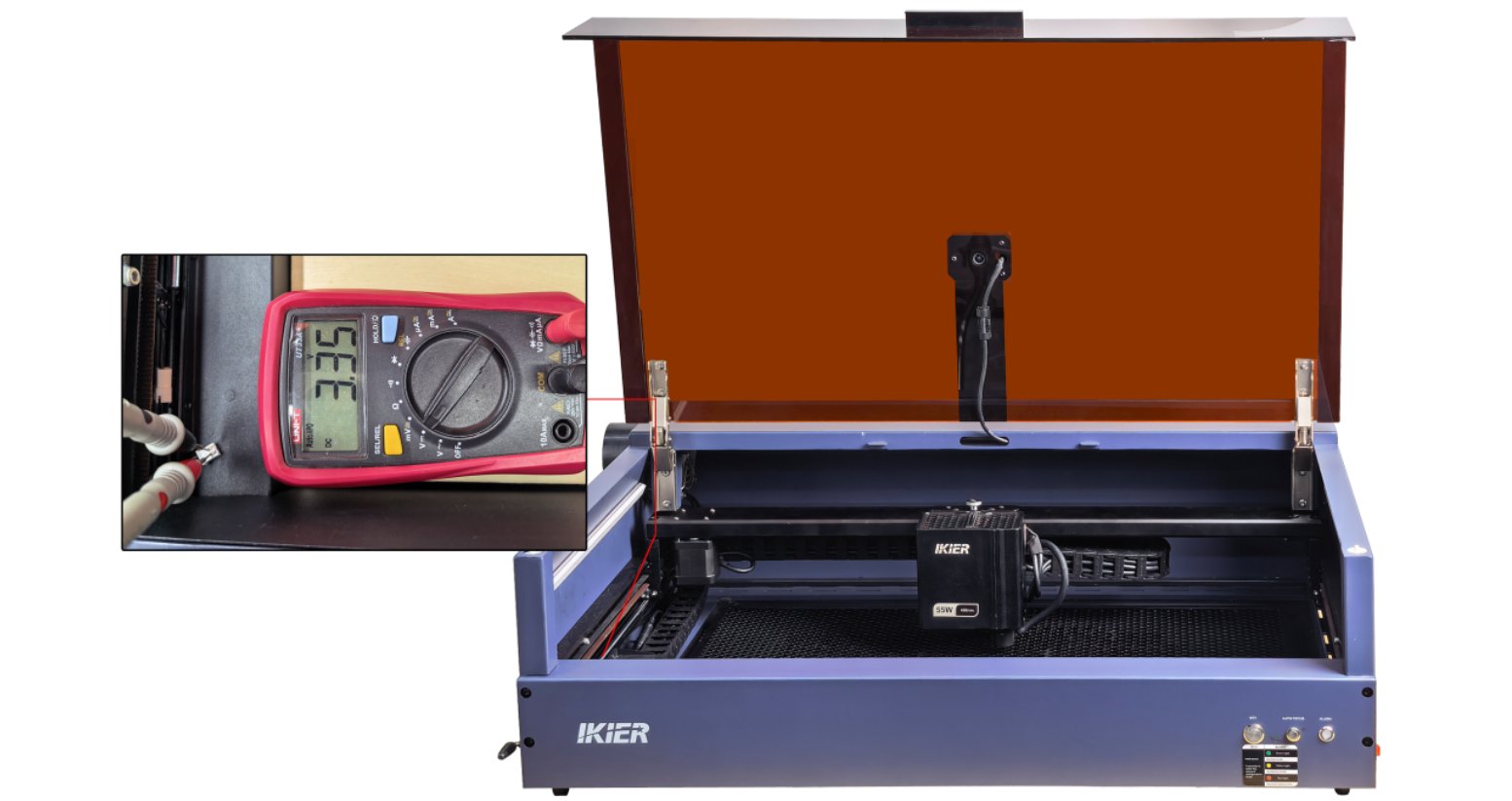
Figure 30
6. Restore Factory Settings
If none of the above steps resolves the issue, refer to the K2 Pro Factory Reset Video and follow the steps below:
① AtomStack Studio
- Click the “Settings” menu in the navigation bar and find “Version: V*.*.*” in the Settings window.
- Click the number after the version number more than 7 times consecutively. The “Serial Port Log” developer mode option will appear in the menu bar.
- Click “Serial Port Log” to enter the interface. A series of execution codes will be displayed in the code box.
- Click “Reset” in the lower-right corner of the interface. If the console displays several reset completion messages and ends with “OK”, the reset is complete.
- Click “Close” in the upper-right corner to exit the interface.
② LightBurn
Select “Console”, enter $RST=* in the code box, and click Send, as shown in Figure 31.
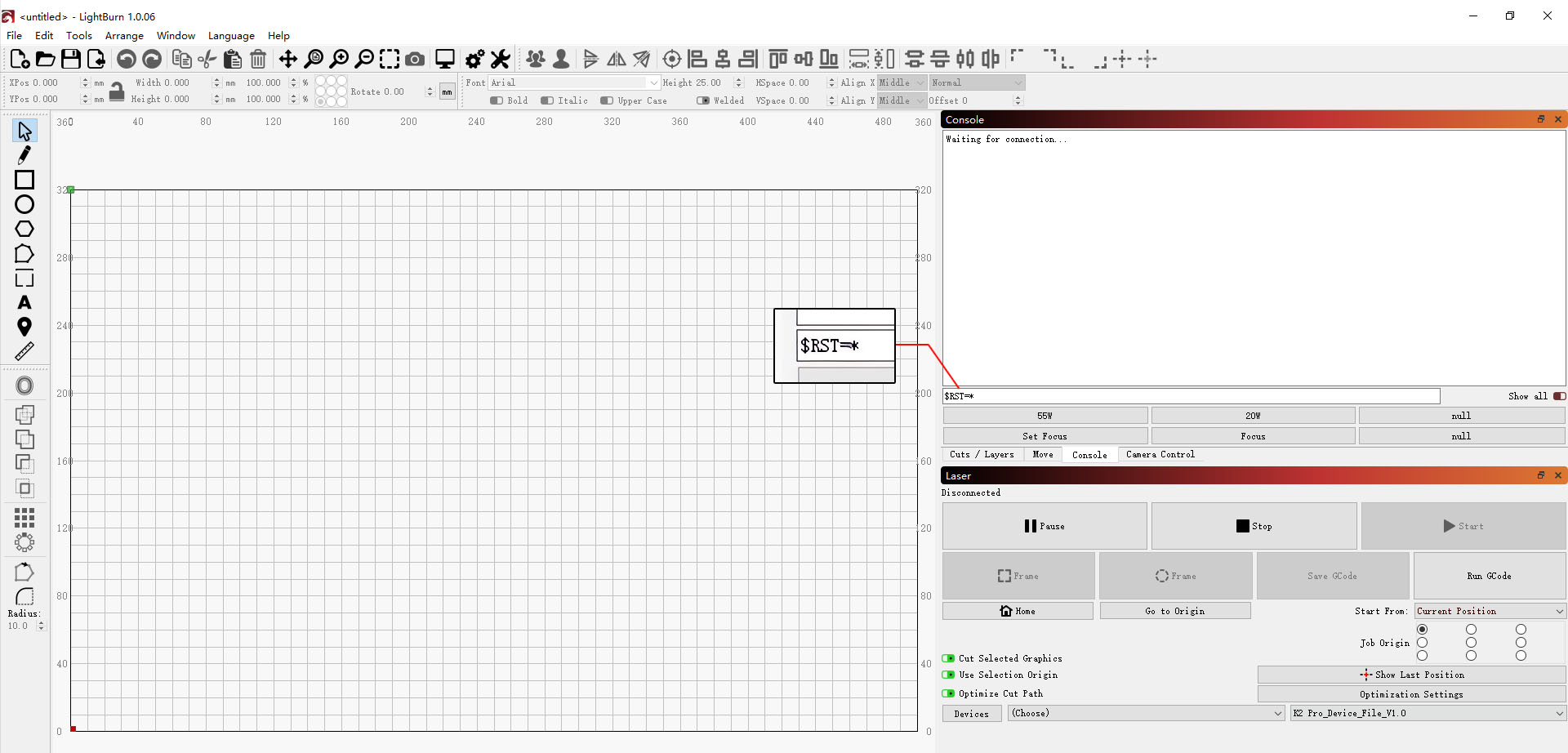
Figure 31
7. Firmware Update
All firmware update methods require a USB flash drive to be inserted as the storage medium. Do not power off the machine or remove the USB flash drive during the update process.
Update Firmware in AtomStack Studio
Open the software and connect the laser engraver. Click the “☰” icon in the upper-right corner of the software interface to enter the Device Information page. The current firmware version can be viewed at the bottom of the page. If an update prompt appears to the right of the version, click it to update the firmware, as shown in Figure 32.
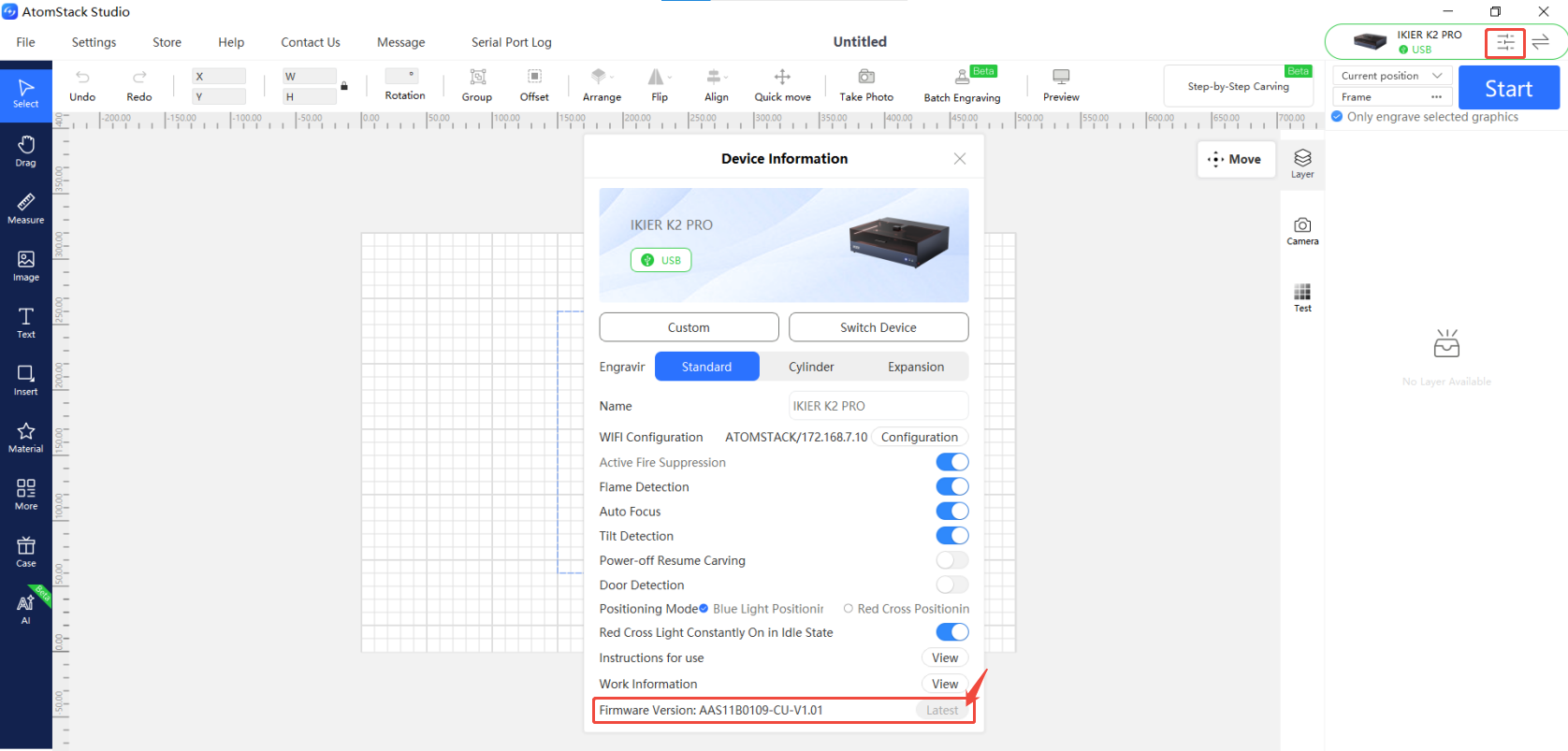
Figure 32
Update Firmware in the AtomStack App
Open the app and connect the laser engraver. Tap “Settings” below the model name to enter the Device Settings page. The current firmware version and the option to update to the latest firmware can be viewed at the bottom of the page, as shown in Figure 33.
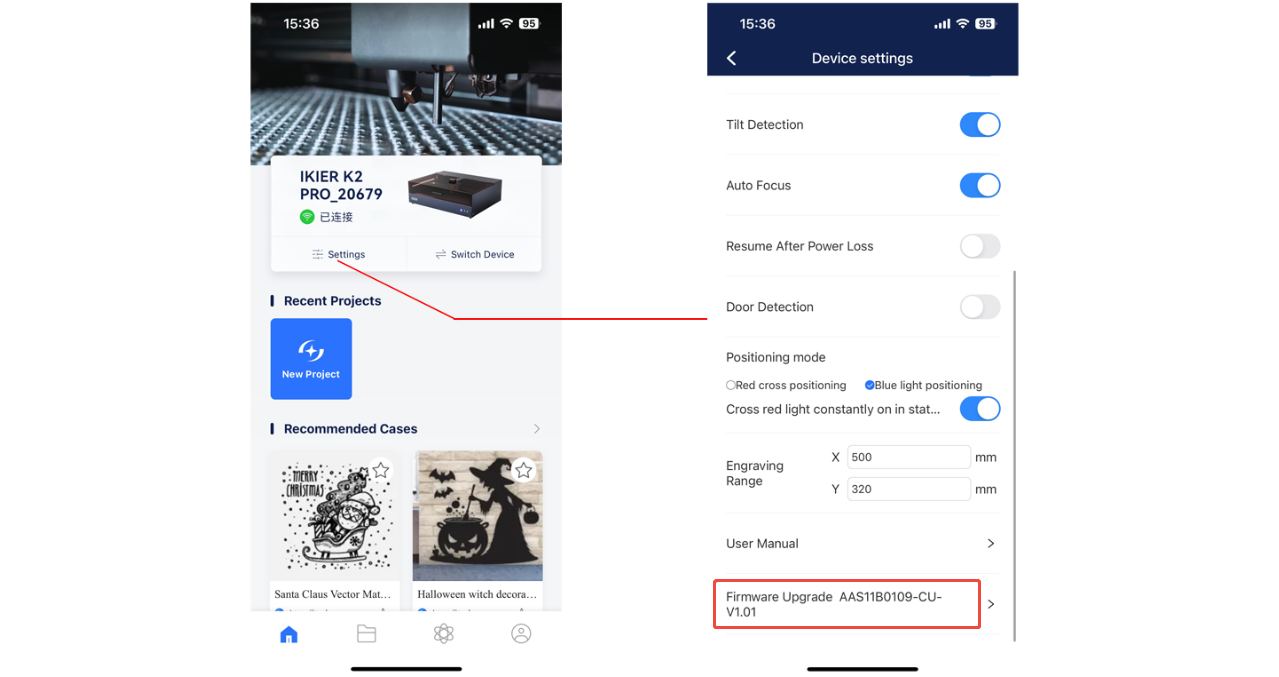
Figure 33
Update Firmware Using a USB Flash Drive
If the firmware cannot be updated using either of the above methods, please provide customer service with a screenshot of the laser engraver's current firmware version and a photo of the laser engraver's Serial Number to obtain the latest firmware. Follow the steps below to update the firmware:
- Insert the USB flash drive into a card reader and connect it to a computer.
- Copy the new firmware file (.bin file) to the root directory of the USB flash drive. Do not place it in a folder.
- Insert the USB flash drive into the laser engraver and power it on. The device will update automatically and emit a “beep-beep” sound.
- Wait until the beeping stops, then restart the laser engraver.
8. Contact Customer Service
If a problem is identified during troubleshooting but cannot be resolved independently, or if the cause of the fault cannot be determined, please provide the following information when contacting customer service:
- Fault video: Clearly show the complete reset process and the manual inspection of each limit switch.
- Screenshot of the firmware version.
- Troubleshooting steps completed and the corresponding results.
- Photo of the machine Serial Number, as shown in Figure 34.
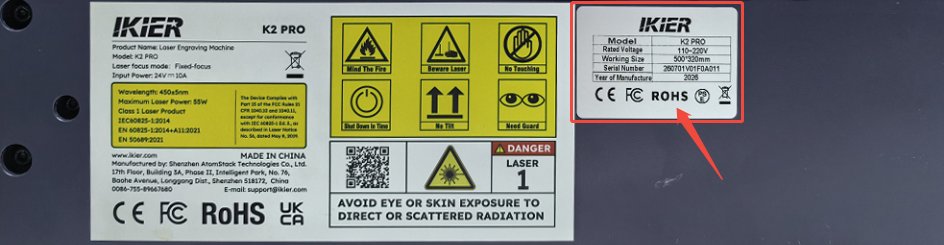
Figure 34
9. Replacement Reference for Components
- To replace the mainboard, refer to the K2 Pro Mainboard Replacement Video.
- To replace the mainboard connection cable or limit switch cable, refer to the K2 Pro Connection Cable Replacement Video.
- To replace a limit switch, refer to the K2 Pro XYZ Limit Switch Replacement Video.
- To replace a motor, refer to the K2 Pro X/Y/Z-Axis Motor Replacement Video.
Still not fixed? Contact support with the details listed in What to send support.
Related problems: Limit or Travel Alarm · Axis Movement Abnormal · Autofocus Fails
¶ Engraving Stops
What you see: The machine stops during engraving.
Check in this order:
Please troubleshoot the issue step by step as follows:
1. Check the connection method
It is recommended to connect the machine using a Type-C cable. If the computer is connected via Wi-Fi, data packet loss may cause errors or unexpected interruptions during engraving.
2. Check the software alarm messages
① USB Key not connected
Check whether the USB Key is properly inserted, as shown in Figure 51. Gently move the USB Key and check whether the indicator light turns green.
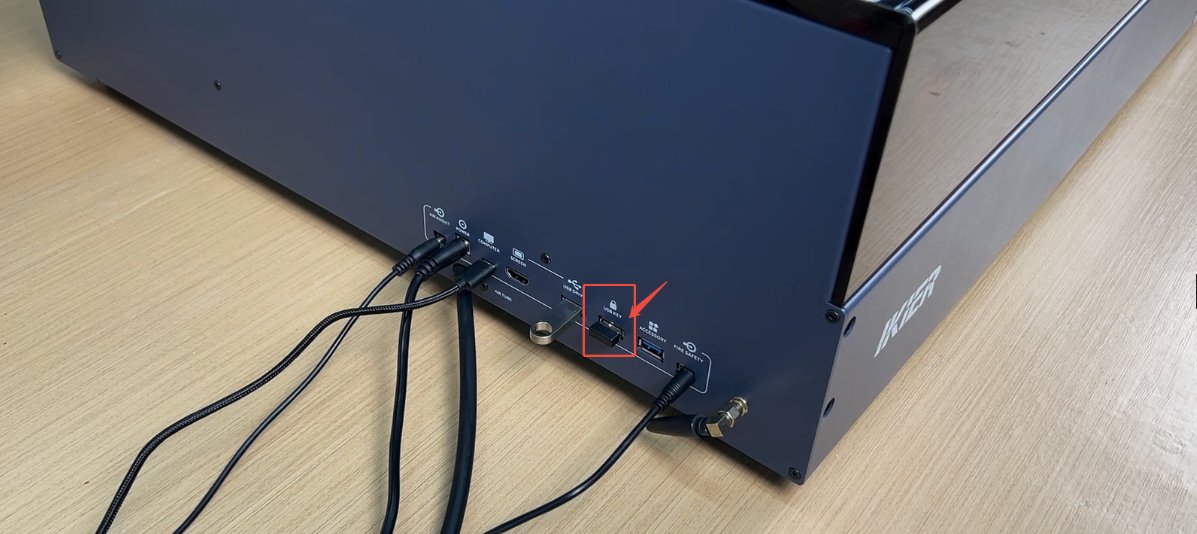
Figure 51
② Abnormal opening of the enclosure
- Confirm that the enclosure door was not opened during engraving.
- Check whether there are any foreign objects obstructing the enclosure door and confirm that the door can close properly.
③ Alarm messages
- ALARM 1: A limit switch has been triggered. Confirm that framing has been performed and that the file size is within the engraving area. If the alarm was triggered abnormally, refer to the K2 Pro XYZ Limit Switch Verification and Troubleshooting Video to check whether each limit switch is functioning properly.
- ALARM 3: This code is usually triggered after clicking Stop to stop engraving. It may also be caused by a false alarm from the software. If the signal was not triggered intentionally, try using different control software or updating the software and then test again.
Recommended control software: LightBurn and AtomStack Studio.
- ALARM 12: Flame alarm. The AtomStack Studio interface will display “Warning! Flame detected”. Once triggered, the machine will automatically stop engraving. If the fire-extinguishing air pump is connected and the water tank has sufficient water, the engraver will automatically spray water to extinguish the fire.
If water is sprayed to extinguish the fire after a flame alarm is triggered, perform the following steps after the fire is extinguished:
- Dry any remaining water: Start a low-power engraving or cutting program and run it for 5 minutes to use the airflow to dry the water remaining inside the hose.
- Clean the protective window and air duct: Refer to the K2 Pro Laser Cleaning Video. Wipe away any water from the surface of the protective window, the focusing lens (do not remove it), and the inside and outside of the air duct.
After each flame alarm is triggered, immediately perform the drying operation described above to prevent water from accumulating and affecting the machine's engraving and cutting performance.
- ALARM 13: Enclosure door open alarm. This may be caused by opening the enclosure door during engraving.
3. Check the Type-C cable connection
If the machine is connected via a Type-C cable, unplug the cable and reconnect it, or try a different USB port on the computer. For desktop computers, it is recommended to use a USB port on the back of the computer.
4. Check the computer system
If you are using Windows 11, do not switch the control software to the background while engraving. Also check whether the COM port sleep function is enabled.
5. Try different control software
Try using different control software. AtomStack Studio or LightBurn is recommended. You can also connect the machine via the mobile app and perform an engraving test to see whether the issue recurs.
6. Replace the power adapter
Replace the power adapter with another DC 24 V 10 A power adapter and test whether the issue recurs.
7. Contact Customer Support
If you identify an issue during troubleshooting but cannot resolve it yourself, or if you are unable to determine the cause of the issue, please provide the following information when contacting Customer Support:
- Video of the issue: If the issue can be easily reproduced, record the entire process.
- Completed troubleshooting steps and results.
- Screenshot of the firmware version.
- Photo of the machine Serial Number, as shown in Figure 52.
Figure 52
8. Reference for accessory replacement
- If the mainboard needs to be replaced, refer to the K2 Pro Mainboard Replacement Video.
- If the limit switches need to be replaced, refer to the K2 Pro XYZ Limit Switch Replacement Video.
Still not fixed? Contact support with the details listed in What to send support.
Related problems: PC Cannot Connect · Limit or Travel Alarm · False Flame Alarms
¶ Limit or Travel Alarm
What you see: The machine cannot operate properly and displays “Limit Switch Triggered” or “Travel Exceeded”.
Check in this order:
Please troubleshoot the issue step by step as follows:
1. Check the engraving file size
Check whether the current engraving file is completely within the engraving area. Make sure there are no residual graphics or accidentally selected extra patterns outside the engraving area.
2. Check the selected coordinate mode
- Absolute Coordinates: As long as the file is within the engraving area, this alarm will normally not be triggered.
- Current Position: The laser must be moved manually or through the software to a suitable position, leaving sufficient space for the engraving path. Otherwise, the alarm may be triggered.
When using Current Position mode, it is recommended to perform a framing operation before engraving to confirm that the engraving area meets the requirements.
3. Confirm that the movement direction is correct
Click the directional movement buttons in the software and observe whether the movement direction of each axis is abnormal. If an axis moves in the opposite direction, the issue can be resolved by restoring the factory settings or by modifying the corresponding axis $3 value in “Machine Settings” in LightBurn, as shown in Figure 55.
Figure 55
4. Check the software alarm message
- X-axis: Check whether the laser has touched the left or right limit switch (reached the edge).
- Y-axis: Check whether the laser has touched the front or rear limit switch on the right side of the Y-axis (reached the edge).
5. Manually trigger the limit switches for troubleshooting
Refer to the K2 Pro XYZ Limit Switch Verification and Troubleshooting Video. Press the two front and rear limit switches on the Y-axis (left axis) and the two limit switches at both ends of the X-axis one by one.
Check whether the corresponding alarm is triggered normally and whether a “beep-beep” sound is emitted.
6. Check the limit switch wiring
Refer to the K2 Pro XYZ Limit Switch Replacement Video. Check whether the limit switch wires are broken, and also check whether the limit switches are damaged.
7. Restore the factory settings
If the above steps do not resolve the issue, refer to the K2 Pro Factory Reset Video and follow the steps below:
① AtomStack Studio
- Click the “Settings” menu in the navigation bar and find “Version: V*.*.*” in the Settings window.
- Click the number after the version number 7 times or more consecutively. The “Serial Port Log” developer mode option will appear in the menu bar.
- Click “Serial Port Log” to enter the interface. A series of execution codes will be displayed in the code box.
- Click “Reset” in the lower-right corner of the interface. If the console indicates that the reset is complete and “OK” is displayed at the end, the reset is complete.
- Click “Close” in the upper-right corner to exit the interface.
② LightBurn
Select “Console”, enter $RST=* in the code box, and click Send, as shown in Figure 56.
Figure 56
8. Contact Customer Support
If the issue cannot be resolved after completing all the above steps, please provide the following information when contacting Customer Support:
- Video of the issue: Clearly show the issue, including a video of manually testing each limit switch.
- Completed troubleshooting steps and results.
- Screenshot of the firmware version.
- Photo of the machine Serial Number, as shown in Figure 57.
Figure 57
9. Reference for accessory replacement
- If the mainboard needs to be replaced, refer to the K2 Pro Mainboard Replacement Video.
- If the limit switches need to be replaced, refer to the K2 Pro XYZ Limit Switch Replacement Video.
Confirm the fix: In Absolute Coordinates mode, confirm that the file is within the engraving area and this alarm is not triggered.
Still not fixed? Contact support with the details listed in What to send support.
Related problems: Homing Fails · Engraving Area Exceeded · Axis Movement Abnormal
¶ Engraving Area Exceeded
What you see: The software displays “Engraving Area Exceeded”.
Check in this order:
Please troubleshoot the issue step by step as follows:
1. Confirm the engraving file size
Check whether the current engraving file is completely within the engraving area. Make sure there are no residual graphics or accidentally selected extra graphics outside the engraving area.
2. Confirm the selected coordinate mode
- Absolute Coordinates: As long as the file is within the engraving area, this alarm will normally not be triggered.
- Current Position: The laser must be moved manually or through the software to a suitable position, leaving sufficient space for the engraving path. Otherwise, the alarm may be triggered.
When using Current Position mode, it is recommended to perform a boundary framing operation before engraving to confirm that the engraving area meets the requirements.
3. Confirm that the movement direction is correct
Click the directional movement buttons in the software and observe whether the movement direction of each axis is abnormal. If an axis moves in the opposite direction, the issue can be resolved by restoring the factory settings or by modifying the corresponding axis $3 value in “Machine Settings” in LightBurn, as shown in Figure 58.
Figure 58
4. Check the software alarm message
- X-axis: Check whether the laser has touched the left or right limit switch (reached the edge).
- Y-axis: Check whether the laser has touched the front or rear limit switch on the right side of the Y-axis (reached the edge).
5. Manually trigger the limit switches for troubleshooting
Refer to the K2 Pro XYZ Limit Switch Verification and Troubleshooting Video. Press the two front and rear limit switches on the Y-axis (left axis) and the two limit switches at the left and right ends of the X-axis one by one.
Check whether the corresponding alarm is triggered normally and whether a “beep-beep” sound is emitted.
6. Check the limit switch wiring
Refer to the K2 Pro XYZ Limit Switch Replacement Video. Check whether the limit switch wires are broken and whether the limit switches themselves are damaged.
7. Restore the factory settings
If the above steps do not resolve the issue, refer to the K2 Pro Factory Reset Video and follow the steps below:
① AtomStack Studio
- Click the “Settings” menu in the navigation bar and find “Version: V*.*.*” in the Settings window.
- Click the number after the version number 7 times or more consecutively. The “Serial Port Log” developer mode option will appear in the menu bar.
- Click “Serial Port Log” to enter the interface. A series of execution codes will be displayed in the code box.
- Click “Reset” in the lower-right corner of the interface. If the console indicates that the reset is complete and “OK” is displayed at the end, the reset is complete.
- Click “Close” in the upper-right corner to exit the interface.
② LightBurn
Select “Console”, enter $RST=* in the code box, and click Send, as shown in Figure 59.
Figure 59
8. Contact Customer Support
If the issue cannot be resolved after completing all the above steps, please provide the following information when contacting Customer Support:
- Video of the issue: Clearly show the issue and the process of manually testing each limit switch.
- Completed troubleshooting steps and results.
- Screenshot of the firmware version.
- Photo of the machine Serial Number, as shown in Figure 60.
Figure 60
9. Reference for accessory replacement
- If the mainboard needs to be replaced, refer to the K2 Pro Mainboard Replacement Video.
- If the limit switches need to be replaced, refer to the K2 Pro XYZ Limit Switch Replacement Video.
Confirm the fix: In Absolute Coordinates mode, confirm that the file is within the engraving area and this alarm is not triggered.
Still not fixed? Contact support with the details listed in What to send support.
Related problems: Limit or Travel Alarm · Homing Fails · Axis Movement Abnormal
¶ Axis Movement Abnormal
What you see: X-axis or Y-axis movement is abnormal.
Check in this order:
Please follow the steps below to troubleshoot the issue one by one:
1. Confirm that the fixing blocks have been removed
The X-axis is locked during shipment. After receiving the machine, remove the two fixing modules used to secure both ends of the X-axis according to the user manual to ensure that the X-axis can slide freely.
2. Confirm the movement direction
Click the directional movement buttons in the software and check whether the movement direction of each axis is abnormal.
- If the movement direction is reversed, the issue can be resolved by restoring the factory settings, or by modifying the corresponding axis
$3value in “Machine Settings” in LightBurn, as shown in Figure 73. - If the axis cannot move, moves intermittently, or exhibits other abnormalities, continue troubleshooting with the following steps.
Figure 73
3. Check the motor cables
According to the K2 Pro X/Y/Z-Axis Motor Replacement Video, check whether the motor cables are loose or damaged. If no abnormalities are found, disconnect and reconnect the cables, then test again.
4. Check the mainboard cables
According to the K2 Pro Mainboard Replacement Video, check whether any cables on the mainboard are loose or disconnected.
5. Check the eccentric nuts
Manually move the X-axis and Y-axis. If you feel significant resistance during movement, refer to the K2 Pro Mechanical Structure Adjustment Video to check whether the eccentric nuts are too tight. If they are too tight, loosen them appropriately.
6. Check the profiles and linear shafts
Carefully inspect the linear shaft guides and profiles of the X-axis and Y-axis for damage, and check whether there are signs of friction on the linear shaft surfaces or whether the surfaces are excessively dry.
- If the surfaces are dry: Clean the linear shafts according to the K2 Pro Enclosure Interior Cleaning Video, then evenly apply lubricating grease.
- If any damage is found: Take clear photos and contact Customer Support.
7. Restore the factory settings
If the above steps do not resolve the issue, refer to the K2 Pro Factory Reset Video and follow the steps below:
① AtomStack Studio
- Click the “Settings” menu in the navigation bar and locate “Version: V*.*.*” in the Settings window.
- Click the number after the version number 7 or more times consecutively. The “Serial Port Log” developer mode option will appear in the menu bar.
- Click “Serial Port Log” to enter the interface. A series of execution codes will be displayed in the code box.
- Click “Reset” in the lower-right corner of the interface. If the console indicates that the reset is complete and “OK” is displayed at the end, the reset has been completed.
- Click “close” in the upper-right corner of the interface to exit.
② LightBurn
Select the “Console” and enter $RST=* in the code box, then click Send, as shown in Figure 74.
Figure 74
8. Contact Customer Support
If you identify an issue during troubleshooting but cannot resolve it yourself, or if you are unable to determine the cause of the fault, provide the following information when contacting Customer Support:
- Troubleshooting video: Show the abnormal movement.
- Completed troubleshooting steps and results.
- Photo of the machine Serial Number, as shown in Figure 75.
Figure 75
9. Accessory replacement reference
- If the mainboard needs to be replaced, refer to the K2 Pro Mainboard Replacement Video.
- If a motor needs to be replaced, refer to the K2 Pro X/Y/Z-Axis Motor Replacement Video.
- If you need to replace the X-axis/Y-axis motor cable, please refer to the K2 Pro Connection Cable Replacement Video.
Still not fixed? Contact support with the details listed in What to send support.
Related problems: Homing Fails · Timing Belt Damaged · Engraving Is Distorted
¶ Timing Belt Damaged
What you see: The timing belt is broken or damaged.
Check in this order:
Please follow the steps below to troubleshoot the issue one by one:
1. Check Whether the Timing Belt Is Too Tight
Press the timing belt by hand to check whether the belt tension is too high. If it is too tight, refer to the K2 Pro Mechanical Structure Adjustment Video to adjust it.
2. Check Whether the Motor Timing Pulley Is Loose
Move the timing pulley of the X-axis motor and the timing pulleys at both ends of the Y-axis linear shaft by hand to check whether a loose pulley is causing friction.
3. Contact Customer Support
If breakage or damage is found, provide clear photos and a photo of the machine Serial Number (as shown in Figure 101) when contacting Customer Support.
Figure 101
4. Accessory Replacement References
- If the timing belt needs to be replaced, refer to the K2 Pro Timing Belt Replacement Video.
Still not fixed? Contact support with the details listed in What to send support.
Related problems: Axis Movement Abnormal · Engraving Is Distorted · Homing Fails